HawkSoft E-Signature Account Settings
Once you have purchased HawkSoft E-Signature (powered by Formstack Sign), you can configure Account settings for yourself and for your agency.
To add or remove users, change how your agency name appears when sending documents for E-Signature, or modify the settings for how HawkSoft E-Signature should handle signed documents, see Purchasing HawkSoft E-Signature
 To access Account Settings
To access your HawkSoft E-Signature account settings through Formstack Sign:
-
Access the Formstack Sign homepage.
-
Log into Formstack Sign using the email address associated with your account, and the password you created during the sign-up process for HawkSoft E-Signature.
-
Click the Account tab.
-
Click through the tabs to edit your E-Signature Account Settings as needed.
Each tab is listed in the sections below.
My Preferences
Use this tab to set notification and in-person signing preferences. For more information, see the Formstack help article, Sign Account & Team Settings.
Team Settings
Use this tab to configure general e-signature settings for your agency. For more information, see the Formstack help article, Sign Account & Team Settings.
You must be configured as an Administrative user to make changes to Team Settings. These settings will impact all users in your agency.
Team Members
This tab is not accessible for HawkSoft E-Signature users.
HawkSoft E-Signature users are managed through the HawkSoft Marketplace.
To add additional users, remove users, or change a user's email, see Purchase HawkSoft E-Signature.
Billing
This tab is not relevant to HawkSoft E-Signature users.
HawkSoft E-Signature Users should contact billing@hawksoft.com with questions about E-Signature billing.
Your Contacts
You can import your contacts from Outlook or Gmail directly into Formstack Sign for your convenience when sending a document directly from Formstack Sign.
You can also upload a .CSV spreadsheet of contacts.
To import your e-mail contacts
-
Click the Sign in with Google or Sign in with Outlook button.
-
Enter your login information, or select your logged-in Outlook account depending on your security settings.
-
Authorize the Formstack Sign app permission request.
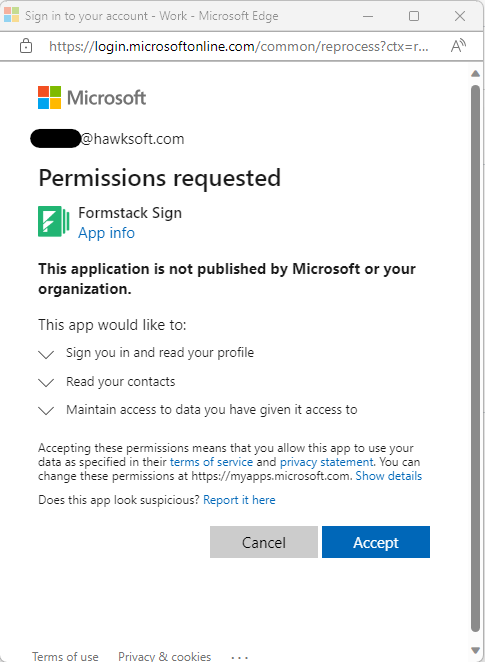
Once you have connected, the button will change to Disconnect.
To import contacts from a CSV spreadsheet
-
Click Upload CSV
-
Browse to the file for import.
The file must have a header row, and at least two columns named "email" and "name".
-
Select the file and click Open.
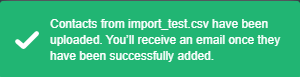
A popup message confirms the file was imported and lets you know you will receive an email when the contacts are finished being added.
In addition to importing contacts, the signer's contact information is saved under the My Contacts tab each time you create and send a document within Formstack Sign. This screen displays a list of previously saved contacts. You can remove contacts from the list as needed.
Profile Settings
Some of the previously mentioned tabs link to your profile settings at admin.formstack.com.
These settings can also be reached by clicking on your name at the upper right of the Formstack Sign homepage, then clicking Update Your Profile.
You might see "No Name" in the upper right of the Formstack Sign site rather than your name if it has not yet been changed in Profile settings.
For more information, see the Formstack help article, Update Your Profile.
Sharing a HawkSoft E-Signature Account
If multiple people are using a shared login and the 2-Factor Authentication (2FA) is set up on one person's phone (via authenticator app), others using the account may have difficulty accessing the code to log in. This is a common issue for applications that require 2FA.
For shared accounts, consider using the manual entry key option (next to the QR code during setup) to set up a shared online 2FA code generator in programs such as 1Password, Bitwarden, or LastPass. The manual entry key can be stored in a shared vault entry; anyone with access can generate a valid code from any computer.
For more information, see the Formstack help article, Two Factor Authentication.
Related Topics