This article explains how to copy an existing log note to a second policy within the same client or to a different client or policy. This is useful when information needs to be in multiple places. The option to copy, rather than move a log note, enables you to keep the existing copy in addition to creating a duplicate copy.
See Moving a Log Note for more information on moving rather than copying a log note.
To copy a log note
-
Retrieve the client, then select the Logs tab on any policy tab, or from the Client tab.
Log notes are listed by date and time, with newest at the top.
-
Double-click on the log note you want to copy.
-
Click the
 More Options icon.
 -
Click Copy Log.
-
Use the Copy Log screen to either:
Click Use Current Client to copy the log to a policy on the same client you are currently on.
OR
Search for the client you want to copy the log note to.
-
Check the box(es) for up to three client/policy tabs that you want to copy the log note to, and then click Next: Confirm.
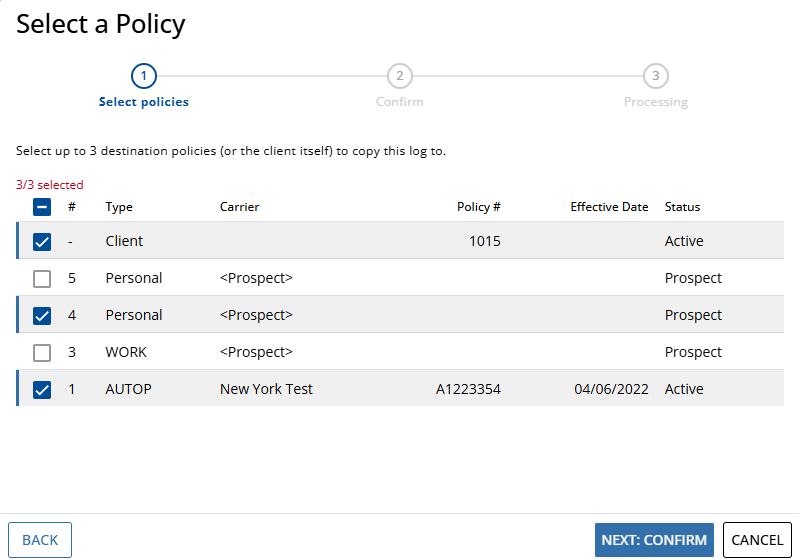
-
Review the listed information about which client and which tabs the log will be copied to, then click Confirm Copy.
A pop-up appears and states that the log note was successfully copied.
Tasks and attachments are copied with the log note. The copied log note retains the original log note's user and date/time stamp. The user who performed the copy is listed in an appended log within both the copied and original log notes. The original log note remains on the original client and the log note details state that the log note has been copied.
 Related Topics