Read Only Database
When your agency performs the final migration to HawkSoft 6, you can still access your HawkSoft 5 database in a "Read Only" mode.
This read only database reflects the status of your agency at the moment that your data was moved over to HawkSoft 6, and this data is not updated after final migration. This database will help you:
-
Review invoices, receipts, and other accounting transactions that occurred prior to migration.
-
View your original data in HawkSoft 5 to research questions about how/why some of your data migrated (or did not migrate).
-
Compare your HawkSoft 5 database with your HawkSoft 6 database.
HawkSoft 5 becomes Read Only as part of the final migration process. The HawkSoft Migration Team will perform the final migration on the date of your final migration appointment. After the final migration is complete, your staff will begin working in HawkSoft 6 and HawkSoft 5 will become read only.
For more information about the migration process, see the HawkSoft 6 Migration Overview.
 Required Permissions
No specific user permissions are required to perform this task.
What is a Read Only Database?
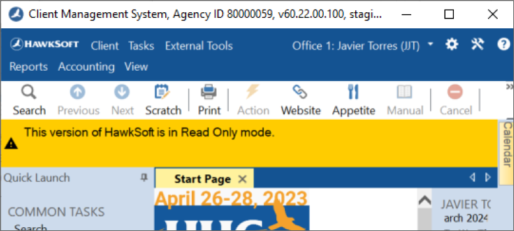
After your agency completes the final migration to HawkSoft 6, you will be provided access to your read only HawkSoft 5 database by the HawkSoft Migration Team. HawkSoft uses a banner to warn you that you are in your Read Only database.
Keep your user initials and password to HawkSoft 5 in a safe place. Once final migration to HawkSoft 6 is complete:
• Your HawkSoft 5 password cannot be recovered or changed. HawkSoft Product Support cannot assist you in regaining access.
• Your HawkSoft 6 password might not match your HawkSoft 5 password. Changing or resetting your password in HawkSoft 6 does not change your password in HawkSoft 5.
Once your Read Only database has been configured, you can sign in using your HawkSoft 5 credentials.
Available features
This read only database has very limited functionality. You can:
View your clients and policies, as they were at the time of migration to HawkSoft 6.
View a list of attachments on policies.
Due to size limitations, read-only copies of HawkSoft Online databases will not include attachments. However, all attachments which were originally in the HawkSoft 5 database will be migrated to HawkSoft 6.
Run reports on clients and policies.
Run accounting reports for transactions performed in HawkSoft 5.
Run commissions reports for transactions reconciled in HawkSoft 5.
Configuring a Read Only Database
Local agencies
If your agency hosted your HawkSoft 5 database on a local server inside the agency, you can access the read only database the same way you normally logged into HawkSoft 5 before final migration.
Your agency administrator may opt to remove the shared network setup and keep the read only database on just one workstation. This will remove access to the read only database for all other computers on the agency network. Your agency will no longer need to maintain a shared network configuration to reap the full benefits of HawkSoft 6.
Do NOT move your database until you have confirmed with your migration specialist that HawkSoft 6 has received all of your agency Attachments from HawkSoft 5.
Downloading a Read Only Database from HawkSoft Online
If your agency accessed HawkSoft 5 through HawkSoft Online, the HawkSoft Migration Team will help download the read only database to a single workstation in the agency (to be designated by an agency administrator). You can then open the read only database from this workstation at any time.
To download a Read Only copy of your HawkSoft 5 database from HawkSoft Online, the following criteria must be met:
You must be listed as an Administrator with the HawkSoft Billing department.
The HawkSoft billing department must have your current email address on file.
Your HawkSoft 5 user permissions must include Utilities > Backup and Setup > User List.
Your final migration must be complete.
To download a Read Only Database
In HawkSoft, open the Utilities menu and select Download Local CMS Copy.
The HawkSoft HSO Data Downloader dialog opens, and summarizes what a Read Only database entails.
Click Next.
The Downloader will estimate the time it will take to download each item below.
If you do not use the S: Drive, you can click Cancel and proceed to Step 3.
Select which files you want to download from HawkSoft Online.
Shared S: Drive - Download a copy of agency files stored in the S drive in HSO. If your agency has stored files in HawkSoft Online, but outside of HawkSoft, they are located on the S drive.
Local CMS Copy - Create a Read Only copy of HawkSoft 6 on your local workstation.
Agency Documents - Download a copy of the haw/agency documents folder to your local workstation. This includes saved reports, blank ACORD forms, and other files saved by the agency for use in HawkSoft.
Unmatched Documents Inbox - Download a copy of the haw/inbox folder to your local workstation.
Working Documents - Copies the haw\Working Documents folder to your local workstation. This is a copy of all attachments that have been checked out on the client file.
When you are finished, click Download Now.
The downloader will begin processing.
Optional: Click More Information to see details about what is downloading.
When the process completes, HawkSoft will tell you if any errors occurred. Click Close to complete the process.
If you selected the S: Drive, then those files are saved to your local workstation in the C:\haw\Migration\ folder.
All other files you selected are saved to your local workstation in the C:\haw\LocalCopy\ folder.
Downloading your user data from HawkSoft Online
Use this workflow to download a copy of any files you were storing in HawkSoft Online. For example, you can download a copy of your Outlook calendar. Each user can download a copy of their own files in HawkSoft Online, including External Tools, Desktop Files, My Documents, and Outlook files.
In HawkSoft, open the Utilities menu and select Download Local CMS Copy.
The HawkSoft HSO User Data dialog opens, and summarizes what a Read Only database entails.
Select what user data you want to download.
External Tools / Bridges / HawkLink Mappings - Download all of your external tools, bridge configurations, and HawkLink Mappings. You can import these into HawkSoft 6.
Desktop Files - Download a .zip file containing all of the files on your HawkSoft Online desktop.
My Documents - Download a .zip file containing all of the files in My Documents in HawkSoft Online.
Outlook PST Files - Download a file containing your messages, calendar events, and contacts from HawkSoft Online. This can be imported into Outlook on your local workstation.
When you are finished, click Download Now.
Optional: Click More Information to see details about what is downloading.
When the process completes, HawkSoft will tell you if any errors occurred. Click Close to complete the process.
HawkSoft saves the files you selected to your local workstation in the C:\haw\Migration folder.
Frequently Asked Questions
Can multiple users access the Read Only Database?
Yes. Once the Read Only Database has been downloaded, it can be configured and accessed like a local installation of HawkSoft.
Can we download multiple copies of the Read Only Database?
Yes, but HawkSoft instead recommends that you make copies of the database you have already downloaded, as copying your database locally is likely to be faster than re-downloading it. HawkSoft is happy to assist you with your first download. After your first download and setup, you can download additional copies, or you can copy the files you already downloaded.
Can the agency control where the Read Only Database is installed?
Yes and No. The download process is programmed to download to a specific location on your local workstation. However, you can move or copy those files after they have been downloaded. Moving your server requires additional configuration by your IT.
Related Topics