Carrier/MGA Setup Troubleshooting
This article describes common error messages and troubleshooting steps for Carrier/MGA Setup.
 Name is Reserved
The Error Updating Carrier/MGA: Name is reserved. notification will appear if you attempt to rename an existing carrier/MGA with the same name as a managed carrier/MGA in Carrier/MGA Setup.
All HawkSoft managed carriers/MGAs are listed as such in the Type column of the Carrier/MGA list. They have a  chip in the upper right when opened for editing, have been certified for downloads with HawkSoft, and their writing carriers and NAIC codes are automatically added to the carrier profile by HawkSoft.
This typically happens when HawkSoft later adds a managed version of a carrier you previously created as a custom entry. To resolve this and keep policies consistent, merge the custom carrier/MGA into the managed version. See Merge Duplicate Carriers for instructions.
To view which carriers/MGAs in your agency are listed as HawkSoft Managed Carriers/MGAs, click the  Setup menu, select the Carrier/MGA Setup, and then view the Type column of the Carriers/MGAs list.
Carrier Profile Locked
A dialog may open if the carrier/MGA profile you selected is locked because another user has the carrier/MGA profile open.
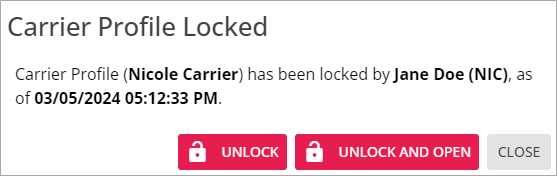
Click Unlock to unlock the carrier/MGA profile or click Unlock and Open to unlock and view the carrier/MGA profile.
Unlocking a carrier/MGA profile may result in the other user losing their changes to the carrier/MGA profile. If possible, reach out to the user locking the carrier/MGA profile to make sure they have saved their changes before unlocking the carrier/MGA.
Needs Review
HawkSoft gives you the option to automatically create carriers in Carrier Setup when you receive a download from a new or unknown carrier. This helps ensure that policies created from downloads are linked to a valid carrier on your carrier list. However, HawkSoft only includes the carrier name, writing carriers, and NAIC codes on carriers added automatically by download. Therefore, it's important to manually complete and review these automated carriers to make sure their information accurate.
To facilitate the process of finding and reviewing these download-added carriers, HawkSoft marks automatically added carriers in Carrier Setup with a  chip.
HawkSoft recommends taking some time to review the list of carriers in Carrier Setup regularly, and to especially keep an eye out for carriers with a "Needs Review" chip. When you find these chips, open the associated carrier, review the information, and complete the carrier's details as needed.
Once these carriers are updated by a user, the "Needs Review" chip disappears from their entry in Carrier Setup, and the changes are listed in the carrier's History.
See Carrier Downloads Overview for more information about carrier downloads in HawkSoft.
Related Topics