This article provides steps on how to fax documents from HawkSoft electronically, using a print device or through email.
Due to limitations with physical fax devices, HawkSoft supports faxing documents only electronically. To fax documents from HawkSoft through a physical device, the device must be connected to your PC or your network, and be configured to send faxes through a user interface on your computer.
 Fax electronically through a print device
If you have a multi-function printer that is also capable of faxing, or an e-fax program that interfaces with your PC as a 'print' device, you can fax documents from HawkSoft electronically by "printing" to this device.
This requires that your fax device or program be listed as a print device under Printers & Scanners in Windows.
- In HawkSoft, open the client and policy that contains the document to be faxed. Select the Attachments tab.
-
Open the document that you intend to fax.
To fax a PDF or image attachment
-
Open a PDF or image attachment to open the HawkSoft Client Viewer with your document.
-
Click the
 Print button on the viewer's toolbar.
A Print dialog opens with print settings, and a preview of your printed document.
-
Open thePrinter drop-down and select the fax device.
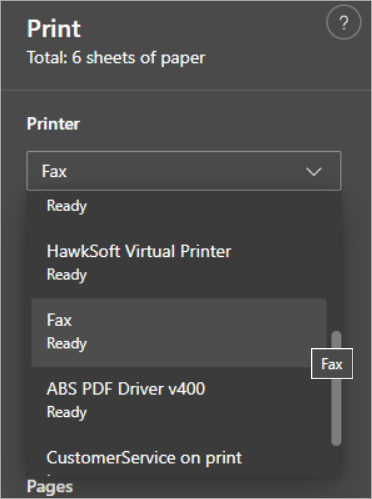
The name of your fax device will vary, but most fax devices have Fax at the end of the printer name, or may simply be named "Fax"
- Configure any other printing options from the Print dialog as needed, and then click the blue Print button to send the document to your fax device.
-
To fax a Word document
-
Open a Microsoft Word document.
-
Click File > Print from the Word toolbar.
A Print dialog opens with print settings, and a preview of your printed document.
-
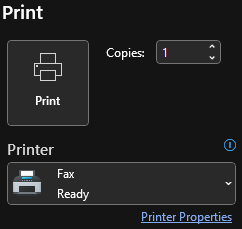
Open the Printer drop-down and select the fax device.
-
-
The name of your fax device will vary, but most fax devices have Fax at the end of the printer name, or may simply be named "Fax".
- Configure any other printing options from the Print dialog as needed, and then click the Print button to send the document to your fax device.
The faxed document is sent to your fax device or e-fax program. If you use an e-fax program, the program should now open up. Follow the instructions on your program to send the fax. If you use a multi-function printer, you may need to send the fax through your printer's control panel program on your PC, or through the menu on your physical printer.
-
Fax electronically via email
If you use an email-to-fax provider, you can also fax documents from HawkSoft by sending them as an email to your e-fax provider, who will then forward the email as a fax to the fax number listed in the address.
- In HawkSoft, open the client and policy that contains the document to be faxed, and then select the Attachments tab.
- Right-click the document you wish to fax, and then select Email > Send As Attachment.
-
In the To: field, enter the destination fax number, followed by your email-to-fax provider's domain.
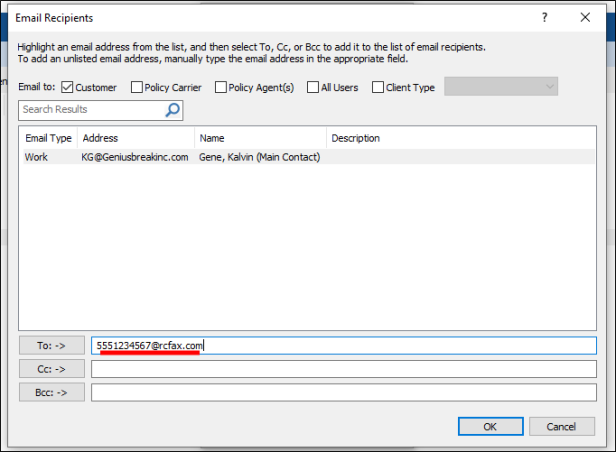
If you are unsure of what email address to enter to send a fax, consult your email-to-fax provider's support.
- Click OK.
-
Select an email template or select **No Template**, and then click OK.
The Compose Email window opens.
- Verify the email appears as you want your fax to appear, and that the document is listed at the bottom of the Compose Email window as an attachment, then click Send.
Your fax has now been sent. You may receive an email from your email-to-fax provider confirming the status of your fax.
Related Topics