ACORD Form Defaults
HawkSoft enables you to set customized default values for fields on ACORD forms. You can select a form to add defaults to, then type in the information you would like to be populated into any fields when you create those forms going forward. This can be useful if there are certain fields that should always be filled with the same information in specific ACORD forms that your agency creates.
ACORD form defaults behave as a "static" value and take precedence over data from the client or policy. Default values cannot pull data from a client, policy, or agency information.
When creating an ACORD form, users can choose if they want to create an ACORD form using custom defaults via a checkbox.
 How do I get here?
Click  Setup > ACORD Form Defaults in the upper right of the HawkSoft desktop app.
The ACORD Form Defaults window opens.
Here you can add custom defaults to forms, edit existing defaults you've previously defined, or remove all custom defaults for a form.
To set custom defaults for an ACORD form
This workflow will help you update default values on ACORD forms that do not yet have any default values.
If you have already set default values for an ACORD form and want to change those values, see To edit existing custom defaults for an ACORD Form.
-
Click Add in the upper right of the ACORD Form Defaults window.
The Select Form dialog launches.
- Optional: Use the Category drop-down list to filter forms by category. The filtered list appears in the list of forms.
- All Forms – Includes all forms including new, old, and current.
- Current Forms – Includes only the most current version of each ACORD form.
- New Forms– Includes only new forms that have been added to HawkSoft.
- Custom Categories – If your agency has created additional categories, select a category to include only forms in that category.
- Optional: Use the Search field to search for ACORD forms either by the form name or the ID number.
-
Highlight the desired form, and then click Select.
The HawkSoft Form Filler opens to a blank copy of the ACORD, with no data entered into any fields.
-
Enter any information into the fields that you want to automatically fill in when you create future copies of this form.
The defaults entered here will take precedence over HawkSoft-defined fill values.
-
Click Save in the upper left of the HawkSoft Form Filler window.
The Form Filler window closes, and the ACORD form is now added to the ACORD Form Defaults list.
The next time a user creates an ACORD form, they can choose if they want to create an ACORD form using custom defaults.
To edit existing custom defaults for an ACORD Form
This workflow will help you update default values on ACORD forms where you have already set default values previously. You can update existing default values, add additional default values, or remove default values.
To add default values to an ACORD form for the first time, see To set custom defaults for an ACORD form.
To remove all default values from an ACORD form, see To remove all custom defaults for an ACORD form.
-
Click on a form in the ACORD Form Defaults list to highlight it.
-
Select Edit in the upper right corner of the ACORD Form Defaults window.
OR
Right-click on the form and select Edit.
The form opens in the HawkSoft Form Filler, with only your previously defined defaults filled in.
-
Add, edit, or delete the contents of any field(s) on the form to change the default fill values for the field(s).
-
Click Save in the upper left of the HawkSoft Form Filler window.
The Form Filler window closes, and the ACORD form defaults are updated to your newly selected values.
The next time a user creates an ACORD form, they can choose if they want to create an ACORD form using custom defaults.
To remove all custom defaults for an ACORD form
-
Click on a form in the ACORD Form Defaults list to highlight it.
-
Select Remove in the upper right corner of the ACORD Form Defaults window.
OR
Right-click on the form and select Remove.
A popup asks you to confirm the removal of custom defaults for this form across the entire agency.
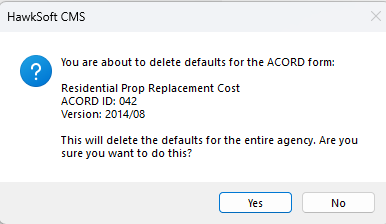
-
Click Yes.
The form is removed from the ACORD Form Defaults list, and new copies of this form will no longer have any custom default values when created.
To create an ACORD form using custom defaults
- Retrieve the client, and then select a policy.
- Click Action, and then select one item in each of the first three lists to describe what prompted this transaction.
-
Select ACORD Forms.
The Edit - ACORD Forms dialog displays any previously created ACORD forms for the selected client/policy.
-
Click New to open the Select Form dialog.
- Locate the form for which you added custom default values. See To create a new ACORD form for more information on searching and filtering the Select Form window.
-
Highlight the correct form and make sure the Use Agency Defaults checkbox at the bottom is checked, then click Select.
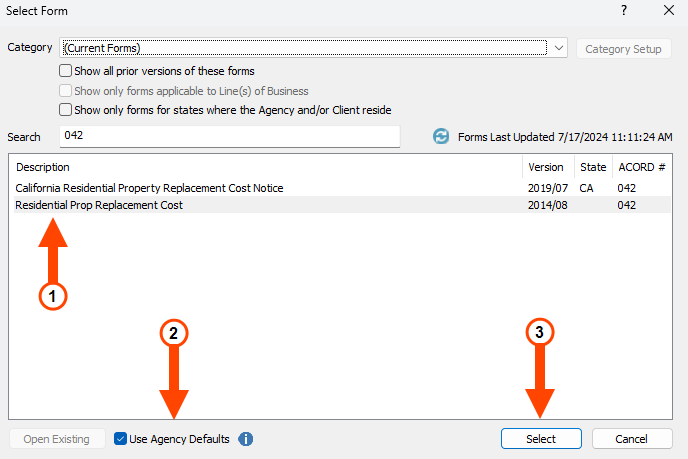
If you need to create a copy of the form without any custom defaults, you can uncheck the Use Agency Defaults button before clicking Select. The form will be created with only HawkSoft-defined values.
If the form does not have default values, Use Agency Defaults will be grayed out.
The ACORD form opens with information from the client/policy filled in, as well as any custom defaults you have defined.
Default values take precedence over data that would normally be filled in from the client or policy.
-
Complete the ACORD form and print, send, or attach it as you normally would.
See Creating and Modifying an ACORD Form for more details about finishing the ACORD form.
Upgrading a form to a new version
In the ACORD Form Defaults window, HawkSoft will indicate if an Upgrade is available for each form.
⇑ - A double up arrow indicates a new version of the ACORD form is available. For example, if you are using ACORD 088 (Personal Insurance Application) version 2015/12, HawkSoft will indicate that a newer version of that form is available.
↑ - A single up arrow indicates HawkSoft has improved how data floods from the policy to the form.
To update to the newest version of a form, select the form, then click Upgrade. HawkSoft will attempt to preserve your existing ACORD form defaults but recommends reviewing the form before and after updating to ensure your default values have been preserved.
If you already have defaults set for the current version of a form and you attempt to update an old version of that form, HawkSoft will ask for confirmation before overwriting the current form.
Required Permissions
Required Permissions:
In order to complete this task, user permissions must be set to include:
Agency Setup > ACORD Form Defaults
See User Permissions for more information.