You must first enter all existing opening balances in QuickBooks® before integrating with HawkSoft:
-
When creating a new QuickBooks company file or QuickBooks Online subscription
-
When adding a bank account to your current QuickBooks company file or QuickBooks Online subscription
This article explains how to enter opening balances in QuickBooks for the start of a new accounting period.
ToEntering opening balances for each bank account must be completed before exporting transactions from HawkSoft, and will help ensure that all accounts have the correct starting balance when completing month-end reconciliation.
This task is typically performed by an Owner/Administrator, Manager, or Bookkeeper.
Agencies creating a Trust-only company file (recommended) need to complete the steps in the Entering open bank transactions section below.
Agencies creating a combined Trust and Operating company file must complete the steps in all three sections below.
 Required permissions
To perform this task, no specific HawkSoft user permissions are required.
For QuickBooks Online
HawkSoft attempts to keep these instructions up to date, however the menus and layout of third party tools HawkSoft integrates with may change at any time.
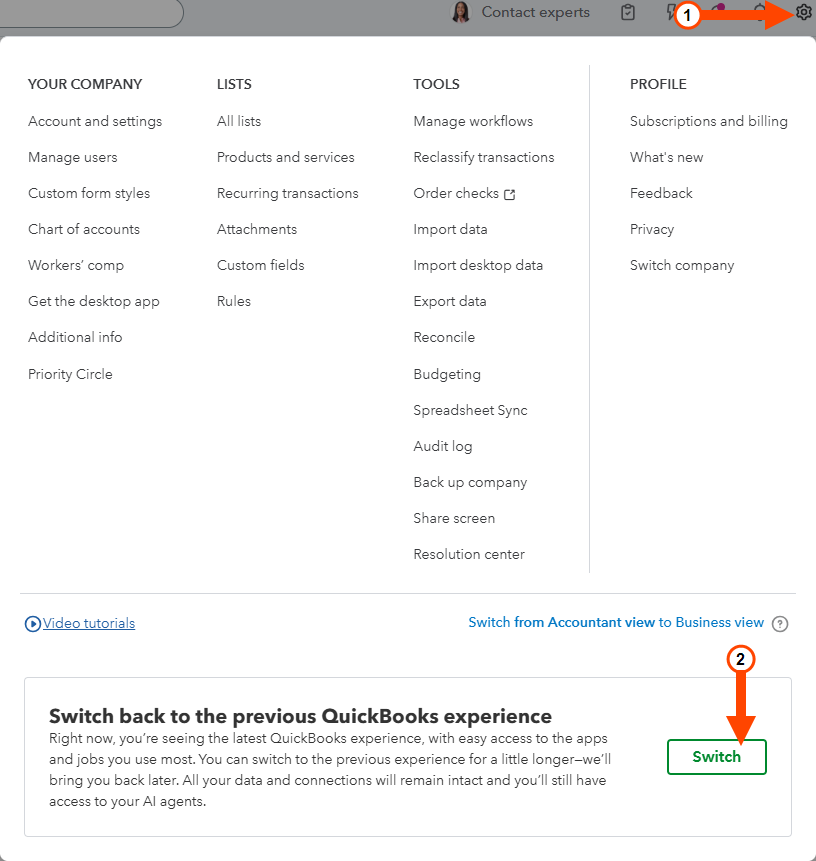
These instructions are written for the classic version of QuickBooks Online that we have seen with most users. It appears that Intuit is testing a new QBO layout for some users. If you are on the new QBO layout and need to switch to the classic version to follow these instructions, perform the following steps.
-
Click the Settings icon at the top right of QuickBooks Online.
-
Click the Switch button at the bottom of the Settings menu.
Before entering an open balance, locate your most recent bank statement before your QuickBooks start date, and find the ending balance and end date.
The bank account now lists the balance on the Chart of Accounts, as of the date the balance was entered.
Enter open bank transactions directly on the bank account register for items that may have been posted in a previous management system, but have not cleared the bank as of your opening balance date.
- Click Chart of Accounts on the main QuickBooks Start Page.
- Click View Register on the bank register you want to use to enter open bank transactions.
- Select Add Check using the pull-down by the date select.
- Enter the date of your opening balance, check number (if applicable), and payee (optional).
- Enter the amount in the Payment field.
- Select Opening Balance Equity from the Account drop-down box.
- Type Open Bank Transaction and the date of opening balances in the Memo field.
- Click Save.
Continue to enter all open bank transactions.
When you start a new company file with a start date later than the actual start date of the company, you need to enter opening balances for the various general ledger accounts.
This also applies when tracking your agency's full financial records for both Operating and Trust accounts, including income and expense. HawkSoft, Inc. recommends referring to an accurate balance sheet from your previous management system, if available.
Click New from the main QuickBooks menu, then select Journal Entry.
The Journal Entry ledger opens.
- Choose the first account to be entered from the Account drop-down list.
Enter the account balance as a positive amount in the appropriate column depending on the type of account.
For example:
- Asset accounts – enter a positive balance in the Debit column.
- Liability and Equity accounts – enter a positive balance into the Credit column.
Optional: Enter a description.
Example: "Balance as of xx/yy/zzzz"
Continue entering account balances for each account on the Account drop-down list.
Enter all opening balances for each account except Bank balances, Accounts Receivables, and Company Payables.
Bank balances are entered into QuickBooks using the procedure above, Entering the bank statement balance. Accounts Receivables and Company Payables are entered in HawkSoft and imported into QuickBooks. See Opening Balances Overview for more information.Use the Opening Balance Equity account as the offset for any difference between the two columns.
The Opening Balance Equity Account is a special clearing account created by QuickBooks. See the QuickBooks help topic What is Opening Balance Equity for more information.
Once all balances have been entered, the totals of the Debit and Credit columns must be equal.
When the Journal Entry is complete, click Save & Close.
For QuickBooks Desktop
Click Chart of Accounts on the main QuickBooks Start Page.
Locate the Bank Account on the register.
Right -click on the account, and select Edit Account.
Click the Enter Opening Balance button
The Enter Opening Balance: Bank Account dialog box opens.
Using the bank statement, enter the statement ending balance.
Enter the statement ending date.
Click OK to close the dialog box.
Enter open bank transactions directly on the bank account register for items that may have been posted in a previous management system, but have not cleared the bank as of your opening balance date.
Click Chart of Accounts on the main QuickBooks Start Page.
The register opens.
Enter the date of your opening balance, check number (if applicable), and payee (optional).
Enter the balance amount in the Payment field.
Select Opening Balance Equity from the Account drop-down box.
Type "Open Bank Transaction xx/yy/zzzz [date of opening balances]" in the Memo field.
Click Record when all entries are completed.
When you start a new company file with a start date later than the actual start date of the company, you need to enter opening balances for the various general ledger accounts.
This also applies when tracking your agency's full financial records for both Operating and Trust accounts, including income and expense. HawkSoft, recommends referring to an accurate balance sheet from your previous management system, if available.
Select Company > Make General Journal Entries from the top menu bar.
Enter the date you are beginning your opening balances into the Date field.
Choose the first account to be entered from the Account drop-down list.
Click into the ‘account field’ to access the drop down list.
Enter the account balance as a positive amount in the appropriate column depending on the type of account.
Example:
Asset accounts – enter a positive balance in the Debit column.
Liability and Equity accounts – enter a positive balance into the Credit column.
Optional: Enter a Memo.
Example: Balance as of xx/xx/xxxx
Leave the Name field empty.
Continue entering account balances for each account on the Account drop-down list.
Enter all opening balances for each account except Bank balances, Accounts Receivables, and Company Payables.
Bank balances are entered into QuickBooks using the Entering the bank statement balance workflow above. Accounts Receivables and Company Payables are entered in HawkSoft and imported into QuickBooks.
See Opening Balances Overview for more information.Use the Opening Balance Equity account as the offset for any difference between the two columns.
The Opening Balance Equity Account is a special clearing account created by QuickBooks. See the QuickBooks help topic What is Opening Balance Equity for more information.
Once all balances have been entered, the totals of the Debit and Credit columns must be equal.
When the General Journal Entries are complete, click Save & Close.
Related Topics