HawkSoft enables you to create customized announcements on your Agency's Start Page. You might want to use the Announcements section to display agency news, company goals, and events for your staff.
HawkSoft provides a template to help you get started customizing your announcements.
This task is typically performed by an Owner/Administrator or Manager.
 Required Permissions
In order to complete this task, user permissions must be set to include:
Agency Setup > General Configuration
See User Permissions for more information.
To customize your Agency Announcements
You can edit Agency Announcements directly from the Start Page. HawkSoft has a default template to make it easy for you to customize announcements for your agency.
-
Launch HawkSoft Desktop and navigate to the Start Page if you are not already there.
OR
Log into the HawkSoft Web app, accessed from any computer.
For more information about logging into the HawkSoft web app, see Logging In and Out of HawkSoft.
-
Click the
 More Options button in the top-right of the Announcements section to open the Announcements Settings menu, and then click Edit Announcement.
If you don't see the Announcements section on your Start Page, click
 More Options in the upper-right corner, and then click Show Announcements.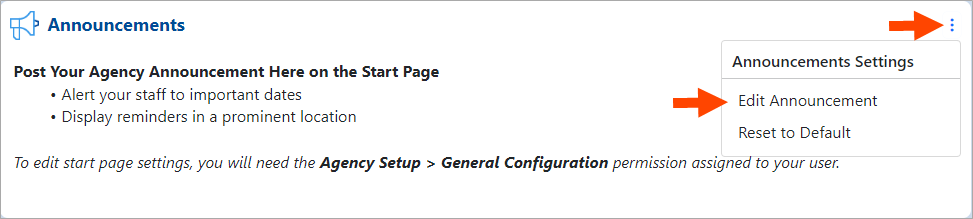
The Agency Announcements Editor opens.
While a user edits the Agency Announcement, HawkSoft locks it from being accessed by other users. Anyone who tries to access it is notified with a message showing who is currently editing the Announcement, with an option to override the lock if needed. Overriding the lock will cause the user currently editing the Announcement to lose all unsaved changes. Before overriding the lock, check in with the user listed in the warning to make sure all of their changes to the Announcement are saved.
If another user unlocks and edits the announcement, the original editor receives a warning that it was changed during their session. -
Type into the Editor and replace the template content with your own announcement.
-
Use the Edit, Insert, Format, and Table tabs to modify the text, add images and tables, and format your announcement (by bolding, underlining, changing text color, etc.).
Once you have inserted an image into your announcement, you can click on the image to adjust the size and placement.
You can adjust the size of the image from the Insert/Edit Image dialog or drag the corners to expand or shrink the image.
To adjust the placement of the image, use the alignment tools to determine the placement of the image within the text.
If you delete all content from the Agency Announcements section and then click Save, the Agency Announcements section displays as a blank section for your agency. To reset Agency Announcements to the HawkSoft default template, click the
 icon next to Announcements on the start page, and then click Reset to Default.
 -
Click Save to display the Agency Announcements on the Start Page for your agency.
To hide the Agency Announcements section
-
Launch HawkSoft Desktop and navigate to the Start Page if you are not already there.
OR
Log into the HawkSoft Browserapp, accessed from any computer.
-
On the Start Page, click the
More Options button in the upper-right corner. The Agency Start Page Settings opens.
-
Click Hide Announcements.
To re-enable Agency Announcements, click
More Options in the upper-right corner, and then click Show Announcements.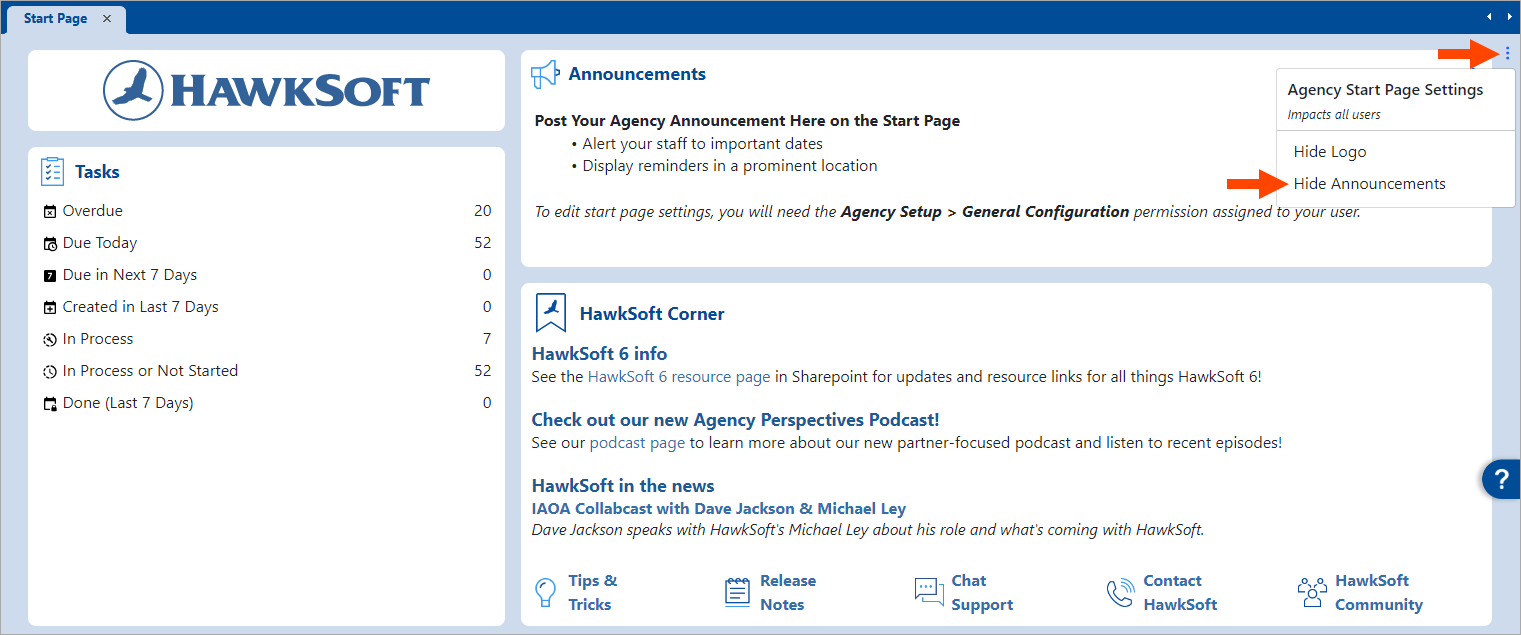
The Agency Announcements are hidden from the Start Page and do not display for your agency.
Related Topics