Download Task Rules
You can configure Download Task Rules to define when a task should be created, and to whom the task should be assigned to, upon receiving a carrier download. When downloads are received by HawkSoft, the downloads are checked against these Task Rules, and if the download matches the criteria of a rule, HawkSoft automatically creates a task for the specified user(s) associated with that particular task rule.
This article teaches you how to access Download Task Rules, set a fallback user, create a rule and assign the task, and edit or delete existing rules.
To learn more about creating and managing tasks in HawkSoft, see Tasks Overview.
 Required Permissions
In order to complete this task, user permissions must be set to include:
Downloads > Downloads Dashboard and Report > Download Configuration and Tasks
See User Permissions for more information.
Why configure Download Task Rules?
By configuring Download Task Rules for specific types of downloads, you can ensure that the appropriate users at your agency are notified when particular download types are received. When a download is received, HawkSoft automatically compares each download against your existing download task rules and then automatically creates and assigns tasks to notify users of the download, so they can perform any necessary follow-up actions.
For example, if one user in your agency is responsible for policy renewals, then you may configure a Download Task Rule to automatically create and assign a task to that specific user whenever a policy renewal is received.
As another example, a set of two or three users might need to follow up with only personal clients about uprates over a certain threshold amount. In this case, you can use Download Task Rules to automatically assign these users for follow-up when an uprate on a personal client's policy is received.
To access Download Task Rules
-
Click Activities, and then select Download Dashboard.
OR
-
Log into the HawkSoft Web app, accessed from any computer.
-
Click the Download icon
 in the left column of the HawkSoft web start page to access the Carrier Download Dashboard
For more information about logging into the HawkSoft web app, see Logging In and Out of HawkSoft.
-
-
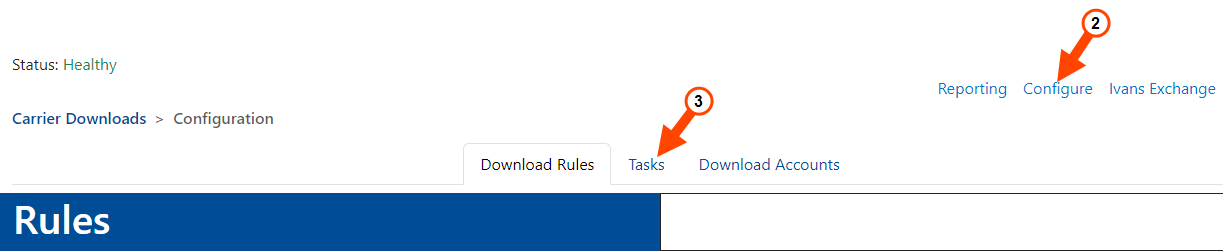
Click Configure in the upper-right of the Downloads Dashboard.
-
Select the Tasks tab.
To create a Task Rule
-
Click
 on the top right of the Task Rules table.
The Create Task Rule dialog opens. This consists of three sections: Task Rule, Task Details, and Task Due Date.
-
Required: Complete the Task Rule details:
The details entered in the Task Rule section define when a download should trigger the automatic creation of a task.
-
Confirm that the Enabled toggle is active.
If the Enabled toggle is not active, the rule will be saved, but will not apply to any downloads received until the Enabled toggle is activated.
-
Select a Download Type. This selection informs HawkSoft which download type you would like this rule to apply to, such as New (new business), Renewal, or Cancellation.
The Download Type you select automatically populates in the Category field of the task details and will also populate in the Category field when a task is created.
-
Select an Application Type, if available. The Application Type defines whether the rule applies to Commercial downloads, Personal, or both.
The Application Type drop-down is not present for all Download Types. If the selected Download Type is Claims, eDocs, or Memos, this drop-down will not appear.
Renewal or Renewal Quote - additional settings
You have the options to create task rules based on rate increase thresholds. By default the rule is set to All, which will always create a task for the Renewal or Renewal Quote. You can create rules based on a premium increase below a specific percentage or at or above a specific percentage.
-
Apply the task rule to your desired Client Offices.
By default, the Client Offices radio button is set to Apply to all offices. This option will include offices that are created in the future, and should be used for task rules intended to affect the entire agency.
To apply the rule to specific client offices
-
Select the Apply to specific offices radio button.
If you choose to apply the task rule to specific offices, you may need to edit the rule when new offices are created. Newly-created offices are not added to "specific office" task rules automatically.
-
Using the check boxes that appear, select one or more offices to apply the rule to.
You can click Select All to check all active offices at once, or Deselect All to uncheck all offices.
You can also start typing the name of an office in the Type to filter... field to quickly locate and select or deselect that office. This can be useful if you have a long list of offices.
-
You can create multiple rules to cover a range of rate increases.
For example, you may set rules to have one user receive tasks for rate increases below 30%, and another user receive tasks for rate increases at 30% or above.Earlier versions of HawkSoft 6 included a separate "Uprate Alert" download type. To prevent duplicate tasks for the same download, this type has been deprecated.
If you previously used rules with the Uprate Alert type, HawkSoft automatically replaced them with two new rules—one for Renewals and one for Renewal Quotes—using the same rate increase thresholds as your original rules. -
-
Assign users to the task and then complete any other Task Details, as needed:
More on Task Details:
The Task Details define which preset task fields are automatically applied to any task created by the rule.
- The Category defaults to your Download Type selection.
-
Optional: Enter a Title for the task.
-
Optional: Select a Priority level for the task.
-
Required: In the Assign Users field, search for and select up to 5 specific users or specific type of user(s) that you want to apply to the rule and assign to the task.
If a user role is applied to the rule, then the task will be created for whichever user is assigned to that role on the client/policy that the download matches to.
After selection, the initials or role of the assigned users/roles show in chips beneath the Assign Users field. Click the X on any of these chips to remove the assigned user/role from the rule.
-
Optional: Check the Assign one task per assignee box to create a duplicate task for each user assigned to the task. Each user manages the task separately.
If left unchecked, only one task will be created that is assigned to all the selected users. This single task can be closed for all users by any one assigned user.
-
Optional: Describe the purpose of the task in the Description section.
-
Optional: Apply a Due Date to the task.
More on Due Date rules:
-
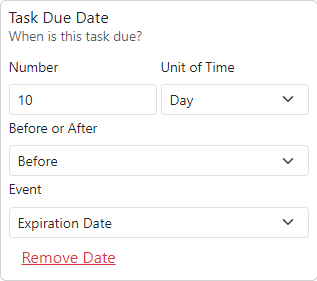
Click No Due Date under the Task Due Date section on the right.
-
Enter a number of time units into the Number field.
-
Select your Unit of Time: Days, Weeks, or Months
-
Select whether the task should be due Before or After the designated length of time, relative to the event in the next drop-down.
-
Select the Event that the due date will be calculated from, i.e. [X selected time units] before or after this event.
For example, you can configure the rule to create a task that is due 10 days before the associated policy's expiration date using these settings.
-
-
Click Save in the lower right to save the task rule.
Now that the rule is configured and enabled, HawkSoft will compare any downloads received going forward against the rule. If the download type and application type match the rule, the designated task is automatically created and assigned.
To set a Fallback User
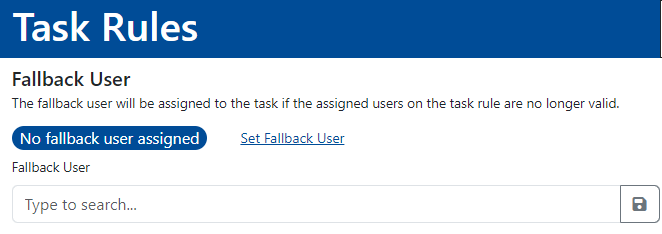
You can designate one user in your agency as the fallback user for any tasks created by a task rule. If any users assigned to a task rule are no longer active or valid, the fallback user will automatically replace the inactive/invalid assignee on the task that is created by the rule. Setting an active user as your fallback user helps ensure that at least one active user is always notified when a task is created by a download task rule.
-
Click Set Fallback User.
-
Search for and select the name or initials of the user you wish to designate as the Fallback User.
-
Click
 Save.
Save.The fallback user is saved.
To modify the Fallback User, click Change Fallback User, and then search for and select the name or initials of the new user you wish to designate as the Fallback User.
To edit a Task Rule
Changes made to a download task rule will not affect any tasks that were previously created by the rule.
-
Click Edit in the Actions column of the Task Rules list to edit the specific rule.
-
Modify the Task Rule, Task Details, and task Due Date, as needed.
-
Click Save.
To delete a Task Rule
You can delete a task rule if it is no longer needed or was created in error. Once a download task rule is deleted, it cannot be restored.
Any tasks that were previously created by this rule will not be affected.
If you simply need to turn off a task rule, but may want to turn it back on later, you can edit the task rule and uncheck the Enabled toggle instead of deleting the task. When you are ready to turn the task back on, edit the task rule again, and check the Enabled toggle.
-
Click Delete in the Actions column of the task rule you would like to delete.
-
Click Yes (Delete) to confirm and delete the task rule.
Related Topics