The Attachments List
he Attachments list shows every document attached to a client or policy. You can sort and group the list, filter it to show attachments, carrier downloads, policy snapshots or archived files, and search for a specific document. You can also review premium changes over time in the Rate Change History.
See Importing and Attaching Documents to Clients and Policies for more information about attachments and the methods used to attach documents to clients and policies.
For a list of helpful articles on opening, modifying, sharing, and managing attachments, see Attachments Overview.
Can't find an attachment? Check your attachment filters.
See To search or filter attachments for more information.
Attachments column information
The following information is displayed for each attachment to provide a history of changes made to the policy:
You can click the  Column Options button to reorder the Attachments List columns.
| Column heading | Description |
|---|---|

|
An icon that indicates the attachment's file type. An |
| Date Attached | The date the file was attached. |
| Description | The description is entered for the document at the time it is attached, and can be modified in the Properties dialog. When a user archives an attachment, the system adds (ARCHIVED) to the beginning of its description. |
| Category |
The category entered for the attachment. The category enables you to group the attachments on the Attachments screen. See Customize Lists and Menu Options Overview to modify the options on the Attachment Categories list. |
| File Type | The type of file attached. |
| User | The user who attached the file. |
| Effective Date | The effective date of the attachment. |
| Premium |
When an attached download updates the policy premium, the new premium appears in this column. Additionally, you can choose to add a premium amount on manually attached documents. The Premium can be modified in the Properties dialog. |
| Premium Change |
Premium change applies only to new business, policy change, rewrite, re-issue, renewal, or renewal quote downloads. When a download updates the policy premium, the difference between the previous downloaded premium and the current downloaded premium amount appears in this column. |
| Policy |
The policy that the attachment is associated with. If blank, the attachment is attached directly to the client itself (i.e. under the Client tab). This column only appears if Show Attachments for All Policies is enabled. |
 Info icon indicates a missing attachment. Hover over this icon to see more information.
 To search or filter attachments
The Attachments List contains several filter options to help you quickly narrow down the list and easily find attachments.
You can use any combination of filters, search options, and sorting to refine which attachments you currently see. Additionally, you can click the Column Options button to reorder the Attachments List columns.
Filter Options
Show attachments for all policies - If this option is unchecked, only attachments from the selected policy tab will appear.
HawkSoft will remember your last selected Show attachments for all policies option. If the box is checked, then all attachments for all policies on the client will display on the Attachments tab the next time you launch any client.
Attachments - Select to view attachments including all PDF documents, ACORD forms, and Image files, as well as all other attachments not listed under Downloads.
Downloads - Select to view downloads and policy snapshots.
Policy Snapshots are attachments that provide a historical record of a policy's information at a given time. Policy Snapshots can be created each time a significant change is manually made to a policy, depending on your agency's global Policy Snapshot setting in General Settings, as well as the Policy Snapshot Override setting for the carrier in Carrier Setup.
See Policy Snapshot to learn more about how to set up and work with Policy Snapshots.
Archived - Select to view attachments marked as archived in the list of attachments.
Search Options
Group By - Use this drop‑down to choose how you want to organize the attachment list. You can select additional search options to filter your list. Select None to remove the grouping.
Description – Enter any text used for the description of the attachment(s) you are looking for.
User – Enter the initials or name of the user who attached the file(s) you are looking for.
File Type - Use this drop-down to choose which type of attachment file(s) you are looking for.
Category - Use this drop-down to select the category of attachment(s) you are looking for.
Rate Change History
The Rate Change History link is located in the upper right of the Attachments tab view screen, and launches the Rate Change History dialog.

The Rate Change History table lists all of the download transactions on this policy, including their purpose, their effective date, any change in premium, and the percent of change for the premium, if any. Actual transactions are not compared to Renewal Quotes or Re-Quotes.
Click a transaction type link to open the associated carrier download for further details.
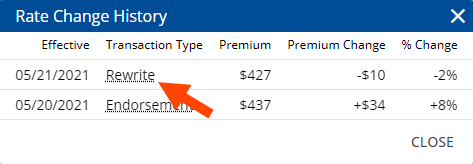
Rate change history only shows downloads processed by HawkSoft, and does not include manual policy updates.
See Downloads Viewer for more information about reviewing carrier download files.
Attachments right-click menu options
Right-click on an item in the attachment list to access menu options for that attachment.
To select more than one attachment, hold down the CTRL key and select multiple attachments. Once the attachments are chosen, right-click on one of the highlighted selections to access the menu. Not all menu options are available when multiple attachments are selected.
| Menu Item | Function |
|---|---|
| View |
Open the selected attachment in the Attachments Viewer. |
|
Create Working Document |
Modify an encrypted document, such as an Agency Checklist. See Working Documents for more information. |
| Copy |
Copy the attachment(s) to your Windows® clipboard, and then paste into another location, such as your desktop or an email. Once pasted, the attachment keeps the Description name as the file name. See Save Attachments to Your Computer for more options. |
| Download | Download the document(s) to your computer. |
| Copy Path | Copy the file path to your clipboard. Useful for carrier websites that upload documents from pasted file paths. See Upload Attachments to a Carrier Website for more information. |
| Send for E-Signature |
Send the attachment for electronic signature. See Sending Documents for HawkSoft E-Signature for detailed steps. See Configure DocuSign for E-Signature to configure E-Signature with your vendor. |
|
Select an attached email, and then select Email > Reply, Reply All, Forward, or Send as Attachment. OR Select an attached document, and then select Email > Send as Attachment. The attachment in the email will retain the Description as saved in the Attachments List. Emailing a policy download (AL3) or EDoc file from HawkSoft will attach a copy of the download to the email as a PDF document. This enables the recipient to more easily view the file. The download attachment on the client/policy in HawkSoft retains its original file type. See Email Overview for instructions on emailing from the Attachments list. |
|
| Copy To (Other Client/Policy) |
Copy the attachment(s) to another client or policy, and retain a copy on the existing policy. See Copying an Attachment to Another Client/Policy for instructions. |
| Move To (Other Client/Policy) |
Move the attachment(s) from the current client to a different client or policy. This archives the attachment on the Client/Policy. To restore the attachment on the original client file, see Restore. |
| New Task | Create a Task for a user to review the document or a Task to follow up on the document. See Creating and Working with Tasks. |
| Compare to Previous |
This menu option appears only when a Policy Snapshot or Download is selected. Compare changes between two downloads or Policy Snapshots created in HawkSoft. This selection is available only for Policy Snapshot attachments, or attachments received as part of a carrier Policy download. See Comparing Downloads and Policy Snapshots for more information. |
| Add Quick Log |
Create a new log note and link the attachment. See Linking Attachments to a Log Note for more information. |
| Link To Log |
Link the attachment to an existing log note. See Linking Attachments to a Log Note for more information. |
| Archive |
Select Archive to remove the attachment from view. The file can be viewed and/or restored, if needed. See Archiving/Unarchiving an Attachment for more information. |
| Restore | After clicking the  dots menu to the right of the attachment filters, click the Show Archived Attachments option. Right-click on an archived attachment, and then click Restore to return it to the list of active attachments. |
| Update Policy |
Update policy information, such as coverages and premiums, from a Policy download file. This selection is available only for Policy Snapshot attachments, or attachments received as part of a carrier Policy download. |
| Properties |
Open the properties view of the attachment file and edit as needed. See Attachment Properties for more information. |
Required Permissions
Required Permissions:
In order to complete this task, user permissions must be set to include:
Client Access > You must have permission to the Client type you are accessing attachments for.
See User Permissions for more information.
Related Topics