Sandbox Exercise - Summarize a Report
This exercise will guide you through summarizing a report in HawkSoft, which allows you to break down a report by the distinct values in a given column. For example, you may run a report for expired policies and then summarize that report by the agents associated with those policies.
This exercise is for training purposes, and is intended for use in your sandbox environment.
-
Select Quick Reports from the Reports menu.
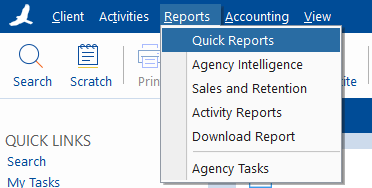
HawkSoft Business Intelligence opens to Quick Reports in your preferred web browser.
When prompted for HawkSoft Web credentials, your username will be Initials@Agency ID, where the initials are the same ones you use to log into the HawkSoft application. Your password will be the same password you use to log into the HawkSoft application.
Your Agency ID is displayed in the top left corner of the HawkSoft application window for easy reference. -
Click the + New Report button.
-
Select Client > All Clients, then click Run Report.
-
Click the Summarize button in the top right of the completed report detail.

The Summarize Report dialog opens.
-
Select the report column to summarize by from the Select Column drop-down.
If you select a date column, such as Effective Date, you will need to enter additional information.
 Date Options
-
Year: summarizes any dates in the same year into one category.
-
Year-Month: summarizes dates based on the year and month only.
-
Month: summarizes all dates in the same month into one category, regardless of year.
-
Month-Day: summarizes dates based on the month and day only, ignoring year.
-
Date: summarizes based on the full date, year/month/day.
-
-
Click Summarize to create a summary of the report based on selection.
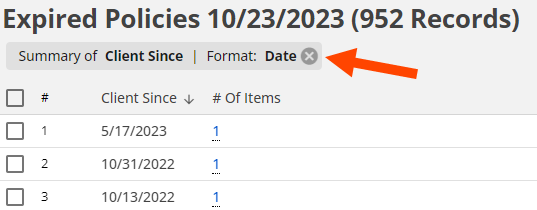
The summarized report is displayed. Your chosen summary option is shown in the top left of the report.
-
Optional: Click the number in the # Of Items column to the right of any summary category to open a new report based off the original. This new report contains only the items that match the corresponding summary category.
-
Optional: Click the X on the summary option shown in step 6 to close the summary and return to the original report.
Congratulations! You've learned how to summarize a report, view a detailed report on a summary category, and return to the base report. You've completed the Summarize a Report exercise!
For more information about Reports, and what they can do for your agency, see Agency Reports Overview.
Related Topics