Customize Your HawkSoft View
HawkSoft includes several options for changing the way HawkSoft Desktop looks, such as the default zoom level, your choice of several color themes, and the display of toolbars. These options affect just the workstation that they are set on, meaning you can have different default zoom levels or color schemes for HawkSoft on your laptop versus your desktop PC, for example.
This article explains how to locate and apply settings to customize your HawkSoft view.
 Required Permissions
No permissions are required to update your View Preferences.
See User Permissions for more information.
How do I get here?
To access visual customization options for HawkSoft, click the View menu.
Toolbar options
There are two settings in the View menu that control the appearance of the HawkSoft toolbar, which contains the Search and Previous/Next buttons, among others.
-
Toolbar - If this option is checked, the toolbar is displayed on-screen. If this is unchecked, the toolbar is not displayed.
-
Toolbar Captions - If this option is checked, buttons on the toolbar have text labels below the button icon. If this is unchecked, toolbar buttons display only the icon, and the buttons are smaller and more compact.
Side Panel Options
There are three options that control the display of the Quick Launch and Calendar panels, to the left and right of the client view respectively.
-
Dock Quick Launch Panel - When checked, the Quick Launch panel to the left of the client view is always displayed. When unchecked, the Quick Launch panel is only displayed when hovering over the Quick Links button to the left of the client viewer.
This behavior is also controlled by the pushpin icon located at the top left of the panel when it is visible.
-
Dock Calendar Panel - When checked, the Calendar panel to the right of the client view is always displayed. When unchecked, the Calendar panel is only displayed when hovering over the Calendar button to the right of the client viewer.
This behavior is also controlled by the pushpin icon located at the top left of the panel when it is visible.
-
Reset Panels - This option returns the size of the Quick Launch and Calendar panels to their defaults.
The Quick Launch and Calendar panels can be resized by clicking and dragging on the border with the client viewer.
Themes
You can pick from the following visual themes in the Theme sub-menu, located inside the View menu:
-
Light
-
Blue
-
Dark
The Theme setting affects the appearance of the menu bar, toolbar, tab bar, and side panels. It has minor effects on the appearance of client/policy edit screens. This setting does not affect the appearance of the start page, the client view, or external sites such as reporting and commissions.
Default Zoom Level
You can use the Adjust Default Zoom Level option to change the default zoom setting that HawkSoft Desktop applies to the Start Page and to the client view on your current device. This menu option will also display the current zoom level to the right.
This setting affects the size of text, buttons, and other elements on the start page and the client view only.
You can temporarily adjust the current zoom level by holding Ctrl and scrolling the mouse wheel. This will only affect the client that you are currently viewing, and will not be remembered when you re-open that client.
When temporarily adjusting the zoom level using Ctrl + scroll wheel, the zoom percentage is briefly displayed in the lower right.
To Set Default Zoom Level
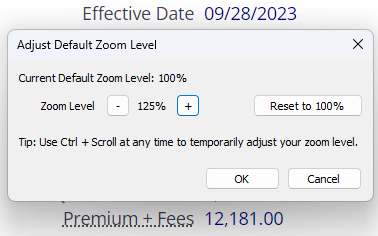
This dialog displays the current default zoom level at the top, followed by the zoom level selector.
From the View menu, click Adjust Default Zoom Level.
The Adjust Default Zoom Level dialog opens.
Use the - and + buttons to set the Zoom Level.
This uses the same stepped increments as you would find in most web browsers (e.g. 100% -> 110% -> 125% -> 150%).
As you adjust the selected zoom level, the client view or start page behind the dialog will be zoomed accordingly, enabling you to preview the change.
If you have temporarily adjusted the zoom level using Ctrl + scroll wheel, your temporary zoom level will be selected when opening the Adjust Default Zoom Level dialog.
Optional: Use the Reset to 100% button to return the default zoom level to 100%
When you are finished, click OK to save the selected Zoom Level as the new default zoom level.
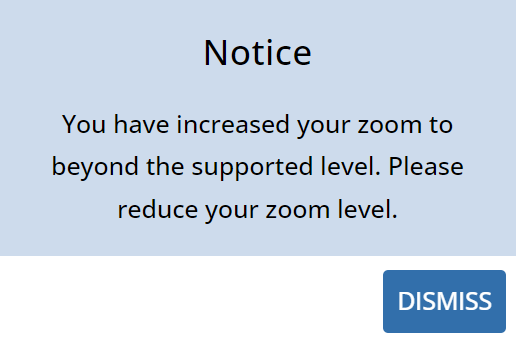
If you increase your zoom level too high, a warning is displayed. The exact zoom percentage that causes this warning may vary depending on your screen size and desktop resolution.
You can dismiss this warning and continue working at this zoom level if needed, but HawkSoft cannot guarantee that all client screens will be useable at this zoom level.
Related Topics