Customize Sources
Sources serve as a way to track marketing strategies when you insert new clients and/or new policies. For example, when you enter a new client you may enter the Source as "Website", so your agency can acknowledge how the new client was acquired.
HawkSoft provides a default list of sources that you can modify to fit your agency needs.
This task is typically performed by an Owner/Administrator or Manager.
 Required Permissions
In order to complete this task, user permissions must be set to include:
Agency Setup > Sources
See User Permissions for more information.
How to access Sources
-
Click the
 Setup icon, and then select Customize Lists.
 -
Select Sources from the list.
-
Click Edit.
To create a new Source
You can add additional sources to the default list. Once added, new sources are available from the Sources drop-down menu on the Name and Address screen when you insert a client and also on the Policy Information screen when adding a new policy.
-
With the HawkSoft Sources dialog open, click New.
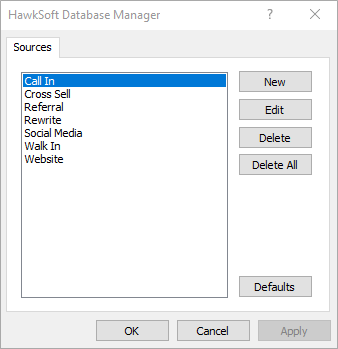
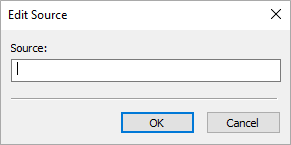
The Edit Source dialog opens.
-
Enter a name for the source, and then click OK.
The new source displays in the Sources list.
-
Click OK to save your changes and close the Sources dialog, or click Apply to save your changes and then create another source.
The new source will be available to your agency users from the Source drop-down list on the Name and Address screen and Policy Information screen the next time they log in.
To create sub-menus
You can create a sub-menu for most of the Action menu items. Providing sub-menus ensures that your log notes contain consistent documentation. See the Customize Lists and Menu Options Overview table for a description of Action menu lists.
The following Action menu lists are unique. Please see the appropriate articles for customizing these lists:
Hazard Classifications and Class Codes Setup
Workers' Compensation Classification Codes
Cancellation Sub-Status Setup
Sales Pipeline ConfigurationA sub-menu must contain a minimum of two items.
-
Click New.
The Add/Edit Item dialog opens.
-
Enter the main list item followed by a : and the sub-menu item. Main item:sub item
-
Click OK to save.
Continue to add additional sub-items. HawkSoft will alphabetize the items in the actual drop-down list for your staff.
-
HawkSoft will alphabetize the items in the actual drop-down list for your staff. You can use the
 to rearrange items in the list.
 -
Click Apply when all sub-menu items have been added, and then click OK to close the Setup dialog.
-
To edit a Source
You can edit the name of an existing source. Editing a source updates the name in the Sources drop-down menu from the Name and Address screen and Policy Information screen when you insert or edit a client/policy.
Modifying the source does not impact previously saved sources in your clients and policies. For example if you have clients brought in by campaign X, and then when that campaign ends, you modify the source to campaign Y, the source remains accurate on clients brought in by campaign X .
-
Click the source you wish to edit.
The source is highlighted in the list.
-
Click Edit.
The Edit Source dialog opens.
-
Edit the source name as needed, and then click OK.
The source displays in the list with the name you entered.
-
Click OK to save your changes and close the Source dialog, or click Apply to save your changes and remain in the dialog.
The edited source will be available to your agency users from the Source drop-down list on the Name and Address screen and Policy Information screen the next time they log in.
To delete a Source
You can delete a source from the Sources list. Deleting a source removes it as an option from the Sources drop-down menu from the Name and Address screen and Policy Information screen when you insert or edit a client/policy. Previously selected sources are not removed from existing clients and policies.
Click Delete All to delete all the sources from the Sources list. Delete All deletes all the sources that your agency has created and deletes the HawkSoft default sources. You can click the Defaults button to bring back the HawkSoft default Source list.
-
Click the source you wish to delete.
The source is highlighted in the list.
-
Click Delete.
The source is deleted from the list.
-
Click OK to save your changes and close the Sources dialog, or click Apply to save your changes and remain in the dialog.
The source will no longer be available to your agency users from the Source drop-down list on the Name and Address screen and Policy Information screen the next time they log in.
To reset default Sources
You can reset the list of sources to the default HawkSoft list of sources.
Resetting the sources to the default HawkSoft list of sources removes all custom sources that your agency has created from the Sources list.
-
Click Defaults to reset the source list to default settings.
A dialog opens asking if you would like to reset the source list to default settings.
-
Click Yes.
The Sources list updates to the HawkSoft default sources.
-
Click OK to save your changes and close the Sources dialog, or click Apply to save your changes and remain in the dialog.
The default source options will be available to your agency from the Source drop-down list on the Name and Address screen and the Policy Information screen the next time they log in.
Related Topics