Licensed Seat Management
Seat Management controls how many users who can access HawkSoft simultaneously. In addition, you can see which users are currently signed in and forcibly sign out users who are experiencing technical difficulties.
Changes to the number of seats licensed to your agency will impact the cost of your agency's HawkSoft subscription.
Each seat represents one concurrent user, not a specific individual. Your agency's licensed seats determine the maximum number of users who can access HawkSoft at the same time.
Whenever there is a change in staffing, review your agency's seat count to ensure it can accommodate the expected number of users during peak hours.
See Add a New User for more information on setting up a new user, and see Installing the HawkSoft Desktop Application to learn how each user can install HawkSoft on their workstation.
 To access Licensed Seat Management
-
Click
 Setup > Agency Setup in the upper right of the HawkSoft desktop app.
OR
Log into the HawkSoft Web app, accessed from any computer.
-
Click the
 Setup menu at the top-right corner, and then select Agency Setup.
 For more information about logging into the HawkSoft web app, see Logging In and Out of HawkSoft.
-
-
Click the
 Seats tab from the top menu.
Licensed Seat Management opens, and displays your agency's HawkSoft Contract ID, as well as the amount of seats currently licensed to your agency.
The HawkSoft Contract ID is a unique identifier for your agency within HawkSoft's records. This number is used to log into certain HawkSoft Cloud products. In addition, HawkSoft Product Support may ask for this number to verify which agency they are assisting.
To view, sort and filter seats
The list of seats displays the number of users that are currently signed-in to your agency's licensed seats. The list also displays each signed-in user's name, initials, as well as the date and time of their last successful sign-in.
You can sort and filter the list of seats to quickly find specific users and view their latest sign-in details.
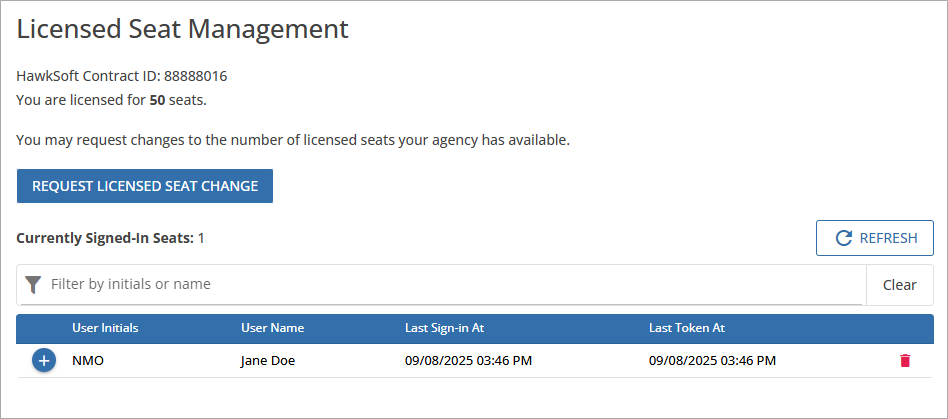
You can apply one or more of the following to quickly narrow-down and organize your seats list:
-
Filter - Use the Filters bar to narrow the seats list by user name or initials.
-
Sort Columns - Click on a column header to sort the seats by that column. Click once to sort the column in ascending order (A-Z or smallest to largest), click again to reverse the sort order to descending order (Z-A or largest to smallest), and click a third time to restore the default sort order (typically ascending).
To add or remove seats
Changing the number of seats licensed will impact the cost of your agency's HawkSoft subscription.
-
Click Request Licensed Seat Change .
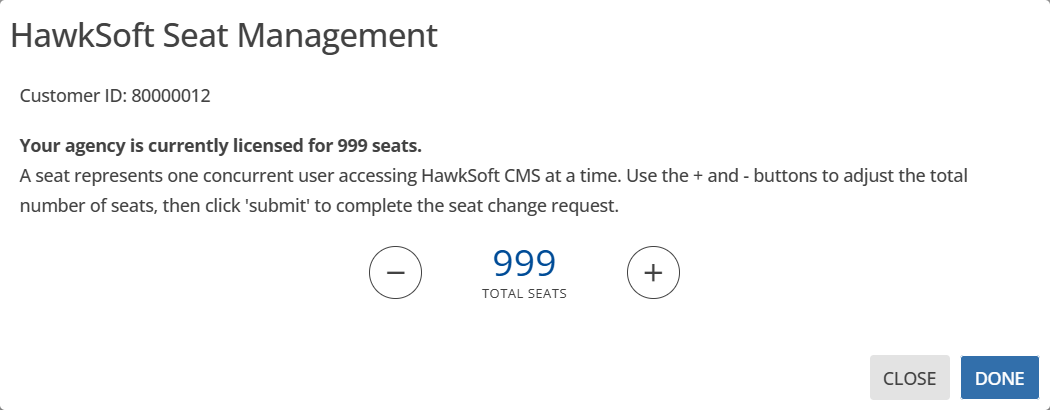
The HawkSoft Seat Management dialog appears.
-
Use the - (minus) button to remove seats, or the + (plus) button to add seats.
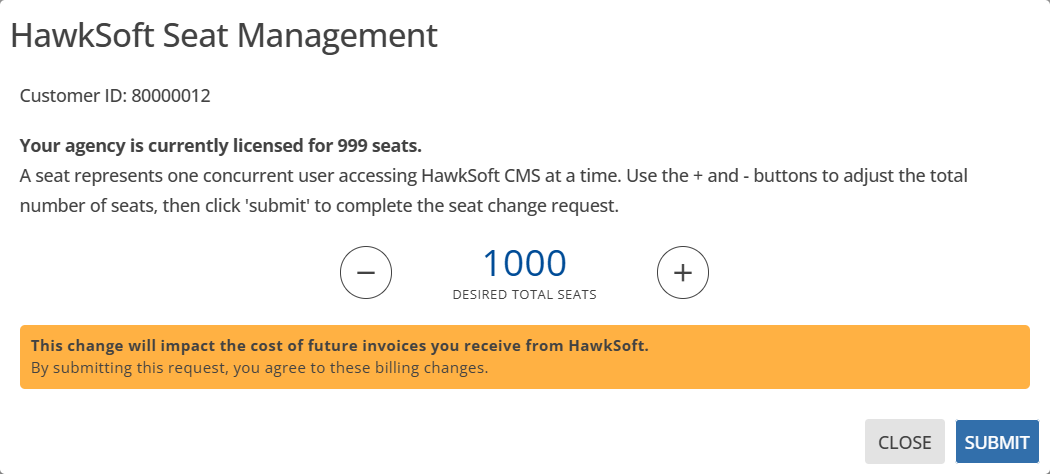
When you change the Total Seats from the current licensed amount, the Done button becomes a Submit button, and an orange warning box appears, notifying you that this change will affect future invoice costs.
-
Click Submit once you have reached the desired number of seats.
Your agency's licensed seat count updates, and the next HawkSoft invoice will be adjusted to reflect the new total.
To remove a currently signed-in user from a seat
You can remove a user from the list of seats to forcibly sign them out. If you need to free a seat (for example, when an employee's computer freezes with HawkSoft open, or when an employee forgets to log out before vacation), use the Seats tab to log them out, allowing another user to take the seat.
Forcibly removing a user should only be used when that user is unable to sign out normally. Any unsaved changes will be lost when the user is forced out.
This process does not permanently remove access to HawkSoft for a user. The user who you've revoked access to will be prompted to sign in again, and if there is a seat available, they will be able to log back into HawkSoft.
Search for and select the user from the list of Currently Signed-In Seats, and then click the  Remove icon next to the user you want to sign-out.
The user is logged out of HawkSoft and the seat becomes available. The user can log back in immediately, as needed.
The user will not receive an alert, and their HawkSoft window will remain open. They can continue working unaware that the session has ended.
Required permissions
In order to access Seat Management, your HawkSoft User Profile must be designated as an Administrator. To add a new Administrator, an Authorized Representative must contact HawkSoft Billing and request that the prospective Administrator be added as an Authorized Representative on the HawkSoft License.
Related Topics