Insights
The Insights tab provides a one-stop location to review customer information and recent activity at a glance — without opening multiple tabs or menus. It's also highly customizable, so you can tailor it to fit your workflow. This article explains how to locate, customize, and work with the Insights tab.
 Required Permissions
Accessing the Insights tab requires the following permission:
Client Access > You must have permission to access the Client and Customer Type of the client you want to view.
See User Permissions for more information.
How do I get here?
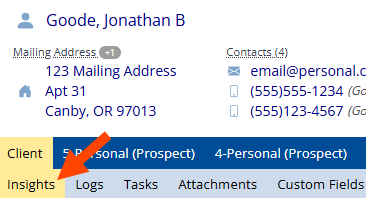
Retrieve the client you want to view the Insights tab for, click on the Client tab, then click on the Insights sub-tab underneath the Client/Policy bar.
What is the Insights tab?
The Insights tab displays a collection of widgets covering key client information: policy counts and states, recent claims, open tasks, recent client actions, and more. You can turn individual widgets on or off and reorder them to fit your preferences.
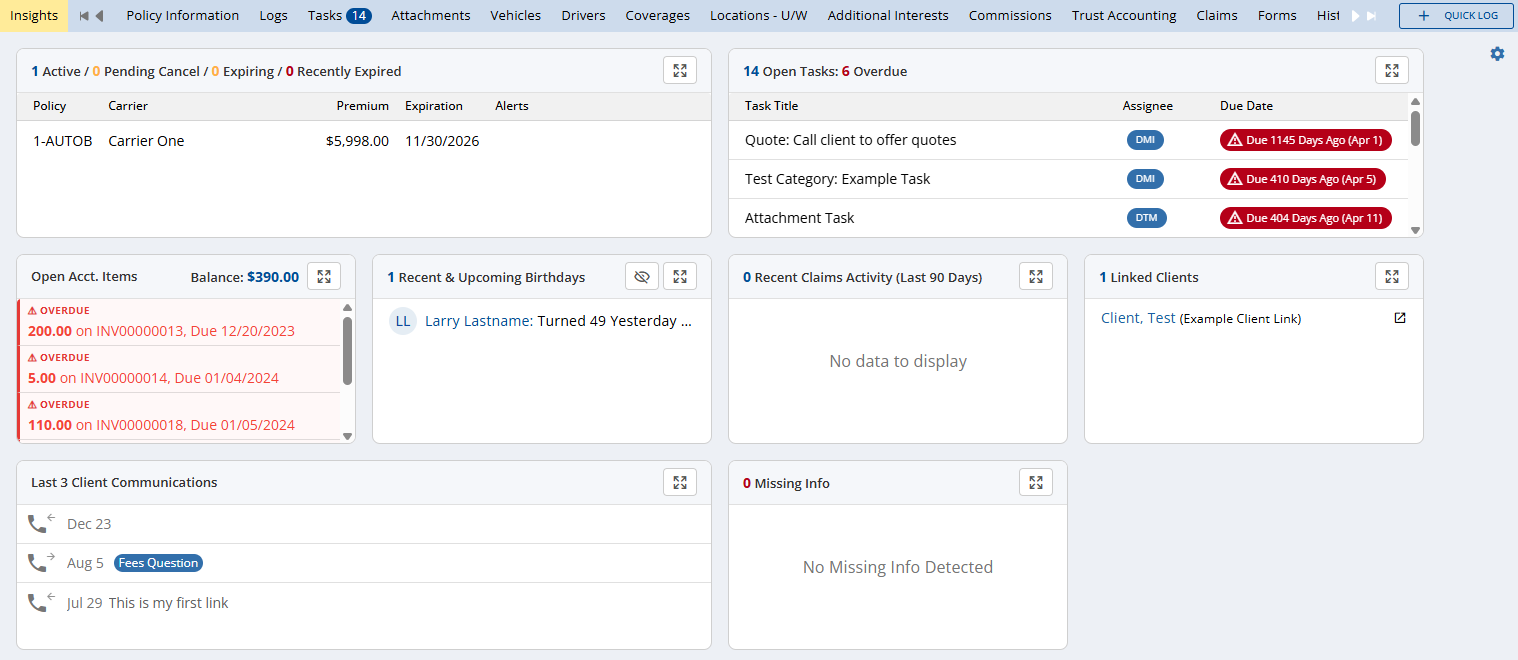
Each Insight displays as a compact widget. You can expand an Insight to see more details by clicking the  Expand button. The insight opens in a full-sized dialog to display more information. Click Close or the X button to close the expanded Insight detail.
Customizing your Insights tab
Customize your Insights tab by clicking the gear icon in the upper right. This opens the Insights Option menu, where you can choose what appears and in what order. Settings are per-user and sync across devices
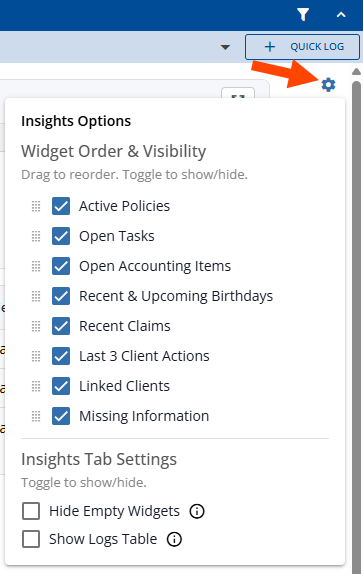
Use the checkboxes under Widget Order & Visibility to enable and disable each available widget.
Click and hold the  dots next to a widget, then drag it up or down the list to adjust the order of displayed widgets.
Under Insights Tab Settings:
-
Hide Empty Widgets — hides enabled widgets when they have no information to display for the current client.
-
Show Logs Table — displays the log list in the lower half of the Insights tab.
Insight Widget Descriptions
-
Active and Recently Canceled/Expired Policies
Summarizes the client's currently active policies (not including prospects) and policies that expired or were canceled recently (in the last 30/60/90 days, as configured in your Client/Policy View Preferences). Also flags policies canceling or expiring in the next 60 days.
Expired or canceled policies are flagged in red with an alert symbol.

Policies expiring or canceling soon are flagged in yellow.

Policies hidden by your Client/Policy View Preferences are not displayed on the Insights tab.
-
Open Tasks
Displays the number of open and overdue tasks, and a list of the open tasks, including the task's title, assignee(s), due date, and the associated policy (if any).
Clicking on a task associated with a policy will launch it on the policy's Tasks tab.
Overdue tasks are flagged with an alert in red, listing how many days ago they were due.

-
Open Accounting Items
Displays the customer's current balance and a list of open accounting items. Click any item in the list for details.
Overdue invoices are marked in red, with a warning symbol.

-
Recent & Upcoming Birthdays
Displays personal profiles on the client with a birthday within the next 30 days, or up to 14 days in the past. This list contains each profile's name, age they turned or will be turning on the listed birthday, and their birthday. Click for details about a personal profile.
You can mask or unmask the personally identifying information (PII) shown in this widget by toggling the eye button

 .
.Profiles marked as deceased will not be shown.
-
Recent Claims Activity
Displays claims on the client that have a Date Reported within the last 90 days. Claims without a Date Reported instead use the Loss Date.
Also displays closed claims with a Claim Status Date in the last 90 days.
Click on a claim in the list to open the claim for viewing in a window.
-
Last 3 Client Communications
Displays the last 3 logged interactions to or from the client, within the last two years. Logs for contact with carriers/vendors/etc are not displayed.
Click on an interaction to launch the log view.
-
Linked Clients
Displays the name and link description of other clients that are linked to this one.
Click on a linked client to launch them in a new tab.
-
Missing Information
Displays a list of alerts about important information missing from the client or one of their policies. This includes missing client contact information, active policies without a policy number or assigned agent, and any empty fields marked as 'Required on Insert' or 'Warning' in your agency's Required Fields settings.
Changes made to Required Fields may take up to 5 minutes to be processed by the API before they are available to the Missing Information widget, and will not display on already opened clients until they are reloaded.
Missing client information fields are displayed first, followed by missing policy information fields.
Fields that are marked as "Always Required" or "Required on Insert" in Required Fields are displayed in the Missing Information widget with a light red background and red warning symbol:

Fields marked as "Warning" in Required Fields display with a yellow background and warning symbol:

As an exception, the following missing fields are displayed in red, unless they are marked in Required Fields as "Warning":
-
Missing Policy Number (active policy)
-
No Agent assigned (active policy)
-
No email address on file (client)
-
No phone number on file (client)
-
No address on file (client)
-
Related Topics