Client Search
This article covers how to use the Client Search feature to retrieve clients by searching within HawkSoft to deliver reliable and detailed search results. You can also search for data within clients, such as business name, email, property addresses, additional contact names, phone numbers, and more.
This article explains how to use the Client Search feature in HawkSoft to retrieve clients and deliver reliable, detailed search results. You can search across multiple client data fields, including business names, email addresses, property addresses, additional contact names, phone numbers, and more.
You can choose between two different search options:
Simple Search contains only one search box, and searches for your query across a wide variety of client and policy data fields (such as name, address, phone number, and more), showing you which client/policy field type(s) matched your query in the search results.
Standard Search contains dedicated search boxes for each field type, enabling you to search your clients for a match in a specific type of field, such as searching for only matching names or matching addresses.
Always search for a client before manually inserting a new client to avoid duplication.
 Required Permissions
In order to complete this task, user permissions must be set to include:
Client Access: You must have permission to the Client type and Customer type you want to access
See User Permissions for more information.
Simple Search
HawkSoft's Simple Search functionality enables you to search by name, address, phone number, and more using a single search field.
Along with this enhancement, HawkSoft searches for name synonyms (such as nicknames and alternate spellings), and supports diacritical character matching (for example, matching "ñ" when the search query contains "n"). This setting can be toggled off using the "Exclude Name Variants" Advanced Filter.
To access Simple Search
-
Click
 from the main HawkSoft Toolbar or press F2 on your keyboard to open the Client Search dialog.
 -
Click the Try simple search link in the upper-right corner of the search dialog.
If you see "Back to standard search" instead, this means you are already using Simple Search.
One search field
Simple Search has one unified search field, which enables you to quickly find clients using the information you have available, without the need to enter different information into different fields. When you enter your search query and press Search, HawkSoft's Simple Search looks for your search query across many different client and policy data fields all at once.
Simple Search cannot accept multiple different search criteria in the same search query.
For example, if you know your client's name is Larry and they live on 1234 Fake Avenue, you can search for "Larry", or search for "1234 Fake Avenue", but you cannot search for "Larry, 1234 Fake Avenue" simultaneously.
If you need to search for a client by only a specific field type, such as only searching by name or only searching by address, Standard Search may be a better option. You can always switch between Simple Search and Standard Search at any time by clicking the "Back to standard search" or "Try simple search" links at the top-right of the search window.
Full list of HawkSoft client/policy data fields searched with your query
-
Business Name
-
Named Insured/Main Contact:
-
First
-
Last
-
Middle
-
-
Other Personal Profiles
-
First
-
Last
-
Middle
-
-
Phone
-
Email
-
Address
-
Physical
-
Mailing
-
All other locations
-
-
Policy Number
-
Agency ID
-
Claim Number
-
Invoice Number
-
Account Number
-
Driver's License Number
Advanced Filters
Click the  Advanced Filters button to open the Advanced Filters panel.
These filters enable you to limit search results to only clients matching certain types, statuses, or offices (if your agency has multiple offices). There is also an option to include archived clients in your search results. You can use one or more of these filters in your search:
-
Include Archived Clients
Toggle this option on to include archived clients in your search.
-
Exclude Name Variants
Toggle this option on to return only the exact name matches for your search criteria, and not name synonyms.
For example, searching for "Tom" with this option enabled will no longer return "Thomas", or searching for a last name of "Munoz" with no longer return "Muñoz".
-
Client Types
Select Customer, Vendor, Carrier, Personal Contact, Agent/Employee, Agency Contact, Emergency Contact, or Other. You can filter by one or more client types.
-
Customer Types
You can filter by one or more of the following customer types: Personal, Commercial, Life/Health, Allow Cross-Selling, Allow Do Not Market.
-
Client Statuses
You can filter by one or more client statuses, such as Active
Any client with at least one Active Policy. An Active Policy, or Policy in Force, is any policy with an active status. This includes any policy with a status of Active, Issued, New, Reinstate, or Rewrite, except for when those statuses include (pending). Polices with a status of Renew or Renew (pending), Cancel (pending), NonRenew (pending), or Replaced (pending) are also active., Prospect Clients who have not purchased insurance coverage or clients that have cancelled policies and the agency has changed the status to prospect to continue soliciting., Lead Marketing term used to describe businesses or individuals a company has identified as a potential prospect, even though they have not directly expressed any interest in the company or its products., and Dead File Status assigned to a client file that, for any number of reasons, the agency does not want to maintain as a part of the active/inactive database.. See Name and Address Information for a description of these statuses.
-
Offices
Search for clients associated with a specific office. The Office filter is not available if you do not have multiple offices configured in HawkSoft.
Click Clear Filters to remove all active Advanced Filters.
After entering your search criteria, and any advanced filters you want to use, click Search to proceed.
Launch a client using Customer ID
If you know the client's Customer ID, enter the numbers in the Search field. The Launch Client button appears, enabling you to launch the exact client without having to search for them.
You can also press Ctrl+Enter to launch the client.

Standard Search (Classic Search)
HawkSoft's classic ("standard") search view is available as an option for users who prefer it to the Simple Search. It has been updated to a web-based interface, with search results that match the modern look and feel of Simple Search, but still retains the classic separate search fields that some users may be more comfortable using.
To access Standard Search
-
Click
from the main HawkSoft Toolbar or press F2 on your keyboard to open the Client Search dialog. -
Click the Back to standard search link in the upper right.
If you see "Try Simple Search" instead, this means you are already on Standard Search.
Enter any of the following search criteria:
-
Last, First Name / Business
-
Enter a first and/or last name or a business name. You can also enter a preferred name in the Last, First /Business field.
HawkSoft searches all clients for a matching name based on the following criteria you enter.
-
Starts With or Contains
Select one of these options to specify the search parameters of the name entered in Last, First Name / Business field.
Starts With is selected by default for Last, First Name searches, while Contains is always automatically applied for all Business Name searches.
-
Include Personal Profiles
Check this box to include personal profiles in your search results.
If this box is unchecked, only named insureds will appear in your search results.
-
-
Phone Number
Enter a whole or partial number string. HawkSoft searches all phone numbers on Client-level Contacts or Profile Contacts for a match.
-
Email
Enter a whole or partial text string. HawkSoft searches all main contacts and personal profile contacts for a matching email address.
-
Address
Enter a whole or partial text and/or number string. HawkSoft first searches for the primary mailing address field in each client, then searches additional addresses on the client such as physical address, garage address, or property addresses.
-
Policy Number
Enter a whole or partial text and/or number string. HawkSoft searches each policy within a client for a matching policy number.
-
Agency ID
Enter your agency specific identifier. An Agency ID number is specific to a client, for example it may be a finance company ID or a bond number. An Agency ID is not a policy number or a Customer ID.
To retrieve a client using Agency ID from the search dialog, you must enter the client's exact Agency ID number.
-
Customer ID
To retrieve a client using Customer ID from the Search dialog, you must enter an exact ID number. Once you click "Search", HawkSoft immediately opens the client with the matching Customer ID.
HawkSoft automatically assigns a unique Customer ID to each client at the time the file is created. This number is located in the upper left-hand corner of the client.
For example, entering a "1" would return client 00000001, not a list of possible matches that include a "1".
When retrieving a client by Customer ID, the preceding zeros are not required.
For example, you can retrieve client file 00000161 by entering 161. -
Open in New Tab
Select the checkbox to open a searched client in a new tab instead of replacing the currently open one. This option only appears when a client is already open, and resets to unchecked each time you open the Search dialog.
Advanced Filters
Click the Advanced Filters button to open the Advanced Filters panel.
These filters enable you to limit search results to only clients matching certain types, statuses, or offices (if your agency has multiple offices). There is also an option to include archived clients in your search results. You can use one or more of these filters in your search.
These filters are based on client information fields. You can use one or more filters in your search.
-
Include Archived Clients
Toggle this option on to include archived clients in your search.
-
Toggle this option on to display only clients that exactly match the search criteria, instead of clients that begin with or contain the search criteria.
Example: If you have a client named Tim Johnson, and you search for a last name of "John", by default Tim will appear because his last name contains the string "John". However, if Exact Match Only is checked, Tim does not appear because HawkSoft is only searching for the exact last name of "John".
-
Client Types
Select one or more Client Types from the drop-down to filter search results to only customers with those types. Possible Client Types are Customer, Vendor, Carrier, Personal Contact, Agent/Employee, Agency Contact, Emergency Contact, or Other.
-
Customer Types
You can filter by one or more of the following customer types: Personal, Commercial, Life/Health, Allow Cross-Selling, Allow Do Not Market.
-
Client Status
You can filter by one or more client statuses, such as Active
Any client with at least one Active Policy. An Active Policy, or Policy in Force, is any policy with an active status. This includes any policy with a status of Active, Issued, New, Reinstate, or Rewrite, except for when those statuses include (pending). Polices with a status of Renew or Renew (pending), Cancel (pending), NonRenew (pending), or Replaced (pending) are also active., Prospect Clients who have not purchased insurance coverage or clients that have cancelled policies and the agency has changed the status to prospect to continue soliciting., Lead Marketing term used to describe businesses or individuals a company has identified as a potential prospect, even though they have not directly expressed any interest in the company or its products., and Dead File Status assigned to a client file that, for any number of reasons, the agency does not want to maintain as a part of the active/inactive database.. See Name and Address Information for a description of these statuses.
-
Offices
Search for clients associated with a specific office. The Office filter is not available if you do not have multiple offices configured in HawkSoft.
To change the default focus for Standard Search
You can change which of the fields the cursor defaults to for Standard Search, making it easier to start a search with your most used search criteria.
-
Click
 Search Settings.
The Search Settings dialog launches.
-
Select the field you want searches to default focus to, using the drop-down menu.
-
Click Save.
-
Close and relaunch HawkSoft.
Standard Search now defaults to your selected field when performing a Standard Search.
To navigate search results and launch a client
Once you click Search, a list of detailed results displays the clients and matching criteria.
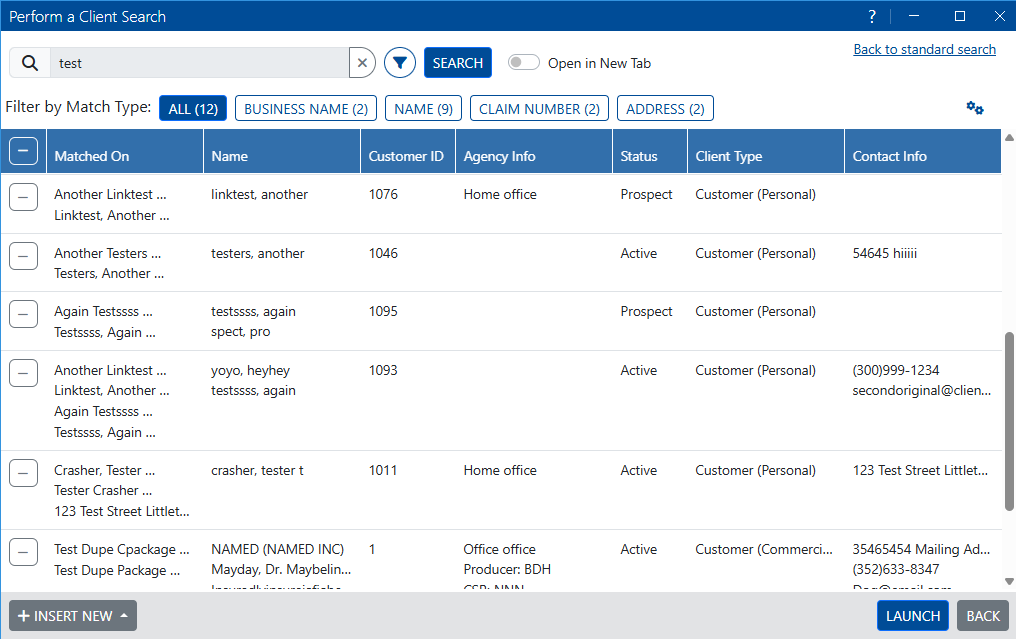
Search results are displayed in a table listing the client information that the search matched on, and basic client contact information for each result:
-
Name
-
Customer ID
-
Agency Info (Office, Producer, CSR, etc)
-
Status
-
Client Type
-
Contact Info
You can expand or collapse multiple lines of information on a client result to one line using the  and
and  buttons on the left of each entry, or use the buttons in the header to expand or collapse all results at once.
If you do not find the client, you can click Insert New to insert a new client (with or without a policy), as long as you have the necessary User Permissions to insert clients.
You can click and drag on the borders between column headers to resize the search result columns. To reset columns to heir default size, click the gears button  , then select Reset Column Sizes from the drop-down.
You can also hover over a piece of information to see the full details, even if it is cut off by the current column width.
To filter search results by Match Type
By default, client search displays matches from all fields. You can filter your search results to show only matches of a specific type, such as names or addresses, by clicking one of the Match Type buttons above the search results:

Not all Match Types are displayed on all searches. Only those match types with results on this search are shown.
To launch a client
To open a client from these search results, select the client and then click LAUNCH, or double click on the client in the search results.
If you have a client currently open in HawkSoft, you can check the Open in New Tab toggle to open this client in a new tab, leaving your previous client open on a separate tab. If this option is un-checked, once you click Launch, the previously opened client will close, with the client you've selected in the search results opening in its place.
The status of the Open in New Tab toggle is remembered the next time you open the Search dialog.
Once you launch a client, you can use the  Previous and
  Next arrows located in the HawkSoft toolbar to browse through all of the clients from the search results as needed.
Related Topics