HawkSoft Community
HawkSoft Community — where you can go to share ideas and feedback to help shape the future of HawkSoft. The HawkSoft Community webpage is a place to submit product suggestions, vote on ideas from other users, and help influence our development roadmap. Using HawkSoft Community ensures your feedback is received by the right team, and has the best chance of impacting changes in the product. See the HawkTalk Blog for more information about how feedback is processed.
We recognize that customers and vendors have a hand in our success as much as we have in theirs. HawkSoft Marketplace helps us continue to improve and innovate, while you watch HawkSoft grow and improve in real time, with your help and based on your feedback!
New! 4/2/2026 - The HawkSoft Community has been updated to a new platform! Watch a video to see a preview of how the Community works, and how to share your suggestions.
 Required Permission
In order to complete this task, no specific HawkSoft user permissions are required.
See User Permissions for more information.
How to access HawkSoft Community
Click the  menu in the upper-right corner of HawkSoft, then select HawkSoft Community.
OR
Click the HawkSoft Community link in the HawkSoft Corner at the lower right of the Start Page.
Share your suggestions or feedback
-
On the community home page, click Create a New Suggestion
-
Begin by typing in a title for your post, usually a very brief description or label for your idea.
As you type your title, the system will check for other suggestions with similar titles. If posts with similar wording are found, they will be displayed at the bottom of the post dialog. Here you can click on them to upvote and/or comment on the existing suggestion rather than creating a new one.
You can also Search on the HawkSoft Community home page to see if anyone has already submitted your suggestion. -
If you don't find an existing suggestion, provide details about your idea.
Information to include in your post
-
Which feature and screen you want to see improved. For example, "In the Task Center, when looking at a list of tasks in Agency Tasks."
- A clear description of what improvement you would like to see. For example, "Please add another icon to specify which log notes associated with each task have an attachment."
-
Your role at the agency (owner, CSR, producer, etc.).
-
How often you use the feature and how long the process takes.
-
What task or workflow this feature request will help you with and how it will help you.
-
-
Let us know How much time this will save you, and then select a Tag to help our teams sort suggestions for different areas of the product.
-
When you've added all the details, click Submit Post.
Your suggestion is added to the HawkSoft Community, where others can add upvotes and comments.
Encourage your coworkers to upvote your suggestion and add their own ideas!
View community suggestions
You can see suggestions submitted by other users near you and across the country. Suggestions are displayed in a list on the Feedback tab of the HawkSoft Community home page. Use the New, Top, and Trending buttons to sort suggestions, enabling you to see the biggest conversations and what's being talked about now.
Use the Search button on the home page to search for keywords related to topics you're interested in suggestion or reading others' suggestions about.
The community Roadmap
Located on the Roadmap tab on the community homepage, the community Roadmap is another way to view suggestions. It shows suggestions that have been reviewed by our development team, grouped into three statuses:
Backlog - Community posts that have been reviewed and acknowledged by our development team, but are not currently in development.
In Progress - Community suggestions that are currently in-development for future release.
Done - Community suggestions that have been fully implemented and added to HawkSoft.
The Roadmap provides you with a transparent view of where ideas are in the process, as well as enabling you to see the many pieces of HawkSoft's development that come directly from user suggestions.
Vote and/or comment on an existing post
Your vote helps us decide which features or improvements to work on first. Additionally, providing comments to an existing post can provide us with a broader range of ideas or opinions.
Open an existing suggestion.
This might be from the community home page, search results, or a similar topic found when entering a suggestion.
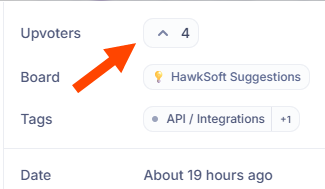
Click the upvote button at the upper right of the post to vote on the suggestion.
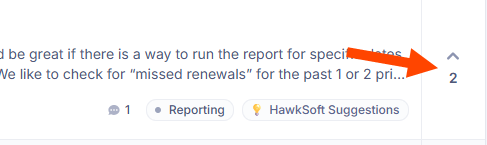
You can also upvote a post directly from the post list by clicking the upvote button to the right of the post.
Optional: Click the Subscribe button to receive email updates regarding this suggestion.
Optional: Add additional comments, then click the Comment button to submit.