Sharing Mappings in HawkLink
HawkLink enables users to share mappings with other HawkSoft users to speed up the process of quoting or servicing a policy within a carrier website. Mappings link data from a field in HawkSoft to a corresponding field on a carrier website. Mappings created in Google Chrome® can be used in Microsoft Edge®, and Edge mappings can be used in Chrome.
HawkLink gives you the option to use crowd-sourced mappings for commonly visited websites. These are mappings submitted to HawkSoft by other HawkSoft users, which are then reviewed by HawkSoft staff and made available to all HawkLink users if approved.
This article explains how to use crowd-sourced mappings, as well as how to import or export mapping files.
For more information on configuring and using HawkLink, see:
 Required Permissions
No special permissions are required to use crowd-sourced mappings, or to export/import mappings in HawkLink.
Crowd-sourced mappings
Crowd-sourced mappings are provided as a courtesy. HawkSoft does not guarantee functionality of any shared mappings.
Mappings are not provided or endorsed by carriers, and as such, may not always be up-to-date with carrier website layouts.
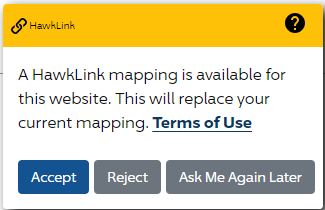
When a new crowd-sourced mapping is available for a website that you are visiting with HawkLink open, a message appears in the bottom-right corner of your browser.
-
Click Accept to load the default mapping into HawkLink. The relevant fields on the web page are automatically flooded.
-
Click Reject to keep current mapping.
If you want to return to the previous field mappings for the web page, click the  button in the Mapping Tool, and then select Revert to Prior Mapping.
Submit site mappings to HawkSoft
With HawkLink, you have the option to submit your field mappings to HawkSoft. HawkSoft staff curate these mappings, and if accepted, will publish the mappings for commonly visited carrier websites. This allows other HawkSoft agencies to quickly flood client/policy data into carrier websites without needing to map every field.
-
Click
 HawkLink to open the HawkLink Mapping Tool.
 -
Click
to open the HawkLink menu. -
Click Submit Site Mappings.
The Submit HawkLink Mapping dialog opens. -
Confirm your HawkSoft username and enter your password.
- Click Submit HawkLink Mapping for Review.
HawkSoft reviews your uploaded site mappings and publishes them upon approval.
Import and export mappings
HawkLink gives you the option to export a website mapping as a file, and import a mapping file to HawkLink. This enables you to share your website mappings with other agents, and use other agents' mappings to automatically flood data from HawkSoft into a website.
To export one or more site mappings
Click
to open HawkLink in your selected browser.
Open the web page you want to export a mapping for.
The website opens with the Mapping Tool on the screen.
Click
.
Select Export Site Mappingsto export your site mapping for the website you are currently on.
OR
Select Export All Mappings to export all of your site mappings for all websites.
The mappings are saved to your computer as [website address].hlsitemapor [website address].hlmappings.
Chrome and Edge will save this file to your computer's Downloads folder by default.
You can send the mapping file to other agents the same way you normally send other files/attachments to agents, such as through an email or messaging application.
To import one or more site mappings
Click
Open the web page you want to import a mapping for.
The website opens with the Mapping Tool on the screen.
Click
HawkLink asks you to drop site map files into the Mapping Tool.
Drag and drop an .hlsitemap or .hlmappings file(s) into the Mapping Tool.
A 'Data Flooded' message appears in the bottom-right corner of Chrome, and your site mapping is imported.
Related Topics