Self-service Certificates
HawkSoft Self-service Certificates enable you to publish an ACORD 25 Certificate of Liability Insurance to an online portal to serve as proof of insurance. From the portal, the insured can easily add a Certificate Holder, print the certificate, or email the certificate to a third-party at anytime, without agent assistance.
HawkSoft Self-service Certificates is available to your agency as an add on service through HawkSoft Marketplace. Once purchased, you can begin uploading certificates to the online portal.
Only a Certificate of Liability Insurance (ACORD 25) created via the HawkSoft Certificate of Liability Insurance wizard can be published to the Self-service Certificates portal. Certificates created through the wizard are listed with a form number of "025XX HawkSoft" in the Edit - ACORD Forms dialog.
Any additional documents attached to the certificate—such as those added from the Document Library or ACORD forms and packages created via the HawkSoft Form Filler—will not be included in the Self-service published certificate.
 Required Permissions
In order to complete this task, user permissions must be set to include:
Client Actions > Action Menu
See User Permissions for more information.
To purchase Self-service Certificates
Before using HawkSoft Self-service Certificates, your HawkSoft Administrator must purchase Self-service Certificates through the HawkSoft Marketplace.
To publish a certificate to the Self-service portal
Once a Master Certificate of Insurance is created on the client, you can publish the certificate to the Self-service portal. See Create or Modify a Master Certificate of Liability for more information on creating a Master Certificate of Insurance.
- Retrieve the client, and then select the Client tab or any policy.
- Click Action, and then select one item in each of the first three lists to describe what prompted this transaction.
-
Select Print/Create > Certificate of Liability (025).
The Edit - Certificate of Liability Insurance dialog opens.
-
Select a Certificate of Insurance you are publishing, and then click Edit.
The Certificate of Insurance wizard opens.
-
Click the Publish button.
The Publish Certificate dialog opens.
-
Select an agent's signature to use on the certificate from the Agent Signature drop-down.
For steps on adding your agent signature, see My Account Information and Signature.
- Optional: Click Preview to preview the form.
-
Click Publish to publish the certificate to the Self-service portal.
A time stamp and the name of the person who published the certificate displays at the top of the dialog.
The URL to the insured's Self-service Certificate portal displays at the bottom of the window.
Click Copy URL to copy a link to the customer's certificate in the Self-service Certificate portal.
The certificate is published to the customer's Self-service Certificate portal and is ready for the customer to access.
You can publish multiple certificates to the Self-service Certificate portal. Each customer has a unique URL where they can access all of their certificates.
To revoke an insured's access to a certificate
- Retrieve the client, and then select the Client tab or a policy within that client.
- Click Action, and then select one item in each of the first three lists to describe what prompted this transaction.
-
Click ACORD Forms.
The Forms dialog opens.
-
Select the Certificate of Liability (025), and then click Edit.
The Certificate of Insurance window opens.
-
In the bottom left corner, click Publish.
The Publish Certificate dialog opens.
-
Click Revoke Access.
The certificate is removed from the Self-service Certificate portal, and a time stamp displays on the Publish Certificate dialog showing who revoked access, and when.
- Click Close.
To republish the certificate, follow the steps under To publish a certificate to the Self-service portal.
To access the Self-service Certificate portal (for insureds)
Once you have published the certificate to the Self-service Certificate portal, the Publish Certificate dialog displays a URL for your customer to use to access their Self-service Certificate portal.
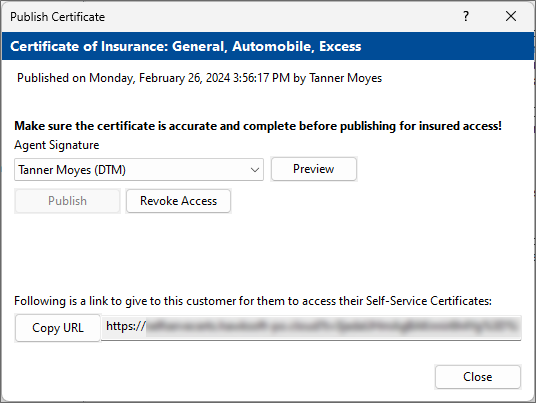
You can send this URL to your insured by clicking the Copy URL button, and then pasting this URL in a message to the insured (such as an email or text message).
You can also create an email template in HawkSoft and use the "Self Certificate URL" merge field to quickly generate emails for customers containing their Self-service Certificates URL, without needing to copy and paste the URL. For more information, see Correspondence Setup Overview and Merge Field Descriptions.
The insured can then open the URL in a browser, log into the portal with their email address, generate certificates for certificate holders, and add additional certificate holders as needed.
Each time the insured downloads and/or emails their certificate using the Self-service Certificates portal, HawkSoft will create a log note on the client and automatically attach the certificate. This log note is reportable, allowing you to track activity from Self-service Certificates.
When your insured adds a new certificate holder using Self-service Certificates, that certificate holder will be added to the Certificate of Liability Wizard for that certificate in HawkSoft.
See How to Access and Distribute your Certificate of Liability Insurance for instructions to the Self-service Certificate portal, along with a printable PDF file with instructions you can send to your insured.
Related Topics