Renewals - Configuration and Setup
The agency's administrators are responsible for building the foundation of the agency's renewal workflows through templates and agency settings. In this topic, we cover how to set up the agency's renewal workflows using the following:
-
Task Categories and Templates
-
Default Tasks
-
Download Rules & Download Task Rules
Why this guide groups these features together: Categories, Templates, and the two types of Task Rules are four related settings — they're layers that build on each other. Configuring them in the wrong order, or skipping the “why,” is the most common reason agencies end up with inconsistent tasks. This guide walks through how to set up each piece and why each layer is important for a successful renewal process.
Once this is in place, tasks are created automatically based on policy status changes and carrier downloads — managers won't need to run the renewals report as their primary workflow. See Assigning Renewals - Reporting and Tasks for using the report to catch up existing policies or spot-check coverage.
 Task Categories and Templates
Task Categories offer a way for managers, CSRs, and producers to quickly group and organize their Tasks by related workflows. For example, you can add a Renewal category for Tasks; users can then go into the Task Center and group their tasks by Category to see all open Tasks which relate to renewals.
Task Templates are specific tasks with preset details, such as a title, category, assignees, and priority, that can be applied to new tasks or default tasks. Creating Task Templates for renewal workflows enables your staff to quickly create standardized renewal/rewrite tasks, and allows for easier organization, review, and tracking of your agency's tasks.
For more general information on Task Categories and Templates, see Task Categories and Templates.
To access Task Settings
-
Click the Activities menu at the top of the HawkSoft Desktop App.
-
Select My Tasks.
The Task Center opens in a new window.
-
Select the Settings tab.
Before creating Task Categories for renewals
Task Categories and templates can be used for both automated default tasks (created when triggered by an action) and they can be used to create manual tasks. So, depending on your agency renewal workflows, you will want to think about what types of tasks you need created and what templates and categories those tasks will need.
Tasks that are created by a download do not use the same Task Templates and Categories as the Default Tasks. When you create the Download Task Rules, you will select a Download Type which will automatically match the Task Category. You will however, create a unique Task Title for the Download Task Rule.
To configure Task Categories
-
Click on the Task Categories side-tab within Task Settings.
A table of all current Task Categories appears.
-
Click + Create Category.
The New Category dialog appears.
-
Enter a Label for this new category, such as "Renewals".
-
Click Add to save the new Category.
-
(Optional:) Repeat steps 2-4 to add additional Categories, if needed.
To configure a Task Template for renewals
-
Click on the Task Templates side-tab within Task Settings.
A table of all currently-active Task Templates appears.
-
Click + Create Template.
The New Task Template dialog appears.
-
Enter a Template Name, such as "Upcoming renewals template".
This is the name that will appear when users choose which Task Template to use while creating a Task.
-
Select a Category for this task, such as the "Renewals" category you created in the section above.
-
Enter a Task Title, such as "Upcoming Renewal".
This is the title that each Task created from this template will use.
-
Assign Users who should handle tasks created with this template.
Example: For a renewals Task Template, you could assign this task to the policy's Agent 1, and the client's CSR. In that case, the employee who is listed as Agent 1 on the policy the task is created for, and the employee listed as CSR on that policy's client, will be assigned the task.
Alternatively, if specific employees are designated to handle renewals for your agency, you could assign tasks created using this template to specific user initials, such as employee ABC and/or XYZ.
-
Enter Task Instructions for Tasks created using this template, such as "Follow up with customer about upcoming renewal."
-
(Optional:) Assign a Priority for this task.
-
(Optional:) Apply additional settings to this Task Template:
-
Must be assignee to edit - Enable this setting to create a locked task and only allow assigned users or users with Task Management permissions to edit the task. All users can view the task on the client.
-
Assign one task per assignee - Enable this setting to create a duplicate task for each user assigned to the task. When enabled, each user manages their own copy of the task separately.
-
Track Success - Enable this setting to create two additional status options, Successful and Unsuccessful, on each task this template is applied to. You can track the success rate of all completed tasks that use the template from the Templates tab on the Settings screen in the Task Center.
For example, you may enable Track Success on a template created for prospect policy tasks. As your staff continues to apply the template to all tasks related to prospect policy sales, you can easily view the successful rate of your agency's sales procedures.
-
Use Due Date Rule - Enable this setting and enter the due date/time rules that will be automatically applied to each task this template is applied to. For example, you can set the Due Date of the task to be 1 month before the policy expiration date.
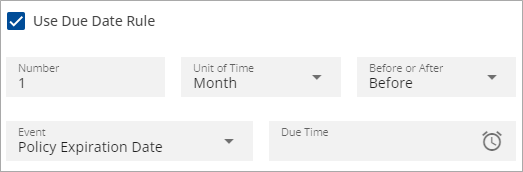
You can link due dates to these events:
-
Task Creation Date: The date the task was created.
-
Policy Effective Date: The date the policy goes into effect.
-
Policy Expiration Date: The date the policy expires.
-
Policy Status Date: The date the policy status changes.
-
Policy Inception Date: The date the policy was written.
-
-
-
Click Save.
You have successfully created a Template for renewal-related Tasks.
After creating your Renewals Task Template, consider repeating these steps to create additional templates to support your agency's renewals workflow.
Required Permissions
In order to complete this task, user permissions must be set to include:
Tasks > Access Tasks Configuration
See User Permissions for more information.
Default Tasks
You can configure Default Task rules to automatically trigger the creation of Tasks when specific renewal actions are performed on a policy. When triggered, default tasks are automatically created and attached to the log note of the policy that the action was performed on. You also have the option to apply specific conditions to a default task rule, such as Application Type and/or Client Office, that must be met in addition to the policy action in order to trigger a default task.
Default Tasks are for manual changes to a policy, for example when changes are made in response to a non-downloading carrier. See Download Rules for details on how to set up tasks for downloaded policies.
To configure a Default Task Rule
-
Open your agency Task Settings, if you have not already done so.
-
Select the Default Tasks side-tab.
A list of all existing Default Task rules appears.
-
Click + Create Rule.
The Create New Task Rule dialog appears.
-
Select the Trigger for this task rule, such as 'Policy Status Changed to Renewal'.
This is the policy action that must take place for a Task to automatically be created.
-
Choose the Template that the automatically-created Task should use, such as the "Upcoming Renewals" Task Template created in the section above.
-
(Optional:) Expand the 'Conditions (Optional)' drop-down and add any conditions to this rule, as needed.
For example, if you only want this rule to apply to changes made to Personal policies, check the Personal box under Application Types.
-
Click Save.
Your Task Rule is created and active.
Download Rules and Task Rules
To configure Download Rules for Renewal and Rewrite Downloads
HawkSoft enables you to configure how carrier downloads are processed through Download Rules. Configuring your agency's Download Rules is critical, as they determine whether carrier downloads are enabled for your agency, and what happens when carrier downloads of certain types are received by the agency.
For more information on Download Rules in general, click the video below to watch our Download Rule Configuration training video:
To configure Carrier Download Rules
-
Access the Downloads Dashboard using either the HawkSoft desktop app, or HawkSoft on the Web:
-
HawkSoft Desktop: Click the Activities menu at the top, then Downloads Dashboard.
The Downloads Dashboard opens in a new browser window.
-
HawkSoft on the Web: Log into the HawkSoft Web app, then click the
 Carrier Download Dashboard icon in the left column of the HawkSoft web start page.
The Downloads Dashboard opens in your current browser window.
-
-
Click Configure at the top-right of the dashboard.
The Download Rules tab is selected by default.
-
The following Global Setting must be configured:
Downloads Enabled
Enabling this option is critical, as HawkSoft will not process any carrier downloads received until this option is checked.
The option is enabled when the slider turns blue.
-
Select an Action to enable the rule as needed.
Renewal-and rewrite-specific Download Rules
-
Rewrites, Renewals, Non-Renewals, and Reversal of Non-Renewals
When these rules are enabled, HawkSoft will automatically update the matching policy with information from carrier downloads of the type matching that particular rule. If any of these rules are disabled, HawkSoft will only log and attach the download to the policy when downloads of that type are received, without changing any policy information.
-
Do not update Renewals and Endorsements until their effective date
HawkSoft highly recommends keeping this option enabled. If disabled, HawkSoft will immediately update the policy when a renewal or endorsement download is received, even if the effective date of that renewal/endorsement is far in the future. This can create a situation where the policy's status, dates, and/or coverages are inaccurate, as they reflect information from a future term despite the policy still being active in a previous term.
-
Renewal Quotes
Some carriers send their upcoming renewals to agencies as a 'Renewal Quote' download type. For example, Progressive sends agencies a Renewal Quote download 45-60 days in advance of the renewal date. This type of download is separate from regular renewal downloads as it cannot be used to update a policy; however, Renewal Quotes still contain information about the upcoming policy term, including any changes to policy details and/or premium.
-
-
Once you have finished configuring Download Rules, be sure to click the blue Save button at the bottom-right corner of the page.
For more information about Download Rules in general, see Download Rules.
Required Permissions
Required Permissions:
In order to complete this task, user permissions must be set to include:
Downloads > Downloads Dashboard > Download Configuration and Tasks
See User Permissions for more information.
Setting Download Task Rules
For downloaded policies, HawkSoft lets you create Task Rules that automatically create and assign tasks to users when carrier downloads matching certain criteria are received. For renewals, you can take advantage of Task Rules to have HawkSoft automatically create and assign tasks to agents when a renewal download is received. Additionally, you can further customize your Task Rules to assign renewal tasks to different users when a commercial renewal comes in versus a personal lines renewal, and/or assign a special 'Uprate Alert' task to users when a renewal comes in with a rate increase higher than a predetermined percentage.
In this section, we will cover how to configure three Download Task Rules through the Downloads Dashboard:
-
A rule for when renewal downloads are received
-
A rule for when 'Renewal Quote' downloads are received
-
An "Uprate Alert" rule for when downloads show a rate increase above a certain percentage
For more information on Download Task Rules in general, click the video below to watch our Download Task Rules training video:
To access Download Task Rules
-
Access the Downloads Dashboard using either the HawkSoft desktop app, or HawkSoft on the Web:
-
HawkSoft Desktop: Click the Activities menu at the top, then Downloads Dashboard.
The Downloads Dashboard opens in a new browser window.
-
HawkSoft on the Web: Log into the HawkSoft Web app, then click the
Carrier Download Dashboard icon in the left column of the HawkSoft web start page.The Downloads Dashboard opens in your current browser window.
-
-
Click Configure at the top-right of the dashboard.
-
Select the Tasks tab.
To create Task Rules for Renewal downloads
-
Click
 at the top-right of the Task Rules table.
 -
The Create Task Rule page opens. This consists of three sections: Task Rule, Task Details, and Task Due Date.
-
Complete the Task Rule section:
-
Confirm that the Enabled toggle is active.
If the Enabled toggle is not active, the rule will be saved, but will not apply to any downloads received until the Enabled toggle is activated.
-
In the Download Type drop-down, select one of the Renewal download types. For example:
Renewal
Renewal Quote
-
In the Application Type drop-down, choose whether this download rule applies to only Personal policies, only Commercial policies, or both Personal & Commercial policies.
If your agency has different agents for commercial policies versus personal policies, you can use this option to assign the automated task to different agents depending on whether the renewal download received is a commercial or personal policy.
-
Choose the "All" option in the "Create Task for" list, or you can specify a rate increase to trigger the task.
HawkSoft enables you to add an additional rule to Renewal rules so that when a renewal download is received containing a rate increase higher than a predetermined percentage, the task is created. You can use this Task Rule to remind agents to remarket a policy when a large premium increase is upcoming, and assign this task a higher priority and/or earlier due date, if desired.
You can choose to create multiple Renewal Task Rules with varying Rate Increases and create different Tasks for each.
-
(Multi-Office agencies:) Choose whether this Task Rule applies to All Offices, or only to Specific Offices.
If you select Specific Offices, a table appears where you can check each office this Task Rule applies to.
-
-
Complete the Task Details section:
-
Enter a Title and select a Priority for this task.
-
Assign Users to receive this task when this rule is triggered.
You can assign this task to a specific user in the agency, and/or assign the task to a client/policy role such as Client CSR, Client Producer, or Policy Agent 1 of Record. If you assign the task to a client/policy role, the user who is assigned that role on the client or policy in HawkSoft will be assigned the task.
-
Choose whether anyone in the agency can edit the task once assigned, or only task assignees can edit the task.
-
If you have selected multiple assignees, choose whether to assign one copy of the task per assignee, or assign a single copy of the task to all assignees.
Example: If you're assigning this task to user ABC and user XYZ, and choose "Assign one task per assignee", ABC and XYZ will receive their own individual copies of this same task, and both will need to complete the task independently of each other. However, if "Assign one task per assignee" is left unchecked, ABC and XYZ will share the task, and either one can close the task for both users.
-
-
Enter instructions for the user(s) receiving this task into the Task Instructions section, such as "Follow up with customer regarding upcoming renewal".
-
-
Complete the Task Due Date section:
-
Click the blue "No Due Date" link.
The link disappears and is replaced with task due date options.
-
Enter a Number, and select a Unit of Time, Before or After, and the Event the due date should be based off of.
Example: To make each task due 30 days after the download is received, enter a Number of 30, select Days as your unit of time, select After, and select Download Date as the event.
-
-
Click Save in the bottom-right corner of the webpage.
-
If you chose only 'Personal' or only 'Commercial' in step 3c, repeat steps 1-6 to create another renewal Task Rule, this time choosing the other Application Type and assigning the task to the differing users appropriate for those lines of business.
To create Task Rules for Renewal Quotes
Some carriers send their upcoming renewals to agencies as a 'Renewal Quote' download type. For example, Progressive sends agencies a Renewal Quote download 45-60 days in advance of the renewal date. This type of download is separate from regular renewal downloads as it cannot be used to update a policy; however, Renewal Quotes still contain information about the upcoming policy term, including any changes to policy details and/or premium.
To include these carriers' policies in your automated renewal tasks, HawkSoft recommends creating additional Download Task Rules for Renewal Quotes by following steps 1-7 in the To create Task Rules for Renewal downloads section, with the following change:
Under Task Rules, choose a Download Type of 'Renewal Quote'.
To create an Uprate Alert Task Rule
HawkSoft enables you to create a separate Uprate Alert Task Rule to generate a task when a renewal download is received containing a rate increase higher than a predetermined percentage. You can use this Task Rule to remind agents to remarket a policy when a large premium increase is upcoming, and assign this task a higher priority and/or earlier due date, if desired.
To create an Uprate Alert Task Rule, follow steps 1-7 in the To create Task Rules for Renewal downloads section, with the following changes:
-
Under Task Rules, choose "Any w/Rate Increase at or above and flag as an uprate alert", and enter the percentage increase which should trigger the Uprate Alert into the percentage field.
-
Under Task Details, be sure to mention this upcoming rate increase in the Title and Task Instructions, such as "Remarket policy to find another carrier with a lower rate for the same coverages"
-
(Optional): Give this task a higher Priority, if desired.
-
-
(Optional:) Give this task an earlier Task Due Date, if desired.
Required Permissions
Required Permissions:
In order to complete this task, user permissions must be set to include:
Downloads > Downloads Dashboard > Download Configuration and Tasks
See User Permissions for more information.
Related Topics