Managing and Reconciling PDF Commission Statements
Your agency may receive commission statements from carriers, managing general agent (MGAs), or brokers who do not send downloads. In some cases you may receive CSV copies of these statements, which you can import. However in many cases these carriers or brokers will only provide a PDF or paper copy of the commission statement. If the statement is brief and simple, you may find it easiest to create these statements manually in HawkSoft. For longer or more complex statements, You may be able to convert the PDF to a CSV file using Excel (depending on the formatting of the PDF).
This article explains how to try to convert a PDF statement into a CSV file for import, and how you may need to handle potential missing data on such statements.
 To convert a PDF statement to CSV
While HawkSoft cannot provide a recommendation for specific software or websites, there are many different PDF conversion tools and websites available on the internet. However, these tools often require a paid subscription (such as Adobe).
If you would prefer to try to use an automated tool to convert PDF statements to CSV, please contact your local IT.
Within Microsoft Excel, there is a workflow that will likely enable you to obtain useable CSV import data from a PDF, if the PDF was formatted correctly.
This will not work on PDFs that are images or scanned statements.
If your statement is a scan or an image, you will need to enter it manually, or find a third-party conversion tool that can perform the conversion to CSV.
-
Open Excel on your PC.
-
Open a Blank Workbook.
-
Select Data from the top menu bar.
-
Select Get Data in the ribbon menu > From File > From PDF.
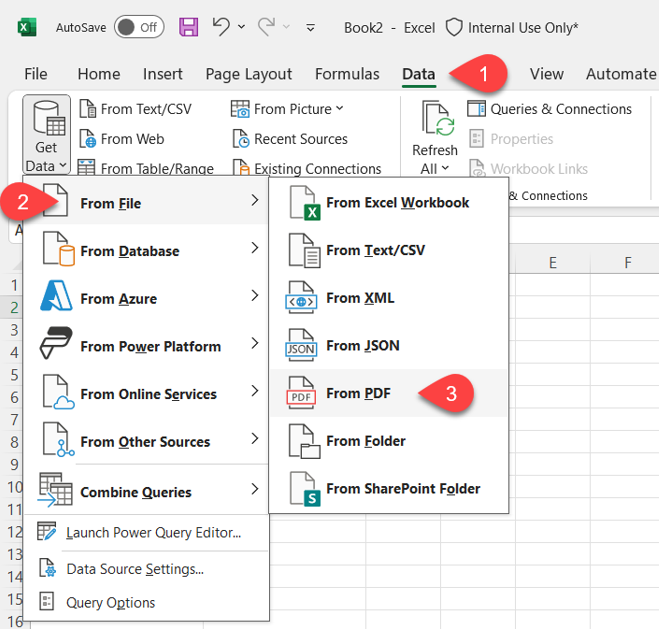
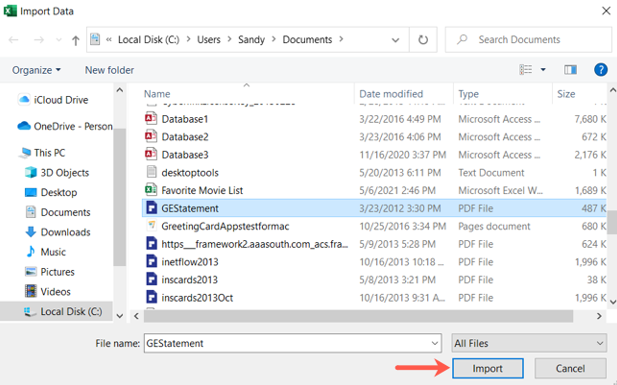
File Explorer will then launch, allowing you to browse to where the PDF is saved on your PC.
-
Browse to, and select the PDF statement and click Import.
A Navigator window appears, with table options for you to preview.
-
Using the list of tables in the left column, locate the "table" or "page" that contains the information in the commission statement for import and click Load.
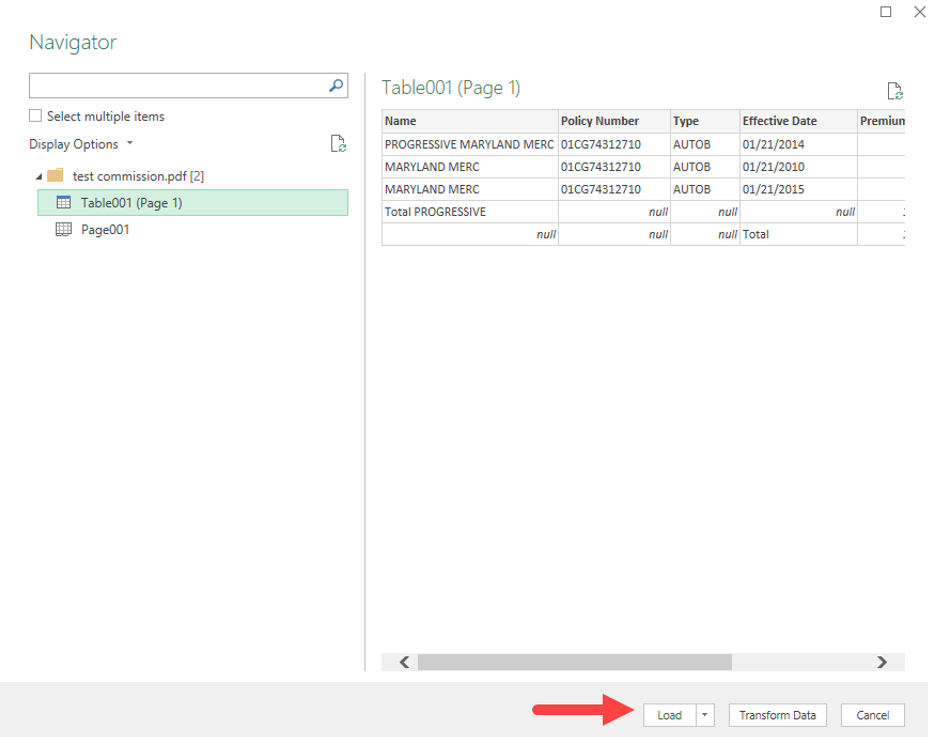
Ensure that the table or page you select includes the column headers ("Name", "Policy Number", etc). This is needed for import later.
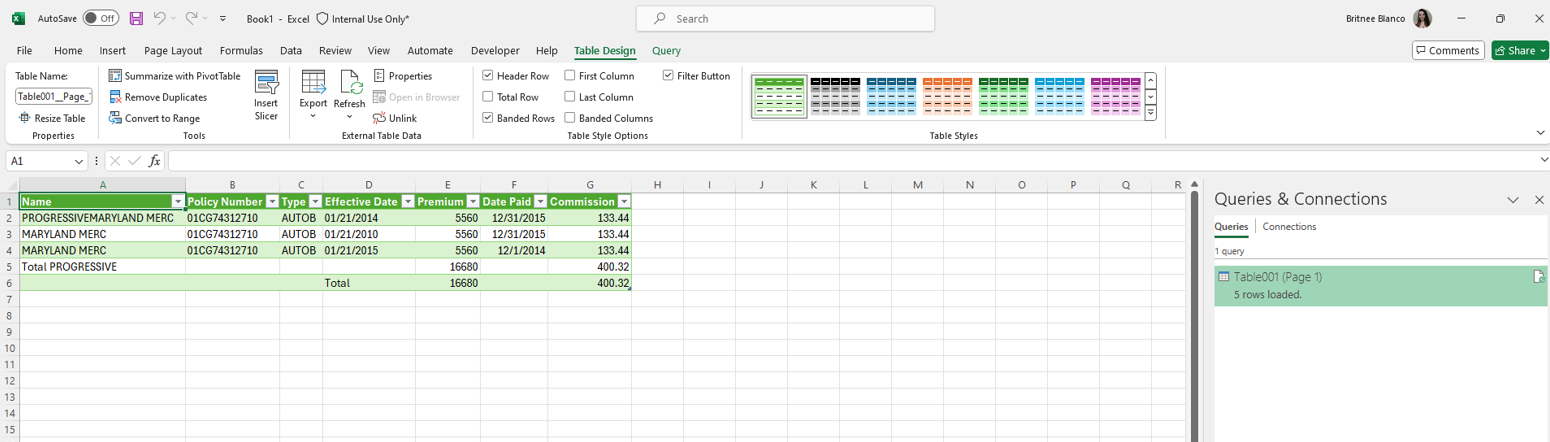
The selected table or page from the PDF is loaded into the columns and rows in your spreadsheet where you can add, modify, or remove data as needed.
-
Select File > Save As.
Save the Excel sheet as a CSV file on your PC.
You can now import that CSV into HawkSoft using the Commission Importer Tool, then proceed to reconcile it.
If required data is missing from the statement
If the statement that you convert is missing required columns, here are some tips on adding or correcting the information in the resulting CSV so that it can be used for import.
-
If Transaction Type is missing: Add a Transaction Type column to the CSV. If any of the transactions have known transaction types (New Business, Renewal, etc.), you can enter the transaction type. For all other rows, you can enter the transaction type Other, which can be mapped to the Other transaction type in HawkSoft during import.
-
If Transaction Date is missing: Add a column to the CSV for Transaction Date, and enter the same date for all of the transactions on the statement. The Statement Date is recommended in this case, as it will be the closest and most accurate if the true transaction dates are unknown.
-
If Commissionable Premium is missing: Add a Commissionable Premium column to the CSV and either:
-
Enter Commissionable Premium to be the same amount as the Commission Paid (this would look as if there was 100% commission).
OR
-
Enter Commissionable Premium with an amount of "0.00".
If your statement has both the commission rate/percentage AND the commission paid, when creating a manual transaction, you can enter both and HawkSoft will automatically calculate the Commissionable Premium.
-
Related Topics