Policy Commissions and Commission Overrides
As part of reconciling commission statements, the transactions on these statements are matched to policies on your clients. When the statement reconciliations are completed, these matched transactions are saved to the policies that they were matched to, where they can be viewed on the policy Commissions tab.
In addition to providing a place to review the reconciled commission transactions on a specific policy, the policy Commissions tab also provides options for setting Policy Commission Overrides. These policy-specific rules enable you to fine-tune the way HawkSoft calculates the commission on a policy by telling HawkSoft to treat the policy as if it is in a different term (new/renew/rewrite) for a certain amount of time.
This article explains how to access the commission tab on a policy, what data is shown on this tab, and how to create or change a policy commission override from this tab.
In this topic:
 Required permissions
To perform these actions, user permissions must be set to include:
Commissions > Allow Viewing Commission Transactions on Client
See User Permissions for more information.
How do I get here?
Launch a client file.
Select the policy tab for which you want to view reconciled commission transactions or adjust the commission term override.
Select the Commissions subtab on that policy.
The policy commissions list
The primary focus of the policy Commissions tab is the policy commissions list. This list displays each transaction on a reconciled statement matched to this policy. Here you can view the Transaction Date, Transaction Type (New Business, Renewal, etc.), the Effective and Expiration Dates, the Term Premium as of the transaction date, the Commissionable Premium, and the Reconciled Date.
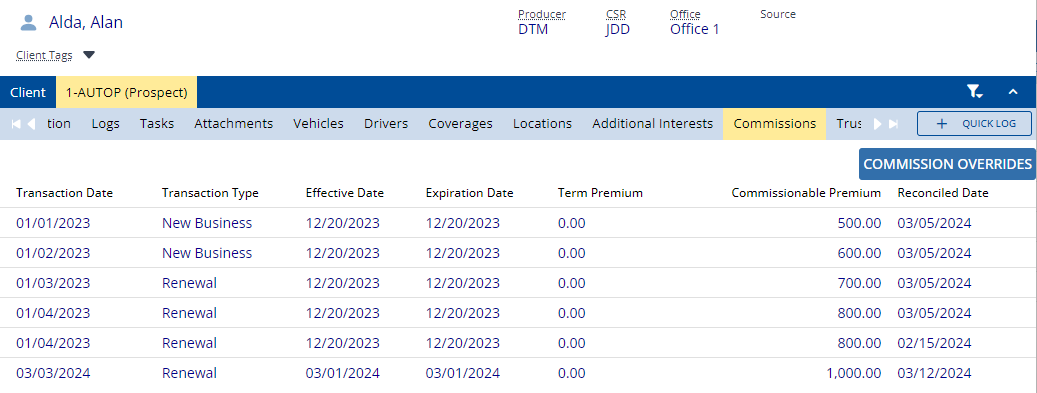
To view further details of a transaction, such as the agents assigned to split the specific transaction or the agency commission paid, you can click on an individual transaction to launch the Commission Item Detail dialog.
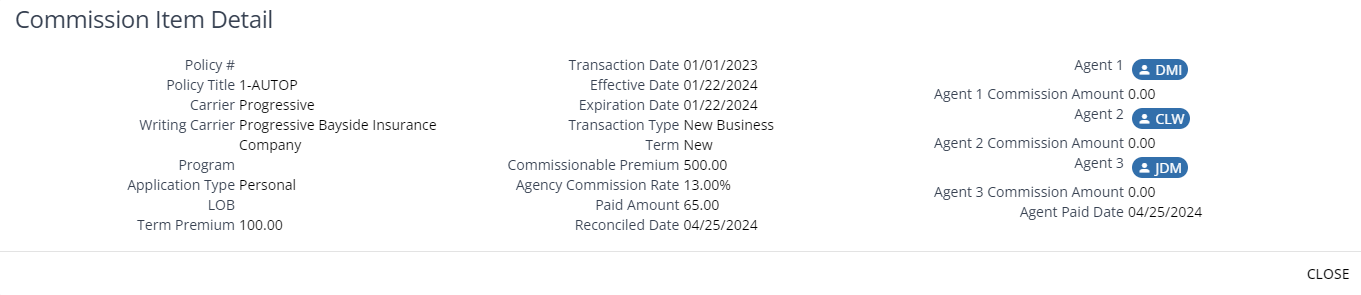
In this dialog, commission transactions that have not yet been paid do not display a value for Agent 1/2/3 Commission Amount, and display "UNPAID" for the Agent Paid Date. See Agent Commission Payout for more information.
If you want to see the details for multiple transactions instead of one at a time, you can also review the reconciled statement.
To create a commission transaction and statement from a policy
Required permissions
To perform these actions, user permissions must be set to include:
Commissions > Allow Creating/Editing Commission Transactions
OR
Commissions > Allow Commission Processing & Reporting
See User Permissions for more information.
As another alternative, you can easily create a single transaction directly from a policy. Commission transactions created in this way are added to a new commission statement.
You may want to create a commission transaction on a policy when you want to immediately pay agents on an agency bill policy or when you want to create a commission statement for a single agency bill policy.
When you create a commission transaction from a policy, it always creates a new commission statement containing only the created transaction.
Watch a video to see this workflow in action!
-
Launch a client, and select the policy for which you are creating a commission transaction.
-
Select the Commissions sub-tab on the policy.
-
Click + CREATE NEW in the upper-right of the policy commissions tab.
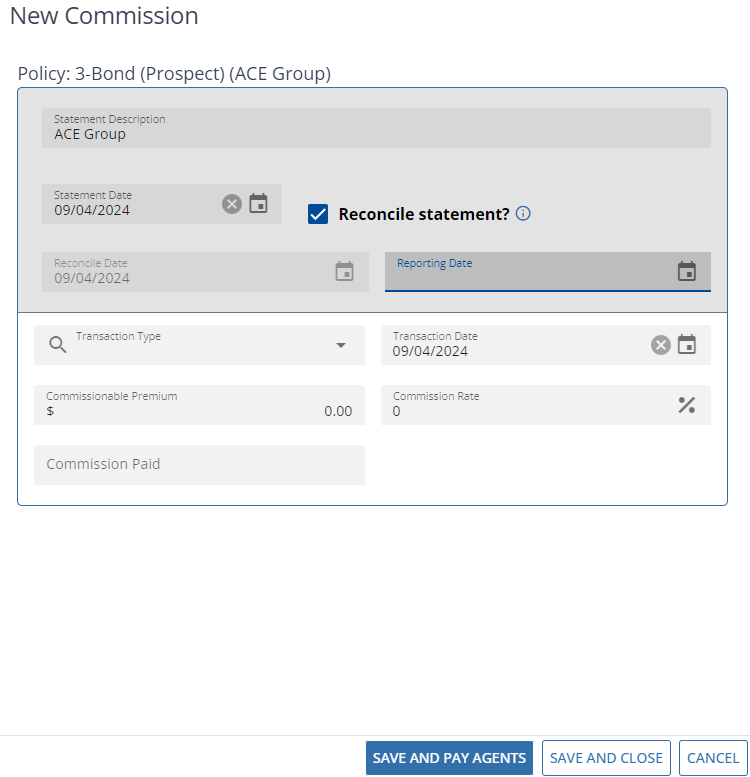
The New Commission dialog launches.
-
Optional: Enter a custom Statement Description.
By default, the statement description is the same as the name of the policy carrier.
-
Verify the Statement Date.
By default, the Statement Date is today.
-
Check or uncheck Reconcile statement?
What happens if I reconcile?
-
The transaction will be added to the policy Commissions tab.
-
You can process Agent Commission Payout immediately.
-
You will not be able to add further transactions to this statement.
-
The resulting statement will be added to the Previous Statements tab in Commissions Processing & Reporting.
What happens if I do not reconcile?
-
The transaction will not be added to the policy Commissions tab until the statement is reconciled using Commissions Processing & Reporting.
-
You are not able process Agent Commission Payout until the statement is reconciled.
-
You will be able to manually add further transactions to this statement from Commissions Processing & Reporting.
For steps to manually add transactions, see To add a commission transaction to a statement
-
The resulting statement will be added to the Reconcile Statements tab in Commissions Processing & Reporting.
-
For more information about reconciling statements, see Reconciling Commission Statements.
-
-
Conditional: If you are reconciling the statement, enter a Reporting Date.
The 1st or 15th of the month are the most commonly used Reporting Dates.
The Reconcile Date is entered as today's date, and can only be changed if the Reconcile Statement checkbox is checked.
-
Select a Transaction Type from the drop-down menu to describe the purpose of this transaction. Examples include New Business, Renewal, and Broker Fee.
-
Optional: Enter a custom Transaction Date.
By default, the transaction date is the current date.
-
Enter the Commissionable Premium, as a dollar value.
-
Enter the Commission Rate, as a percentage.
-
Enter the Commission Paid, as a dollar value.
It is possible to create a commission transaction with only two of the three amount fields mentioned above. If two of the Commissionable Premium, Commission Rate %, or Commission Paid are entered, HawkSoft will calculate the third field on the saved transaction.
It is possible to enter a Commission Paid amount of 0. Some agencies may choose to do this to include policies for which no commission is being received on commission reports and statements (for informational purposes). In this case, if a Commissionable Premium and/or Commission Rate are entered, they will not be updated by setting the Commissionable Premium to 0.
-
Click Save and Close to save the transaction without paying agents.
OR
Click Save and Pay Agents to proceed to the Agent Commission Payout workflow.
Save and Pay Agents is only available if you are reconciling the statement.
To pay agents after creating a commission transaction on a policy
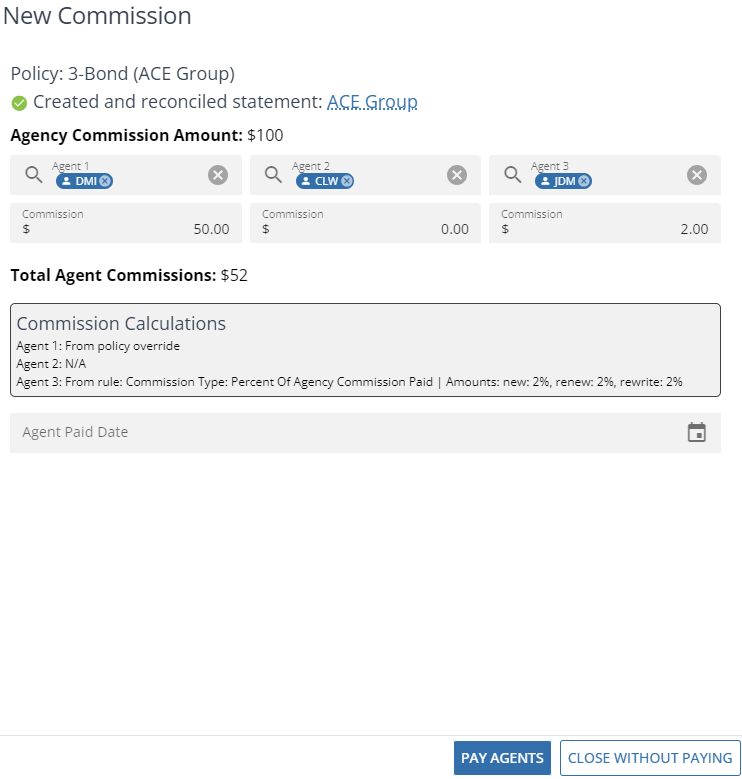
When you create a commission transaction on a policy and choose to reconcile and pay it, the New Commission dialog changes to show the agent payment details of the transaction.
This is a simplified, single-transaction version of the Agent Commission Payout workflow.
-
Review the agents on the transaction and their commission amounts, and adjust them if needed.
-
Review the information in the Commission Calculations box. This tells you what agent commission rules or policy overrides HawkSoft used to calculate the commission amounts on this transaction.
-
Enter an Agent Paid Date.
This is the date that will be recorded on policies, reports, and agent paid statements as the date the transaction was paid out.
-
Click Pay Agents.
The transaction is marked as paid and the New Commission dialog closes.
The paid transaction will now show on Agent Commission Paid Reports and Agent Paid Statements.
-
To set or change a policy commission override
A Policy Commission Override is a policy-specific rule that tells HawkSoft to consider the policy to be in a different term type (New, Renew, Rewrite) for the purposes of commission, or to apply unique rules to determine an agent's commission due for that policy. This may be necessary if, for example, a carrier is paying your agency the New commission rate on a Renew policy, or when an agent should receive a higher or lower commission on a policy than they normally would.
These commission overrides are set per policy, from the policy commissions tab.
-
Retrieve the policy for which you want to adjust the commission override.
-
Navigate to the Commissions tab on the policy.
-
Click the
 button at the top right of the policy commission tab.
The Policy Commission Overrides dialog launches. You can set an override for the policy, for the agents on the policy, or a combination of both.
If an override is already set for this policy, you can modify the fields as needed.
To set a new commission term override
-
Click to set the toggle for Override the default term for [policy] to active (blue).
Several data fields appear on the dialog.
-
Fill out the data fields to define the conditions of the commission override:
-
The Start Date is the date the commission override will begin to take effect.
-
The Starting Term determines the term value (New, Renew, or Rewrite) that HawkSoft will use to calculate this policy's commissions while the override is active, regardless of the actual policy term.
-
Determine the length of the override. Enter a number and time unit for the override.
-
The End Date defaults based on the start date and override length.
-
The Ending Term is the term value (Renew, Rewrite, or None) that will be used for the policy commissions after the end date of the override.
-
To set Agent commission overrides
You can set agent commission overrides which enable you to change the commission basis (flat fee, % of premium, etc) and the percentage/amount used to determine an agent's commission on this specific policy. These overrides can be set individually for Agents 1, 2, or 3 on the policy.
Agent commission overrides persist on the policy until manually inactivated. They do not have an end date as policy term overrides do.
-
Click to set the toggle for the Agent 1/2/3 to active (blue).
Several data fields appear on the dialog.
-
Fill out the data fields to define the conditions of the commission override:
-
Commission Basis drop-down - Select from No Commission, Flat Amount, % of Commissionable Premium, or % of Agency Commission Paid.
If No Commission was selected, no other fields will be displayed.
-
Term: New/Renew/Rewrite - Check the box for a policy term to enable this override to apply to that term of the policy. At least one term must be selected. Terms not selected will not be altered by this override.
-
Values - Each selected term has a value box below it. Enter the percentage of the commission basis that the override should apply for this policy, for each active term (or dollar amount if Flat Amount was selected).
-
To disable a commission override
Click to set the toggle for Override the default term for [policy] or for Agent 1/2/3 to inactive (gray).
The data fields disappear from the dialog and that override is no longer active on this policy.
-
-
Click Save Changes to save your changes and close the dialog.
Active commission overrides are applied when a transaction is matched to the associated policy. Transactions already matched to a policy, but not reconciled, will need to be re-matched to apply the override, or manually modified to change the term. Transactions on reconciled statements are not affected.
Related Topics