Activity Tags
Activity tags are customizable keywords that users can add to logs to give additional context around actions taken or the customer interaction. At a glance, these tags reveal trends in the types of logs created for a client—such as frequent calls about late payments, occasional discussions about unsold boat policies, or notes related to MVRs.
In addition to providing quick insights, activity tags are also reportable. This allows agency managers to better understand what is driving activity at your agency. For example, a manager might run an activity tags report to see which sales campaigns are generating the most new business based on tagged interactions.
This topic covers how to apply or remove activity tags to log notes on your clients, and how to run a report on all existing activity tags.
Activity Tags should not be confused with Client Tags. Activity Tags are keywords used to mark and categorize log note interactions, while Client Tags are used to add notifications about important client details, such as "this client speaks Spanish" or "this client is expecting a baby soon". See Client Tags
 Required Permission
In order to complete this task, no specific HawkSoft user permissions are required.
See User Permissions for more information.
Adding activity tags to a log
It is best practice to add activity tags to your log notes to further clarify what the conversation with a customer was about. When saving a log, you may receive a reminder or be required to add activity tags, depending on your agency’s settings. These tags make it easy to review the subject matter of the log notes listed on the Logs tab of the client file, and make it easy for your agency manager to report on commonly applied tags.
To add activity tags to an existing log note, click Append To Log.
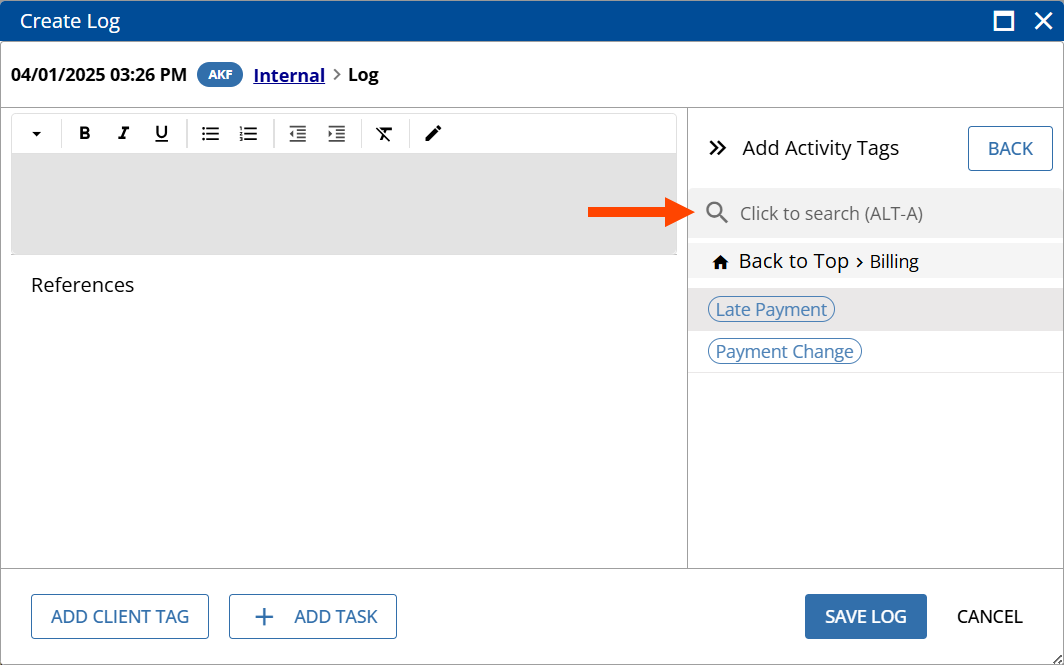
You can « Expand or » Collapse the Add Activity Tags dialog from the right-side of the Log dialog.
Enter a keyword to search for an activity tag or choose a parent tag to select a sub-tag.
You can add up to 10 activity tags to a log.
The selected tags are listed at the top of the log. You can remove activity tags using  Remove.
Optional: Click  Home to begin selecting another activity tag.
See Creating a Log Note for more information.
Viewing activity tags on the Logs tab
From the Logs tab on the client file, activity tags are listed after the breadcrumbs on each log. Activity tags with a blue background are on logs linked to the selected policy. Activity tags with a gray background are associated with a different policy on the client file.

You can hover over an activity tag to see the full tag.
You can also double-click on a log note to see a full list of activity tags on that log note, in the View Log window.
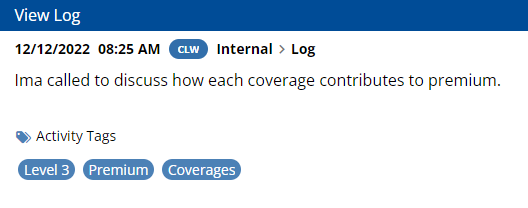
For more information, see Searching and Viewing Log Notes.
Removing activity tags from a log note
You can remove activity tags from a previously saved log note if they were added to the log note in error or are no longer needed. Once removed, the activity tags will no longer appear on the log note or in the Activity Tag report.
Removed activity tags will not appear on the All Activity Tags by Date Range report. To learn more about how to report on removed activity tags, see Reporting on activity tags.
-
Search for and open the log note.
-
Click the
 More Options menu.
 -
Click Remove Activity Tags.
-
Select the activity tags to remove from the log note.
-
Enter a reason for removing the activity tags from the log note. This information will be appended to the log note for documentation purposes.
-
Click Remove Tags.
The selected activity tags are removed from the log note, and your reason for removal is automatically appended to the log note.
Reporting on activity tags
You can report on activity tags to see common client actions or interactions for your agency. For example, your agency can create an "Invoice Dispute" tag, and run a report on how many clients called, emailed, or walked in to dispute their invoice this year. Alternatively, your agency can create a "Voicemail" tag, so that you can run a report on which clients are difficult to reach by phone.
Required Permissions
In order to complete this task, user permissions must be set to include:
Reports > Client Activity Report
Client access: You must have permission to the Client or Customer Type you want populated on the report.
For example, for the report to include tags on commercial clients, the Client Access > Commercial permission is required.
See User Permissions for more information.
-
Select Reports > Activity Reports from the main HawkSoft menu bar.
-
Click + New Report.
-
Select All Activity Tags by Date Range,
To report on and view removed activity tags, select the All Client Actions by Date Range activity report and check the box to Include appends on Logs. For more information, see Activity Reports.
-
Optional: Modify the Report Title, as needed.
Adding a report title will allow you to more easily locate this report again from the Recent Reports tab.
-
Select a preset date range, enter a log date range, and/or select user(s) to filter the report criteria by, and then click Run Report.
Your Activity Tag report opens in a new window.
From the report, you can review the data and sort, summarize, and create sub-reports. For more information, see Customize, Summarize, and Filter Report Data, 1-Click Reports and Saving and Sharing Report Data
Related Topics