Best Practices for Managing Tasks for your Agency
Creating task templates for your agency is the key to managing tasks. This article is intended to teach agency administrators/managers the best practices for managing your agency's tasks, which starts with configuration. Practicing these best practices will help you to:
Determine standards and workflows for your agency tasks
Leverage task settings to create standardized tasks in your agency
Easily track the progress of your agency's tasks
Determine if you want your staff to always create a log note on a task for E&O purposes
 Understanding Task Workflows
There are two types of tasks your staff can create:
-
Client-Related Tasks - Tasks that are associated with a client/policy. You can create client-related tasks from a client/policy.
-
Non-Client Related Tasks - Tasks that are not associated with a client/policy. You can create only non-client related tasks from the Task Center.
All tasks can be viewed in the Task Center to make it easy for your staff to see all of their tasks in one place and to follow up on their daily tasks. As a manager with permissions to Agency Tasks, you can view both client-related and non-client related tasks for your entire agency in one place.
All users can see Tasks assigned to them, regardless of their permissions. Users can only update a Task associated with a client they have Client Access permissions for.
Users with the View Agency Tasks permissions can view all non-client related tasks from the Agency Tasks Overview. Non-client related tasks cannot be restricted by Client Access permissions or Office permissions.
HawkSoft recommends that you avoid entering any sensitive data into Tasks.
HawkSoft recommends that you leverage task settings to ensure that your staff creates consistent standardized tasks. Standardized tasks make it easier for your staff to quickly create tasks and make it easier for you to review and manage tasks at the agency level. See Standardize Tasks for Your Agency below to learn more.
Standardize Tasks for your agency
HawkSoft recommends that you create task categories and task templates for the most common reminders your staff will need. Once you create categories and templates, you can configure default tasks and download task rules as well. Standardized tasks make it easier for you to review and manage tasks at the agency level and make it easier for your staff to quickly create tasks with consistency. HawkSoft also recommends enforcing the creation of log notes when tasks are created, because log notes provide permanent documentation.
The table below provides a brief description of each Task Setting and how they can help your agency create standardized tasks.
| Task Setting |
Purpose |
|---|---|
|
Task Templates |
A specific task with preset details that can be applied to new tasks or default tasks. Task Templates enable your agency to:
See Task Categories and Templates to learn how to create templates and categories. |
|
Task Categories |
A custom keyword label that can be applied to tasks and task templates. Task Categories enable your agency to:
See the recommended template settings and additional considerations below or see Task Categories and Templates for more information. |
|
Default Task Rules |
A custom rule that triggers the automatic creation of a task when a specific action is performed on a policy. Default Task Rules enable your agency to:
See Default Task Rules for more information. |
|
Require Log Notes on client-tasks |
An agency setting that can require users to create a log note each time they create, edit, or complete any task that is associated with a client or policy. Requiring log notes on client-tasks enables your agency to:
See General Settings for more information. |
Recommended template settings
The level of detail included in tasks impacts how effectively you are able to review your agency tasks from the Agency Tasks tab.
HawkSoft recommends that you include the following task details in your templates, and/or train your staff to always include in their tasks:
-
Category - Including a Category enables you to quickly group your Agency Tasks in the Task Center, and also enables your staff to easily select a template related to a Category.
-
Title - Including a Title in your templates encourages your staff to create consistent tasks and enables you to filter by title and quickly skim through your agency task list.
-
Assignee(s) - Including Assignees enables you to automatically designate one or more specific users or type of user(s), such as a CSR or Producer, when you have specific types of tasks that are typically assigned to the same team members.
-
Task Instructions - Including Task Instructions enables you to provide details of the actions you expect to occur in response to the task.
-
Priority - Including a Priority enables you to group your agency tasks by priority, so you can review the highest priority tasks first.
-
Due Date Rule - Including a Due Date Rule enables you to automatically assign a specific date/time the task will be due before or after the designated event.
For example, you can set a rule for a specific type of task to always be due one month before the policy expiration date.
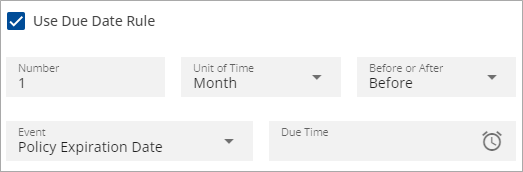
Policy Renewal template example
When creating the task template, you would set the Category to Renewal, enter Policy Renewal Call as the Title, select CSR and Producer as the Assignees, set the Priority as Medium, and then set the Due Date Rule to 90 days before the Policy Expiration Date.
Track Success
You can check the Track Success checkbox when creating task templates. This template setting enables two additional statuses, Successful and Unsuccessful, on any tasks the template is applied to. You can track the success rate of all completed tasks that use the template in your agency from the Task Settings > Task Templates tab in the Task Center.
See Task Categories and Templates for more information.
Easily track and review standardized tasks for your agency
Now that we have covered the recommended settings for your templates, let's review how the task details appear in the Task Center when you are reviewing tasks for your agency. The Agency Tasks tab displays an overview of all tasks in your agency to enable you to easily manage numerous tasks at once.
By default, tasks are organized by Status and Assignee on the Agency Tasks tab. This allows you to quickly see all of your agency's overdue, upcoming, or completed tasks for each Assignee. The Group-By option enables you to change the list from Assignee to Category, Priority, or Carrier.
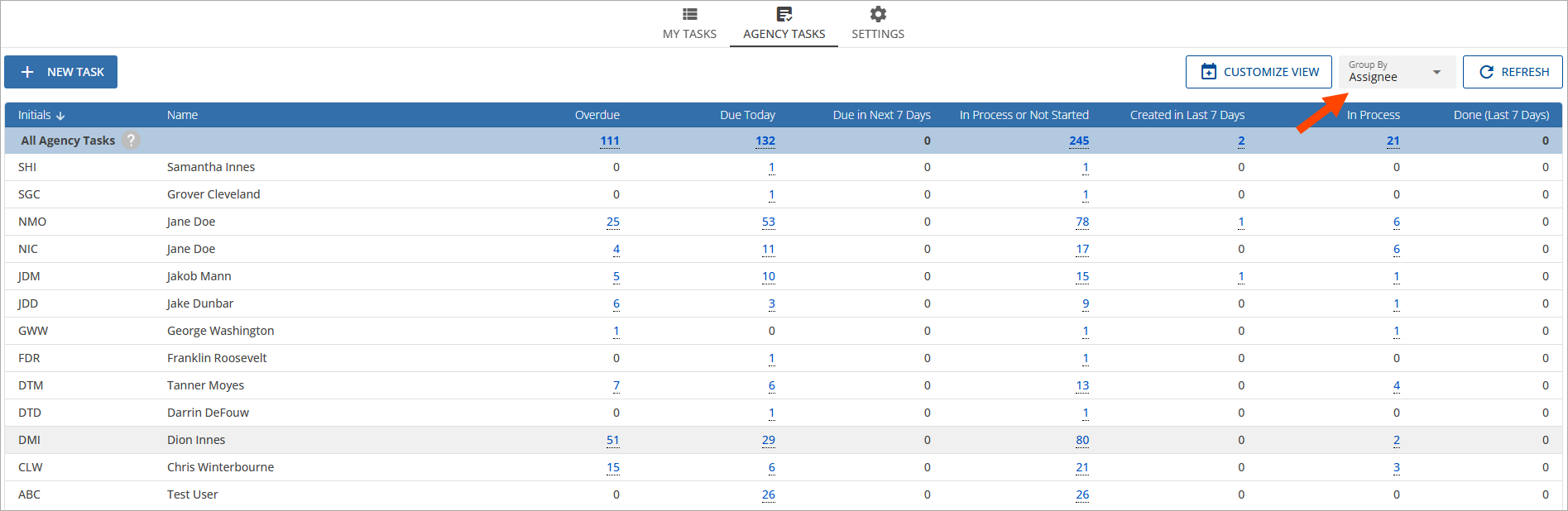
You can also click on a number in one of the columns to drill-down to view a more detailed list of tasks for a specific group/status, and then use additional filters to help you review the tasks.
In this example, the agency task list above was grouped by Assignee. We then opted to view all of NIC's tasks with a status of In Process or Not Started. Below, we can see the drilled-down view of NIC's tasks.
You will notice how the task details are listed as the column headers of the drilled-down list and enable you to easily organize, review, and track the tasks. Getting familiar with the task details displayed on the Agency Tasks screen will help you decide which data to include in your templates or require your staff to complete.
For example, the task pointed out in the image below was created without using a template and very minimal details were filled in. Tasks created with minimal details make it challenging for you to quickly find the task using filters, understand the purpose of the task, or fill in any missing details that are needed to complete the task.

See Managing Tasks for the Agency for more information.
Related Topics