Managing Tasks for the Agency
The Agency Tasks tab enables managers to view all of their agency's overdue, upcoming, and completed tasks in one central location and offers flexibility so you can review and manage tasks more efficiently.
For example, you may want to view all of your agency's highest priority tasks that are due today so you can ensure that your staff completes their most important tasks. In addition, if a user with multiple high priority tasks is out sick today, then you can easily reassign some of their open tasks to another user in your agency directly from the Agency Tasks Overview.
This article teaches you how to review your agency's tasks, modify and filter your task view, reassign tasks for your staff, remove a batch of tasks, drill-down further to review tasks in more detail, and how to edit, update, or remove an individual task.
To learn how to standardize tasks for your agency or set up Task Settings, see Best Practices for Managing Tasks for your Agency and Task Settings Overview.
When an action is taken on a task (such as editing, closing, or reopening a task), HawkSoft recommends selecting Save and Log or Save & Append to document the task actions in an associated log note. Documenting the task actions in a log note ensures they are included in the Action column of the All Client Actions by Date Range Activity report. For more information, see Activity Reports.
To review your agency's settings for requiring log notes on client-related tasks, see General Settings.
This task is typically performed by an Owner/Administrator or Manager.
 To access Agency Tasks
To access Agency Tasks, click Reports > Agency Tasks from the main HawkSoft menu bar.
OR
-
Log into the HawkSoft Browser app, accessed from any computer.
-
Click the Task Center icon
 in the left column of the HawkSoft Browser App start page, then select the Agency Tasks tab.
For more information about logging into the HawkSoft browser app, see Logging In and Out of HawkSoft.
Depending on your Workstation Settings, the Agency Tasks tab opens:
-
In a separate Task Center window
-
In a new tab within HawkSoft, on the far left of the client bar
-
In a new tab in your web browser (if accessed from HawkSoft Browser App)
The Agency Tasks Overview
Each column in the Agency Tasks Overview lists the number of tasks per Status and Assignee by default. This allows you to quickly see a KPI overview of all of your agency's tasks for each Assignee.
The All Agency Tasks row displays the total number of your agency's overdue, upcoming, or completed tasks. The totals in this row may not be the sum of the task groups in some cases, such as tasks with multiple assignees. These tasks would be included for each assignee in the task list, but only counted once in the agency totals.
From the Agency Tasks overview, you can:
-
Quickly reassign tasks to your staff
-
Remove a batch of tasks
-
Modify the date ranges of the Agency Tasks columns
-
Change the Group By from Assignee to Category, Priority, Carrier, or Client Office
-
Drill-down to review tasks in more detail
Users with the View Agency Tasks permissions can view all non-client related tasks from the Agency Tasks Overview. Non-client related tasks cannot be restricted by Client Access permissions or Office permissions.
To modify your Agency Tasks view
From the Agency Tasks tab, you can easily modify and organize your task list using the features in the table below to help you narrow-down, review, and manage your agency's tasks more effectively.
For example, you may want to view all of your agency's tasks that will be due while you are on vacation. From the Agency Task Overview, you can click Customize View and apply your vacation dates as a Custom Date Range to create a new column, and then select Assignee from the Group By drop-down to quickly view all of the tasks that are due during your vacation, grouped by each assignee.
| Feature |
Purpose |
|---|---|
|
|
From the Agency Tasks Overview, you can click
For each of the four 'number of days' fields, a value between 1 and 120 days must be entered; the default is 7 days. HawkSoft will remember your custom number of days and/or Custom Due Date Range option(s) the next time you open the Agency Tasks tab. To remove one or more of the customizable columns listed above, uncheck the box next to the column(s) inside the Customize View dialog, and click Apply. |
|
You can use the Not all of the Group By options are available from the Agency Tasks Overview screen. Select an option from the Group By drop-down to:
By default, HawkSoft will remember your Group By selection the next time you open the Agency Tasks tab. |
|
|
You can click on a column header from the Agency Tasks Overview or from a drilled-down task list to quickly sort the column. The total number of tasks in each column always displays in bold at the top of each column/ in the All Agency Tasks row.
Once you have drilled-down into a more detailed list of tasks, you can click By default, HawkSoft will remember any columns you added, reordered, or removed s the next time you drill-down into the Agency Tasks list. |
|
|
|
Once you have drilled-down into a more detailed list of tasks, you can use the filters ribbon to further narrow-down your task list by items Associated To: Attachments or Logs, Category, Title, Priority, or Status. You can apply multiple filters at once. To remove the filter(s) and view all tasks on your tasks, click Clear. |
 to configure the following columns in the Agency Tasks table:
 To reassign tasks
From the Agency Tasks Overview, you can replace a user on some or all of their open tasks, or add a user to some open tasks, enabling you to reassign multiple tasks at once. See Tracking My Daily Tasks for more information on re-assigning a single task.
For example, if a user no longer works at your agency then you can easily reassign all of their open tasks to another user in your agency.
All users can view all of their assigned Tasks, regardless of permissions. Users must have Client Access permissions to edit client-related Tasks. Users can edit non-client related Tasks assigned to them without any additional permissions.
To reassign tasks, click the  More Options in the upper-right of the Agency Tasks Overview, select Reassign Tasks, apply any search filters as needed, and then follow the on-screen prompts.
When replacing or adding a user to some open tasks, you can apply search filters to quickly narrow-down the task list. You can also select the Only include Agency Tasks (no client) filter to only return all non-client related tasks in your search.
To close a batch of tasks
From the My Tasks or Agency Tasks tab, you can close multiple tasks at once to quickly update their status, and easily append the same information to any log notes associated with the closed tasks. For example, you may want to close a batch of related tasks that require no further action or were automatically created from downloads and are not needed.
HawkSoft recommends closing tasks by changing the Status, rather than removing the tasks.
Closing a task records that is was open at one point in time. Tasks do not retain historical context. Use Logs to preserve permanent, auditable documentation.
Removing tasks permanently deletes them from the Task Center and any client/ policy the tasks are associated with. A removed task cannot be viewed or reopened. If a task is accidentally removed, it must be manually created again.
When you close multiple tasks at once:
-
The Status of each task is automatically updated to Done or Successful (if the task is using a template with Track Success enabled)
-
An appended log note is created by default and applied en masse to all tasks with an associated client and/or log note
-
Any tasks without an associated client or log note are automatically closed without creating a log note
If you need to append specific task details (such as additional comments or the task category and instructions) to any associated log notes, HawkSoft recommends that you close each task individually.
-
Inside the My Tasks/Agency Tasks list, check the box to the left of each task that needs to be closed.
The checkbox appears when you hover your mouse over the left-hand side of a task in this list.
-
Click Close Selected.
-
Click confirm.
-
Conditional: An Append Log dialog opens if any of the closed tasks have an associated log note. Add any comments to the appended log note as needed, and then click Append Log.
-
Recommended: Press F5 on your keyboard to refresh HawkSoft and view your updated task list.
Required Permissions
In order to complete this task, your user permissions must be set to include:
Tasks > Allow Multiple Tasks to be closed at once
Client Access > You must have permission to the Client type and Customer type you want access to
See User Permissions for more information.
To delete a batch of tasks
You may delete a batch of tasks that you no longer need or were created in error.
You can remove a batch of Agency tasks from the Agency Tasks Overview. With permissions, your staff can close multiple tasks from their own list of tasks on the My Tasks tab. See Tracking My Daily Tasks for more information.
HawkSoft recommends changing each task's Status, rather than removing them, if you want to keep a history of the task on the related client. Removing a task will permanently delete it from the Task Center and on any client/policy the task is associated with.
Once a task has been removed, it cannot be viewed or reopened. Tasks that have been accidentally removed must be manually created again. See More on removing a task for more information on closing a single task.
-
Click the
 More Options menu in the upper-right of the Agency Tasks Overview, and then select Delete Tasks.
 -
Optional: Use the filters to narrow-down the task list.
When replacing or adding a user to some open tasks, you can apply search filters to quickly narrow-down the task list. You can also select the Only include Agency Tasks (no client) filter to only return all non-client related tasks in your search.
-
Click Search Tasks.
-
Check the box next to each task you wish to remove, and then click Delete Tasks.
-
Review the warning, type Deleteto confirm, and then click Delete Tasks.
A notification appears stating that the task has been removed successfully.
Deleted tasks associated with a log note on a client or policy will display on the log note as Removed, but cannot be opened or viewed.
To drill-down, review, and modify Agency Tasks
From the Agency Tasks Overview, you can drill-down further to view a more detailed list of tasks for a specific group/status. This enables your agency to quickly filter, review, edit/update, and remove tasks, as needed.
-
Optional: Select an option from the Group By drop-down menu.
-
To drill-down and review a list of tasks for a specific group/status, click on a number.
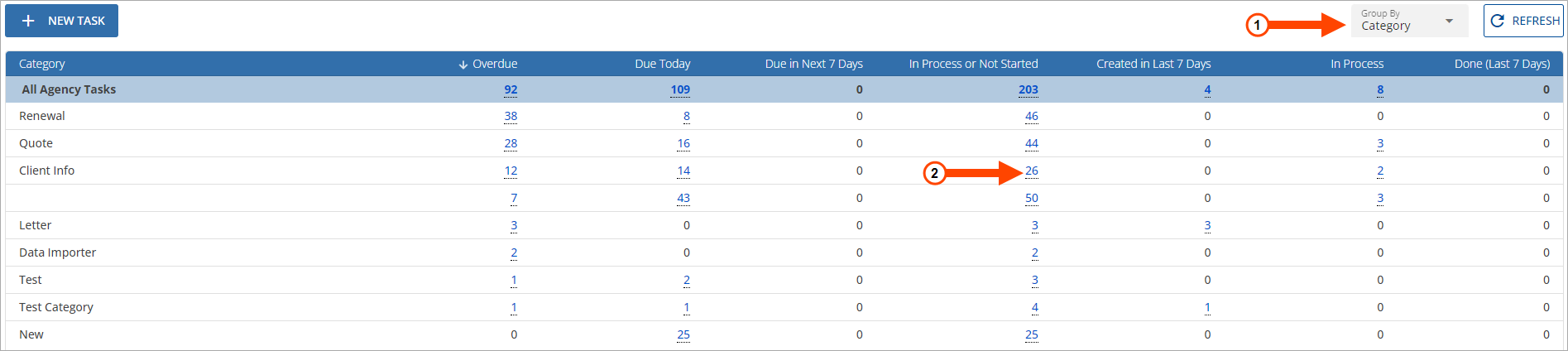
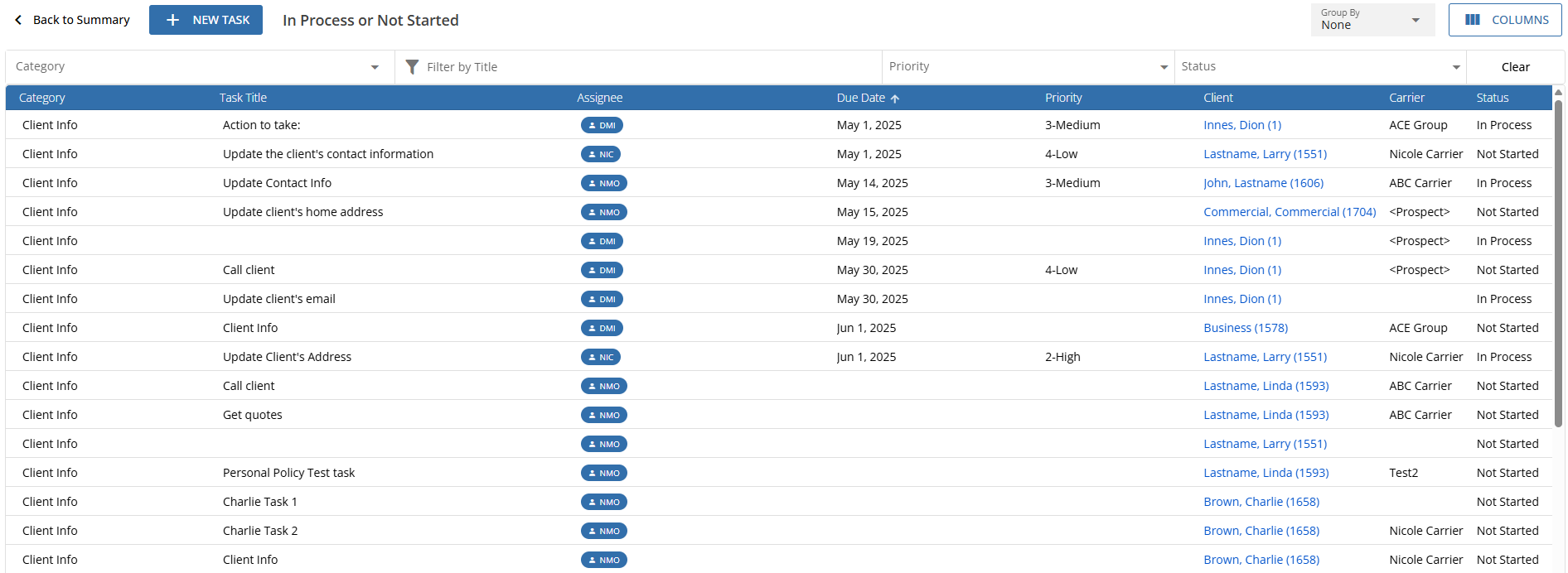
A detailed list of tasks specific to that group/status opens.
-
Optional: Use the Filters, Group By options, and/or Columns to narrow-down and organize the task list.
-
Click on a task to open it and view the task details.
You can click View Attachment or View Full Log to quickly view the associated attachment or log note directly from a task.
Click Launch Log on Client to open the associated client and view the log note directly from the client/policy related to the task. This enables you to view additional details or take action on the client, as needed. -
Optional: Edit or update the task, as needed.
Click the History drop-down to review all edits and updates that have been made to the task.
More on editing/updating a task
When an action is taken on a client-related task (such as editing, closing, or reopening a task), HawkSoft recommends selecting Save and Log or Save & Append to document the task actions in an associated log note. Documenting the task actions in a log note ensures the actions are included in the Action column of the All Client Actions by Date Range Activity report. For more information, see Activity Reports.
To review your agency's settings for requiring log notes on client-related tasks, see General Settings.-
Click
 to edit the task from the Task Center or click
  to edit the task directly from the client/policy related to the task.
 -
Edit or update the task details, as needed.
Description of Task fields
-
Category: A keyword label for the task.
-
Title: A brief description of the task.
-
Status: Tracks the progress of the task. Select Not Started, In Process, or Done.
If a task template was used to create this task, your staff can select Successful or Unsuccessful rather than Done to track the progress of this task.
You can track the success rate of all completed tasks that use the template from the Templates tab on the Settings screen in the Task Center. See Task Categories and Templates for more information. -
Due Date: The date the task is due.
If you modify the Due Date or Due Time of a task, it will not automatically update in the calendar. HawkSoft recommends re-exporting the task to update it.
-
Priority: The level of importance of the task.
-
Assign Users: The users assigned to the task. A maximum of 5 users can be assigned to the task, if needed.
-
Must be assignee to edit: When checked, only the user(s) assigned to the task, or users with Allow Tasks Management permissions can manage, edit or, close the task. Other users can still view the task on the associated client, but they will not be able to modify the task.
User permissions must be set to include "Must be assignee to edit" in order to lock a task. See User Permissions for more information.
-
More Options: Modify additional details for the task, as needed.
-
Due Time: The time the task is due by on the due date.
-
Task Instructions: The steps needed to complete the task.
To insert a hyperlink in the Task Instructions, you can highlight your desired text, click the
 link icon or press CTRL + K, and then modify the Link text as needed. You can also copy and paste a hyperlink directly into the Task Instructions.
The Task Instructions field should only be used for temporary notes describing what is needed for the task to be completed.
All client/policy interactions, details, and/or changes must be permanently documented in a log note for E&O purposes. This ensures that your documentation remains easily accessible even after the task is closed. SeeLog Notes Overview for more information.
-
-
-
Save the task:
-
Save - confirm and save the task without a log note.
Depending on your agency’s settings, the Save option may be unavailable, and a log note may be required when creating, editing, or closing a client-related task. If not required, HawkSoft recommends using Save and Log or Save & Append when creating, editing, or closing a client-related task to document interaction details.
See General Settings or Tracking My Daily Tasks for more information. -
Save & Append - to confirm changes to the task and append to the original log note.
-
Save & Action - confirm and save, then take further action on the client/policy.
This option is only available if you selected Edit on Client.
-
Save and Log - confirm and save, then create a linked log note.
If you select Save & Log, Save & Append, or Save & Action the task is not saved until the log note is saved. See Creating a Log Note for more information.
If you are creating a new log or appending the log while saving the task, you can drag and drop an attachment into the log note and then press CTRL + Enter on your keyboard to easily save the attachment.
The task is saved and all edits or updates made to the task will display in the Task Center and on any client or policy that the task may be related to.
Once updated, you can click
 Share Task to copy a link to the task to your clipboard, and then paste the link into emails and chats to other users in your agency to allow them to quickly open the linked task on the client. Only client-related tasks can be shared.
 -
-
-
Optional: Remove a task, if needed.
More on removing a task
HawkSoft recommends changing the task's Status, rather than removing it, to keep it accessible. Tasks do not provide historical records; logs should be used for permanent documentation instead. Removing a task permanently deletes it from the Task Center and from any associated client or policy.
Once a task has been removed, it cannot be viewed or reopened. If a task is accidentally removed, it must be manually created again.-
Click
 More Options in the lower-left of the task.
 -
Click Remove.
-
Review the confirmation, and then click OK.
The task closes and a notification appears stating that the task has been removed successfully.
If a client-task with an associated log note is deleted, it will still display on the log note for historical reference, but it cannot be viewed or reopened. The task will be marked as Removed.
-
-
Once you are done reviewing and/or editing tasks, click Back to Summary to return to the Agency Tasks Overview.
To export a list of tasks
You can export the list of tasks you are currently viewing in My Tasks or Agency Tasks as a spreadsheet file (.csv), which can be reviewed in Excel, or printed to review and share. The spreadsheet contains columns for each column in the My Tasks/Agency Tasks table, as well as columns for noting if a task is overdue, or associated with a log and/or attachment.
-
Open a detailed list of tasks in My Tasks or Agency Tasks.
-
Optional: Apply filters to narrow down which tasks will be exported.
-
Click Export CSV.
Depending on your browser settings, you may be prompted to select a location to save the report to, or it may save to your Downloads folder automatically.
Required Permissions
In order to access Agency Tasks, user permissions must be set to include:
Tasks > View Agency Tasks List
Client Access > Customer
In order to reassign or delete tasks, user permissions must be set to include:
Tasks > Allow Tasks Management
See User Permissions for more information.
Related Topics