HawkSoft enables you to import your agency logo to be included on invoices generated by HawkSoft, ACORD ID cards (other than state specific), correspondence, and on your agency's HawkSoft Start Page.
This article describes how to import your agency logo into HawkSoft, configure your logo to display in HawkSoft, and add it to documents.
 Required Permissions
In order to complete this task, user permissions must be set to include:
Agency Setup > General Configuration
See User Permissions for more information.
To import your agency logo
To import your agency logo, you must first have your logo image saved on your computer or network. HawkSoft recommends saving your logo in one of the following image formats: PNG, JPEG, GIF, or BMP.
For best results, use an image with a resolution of 1150 x 280 pixels.
-
In HawkSoft Desktop, click
 Setup, and then select General Configuration.
The General Configuration dialog opens to the General Settings tab.
-
Click the Import button next to the Agency Logo field.
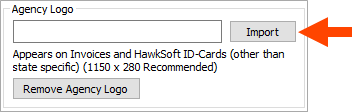
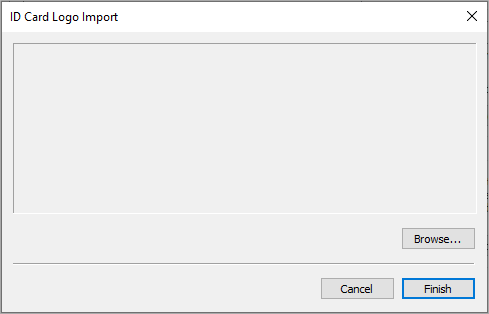
The ID Card Logo Import dialog opens.
-
Click the Browse... button, navigate to your agency logo file, select the file, and then click Open.
The ID Card Logo Import dialog displays your logo.
-
If the logo looks correct, click Finish.
OR
If the logo does not look correct, click Cancel, and then make sure your logo is saved correctly before importing.
- Click OK.
Your agency logo is imported into HawkSoft, and displays on the Start Page and/or documents.
To remove the Agency Logo, click Setup> General Configuration, and then click Remove Agency Logoin the Agency logo field.
All Invoices and Auto ID cards (other than state specific) generated by HawkSoft automatically include your Agency Logo.
To display your agency logo on the Start Page
Once your logo is imported into HawkSoft, you can display the logo on the Start page.
For agencies with multiple offices, only one logo can be imported on the Start Page.
-
On the Start Page, click the
 Dots in the upper-right corner.
 The Agency Start Page Settings opens.
-
Click Show Logo.
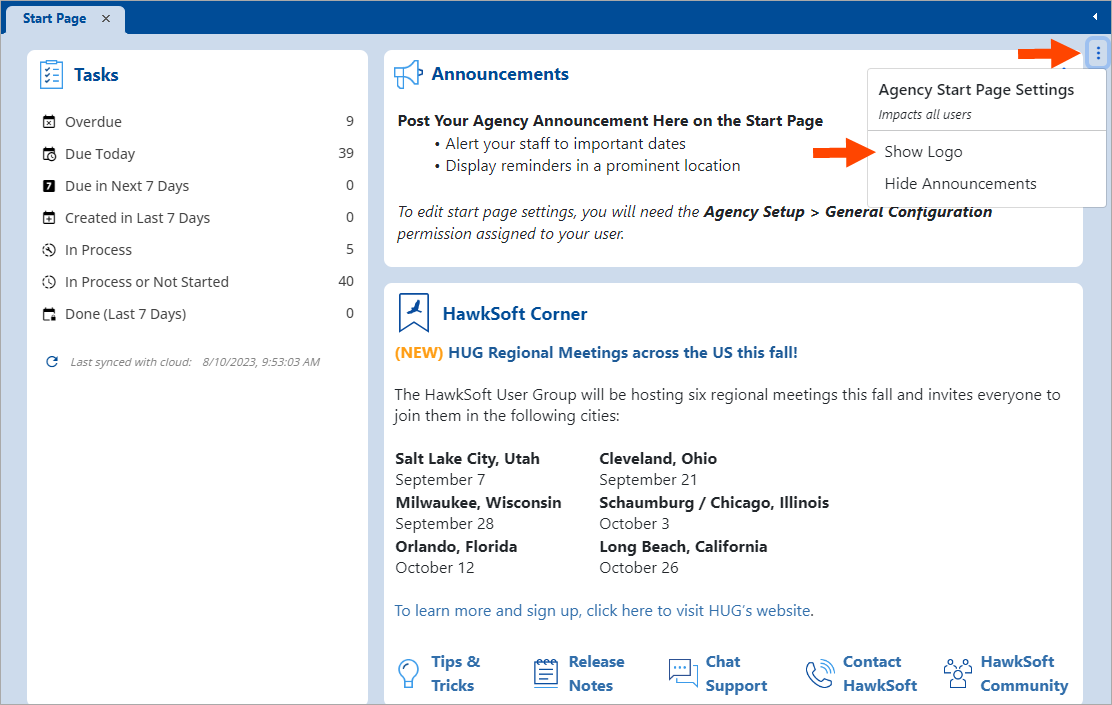
The Agency Logo displays on the Start Page.
- Optional: To remove the Agency Logo from the start Page, select the Dots, and then click Hide Logo.
You may need to close and re-open the Start page before your Agency Logo displays or updates.
To add your agency logo to correspondence templates/correspondence
Required Permissions:
In order to complete this task, user permissions must be set to include:
Agency Setup > Correspondence Templates
See User Permissions for more information.
| Correspondence Type | Description |
|---|---|
| Letter, Memo, and Proposal Templates |
You can add your agency logo to letter, memo, and proposal templates in HawkSoft. For more about how to add an agency logo, see Correspondence Templates - Formatting Options. |
| Letters, Memos, and Proposals |
You can add your agency logo to letters, memos, and proposals in HawkSoft. For more about how to add an agency logo, see Modifying Correspondence . |
| Email Templates |
You can add your agency logo to email templates in HawkSoft. For more information, see Modifying Email Templates. |
|
During the process of sending an email, you can add your logo in the HawkSoft Email message window. See Email Overview for the different options and required permissions for sending an email. |
Related Topics