Access Management
IP Access Management, also known as the IP Allow List, provides administrators the ability to restrict login access to HawkSoft from specific IP addresses. Domain Access Management provides administrators the ability to restrict login to workstations inside of the agency's Azure domain, network domain, or to users who have VPN access to that domain. These restrictions can be applied to all admins, to all non-admins, or to individual users.
This feature is inactive by default. If your agency does not need to restrict access, simply leave the feature disabled. When enabled, IP and Domain access management applies to HawkSoft Desktop. IP Access Management also applies to HawkSoft in the Web and HawkSoft Agent Portal.
HawkSoft highly recommends consulting with your IT before enabling Access Management, and before making any changes to your allowed Org Domain or IP address rules. Once enabled, any user who does not have properly configured Access Management will be locked out of HawkSoft.
HawkSoft Product Support cannot assist with determining the appropriate IP addresses or domain(s) to allow for your agency.
You can configure both IP Access and Org Domain Access rules. Any user within one of the allowed domains, OR within one of the allowed IP address ranges, can access HawkSoft.
 Required Permissions
In order to complete this task, you must be a HawkSoft Administrator.
See HawkSoft Administrators for more information.
How do I get here?
-
Click
 Setup > Agency Setup in the upper right of the HawkSoft desktop app.
The Agency Setup window opens.
-
Click the Settings tab, and then click the IP Access Management or Domain Access Management tab from the left.
To enable IP Access Management
By enabling this feature, you can prevent access to HawkSoft for users whose IP address is not listed within an Allow IP Address rule.
You can create IP Access Management rules for HawkSoft administrators and/or non-administrators, for specific users only, or for all users. When enabled, IP enforcement applies to all users when they attempt to access HawkSoft Desktop, the HawkSoft Browser App, and HawkSoft Agent Portal.
Before enabling access management, configure the IP address rules. This allows you to configure all of the rules before locking users out. Consult with your IT to determine the correct IP addresses to allow.
Follow the steps below to configure the IP address rules.
To add an "Allow IP Address" rule
Before enabling this rule, you must list each IP address that should have access to HawkSoft. You can set separate rules for all administrator users and all non-administrator users, or set rules for specific users.
-
Select the IP Access Management tab within Agency Setup.
See "How do I get here?" for steps on navigating to IP Access Management.
-
Click + Add New "Allow IP Address" Rule.
The Adding New "Allow IP Address" Rule dialog opens.
-
Optional: Slide the toggle for Enable IP Address Rule to inactivate if you do not want this rule to go into effect yet. This enables you to configure this rule in advance before needed.
This toggle is active by default.
-
Enter a Rule Description.
This description is for your reference only. You can enter any description you want.
Example descriptions:
-
Administrators
-
Agency Staff
-
Contractor
-
-
Depending on the users this rule applies to, select the IP addresses that this rule allows.
-
Check Allow Access From Any IP Address to enable access from any IP address for the users this rule is applied to.
OR
-
Enter both a starting and ending IP address range in their respective fields, and select whether the IP Address Type is Static or Dynamic from the drop-down menu. If the IP addresses are dynamic, you will need to update as needed.
If you want to add a single IP address, rather than a range, enter the same IP address in both the starting and ending fields.
Your current IP address is displayed for reference in the lower left of the dialog. Consult your local IT with any questions about what IP addresses to allow.
-
-
Select any combination of the following groups of users that can access from the listed IP address for this rule:
-
Apply Rule to All Administrator Users (Recommended)
-
Apply Rule to All Non-Administrator Users
-
Assign Specific Users to this Rule
Select one or more individual users this rule applies to. This can be used in combination with the first two options or you can select specific users.
This option is not available if both "All Administrator Users" and "All Non-Administrator Users" are checked.
-
-
Click Save. The rule is saved and will be active once you Enable IP Address Rule and Enable IP Enforcement.
To enable IP enforcement
Once you have configured your rules, you can Enable IP Enforcement.
Before enabling IP enforcement, check with your IT to confirm that you have the correct rules configured to allow all necessary users to sign in from necessary locations.
Any user who does not have a correctly configured IP Access Management Rule will be locked out of HawkSoft until IP Access Enforcement has been disabled or corrected.
Additionally, when a new user is added to HawkSoft, you will need to ensure an IP access rule allows this user access.
When you have created your rules and are ready to enable IP Enforcement:
-
Click the Enable IP Enforcement toggle above the table of IP Access rules.
A confirmation prompt opens.
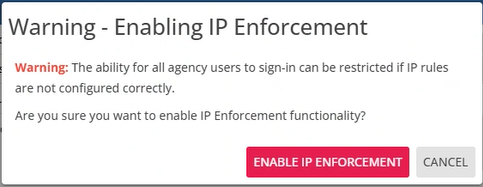 If an Urgent Warning appears
If your current set of IP rules does not include one that lists your user, you will receive a warning message:
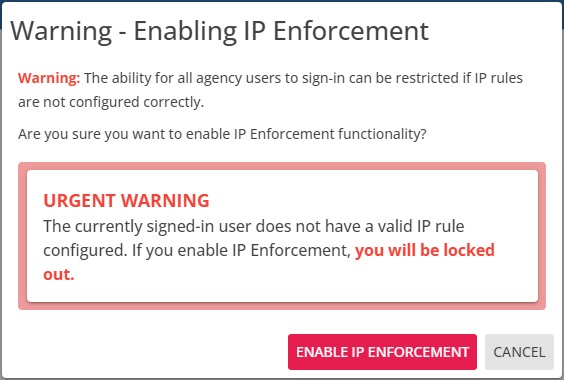
If you receive this message, HawkSoft recommends you click Cancel and work with your local IT to add an Allow IP Address rule that will ensure that you have access, before attempting to enable IP enforcement again.
-
Click Enable IP Enforcement button in the warning dialog.
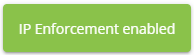
The dialog closes, and a popup confirms IP enforcement has been enabled.
If a user attempts to log into HawkSoft from an invalid IP address, they will be denied access and receive a message.
Adjustments to IP Enforcement settings may require a few minutes to fully propagate and take effect.
To Enable Domain Access Management
By enabling this feature, you are preventing access to HawkSoft Desktop for some or all users, unless their workstation is inside of a listed network domain, or they are connected to a listed network domain using a VPN.
You can create Domain Access Management rules for HawkSoft administrators and/or non-administrators, for specific users only, or for all users. When enabled, Domain enforcement applies to all users when they attempt to access HawkSoft Desktop.
Domain Access Management does NOT affect the HawkSoft Browser App or HawkSoft Agent Portal.
To add an "Allow Domain" rule for local domains
This rule requires workstations to exist within a listed local domain.
-
Select the Domain Access Management tab within Agency Setup.
See "How do I get here?" for steps on navigating to Domain Access Management.
-
Click the + Add New "Allow Domain ACCESS" Rule.
The Adding New "Allow Domain Access" Rule dialog opens.
-
Optional: Slide the toggle for Enable Rule to inactivate if you do not want this rule to go into effect yet. This enables you to configure this rule in advance before it is needed.
This toggle is active by default.
-
In the Type drop-down, select Local Domain.
-
Enter a Rule Description.
This description is for your reference only. You can enter any description you want.
Example descriptions:
-
Main Office
-
Administrators
-
Roaming Users
-
-
Check Allow Access From Any Domain to allow access from any network domain (including no domain) for the users this rule is applied to.
OR
Enter the Domain allowed by this rule to require a connection to a specific network domain for all users this rule is applied to.
-
Select any combination of the following groups of users that can access HawkSoft Desktop from the domain chosen for this rule:
-
Apply Rule to All Administrator Users (Recommended)
-
Apply Rule to All Non-Administrator Users
-
Assign Specific Users to this Rule
-
Select one or more individual users this rule applies to. This can be used in combination with the first two options or you can select specific users.
This option is not available if both "All Administrator Users" and "All Non-Administrator Users" are checked.
-
-
-
Click Save. The rule is saved and will be active once you Enable Rule and Enable Domain Enforcement.
To add an "Allow Domain" rule for Azure
This rule requires users to log in using workstations inside of an Azure virtual domain and is powered by Entra ID.
-
Select the Domain Access Management tab within Agency Setup.
See "How do I get here?" for steps on navigating to Domain Access Management.
-
Click the + Add New "Allow Domain ACCESS" Rule.
The Adding New "Allow Domain Access" Rule dialog opens.
-
Optional: Slide the toggle for Enable Rule to inactivate if you do not want this rule to go into effect yet. This enables you to configure this rule in advance before it is needed.
This toggle is active by default.
-
In the Type drop-down, select Azure AD (Entra ID).
-
Enter a Rule Description.
This description is for your reference only. You can enter any description you want.
Example descriptions:
-
Main Office
-
Administrators
-
Roaming Users
-
-
Check Allow Access From Any Azure AD Tenant to allow access from any Azure AD domain (including no domain) for the users this rule is applied to.
OR
Enter the Azure ID (Entra ID) allowed by this rule to require a connection to a specific Azure domain for all users this rule is applied to.
-
Select any combination of the following groups of users that can access HawkSoft Desktop from the domain chosen for this rule:
-
Apply Rule to All Administrator Users (Recommended)
-
Apply Rule to All Non-Administrator Users
-
Assign Specific Users to this Rule
-
Select one or more individual users this rule applies to. This can be used in combination with the first two options or you can select specific users.
This option is not available if both "All Administrator Users" and "All Non-Administrator Users" are checked.
-
-
-
Click Save. The rule is saved and will be active once you Enable Rule and Enable Domain Enforcement.
To enable Domain enforcement
Once you have configured your rules, you can Enable Domain Enforcement.
Before enabling Domain enforcement, check with your IT to confirm that you have the correct rules configured to allow all necessary users to sign in from necessary locations.
Any user who is not included in a correctly configured Domain Access Management Rule will be unable to log in to HawkSoft desktop until Domain Access Enforcement has been disabled or corrected. Those users will only be able to access the HawkSoft Browser App.
Additionally, when a new user is added to HawkSoft, you will need to ensure a domain access rule allows this user access.
When you have created your rules and are ready to enable Domain Enforcement:
-
Click the Enable Domain Enforcement toggle above the table of Domain Access rules.
A confirmation prompt opens.
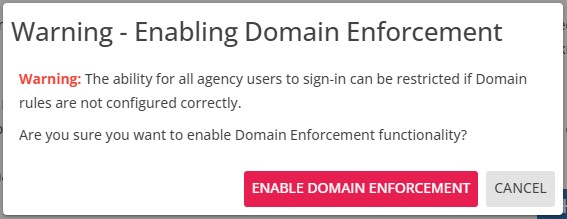 If an Urgent Warning appears
If your current set of Domain rules does not include one that lists your user, you will receive a warning message:
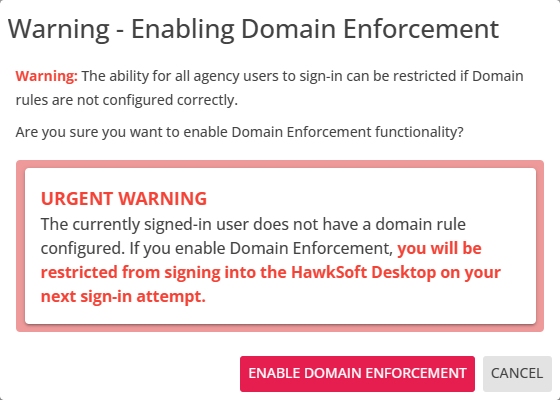
If you receive this message, HawkSoft recommends you click Cancel and work with your local IT to add an Allow Domain rule that will ensure that you have access, before attempting to enable Domain enforcement again.
-
Click Enable Domain Enforcement button in the warning dialog.
The dialog closes, and a popup confirms Domain Enforcement has been enabled.
If a user attempts to log into HawkSoft desktop from an outside of any allowed Domain, they will be denied access and receive a message.
Adjustments to Domain Enforcement settings may require a few minutes to fully propagate and take effect.
Related Topics