Attachment Properties
This topic covers how to view or modify attachment properties from within a client, such as changing the attachment name (description), category, date, or premium.
Required Permissions:
In order to complete this task, user permissions must be set to include:
Document Mgmt > Edit Attachment/Forms Properties
See User Permissions for more information.
Viewing and modifying attachment properties
Right-click on an attachment from the Attachments List, and then select Properties to open the Edit Attachment Properties dialog. This dialog enables you to edit certain properties specific for the selected file.
 To modify properties of multiple attachments on a client/policy
You can edit multiple attachment properties at once. Press and hold the Shift key or Ctrl key on your keyboard, then select multiple attachments to edit, and then right-click and select Properties.
The Edit Attachment Properties dialog opens, with a row for each selected attachment.
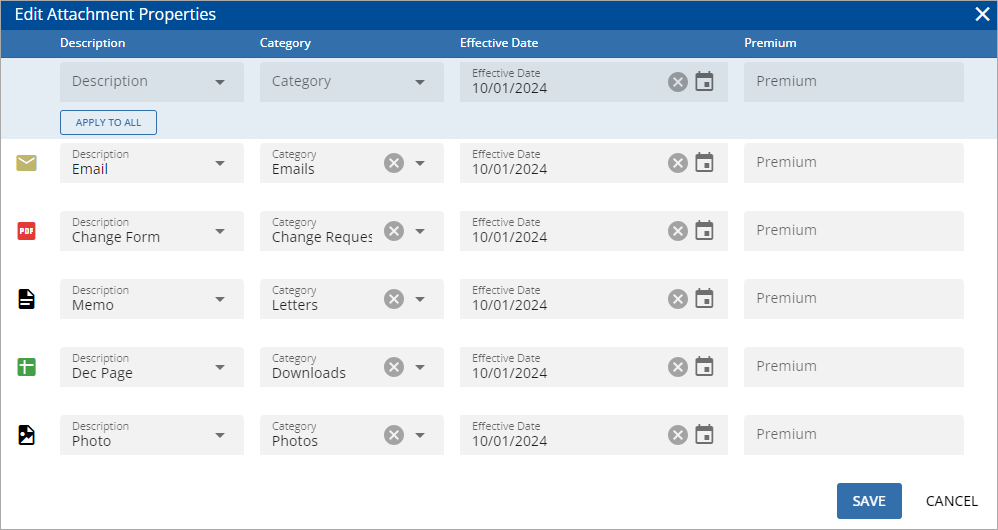
The top row allows you to update all of the selected attachments at the same time. To make changes to all attachments at once, make your desired changes in the top row, and then click Apply To All.
The Effective Date and Premium fields cannot be edited on carrier download attachments (.al3, .alh).
The Description field will use numbers to distinguish between each attachment. (Memo 1, Memo 2, etc.)
| File Properties | Description |
|---|---|

|
An icon that indicates the attachment's file type. Hover over this icon to see the file name and extension. |
| Description |
This is the name of the attachment as it appears in HawkSoft. You can change the description by selecting a description template from the drop-down, or by entering a new description in the field. To modify the Description template options, see . |
| Category |
(Optional) The Category can be modified by selecting a different category from the drop-down list. To modify the Category drop-down options, see . |
| Effective Date |
(Optional) If this document is associated with policy changes, you can enter the date these changes are effective in this field. This defaults to the date the document is attached, but can be modified if needed. This field cannot be edited on carrier download attachments (.al3, .alh). |
| Premium |
(Optional)If this document is associated with policy changes, you can enter the policy's new premium in this field. For example, if this is a non-downloaded dec This field cannot be edited on carrier download attachments (.al3, .alh). |
Once you are finished editing the attachment's properties, click OK to save changes and close the Edit Attachment Properties dialog.
Related Topics