Batch Emails
The HawkSoft Batch Emailer enables you to send the same email to a designated group of clients all at once, saving you time with customer communications. The Batch Emailer is accessed through HawkSoft Reports, enabling you to quickly select which contacts to send your batch email to by running a report based on your desired criteria.
This article describes how to use a report to send an email to a large list of customers or prospects with a single action.
For information on configuring HawkSoft to send batch emails, please see Batch Email Setup.
Both setup and use of the Batch Email feature canonlybe completed in the HawkSoft Desktop application. See Logging In and Out of HawkSoft for more information.

|
Batch emailing is done at the agency’s own risk.
|
 Required Permissions
In order to complete this task, user permissions must be set to include:
Batch Actions > Batch Email
Reports > Run Quick Reports
Optional depending on the report used:
Reports > Access Agency Intelligence
Reports > Access Sales & Retention
See User Permissions for more information.
Run a report
The first step in sending batch emails is to run a report to determine a list of clients to send the email to. You can use the batch email feature with any of the following reports:
- Add report columns for any merge field used in your intended email. This will be helpful to determine clients and policies with missing information while reviewing the report, and prior to sending the email.
- Sort the report by clicking on the column headers to look for any empty fields.
Reduce the number of email recipients by summarizing the report (for example, by line of business), and then double-click on the group you are sending the email to. Sending a batch email to this smaller, more focused report helps ensure you're only emailing your intended audience..
See Customize, Summarize, and Filter Report Datafor information on summarizing the report and adjusting report columns.
Select a predefined report
For example: Sales & Retention report: No Active Auto, to target customers renewing in the next 60 days.
- Double-click in the cell with the customer count to drill-down to the customer information you need for creating the batch email.
Reduce the number of letter recipients by summarizing the report (for example, by line of business), and then double-click on the group you are sending the letter to. Sending a batch email to this smaller, more focused report helps ensure you're only emailing your intended audience.
See Customize, Summarize, and Filter Report Data for information on summarizing the report.
Send a batch email
-
Once you have run your report, determine whether to send the batch email to some or all of the clients on the report.
To send the batch email to all clients on the report:
-
Select
 Batch Actions from the report toolbar and then choose Batch Email.
The Batch Email Title dialog opens.
Continue onto step 2 below.
To select specific clients for the batch email:
-
Check the box next to each client on the report you want to send this batch email to.
OR
Select a range of clients by selecting the first client, hold the Shift key on your keyboard, and then select the last client to be included.
The two selected clients and all clients in between them are checked, and will receive the batch email.
-
Select
Batch Actions from the report toolbar and then choose Batch Email. The Batch Email Title dialog opens.
Continue onto step 2 below.
-
-
Enter a name for the batch email and click Save. This name identifies the batch on the Batch Email Report.
The HawkSoft Batch Emailer opens to a Select Email Template dialog.
-
Select an email template from the drop-down list (or select**No Template**to compose an email from scratch).
Avoid using a template that includes User Input merge fields. If User Input is included, you will be prompted to input text for every email in your batch. SeeEmail Template - Formatting Options for more information on User Input fields.
See Email Templatesfor more information on creating and modifying Email correspondence templates.
-
Optional: Select Create log entry on each client emailed.
A log note will be added to each client or policy included in the batch, and will include the body of the email.
-
Optional:Select Attach a copy of Email to each client. A copy of the email will be included in the Attachments list of every client in the batch, and linked to the resulting log note in each client.
This option is only available if Create a log entry on each client is selected.
-
Optional:Select Create Task for each Email sent.
This option is only available if Create a log entry on each client is selected.
-
Select atask categoryfrom the Category drop-down to categorize the task created from this batch.
-
Select a user or role from the Assigned User drop-down to assign the tasks to.
Tasks created by the Batch Letters process can only be assigned to a single user.
-
Enter aDue Datefor these tasks, or click the down arrow on this field to open a date selector.
You can leave the due date blank to create tasks with no specific due date.
-
Select the Priority for these tasks.
-
-
Click OK.
The HawkSoft Batch Email window opens.
-
Use the To drop-down to select which of each client's email addresses should receive the batch email.
Example: If this email should only be sent to the client's primary email address(es), leave "Primary Email" selected in the field. Alternatively, if all email addresses associated with this client should receive the email, change the drop-down to "All Emails".
Each client's email address type is assigned based on the email address entered in the Contact Info section of the Name and Address Information screen. If "Primary" is selected, the email will be sent to emails marked "Primary Contact".
-
Fill in the Subject line, if it was not filled by a template.
-
Complete the body of the email, if needed.
If a template was selected, review the email for any needed changes, and modify the email as needed.
See Formatting Emails for more information.
-
Click Send.
The Start HawkSoft Batch Email dialog opens.
-
Optional: Complete the following email settings:
Notification
- Optional: Enter the email address where you want to send the batch email results report after the batch email job is complete.
- Click Test Email to send a test email to the address entered above. If you receive an email from HawkSoft at the listed address, the email address was entered correctly.
Options
-
The batch name is displayed, but cannot be edited here.
-
Select whether to send the email One per Policy, or One per Client.
- One per Policy – If selected, HawkSoft will send multiple emails to the same client if more than one of that client's policies is on the report the batch email is generated from. You might choose this option when using an email template that contains policy-related merge fields.
- One per Client – If selected, HawkSoft will send the email to each client only once, even if a client appears on the report multiple times.
Advanced Settings
Optional: Check Override client's Mass Email setting to ignore the Mass Email setting in each client file.
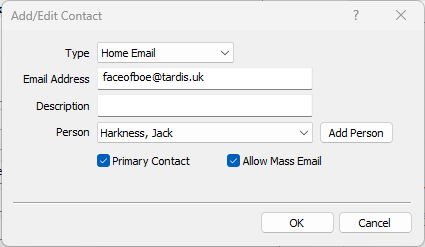
The "Allow Mass Email" option is set in the Add/Edit Contact dialog when adding or editing an email address on a client.
Use this setting cautiously. This setting will send an email to the client even if they have specifically opted out of mass emails from your agency. Misuse of this option may result in your email being black-listed or marked as spam by email service providers.
- Optional: Enter the email address where you want to send the batch email results report after the batch email job is complete.
-
Click Start.
If Batch Email has not been configured correctly, you will be presented with an error message. See Batch Email Setup for instructions.
The HawkSoft Batch Emailer begins sending emails.
You can now close the report. Once the batch email is complete, a confirmation report is sent to the address indicated in the Notification field in the Start HawkSoft Batch Email dialog.
Track or cancel batch emails
-
For pending or currently running batch emails
You can check the status of a batch email, and pause or cancel the process if needed.
- Right-click the
 HawkSoft Batch Emailer icon found in Windows' Hidden Icons (near the clock on the Windows Taskbar).
 -
Select Open to view batch email details on the Batch Emailer dialog.
Pause Process – Click to temporarily pause the batch emails. Once paused, you can click Start Processing to resume at any time.
Exit – Click to cancel the batch email from this dialog.
- Right-click the
-
For completed batch emails
You can run the Batch Email Report to review details for a completed batch.
-
Access the Batch EmailReports Dashboardusing one of the following methods:
From the HawkSoft Desktop application:
-
Click Reports from the top menu bar, and then select Batch Email Reports.
The Reports Dashboard opens in a new browser tab, and the Batch Email List dialog opens.
From HawkSoft on the Web:
-
Click
 Analytics & Reporting from the left side-panel.
TheReports Dashboardopens in a new browser tab.
-
Click
 More Actionsin the top-right of the page, and then select
  Batch Email Report.
The Batch Email List dialog opens.
-
-
Identify the batch email job you want to review using the listed name, date/time, and summary information.
-
Double-click on any batch email job listed on the report for details.
- Click Close when you are done reviewing.
-
Related Topics