Sending emails from HawkSoft
HawkSoft's email integration enables you to send an email from a client, which creates a log note on the client/policy for automatic documentation. This can save time and ensure that emails sent to clients are logged properly. A copy of the attached email is created in the Attachments tab for easy review of sent emails. You can also start an email from an item in the Attachments tab, to automatically include it as an attachment on the email.
This article explains the steps to email a client from the action menu, the client view, or the attachments tab.
 Before you begin
Prior to creating and sending emails, each HawkSoft user must configure their email settings to link their HawkSoft user profile with their email provider. See User Email Integration for setup instructions.
Required Permissions
Required Permissions:
In order to complete this task, user permissions may need to be set to include:
Client Actions > Action Menu
See User Permissions for more information.
From the Action Menu
-
Retrieve a client, and then select the Client tab, or a policy on the client.
When using a template that contains policy level merge fields (such as the Company Name or Policy Number), be sure to select a policy. See Email Templates for information on setting up a template.
-
Click Action, and then select one item in each of the first three lists to describe what prompted this transaction.
-
Select Send Email.
The Email Recipients dialog opens.
From the Client View
-
Retrieve a client.
-
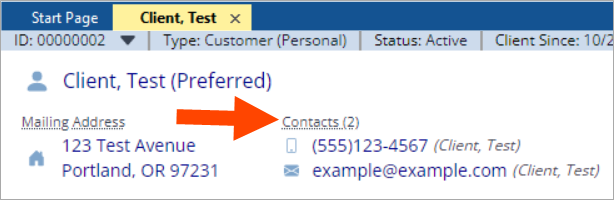
Click on the Contacts link in the top section of the client, above the client's primary phone number and email address.
-
Select the desired email address, and then click Email.
The Email Recipients dialog opens.
From the Attachments List
- Retrieve a client, and then select the Client tab or a policy.
- Click the Attachments tab.
-
Select the attachment(s) you want to email.
To select multiple attachments, hold down the CTRL key, and click on each item you want to send.
Most email providers limit the size of an email to 25 MB or less. If too many attachments are selected, you might be unable to send the email.Emailing a policy download (AL3) or EDoc file from HawkSoft will attach a copy of the download to the email as a PDF document. This enables the recipient to more easily view the file. The download attachment on the client/policy in HawkSoft retains its original file type.
-
Right-click on any of the selected items, and then click Email > Send as Attachment.
The Email Recipients dialog opens.
Related Topics