HawkSoft enables you to configure your phone system to integrate with your agency's HawkSoft database. This integration enables you to place outbound calls from within a client with the click of a mouse, and to open an inbound caller's client as soon as you receive a call.
Depending on your provider, different configuration options are available. Most providers enable you to configure both outbound dialing and inbound call screen pops with HawkSoft.
If your provider has configured inbound calls, HawkSoft either opens the client automatically, or displays a dialog with the option to open the client.
This article explains how to configure HawkSoft to integrate with your phone system.
 Before you begin
Before integrating the agency's phone system with HawkSoft, verify that the phone system supports integration.
-
For inbound call integration, the phone software must include the ability to launch third-party applications upon receiving a call.
-
For outbound call integration, the phone software must support placing calls using the CallTo and/or Tel protocols within Windows.
Phone Integration Glossary
- VoIP
- Voice Over Internet Protocol - This term describes any voice or phone service that operates through the Internet instead of through telephone lines. Most VoIP services run through a computer.
- Protocol
- A language that computers use to communicate with each other. On workstations running Windows, the main protocols for communicating with VoIP software are CallTo and Tel.
- Argument
- Information that one program shares with another. For the purposes of this article, arguments include the caller's phone number and arguments to control launching of the client and the screenpop duration.
- Program Call
- An action one program takes to launch a separate program. For outbound phone calls, HawkSoft makes a program call to the phone system, and for inbound calls the phone system makes a call to HawkSoft.
- Path
- Also known as 'file path' or 'program path'. This is the location of a program, file, or folder on a computer.
- %LocalAppData%
- This is a variable pre-built into Windows that points to the user's local appdata folder. (C:\Users\[User Name]\AppData\Local).
Incoming Call Integration (ScreenPops)
Incoming call integration uses a feature called "ScreenPops" to match client files to a caller's phone number. Upon receiving a call, HawkSoft searches all client files for the caller's number. If at least one client contains the caller's number, a ScreenPop opens showing all client files containing that number.
Select a customer to see the person linked to the phone number that matches the incoming call, as well as the customer's main contact information.
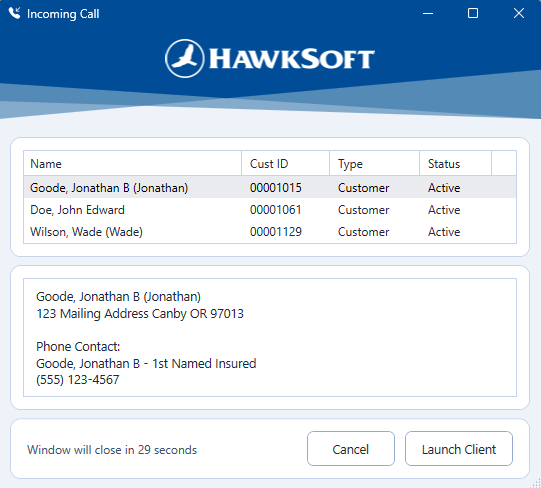
You can click and drag at the edges of the screen pop window to expand it, enabling you to see more of the contact information at once.
To configure incoming calls, your agency's VoIP software must be configured to launch the ScreenPop application, with arguments for the caller's phone number. The steps to do so vary between VoIP providers, and as such it is recommended to have an agency technician assist with incoming call integration setup.
To integrate your phone provider with HawkSoft ScreenPops
To utilize HawkSoft ScreenPops, the VoIP software should be configured to launch %localappdata%\hawksoft\[Agency ID]\program\CmsScreenPop.exe.
If you have a non-standard HawkSoft installation, this path may differ for you. If the above path does not work, have your agency technician point the VoIP software to the CMSScreenPop.exe application within the HawkSoft folder in your local AppData.
Incoming Call Arguments
Arguments highlighted in bold are required for ScreenPops to function.
Internal: Per our dev team, the Login and Password parameters that were previously listed in this table and in examples throughout the article have been removed. These parameters are NOT needed for HawkSoft 6, as it passes the logged in user's credentials to the screenpop executable.
| /PHONE:"%P" |
Passes the phone number to HawkSoft. %P stands for the variable used by the phone system for the caller's phone number. This variable may vary between phone vendors; for example, RingCentral phones can use %P or %E, depending on your system and settings. |
| /LAUNCH (Optional) |
If this argument is included, HawkSoft will automatically launch the matching client. If this argument is not included, or if there is more than one matching client, a ScreenPop appears showing which client files match the caller's number, and gives an option to launch the selected client. |
| /CFG:[config file path] (Optional) | For local agencies in multiple database environments, use this argument to point to the correct configuration path. |
| /DURATION:[seconds] (Optional) | If this argument is included, ScreenPops will only appear for the amount of time set once launched. |
List of common phone providers and parameters required
HawkSoft does not maintain documentation for any of the following phone systems. Please direct phone system questions to the agency technician or phone provider.
Toshiba Call Manager
/PHONE:"%P" /LAUNCH
Xarios Phone Manager
Set objShell = CreateObject ("Wscript.Shell")
ObjShell.Run ("%localappdata%\hawksoft\[Agency ID]\program\CMSScreenpop.exe" /cfg:%localappdata%\hawksoft\[Agency ID]\config.ini /PHONE: " + PhoneControl.CLI")
ISymphony
/PHONE:"%CID NUMBER%" /LAUNCH
SAMSUNG XCHANGE
/PHONE:"%CALL" \CONTACT\TEL% /LAUNCH
XChange Integration needs to be set up as a Custom Button.
RINGCENTRAL
/PHONE:"%E" /LAUNCH
/PHONE:"%P" /LAUNCH
Some users will need to use %E and some users will need to use %P.
AllWorx
/PHONE:"%CALLNUM%" /LAUNCH
IdentaPop Pro
Supports many Tel Protocol compliant business telephone systems including 3CX, Alcaltel, Allworx, Asterisk, Avaya, Cisco, Ericsson, ESI, Freeswitch, NEC, Nitsuko, NBX, Nortel, Panasonic, Phillips, Siemens, Splicecom and Zultys.
This software can pass Caller ID information from these phone systems to an external program such as CmsScreenPop.exe.
/PHONE:[CID] /LAUNCH
Outbound call integration
HawkSoft enables users to call clients' phone numbers directly from the client by placing a program call containing the number to call to the user's phone system.
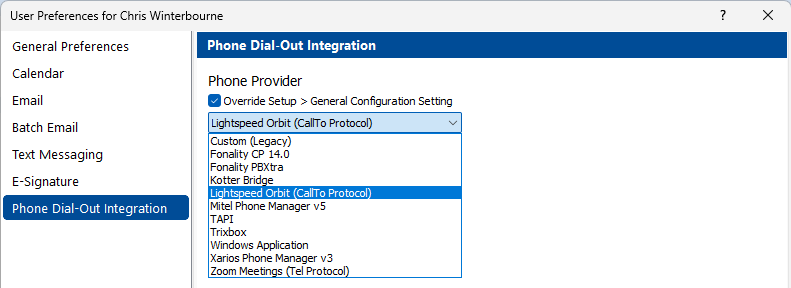
To enable outbound integration within HawkSoft, a default phone provider or protocol needs to be set inside of General Configuration. However, individual users can override the default setting from their User Preferences.
To set the default phone provider or protocol in HawkSoft
-
Open the
 Setup menu.
 -
Open General Configuration, and then select Phone Dial-Out Integration.
-
Select the agency's phone provider or protocol from the Phone Provider drop-down.
-
Selecting Windows Application from the Phone Provider drop-down menu enables you to launch a program installed on your computer. Enter the program path and any merge fields required (such as client name or phone number) into the Command Line field, as needed. All supported merge fields are listed in the dialog.
-
Your computer's default phone program is listed using CallTo or Tel protocols. If you are unsure which to pick, speak to your agency IT or refer to your telephone provider's documentation.
-
Your phone provider may require a Username and Password.
-
-
Optional: Enter a phone number and click Call Now to test the integration.
-
Click OK to save changes.
When a user clicks Call Now on a phone number in a client's contacts, a call will be placed to that number using the selected integration.
If a user uses a phone system different from the rest of the agency, they can configure their own specific phone dial-out integration with HawkSoft. See User Phone Dial-Out Integration for more information.
To override a user's phone provider or protocol in HawkSoft
Before a user can configure their own specific dial-out integration, a default agency-wide dial-out integration must be configured in General Configuration.
If an agency user uses a phone system or setup different from the rest of the agency, HawkSoft enables that user to configure their own specific Phone Dial-out Integration setup.
For more information, see User Phone Dial-Out Integration.
To pair your phone to CallTo or Tel in Windows
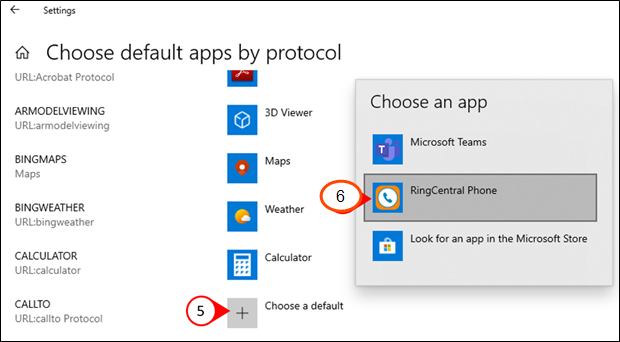
For agencies/users with either CallTo or Tel selected as the phone provider/protocol, the CallTo or Tel protocol must be set to open the phone system within Windows.
-
Open the Start Menu on the user's workstation.
-
Search for "Default apps".
-
Click "Choose default apps by protocol".
-
Locate the CALLTO or TEL protocol.
The list of protocols is sorted alphabetically.
- Click on "Choose a default" next to the CALLTO or TEL protocol.
- If an app is already selected as the default, click the app icon instead.
-
Click the user's phone application.
Required permissions
In order to configure the agency's default phone dial-out integration, user permissions must be set to include:
Agency Setup > General Configuration
See User Permissions for more information.
No permissions are required for a user to configure their own phone dial-out integration. See User Phone Dial-Out Integration for more information.
Related Topics