My Account Information and Signature
HawkSoft enables you to update your own HawkSoft Account information, such as your name, HawkSoft password, Account Email, contact information, and signature through the My Account window.
This article explains how to update your HawkSoft profile and account information and upload your agent signature from the My Account window.
 Required Permissions
No specific user permissions are required to perform this task.
How to access My Account
-
Click the
 Profile icon, or your username/initials, in the top-right corner of HawkSoft.
 -
Select My Account.
The My Account window opens.
My Information
You can update your HawkSoft account information from the Info tab of the My Account window. For example, you may want to update your password for security purposes, or update your last name and address if you have recently gotten married. Some fields on the My Information screen may be pre-filled, depending on the information your agency manager inserted when they created your user profile. Your account information is visible to other users when they click on the Agent 1, 2, or 3 link from a client, and the information is available to your agency manager from User Setup.
Agent
First and Last Name - Your first and last name as you would like it to appear on correspondence.
Account Info
Username - Your HawkSoft user initials and your agency ID. Example: DMI@00000012
Password - You can click the Update button to enter a new password for your HawkSoft account.
Account Email - Your HawkSoft email address. This email is used for resetting your account password.
HawkSoft requires each user to associate and verify an Account Email with their HawkSoft Profile. Your Account Email is used to manage your password. If you've forgotten your password, you can click Forgot Password on the HawkSoft Login Screen to send a temporary password to your Account Email, which can be used to log into HawkSoft and change your password.
For more information about how to verify your HawkSoft Account Email, see Logging in and Out of HawkSoft.
For more information on resetting a forgotten password, see Forgot Password.
Default Office - The primary office you are assigned to if you have a multi-office agency. When you log in, you will log into the default office.
Roaming - You can enable this toggle if you want the flexibility to choose which office you want to log into. This is enabled for multi-office agencies and the offices available to you are assigned by your agency owner/manager.
Email Address
Correspondence Email - The email you use for correspondence in HawkSoft is available to insert as a merge field into letters, memos, and proposals. This email is typically the same as your Account Email. See Correspondence Setup Overview and Communications Overview to learn more about merge fields.
Phone Numbers
Enter up to 3 phone numbers for your contact information. Select a Title from the drop-down menu to describe the type of phone number.
Address
Enter an address that can be inserted into various types of correspondence using merge fields. See Correspondence Setup Overview and Communications Overview to learn more about merge fields.
Notes
Enter any other information about yourself and your account in this field. Notes can be inserted into correspondence by inserting a UserNotes merge field.
My Signatures
You can create, upload, or edit your signature from the Signature tab in the My Account window. You can view your signature from the Signature Management field once you have uploaded it into HawkSoft. The signature you have created or uploaded from My Account can be inserted into correspondence, and correspondence templates using merge fields, and can be used to sign Change Request forms and most ACORD forms by selecting a signature from a drop-down.
You will need to restart HawkSoft for all changes to your signature (create, edit, or share to/from) to take effect and display properly.
Signatures can only be uploaded as a .png file in HawkSoft and cannot be inserted into Emails or Email templates.

Signatures created or uploaded in My Account are not related to e-signature workflows. For information regarding HawkSoft E-Signature or other e-signature integration, see E-Signature Overview.
To add a signature
-
Click Add Signature.
The Upload Signature dialog opens.
-
Draw or upload your signature:
To draw:
-
Click draw one here to sign your signature directly in the Draw Signature dialog
You can click Undo to rewrite your signature if needed.
-
Click Next.
To upload:
-
Click in the Your Signature File field to upload a .png file of your signature that has been saved to your computer.
The Open dialog opens.
-
Browse and select the .png file of your signature, and then click Open.
Signatures must use the .png file format.
-
-
Your signature appears in the Upload Signature dialog.
-
Drag the blue line to set the baseline of your signature. The baseline indicates where your signature will be placed on the signature line in documents.
-
Click Upload.
A dialog appears, stating that a restart of HawkSoft is required for changes to your signature to take effect.
-
Click OK.
-
Restart HawkSoft for your signature change to take effect, and then reopen HawkSoft and return to the Signature tab in the My Account window to review your signature.
Once your signature has been uploaded into HawkSoft, you can click Edit Signature to replace or delete your signature or modify the baseline, as needed.
To share signatures
Shared by Me
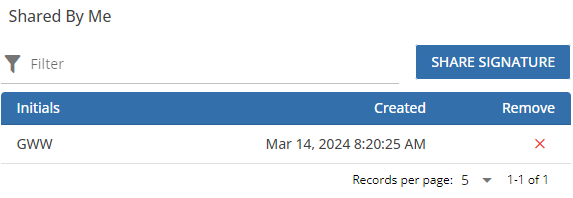
The Shared by Me section displays a list of the users in your agency that you have shared your user signature with. When you share your signature with other users in your agency, it becomes available for those users to apply your signature to change request forms and other ACORD forms. Additionally, if your signature is shared to another user, your signature is applied to correspondence containing the Producer, CSR, or Agent 1, 2, or 3 Signature merge fields if you are an agent on the selected policy.
Use the Records per page drop-down menu to display some or all of the signatures you have shared.
-
To share your signature, click the Share Signature button to search for a user.
The Share Signature dialog opens.
-
Type in the user name or initials of the user you want to share your signature with, and then click the Share Signature button.
-
Restart HawkSoft for the shared signature to be available, and then reopen HawkSoft to ensure the signature has been shared with the desired user.
Your signature is now shared with the user, and will be available when that user signs in to HawkSoft.
Shared to Me
The Shared to Me section displays a list of the users in your agency who have shared their signature with you. Signatures that have been shared with you are available for use when signing change request forms and other ACORD forms. Additionally, signatures that have been shared with you can be applied to correspondence by inserting the Producer, CSR, or Agent 1, 2, or 3 Signature merge fields if the user is an agent, producer, or CSR on the client/policy. Their user initials and the date the signature was shared displays in the Shared To Me section.
Use the Records per page drop-down menu to display some or all of the signatures shared to you.
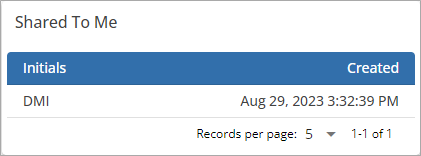
If you do not see a signature being shared with you, try restarting HawkSoft to refresh the shared signatures .
Related Topics