Reviewing Changes to Carrier Information
Keeping carrier information up to date and accurate in HawkSoft is important to ensure that users are able to insert, edit, and otherwise work with policies quickly and easily. Your agents can view carrier contact information for the carriers the policies are written with directly from the policy, so it is important to keep your carrier information up to date.
Changes to carrier information are made either by a user with permissions to Carrier Setup or are created by a carrier merge.
To help you stay on top of the changes made to your carriers' information, HawkSoft enables you to view a Carrier History, enabling you to see when a carrier was updated, by which user, and what changes were made to the carrier info.
This article explains how to locate and understand the Carrier History information in HawkSoft.
 Required Permissions:
In order to complete this task, user permissions must be set to include:
Agency Setup > Carrier Setup
See User Permissions for more information.
To access the Carrier History
-
Click
 Setup in the upper right of HawkSoft, then select Carrier Setup.
The Agency Setup window opens to the Carrier list tab.
-
Click the
 Carrier History icon to the far right of a carrier that you want to view the history for.
The Carrier History dialog launches.
To review the Carrier History
The Carrier History dialog includes a list of each time a carrier's information was updated. The list includes a Version column which indicates the most recent change and how many times a carrier has been updated, the date and time of the update, the user or process that made the changes, and a description of the update.
Descriptions can include:
-
Agency Carrier Created - The carrier as it was initially created by a user.
-
Agency Carrier Created from Downloads - The carrier as it was initially created when a carrier download was first received for a carrier that was not yet in HawkSoft.
-
Agency Carrier Updated - Indicates that the user made changes to the carrier information at this time. This could include typing in new information, copying information from another carrier, or deleting information.
-
Merged with Carrier: [name] - Indicates that the user performed a carrier merge, with this carrier set as the primary carrier.
-
Merged into Carrier: [name]. Carrier now inactive. - Indicates that the user performed a carrier merge, with this carrier set as the secondary carrier.
Changes made to carrier information were not tracked prior to the release of this feature in HawkSoft 6 on 1/11/24. Changes made to carriers before this date, or before migration to HawkSoft 6, are not included in the carrier history.
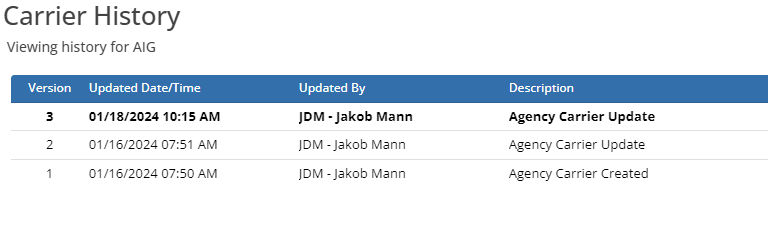
To see the details of the changes made at any point in time, click anywhere on the line item.to open the Carrier History dialog to display the details.
Understanding the Carrier History details
The Carrier History details displays a report of the carrier information changes for the selected version/date.
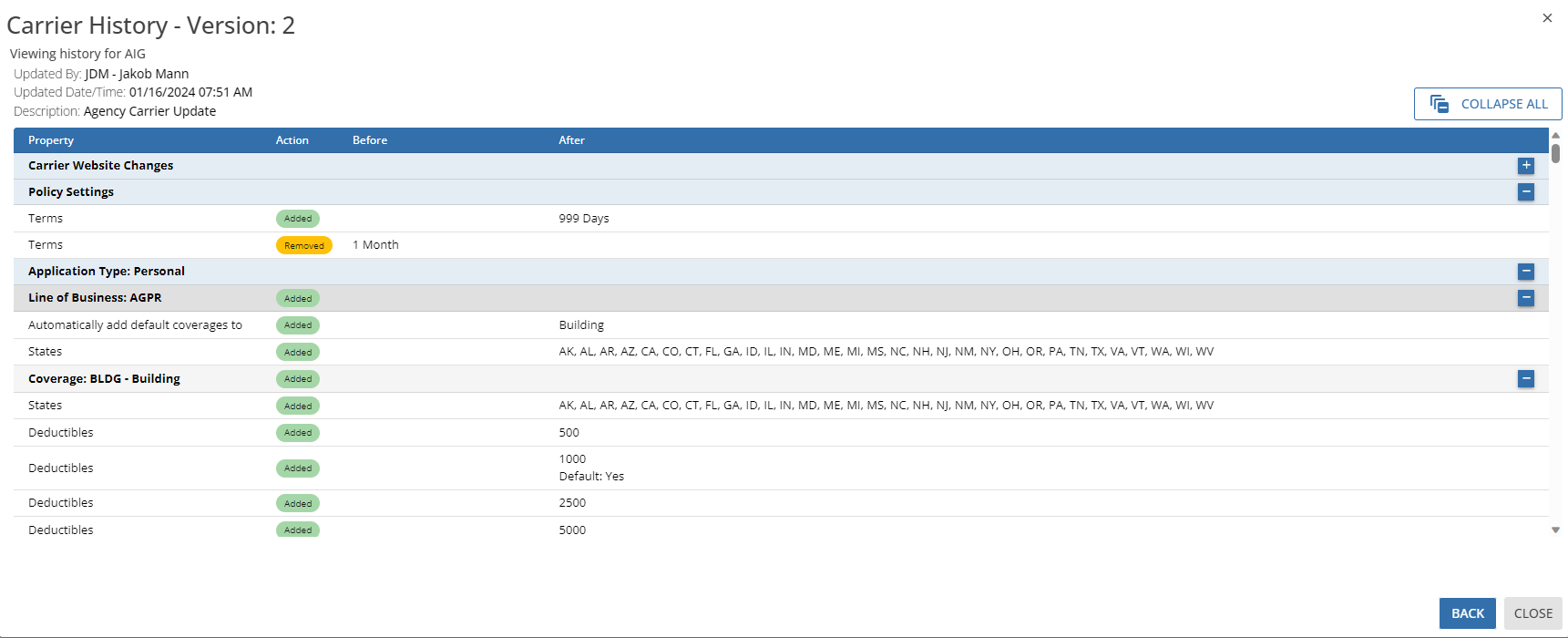
The information on this report is displayed in four columns:
| Column | Description |
|---|---|
| Property |
Shows the information categories and the specific information that was changed.. Use the + and - buttons to to expand a category and view the changes. You can also use the Expand All/Collapse All button in the upper right of the dialog to expand or collapse all sections at once. |
| Action | Shows whether this carrier property was Added or Removed. In the case of existing information being changed, the old information is listed as Removed, and the new information is listed as Added. |
| Before | If the Action for this property is "Removed", this shows what the information was for this carrier info before it was removed/changed. |
| After | If the Action for this property is "Added", the updated information is displayed.. |
To review previous or later changes for the same carrier, click the Back button to return to the Carrier History list, where you may select another version of changes to review.
When you are finished reviewing changes for the selected carrier, click Close.
Downloaded Carriers - "Needs Review"
HawkSoft gives you the option to automatically create carriers in Carrier Setup when you receive a download from a new or unknown carrier. This helps ensure that policies created from downloads are linked to a valid carrier on your carrier list. However, HawkSoft only includes the carrier name, writing carriers, and NAIC codes on carriers added automatically by download. Therefore, it's important to manually complete and review these automated carriers to make sure their information accurate.
To facilitate the process of finding and reviewing these download-added carriers, HawkSoft marks automatically added carriers in Carrier Setup with a  chip.
chip.
HawkSoft recommends taking some time to review the list of carriers in Carrier Setup regularly, and to especially keep an eye out for carriers with a "Needs Review" chip. When you find these chips, open the associated carrier, review the information, and complete the carrier's details as needed.
Once these carriers are updated by a user, the "Needs Review" chip disappears from their entry in Carrier Setup, and the changes are listed in the carrier's History.
See Editing Carrier/MGA Information for more information on changing carrier info.
Related Topics