Task Notifications
HawkSoft's task notifications provide a quick way of seeing when a new task has been assigned to you, without needing to review your entire task list. Notifications appear in HawkSoft Desktop, as well as in the Task Center when opened in a separate window or web browser tab.
Working with Task Notifications
The  bell icon at the upper right of HawkSoft Desktop or the Task Center alerts you when a new task has been assigned to you.
Click the bell icon to show your current task notifications. You can click on a client task to launch the task on the client and clear the notification. If the task is not related to a client, clicking it will simply clear the notification.
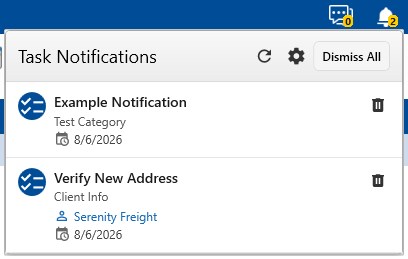
If a notification requires no action right now, you can clear it by clicking the red X to the right of it in the drop-down menu or Clear All notifications at the top-right of the notifications drop-down.
You can set which types of tasks you receive notifications for, or even turn them off if you prefer, in your Notification Settings.
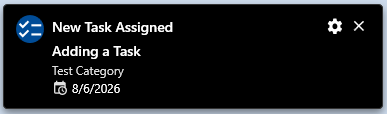
Depending on your notification settings, pop-up notifications may also appear when a new task is assigned while HawkSoft Desktop is open.
 Muting Notifications
Notifications can be temporarily muted to assist with focus periods free of distractions.
-
Click your name at the top right of HawkSoft Desktop.
-
Select Mute Popup Notifications from the drop-down menu.
-
Select how long you'd like to mute popup notifications.
Popup notifications will not display for the duration selected. The number on the notification bell icon and the notification list will continue to update so you can manually check them as needed during the muted period.
Notification settings
Under the Notifications tab in My Account, you can set several options for which notifications you receive.
-
Enable Task Notifications
Enables notifications inside the Task Center and HawkSoft. If this is unchecked, no notifications will be shown.
-
Desktop Popup Notifications
If this setting is enabled, popup notifications are displayed in the lower right of HawkSoft Desktop when you receive new notifications. Requires HawkSoft Desktop to be running.
If this setting is disabled, notifications will only be displayed when clicking the bell icon in the Task Center.
-
Persistent Desktop Popup Notifications
If this setting is enabled, popup notifications will remain onscreen until you click to dismiss them.
If the setting is disabled, popup notifications will disappear on their own after several seconds.
-
-
User Assigned Tasks
If checked, you will receive notifications when you are assigned a task by another user.
Tasks you assign to yourself will not trigger a notification.
-
Download Created Tasks
If checked, you will receive notifications when you are assigned a task which was automatically created by a carrier download according to your agency's Download Task Rules.
-
Vendor Created Tasks
If checked, you will receive notifications when you are assigned a task created by partner integration.
-
When to Notify
For each of the task categories (User Assigned Tasks, Download Created Tasks, and Vendor Created Tasks) you can determine when notifications appear by selecting one of the following:
-
Any Due Date
-
Due Today
-
Due within a set number of days
Only one of these settings can be selected per Task creation type. Select whether you prefer to receive a notification for all tasks in this category, only tasks due the day they are created, or tasks due within a specified number of days after they are created.
If "Due within a set number of days" is selected, enter a value in Notify me for tasks due within the next ___ day(s). Entering a value of 1 will notify you for tasks created today and due either today or tomorrow.
-
After setting your notification options, click Save Updates to save and apply the changes.
Related Topics