Tracking My Daily Tasks
The Task Center is a personalized dashboard that enables you to easily track, review, and manage all your assigned tasks from one place in HawkSoft. The My Tasks tab in the Task Center displays all of your upcoming, overdue, and completed tasks. Reviewing the My Tasks tab each day can help you organize, prioritize, and manage your tasks more efficiently.
This article teaches you how to view your assigned tasks from the My Tasks tab in the Task Center, customize and organize your task view, and how to edit, update, or remove a task.
To learn how to manage tasks for your entire agency, see Managing Tasks for the Agency.
 How to access the Task Center
You can access the Task Center from the Quick Links Panel, or by selecting Activities > My Tasks from the main HawkSoft menu bar.
OR
Log into the HawkSoft Browser app, accessed from any computer.
-
Click the Task Center icon
 in the left column of the HawkSoft web start page.
For more information about logging into the HawkSoft browser app, see Logging In and Out of HawkSoft.
Depending on your Workstation Settings, the Task Center opens with the My Tasks tab selected by default:
-
In a separate Task Center window
-
In a new tab within HawkSoft, in the top left of the client bar
-
In a new tab in your web browser (if accessed from HawkSoft Browser App)
My Tasks can also be accessed by using the F3 keyboard shortcut.
Best practices for tracking and managing your tasks
HawkSoft recommends that you review your overdue and upcoming tasks from the My Tasks tab in the Task Center each day and then take action to complete the tasks. When updating, editing, or closing client-related tasks, HawkSoft recommends that you always create a new log note or append the existing log note to properly document the client/policy interaction.
For example, you may have created a task last week titled Auto Policy Renewal to serve as a reminder to call the customer and discuss renewing their auto policy. When reviewing your tasks from the My Tasks tab, you view all of your assigned tasks that are Due Today and notice that the Auto Policy Renewal task is due.
You call the customer, and they say they would like more time to consider renewing. You open the task and click Edit, then update the Status of the task to In Process, and change the Due Date to one week from today as a reminder to follow-up with the customer again. Once you've finished updating the task, you select Save & Log to save the task and then create a new log note to document the client/policy interaction.
Task Notifications
The  bell icon at the upper right of HawkSoft Desktop or the Task Center alerts you when a new task has been assigned to you.
Click the bell icon to show your current task notifications. You can click on a client task to launch the task on the client and clear the notification. If the task is not related to a client, clicking it will simply clear the notification.
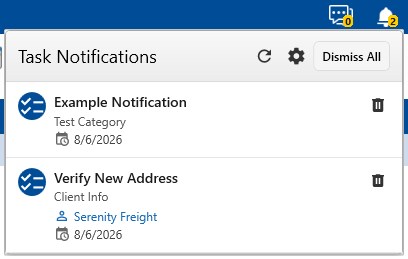
If a notification requires no action right now, you can clear it by clicking the red X to the right of it in the drop-down menu or Clear All notifications at the top-right of the notifications drop-down.
You can set which types of tasks you receive notifications for, or even turn them off if you prefer, in your Notification Settings.
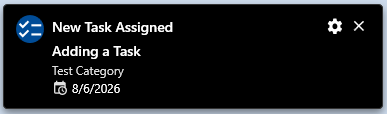
Depending on your notification settings, pop-up notifications may also appear when a new task is assigned while HawkSoft Desktop is open.
Muting Notifications
Notifications can be temporarily muted to assist with focus periods free of distractions.
-
Click your name at the top right of HawkSoft Desktop.
-
Select Mute Popup Notifications from the drop-down menu.
-
Select how long you'd like to mute popup notifications.
Popup notifications will not display for the duration selected. The number on the notification bell icon and the notification list will continue to update so you can manually check them as needed during the muted period.
For more information, see Task Notifications.
To customize your tasks list
From the My Tasks tab, you can easily customize and organize your task list to help you track and manage your tasks more effectively.
For example, you may select Due Today as the Task View Option, select Priority from the Group By drop-down to view all of your tasks that are due today, sorted by order of importance. Or you may select In Process from the Status drop-down on the filters bar, and then click the Category column header to view all of your in process tasks, sorted in alphabetical order by Category.
You can apply one or more of the following features to quickly narrow-down and organize your task list:
-
Task View Options - Select a task view option from the left-side panel to quickly view all of your tasks by a specific due date, status, or custom date range. This allows you to sort and manage your overdue, upcoming, or completed tasks.
-
Customize Date Range - Click
 to customize the number of days for your due, created, and done tasks or create a new task view with a Custom Due Date Range. Once your new date ranges are applied, your new options are available from the task list.
 HawkSoft will remember the custom number of days and/or Custom Due Date Range option(s) you apply for the next time you open the My Tasks tab. To remove the Custom Due Date Range, uncheck the box and then click Apply.
-
Reorder columns - Click
 in the upper-right of the My Tasks tab to add, remove, or reorder columns (except for Category or Due Date).
 -
Sort Columns - You can sort the order of your task list by clicking on any column header. Click once to sort the task list in ascending order (A-Z or smallest to largest), click again to reverse the sort order to descending order (Z-A or largest to smallest), and click a third time to restore the default sort order (typically Due Date, ascending).
-
Groups - Select an option from the
 Group By drop-down to group the entire list of tasks or group a filtered list of tasks, by order of their Priority, Category, Due Date, Status, Carrier, or Client Office. Once selected, the task list is sorted into expandable and collapsible groups. The total number of tasks displays for each group.
By default, your Group By option will be remembered the next time you open the My Tasks tab. To remove the Group By option and view all your tasks, set the Group By selection to None.
-
Filters - Use the filters bar to narrow your tasks by items associated to attachments or logs, category, title, priority, or status. For example, you might want to review all tasks with renew in the title, or all tasks with a status of Not Started.
You can apply multiple filters at once. To remove the filter(s) and view all of your tasks, click Clear.
From the client task list
When viewing tasks from the "Tasks" tab inside of the client view, you can customize which columns and tasks are displayed, including closed tasks.
How do I get here?
Search for and open a client in the HawkSoft desktop app, then click the "Tasks" detail tab underneath the "Client" tab or one of the policy tabs.
-
Filtering
Check the Show Tasks on Current Tab box to only show this client's tasks that relate to the Client/Policy tab you're currently viewing, rather than all tasks on the client.
Click the Open Tasks and/or Closed Tasks toggles to control whether you see tasks that are open, closed, or both in the list. Blue is active; white is inactive.
When viewing closed tasks, you can also select from the drop-down next to the toggle to see tasks closed within the last 90/180/365 days.
-
Customize Columns
Click the
 Column Options button at the top right of the task list to open the Customize Columns dialog.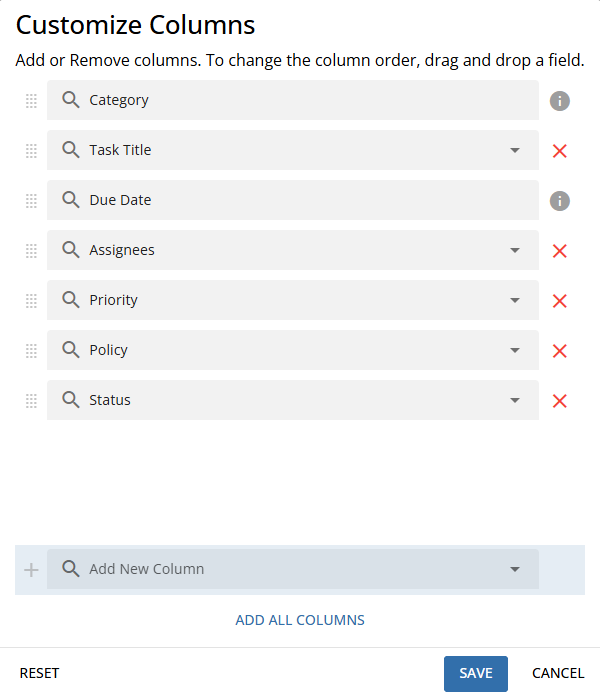
Click and hold the set of dots
 next to a field to drag it up or down the list. Top-to-bottom on the list corresponds to left-to-right on the task list.
Use the drop-downs on non-required columns to replace them with another column, or select a new column from the Add New Column drop-down at the bottom. Click Add All Columns to include every available column for this list.
To review a specific task
You can view more detailed information about a task by selecting it from your task list.
Launch Task Center.
Click on a task to view more information.
The task summary opens in a panel on the right.
Launch a client with tasks you want to review.
Select the Tasks tab.
Click on a task to view more information.
The task summary opens in a panel on the right.
From the task summary, you can see the current status of the task (Not Started, In Process, Done) the user who created this task and when it was created, and some other information that is also included on the task list such as the due date and assignee(s) for the task.
If the task is associated with a log note, you can click View Full Log to open the log viewer and see the full text of that log, and any logs linked to it.
When you are viewing a full log from a task, you can select whether HawkSoft will scroll to the most recent linked log, or to the specific one associated with the task. To do this, click the  Settings option at the top right of the log window and check or uncheck the box for View most recent log on Task.
To edit, update, or remove a task
From your My Tasks tab, you can select a specific task to review and modify the task details, as needed. For example, you may need to edit a task if the Due Date has changed, or you may need to update the Status of the task from In Progress to Done once the task is completed.
You can also remove a task that you accidentally created or no longer need.
Depending on your agency's General Settings, you may be required to create a log note whenever you create, update, or complete a Task.
To edit or update a task
-
Select a task to open the task summary.
You can click View Attachment or View Full Log to quickly view the associated attachment or log note directly from a task.
Click Launch Log on Client to open the associated client and view the log note directly from the client/policy related to the task. This enables you to view additional details or take action on the client, as needed. -
Click
 to edit the task from the Task Center or click
  to edit the task directly from the client/policy related to the task.
 -
Edit or update the task details, as needed.
Description of Task fields
-
Category: A keyword label for the task.
-
Title: A brief description of the task.
-
Status: Tracks the progress of the task. Select Not Started, In Process, or Done.
If a task template was used to create this task, you can select Successful or Unsuccessful rather than Done to help your agency owner/manager track the progress of this task.
-
Due Date: The date the task is due.
-
Priority: The level of importance of the task.
-
Assign Users: The users assigned to the task. A maximum of 5 users can be assigned to the task, if needed.
-
Must be assignee to edit: When checked, only assigned users with Allow Tasks Management permissions can manage, edit or, close the task. All users can view the task on the client.
User permissions must be set to include "Must be assignee to edit" in order to lock a task. See User Permissions for more information.
-
More Options: Modify additional details for the task, as needed.
-
Due Time: The time the task is due by on the due date.
-
Task Instructions: The steps needed to complete the task.
To insert a hyperlink in the Task Instructions, you can highlight your desired text, click the
 link icon or press CTRL + K, and then modify the Link text as needed. You can also copy and paste a hyperlink directly into the Task Instructions.
For E&O purposes, all permanent documentation for a client and/or policy needs to be added to a Log entry. This ensures that your documentation remains easily accessible even after the Task is closed.
The Task Instructions field should only be used for temporary notes describing what is needed for the task to be completed.
-
-
-
Save the task:
-
Save - confirm and save the task without a log note.
Depending on your agency’s settings, the Save option may be unavailable, and a log note may be required when creating, editing, or closing a client-related task. If not required, HawkSoft recommends using Save and Log or Save & Append when creating, editing, or closing a client-related task to document interaction details.
See General Settings or Tracking My Daily Tasks for more information. -
Save & Append - to confirm changes to the task and append to the original log note.
-
Save & Action - confirm and save, then take further action on the client/policy.
This option is only available if you selected Edit on Client.
-
Save and Log - confirm and save, then create a linked log note.
If you select Save & Log, Save & Append, or Save & Action the task is not saved until the log note is saved. See Creating a Log Note for more information.
If you are creating a new log or appending the log while saving the task, you can drag and drop an attachment into the log note and then press CTRL + Enter on your keyboard to easily save the attachment.
The task is saved and all edits or updates made to the task will display in the Task Center and on any client or policy that the task may be related to.
If the task was exported to your calendar when it was originally created, and you modify the Due Date or Due Time, HawkSoft recommends exporting the task again to update it in your calendar. The Due Date and Due Time will not automatically update in your calendar.
Once created, you can view the task from the Tasks tab or the Task Center, and then click
 Share to copy a link to the task to your clipboard, and then paste the link into emails and chats to other users in your agency to allow them to quickly open the linked task on the client. Only client-related tasks can be shared.
 -
To remove a task
You can remove a task that you accidentally created or no longer need.
HawkSoft recommends changing the task's Status, rather than removing it, to keep it accessible. Tasks do not provide historical records; logs should be used for permanent documentation instead. Removing a task permanently deletes it from the Task Center and from any associated client or policy.
Once a task has been removed, it cannot be viewed or reopened. If a task is accidentally removed, it must be manually created again.
To remove the task, click  More Options, and then click Remove. A warning dialog opens; click OK to confirm.
The task is permanently deleted from the Task Center and on any client or policy that the task may be related to.
Required Permissions
In order to complete this task, user permissions must be set to include:
Tasks > Allow Tasks Management
See User Permissions for more information.
To close a batch of tasks
From the My Tasks or Agency Tasks tab, you can close multiple tasks at once to quickly update their status, and easily append the same information to any log notes associated with the closed tasks. For example, you may want to close a batch of related tasks that require no further action or were automatically created from downloads and are not needed.
HawkSoft recommends closing tasks by changing the Status, rather than removing the tasks.
Closing a task records that is was open at one point in time. Tasks do not retain historical context. Use Logs to preserve permanent, auditable documentation.
Removing tasks permanently deletes them from the Task Center and any client/ policy the tasks are associated with. A removed task cannot be viewed or reopened. If a task is accidentally removed, it must be manually created again.
When you close multiple tasks at once:
-
The Status of each task is automatically updated to Done or Successful (if the task is using a template with Track Success enabled)
-
An appended log note is created by default and applied en masse to all tasks with an associated client and/or log note
-
Any tasks without an associated client or log note are automatically closed without creating a log note
If you need to append specific task details (such as additional comments or the task category and instructions) to any associated log notes, HawkSoft recommends that you close each task individually.
-
Inside the My Tasks/Agency Tasks list, check the box to the left of each task that needs to be closed.
The checkbox appears when you hover your mouse over the left-hand side of a task in this list.
-
Click Close Selected.
-
Click confirm.
-
Conditional: An Append Log dialog opens if any of the closed tasks have an associated log note. Add any comments to the appended log note as needed, and then click Append Log.
-
Recommended: Press F5 on your keyboard to refresh HawkSoft and view your updated task list.
Required Permissions
In order to complete this task, your user permissions must be set to include:
Tasks > Allow Multiple Tasks to be closed at once
Client Access > You must have permission to the Client type and Customer type you want access to
See User Permissions for more information.
To export a list of tasks
You can export the list of tasks you are currently viewing in My Tasks or Agency Tasks as a spreadsheet file (.csv), which can be reviewed in Excel, or printed to review and share. The spreadsheet contains columns for each column in the My Tasks/Agency Tasks table, as well as columns for noting if a task is overdue, or associated with a log and/or attachment.
-
Open a detailed list of tasks in My Tasks or Agency Tasks.
-
Optional: Apply filters to narrow down which tasks will be exported.
-
Click Export CSV.
Depending on your browser settings, you may be prompted to select a location to save the report to, or it may save to your Downloads folder automatically.
Required Permissions
To perform this task, your user permissions may need to include:
Client Access > You must have permission to the Client type and Customer type you want to access
See User Permissions for more information.
Related Topics