Download Accounts Configuration
HawkSoft enables you to integrate your IVANS mailboxes directly with HawkSoft's Downloads Dashboard. This integration enables HawkSoft to automatically and continuously pull in your IVANS downloads as soon as your carriers send them, and immediately begin matching these downloads and updating your downloaded policies according to your Download Rules.
By entering your IVANS account information into the Download Account page in your Downloads Dashboard, communication is enabled between HawkSoft and your IVANS mailbox. If your agency has multiple IVANS accounts, you can enter the information for each account into the Download Accounts page, and HawkSoft will automatically pull downloads from each of these accounts.
To learn how to configure and process downloads from sources other than IVANS, such as Progressive or Team-Up downloads, see Configure Local and Third-Party Downloads.
For information about how to start receiving downloads from a carrier, or the types of downloads a given carrier offers, see the Carrier Downloads and Real Time Integration page on our website.
 Required Permissions:
In order to complete this task, user permissions must be set to include:
Downloads > Downloads Dashboard and Report > Download Configuration and Tasks
See User Permissions for more information.
How to access the Download Accounts List
-
Click Activities, and then select Download Dashboard.
OR
-
Log into the HawkSoft Web app, accessed from any computer.
-
Click the Download icon
 in the left column of the HawkSoft web start page to access the Carrier Download Dashboard
For more information about logging into the HawkSoft web app, see Logging In and Out of HawkSoft.
-
-
Click Configure in the upper right of the Downloads Dashboard.
The Download Rules page opens.
-
Click on Download Accounts at the top-center of the Downloads Dashboard.
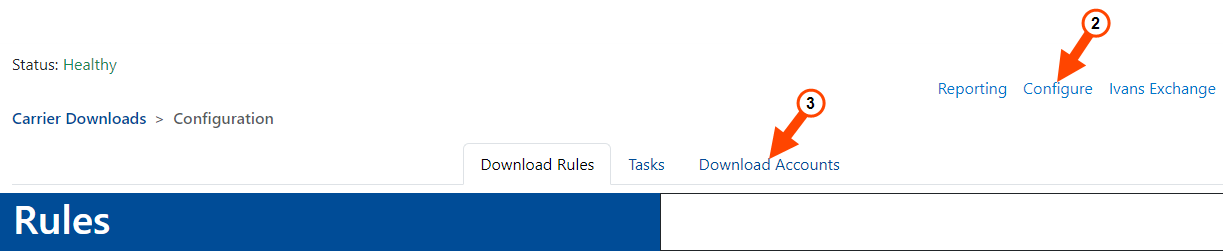
The Download Accounts page opens.
The Downloads Dashboard opens in your web browser.
The Download Accounts list
The Download Accounts list displays any IVANS Accounts (also called 'Y-Accounts') you have added to HawkSoft. On this list, you can see the Y-account, User ID (also called 'Mailbox'), password, and enabled/disabled status for each IVANS Account added.
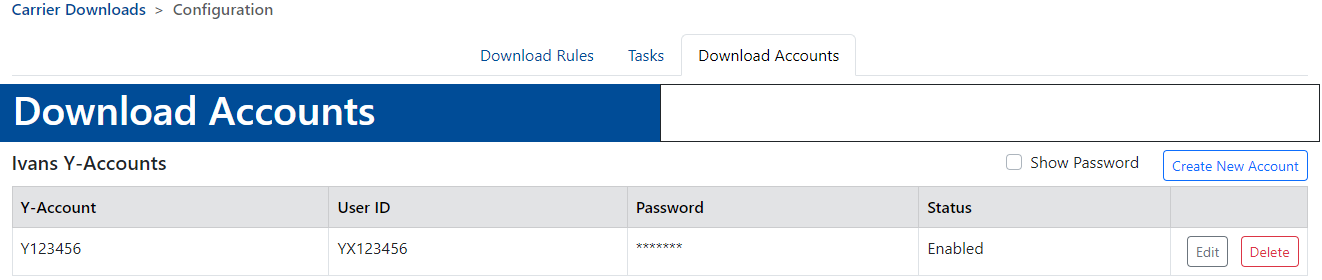
Passwords are masked with asterisks for privacy and security, unless you check the Show Password box at the upper right of the Download Accounts list. For security, this box is unchecked each time you re-open the Download Accounts list.
To add a Download Account
-
From the Download Accounts list, click Create New Account at the upper right.
The Create New Account dialog opens.
-
Enter the following IVANS Account information. This may have been received from IVANS, or from a carrier sponsoring your IVANS account. If you don't have this information, your HawkSoft implementation consultant can assist with contacting IVANS or your carrier to request it.
-
Y-Account: The account identifier. These usually start with Y, and are usually shorter than the User ID.
-
User ID: Also sometimes referred to as the Mailbox. These usually start with YX and are usually longer than the Y-Account.
One Y-account may have multiple User IDs/Mailboxes. If you have multiple User IDs/Mailboxes under one Y-account, enter these as separate accounts in HawkSoft (using the same Y-account for both accounts).
-
Password: The User ID/Mailbox password. This may be different from the password you use to access your IVANS Exchange dashboard.
The password is masked with dots for security. Click the eye icon
 at the right end of the password field to see the characters typed here.
-
-
Check the Enabled checkbox to make the account active in HawkSoft as soon as it is saved.
-
If this box is checked: Upon saving, the account will be included the next time HawkSoft checks for downloads.
-
If this box is not checked: Upon saving, the account will be added to the Download Account List, but will be marked as Not Enabled, and will not be included when HawkSoft checks for downloads.
-
-
Optional: Click the Test Credentials button to test the connection to the IVANS servers using the currently entered account information. HawkSoft will return a message to confirm if a test connection to the IVANS servers with these credentials was successful or not. No downloads are retrieved during this test.
-
Click Save.
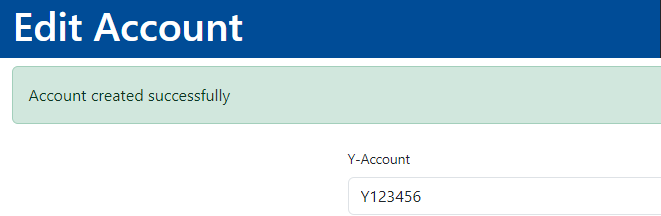
A banner message confirms that the account was successfully created.
-
Optional: Click Cancel to return to the Download Accounts List.
To edit a Download Account
-
Click Edit in the right-most column of the Download Account list to edit a given account.

The Edit Account page opens.
-
Make changes to the account fields, as needed.
See To add a Download Account for details on each of the available fields.
-
Once you've finished your edits, click Save.
Edits made to the account will not affect any downloads already received from this account.
To delete a Download Account
Click Deletein the right-most column of the Download Accounts list to delete a given account.
Pressing the Delete button will immediately remove the associated account. There is no confirmation pop-up for this action.
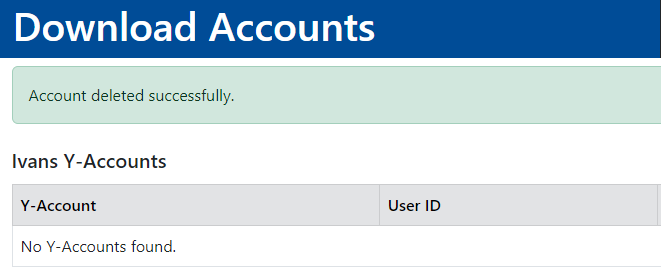
A banner message is displayed as confirmation that the download account was successfully deleted.
Downloads already received from this account are not affected by deleting the account.
Additionally, deleting a download account in HawkSoft has no effect on the account in IVANS. Consult with your carriers and/or IVANS if you need to discontinue use of the account outside of HawkSoft.
Related Topics