Configure Local and Third-Party Downloads
The primary method of receiving carrier downloads into HawkSoft is through IVANS mailboxes. However, some carriers (such as Progressive) use their own proprietary software to send carrier downloads to your agency. Additionally, some other carriers may use a different third-party software, such as Team-Up, to send carrier downloads.
Carriers requiring the use of tools other than IVANS to receive carrier downloads require additional set-up in HawkSoft. Additionally, downloads for these carriers must be manually run by an agency employee each business day before they can be processed into HawkSoft.
This article explains how to set up and run downloads for carriers requiring the use of proprietary or third-party download software.
To see a list of which carriers are certified for receiving downloads into HawkSoft, as well as how each of these carriers send downloads, see our Carrier Downloads and Real Time Integration website.
To learn how to set up and work with carrier downloads sent through IVANS, see Carrier Download Setup Overview.
For best results and ease of running downloads, all third-party download software should be installed on the same computer, and run each business day.
Remember that in the event of an employee absence, another user may need to access the computer where the download software is installed.
 Required Permissions:
In order to complete this task, user permissions must be set to include:
Downloads > Configure Local Downloads
See User Permissions for more information.
To set up third-party downloaders for processing into HawkSoft
-
Ensure your carrier's third-party/proprietary download software is properly installed, and able to receive carrier downloads.
Contact your carrier's download support for assistance with installing and configuring third-party download software, as this process will vary depending on the carrier and software used.
If your agency requires the use of multiple third-party downloaders, ensure these downloaders are all installed on the same computer.
-
Configure the third-party downloader to send carrier download files to C:\Haw\Download on the local computer which the downloader is installed.
HawkSoft recommends using the C:\Haw\Download folder on the computer which downloads are run, as this is the default folder HawkSoft uses to pull in third-party downloads, and this folder is automatically created when HawkSoft is installed on the computer.
However, if a different folder is required, any folder on the computer can be used as long as the HawkSoft program has access to this folder, and all third-party downloads are sent to this same folder. -
Open the HawkSoft desktop application on the computer where your third-party downloaders are installed.
-
Open the
 Setup menu in HawkSoft, and select Local Downloads Settings.
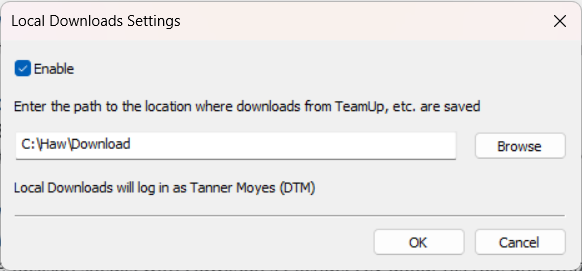
The Local Downloads Settings dialog opens.
-
Check the Enable box to turn on Local Downloads.
-
Ensure the path shown in the dialog leads to the folder where your third-party downloads are saved.
By default, the path is C:\Haw\Download, and most agencies do not need to change this. However, if you configured your third-party downloader to use a different folder in Step 2, enter that same path into this dialog.
-
Click OK.
Local Downloads are now enabled in HawkSoft, and HawkSoft will immediately begin processing any downloads already inside the folder specified above.
To run third-party downloads
Designate an agency employee to run your third-party download software each business day. Contact your carrier's download support for instructions on running your third-party download software.
Remember that in the event of this employee's absence, a different employee will need to run the downloads on the computer where the third-party downloaders are stored in order for your agency to receive downloads from all of your carriers.
When the third-party downloader is run, all downloads sent by the carrier will be saved in the folder designated in the set-up process above (by default, C:\Haw\Download). Once Local Downloads are enabled in HawkSoft, a background application called the HawkSoft Download Manager will check the designated folder for new downloads every few minutes. If the Download Manager detects download files in this folder, the Download Manager will pull these files into the HawkSoft Cloud, where it will be processed and matched to a client/policy according to your agency's Download Rules.
From here, you can view which downloads were processed and match any unmatched downloads through the HawkSoft Downloads Dashboard. Additionally, you can run a Download Report to see more details about each of the carrier downloads received, and the affected clients/policies.
See Carrier Downloads Overview to learn more about viewing and working with carrier downloads.
Related Topics