Downloads Dashboard
HawkSoft's Downloads Dashboard enables you to review all of the downloads recently received by your agency, as well as which carriers the downloads came from, the types of downloads received, and which policies the downloads were matched to. If you have any downloads still in progress, the Downloads Dashboard shows you how many downloads are currently being processed, and which stage of processing they are in. Additionally, if any downloads were not able to be matched to a client and/or policy automatically, the Downloads Dashboard alerts you with a link to access the Unmatched Downloads workflow.
This article explains how to access and work with the Downloads Dashboard to review the list of downloads recently received by your agency.
To see a more detailed and customizable report of downloads received by the agency, see the Download Report article.
To access the Downloads Dashboard
From the Desktop app: Click Activitiesfrom the main menu bar, and then select Download Dashboard.
OR
From the Web app: Log into the HawkSoft Web app, accessed from any computer, and click the Download icon  in the left column of the HawkSoft web start page to access the Carrier Download Dashboard.
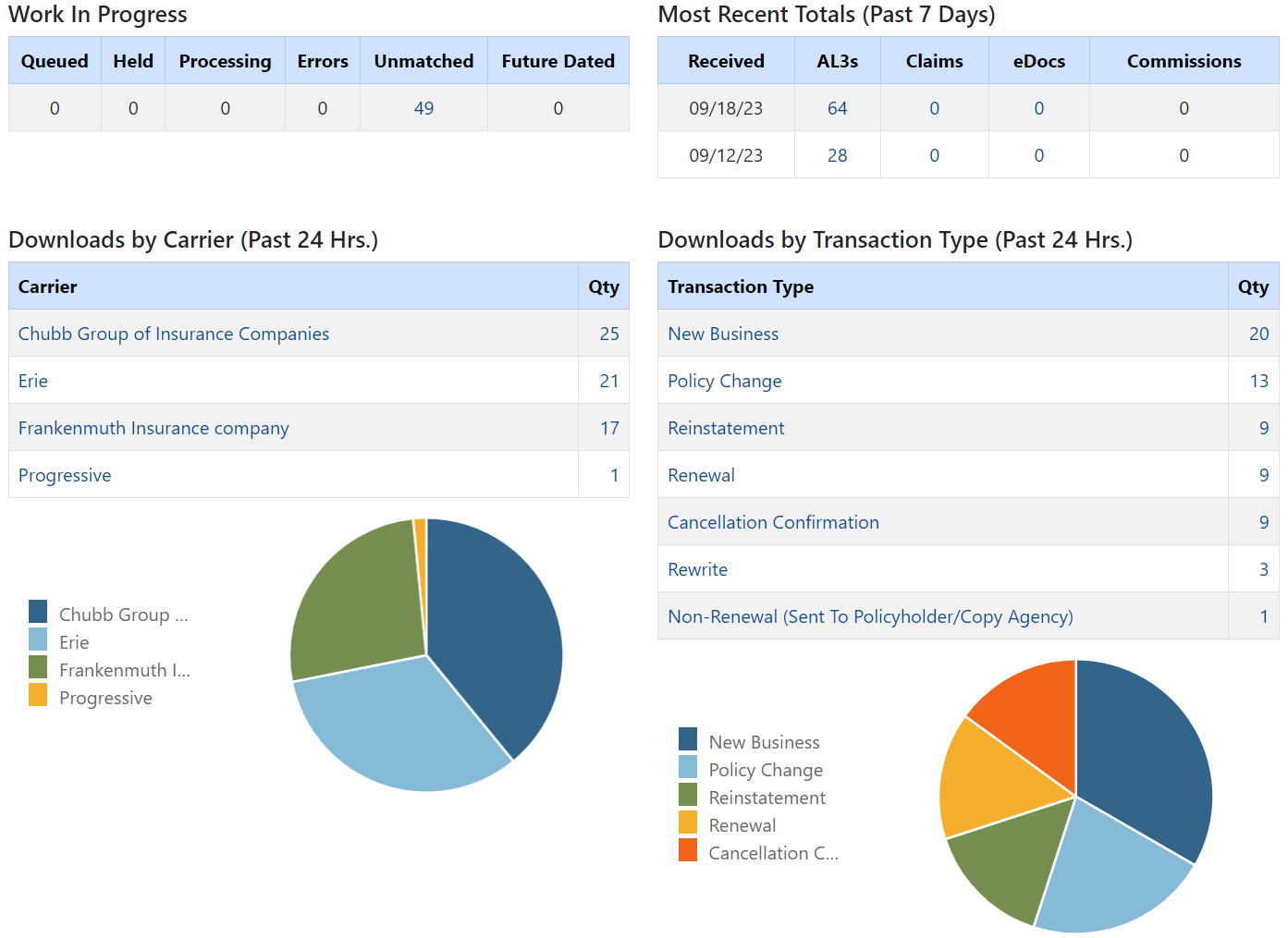
The Downloads Dashboard opens in a new tab within your default web browser, with different tables and charts listing the downloads received by your agency recently, as well as which downloads are still in progress.
To resolve unmatched downloads
In some cases, HawkSoft is unable to automatically match downloads received by carriers to clients or policies in your HawkSoft database. This can be caused by a mismatch between key policy information on the download and information on the policy in HawkSoft, such as the policy number containing a hyphen on the download (ex. ABC-12345), but being listed without a hyphen on the policy in HawkSoft (ex. ABC12345). Alternatively, this can happen if the policy doesn't exist in HawkSoft.
If you have any unmatched downloads, a red banner appears at the top of the Dashboard, informing you how many unmatched downloads you have.

Click this banner to be taken to the Unmatched Downloads page. Here, you can manually attach these downloads to the correct policy, create new clients or policies, or send a download for re-processing if the conflict causing the download to become unmatched has been resolved (for example, the policy number has been corrected on the policy in HawkSoft).
See Process Unmatched Carrier Downloads to learn how to process your unmatched downloads.
The Downloads Dashboard tables
The Downloads Dashboard contains four tables listing your received downloads: Work In Progress, Most Recent Totals (Past 7 Days), Downloads by Carrier (Past 24 Hrs.), and Downloads by Transaction Type (Past 24 Hrs.). Additionally, the Downloads by Carrier and Downloads by Transaction Type tables include pie charts to help visualize the information contained in these tables.
The following sections describe these tables, and define the columns within each table:
Work In Progress
The Work In Progress table shows how many downloads have been received by HawkSoft and are awaiting processing. Additionally, this table displays the number of downloads that have been held, had errors, are unmatched, or are 'future dated' (awaiting processing in the future).
The following are definitions for each of the columns in this table:
Queued — The number of downloads that have been received by HawkSoft, and will be processed once space is freed in the download process queue.
Held — The number of downloads that are being held by HawkSoft Support due to a downloads issue.
If a serious downloads issue occurs, HawkSoft Product Support may choose to hold certain downloads from processing to protect your client data and troubleshoot the issue.
If you have any 'Held' downloads, no action is necessary. These downloads will be released for processing once the issue is resolved.
Processing — The number of downloads that HawkSoft is currently processing.
Errors — The number of downloads that could not be processed due to an error.
If you see errors, no action is necessary. HawkSoft will be proactively researching all Download errors and resolving any issues that arise.
Unmatched — The number of downloads that could not automatically be matched to a client and policy.
If there are any unmatched downloads, click the number in this column (or the red banner at the top of the Downloads Dashboard) to be taken to the Unmatched Downloads processing page.
Future Dated — The number of downloads that will be processed at a future date.
If there are any downloads in this column, this means that you have received a Renewal or Endorsement download before the Effective Date listed on the download. To ensure that the policy in HawkSoft always reflects the most current information, HawkSoft will wait until the Effective Date before processing this download.
The Most Recent Totals table lists how many download files have been received each day over the past 7 days.
One download file can contain multiple download transactions (i.e. multiple policy updates).
The table splits the total number of received download files by file type:
AL3s — These download files contain policy transactions and updates to client/policy information.
Claims — These download files contain updates to clients' claims.
eDocs — These download files contain electronic memos and documents sent by carriers.
Commissions — Downloaded carrier commission statements will be supported by HawkSoft at a future date.
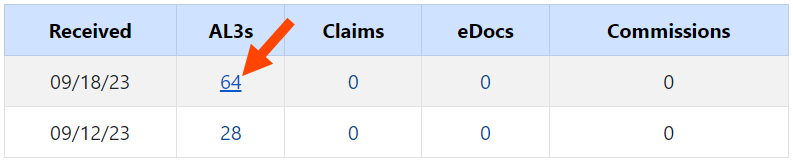
You can further expand this summary by clicking on a value in the table to see a list of all files of that type, received on that date.
Example: To see which AL3 (policy download) files were received on a certain day, we'll click the value in the AL3s column and the row corresponding to that date.
When a value is clicked, the page changes to a "List of files received for the selected date" summary, with a table showing each download file of that type received that day.
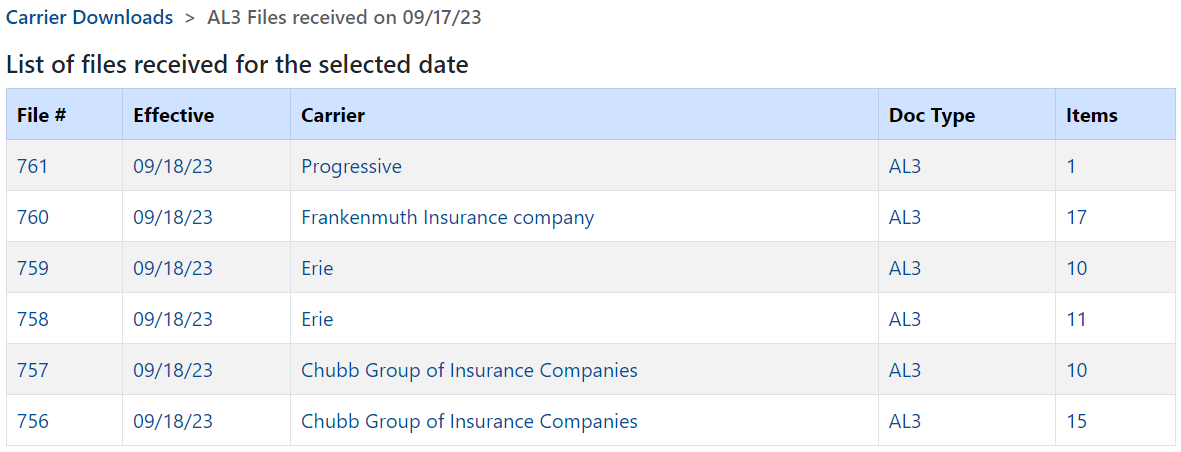
Clicking on any of the values in a row will display a further summary listing all transactions included within the selected file, called "List of transactions in the selected file".
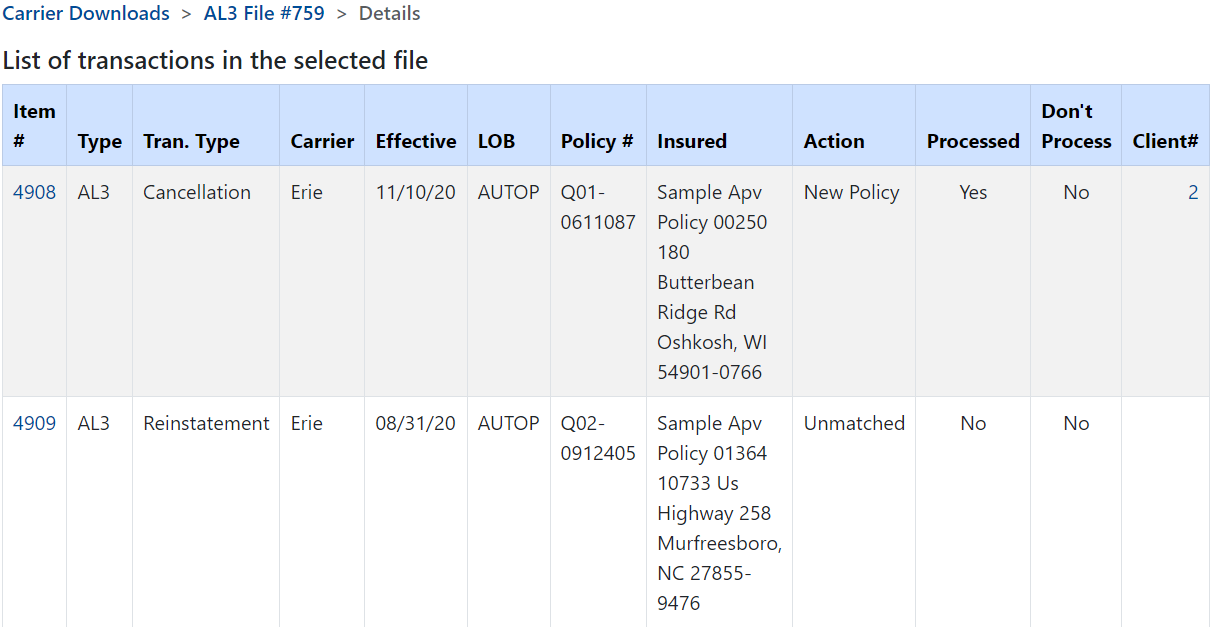
This summary contains several columns detailing the information contained in the download transactions, as well as what action was taken with each download.
The following are important columns in this table to note:
Item # — Click on the value in this column to see a detail page containing further information about the download transaction.
From this detail page, you can click the View Download link (under System/Internal Details) to see a copy of this download in the HawkSoft Download Viewer.
Action — This column details what action was taken with the download transaction. Possible statuses include:
Unmatched — This download could not be matched to a client or policy automatically, and is awaiting manual matching in Unmatched Downloads.
New Client/Policy — A new client and a new policy were created from this download.
New Policy — A new policy on an existing client was created from this download.
Existing Client/Policy — This download was matched to an existing policy on an existing client.
n/a — This download was not matched to a policy, and was removed from Unmatched Downloads by a user.
The initials of the user who removed this download is shown in the Don't Process column.
Client# — If this download was matched, the ID of the client it was matched to is listed in this column. You can click this ID to be taken to the client in the HawkSoft desktop application.
When the Client ID is clicked, your browser may ask for permission to open "HawkSoft.Connect". HawkSoft recommends checking "Always allow downloads.hawksoft.cloud to open links of this type" to prevent this prompt from appearing in the future. Once you click Open HawkSoft.Connect, the client opens in your HawkSoft desktop application.
The Downloads by Carrier table lists how many download transactions were received over the past 24 hours, broken down by which carriers the transactions came from.
Additionally, there is a pie chart below the table to help you visualize the proportion of downloads received by each carrier.
You can mouse over a section in the pie chart to see which carrier the section is for, and how many downloads this carrier sent. You can also click on a carrier name in the chart's legend to remove that carrier from the pie chart.
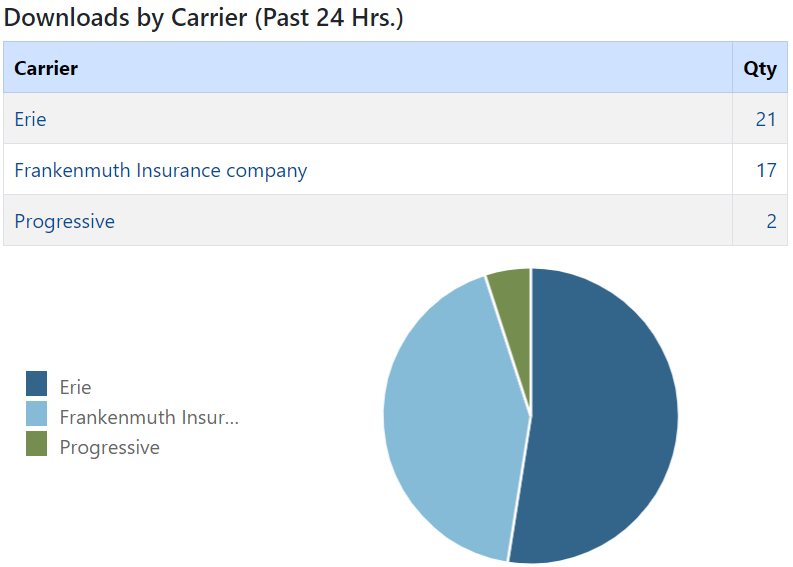
Click on a Carrier in the table (or the quantity next to the carrier) to view a summary of all transactions sent by that carrier over the past 24 hours.
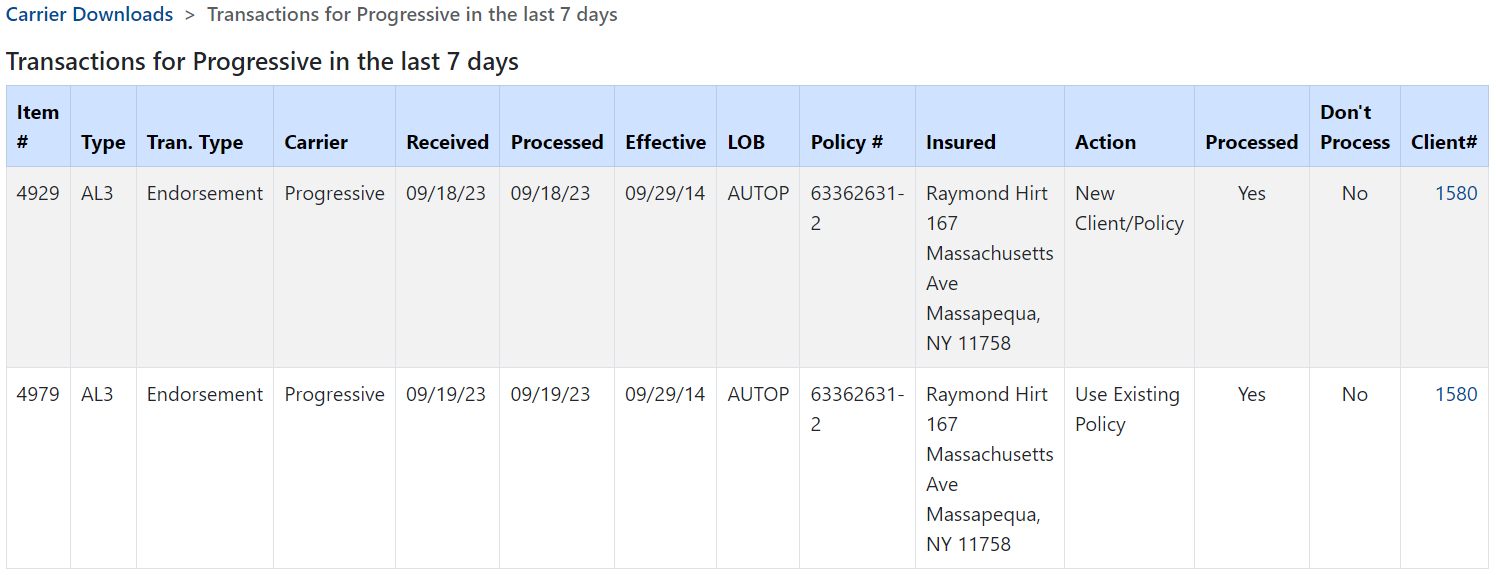
This summary contains several columns detailing the information contained in the download transactions, as well as what action was taken with each download.
The following are important columns in this table to note:
Item # — Click on the value in this column to see a detail page containing further information about the download transaction.
From this detail page, you can click the View Download link (under System/Internal Details) to see a copy of this download in the HawkSoft Download Viewer.
Action — This column details what action was taken with the download transaction. Possible statuses include:
Unmatched — This download could not be matched to a client or policy automatically, and is awaiting manual matching in Unmatched Downloads.
New Client/Policy — A new client and a new policy were created from this download.
New Policy — A new policy on an existing client was created from this download.
Existing Client/Policy — This download was matched to an existing policy on an existing client.
n/a — This download was not matched to a policy, and was removed from Unmatched Downloads by a user.
The initials of the user who removed this download is shown in the Don't Process column.
Client# — If this download was matched, the ID of the client it was matched to is listed in this column. You can click this ID to be taken to the client in the HawkSoft desktop application.
When the Client ID is clicked, your browser may ask for permission to open "HawkSoft.Connect". HawkSoft recommends checking "Always allow downloads.hawksoft.cloud to open links of this type" to prevent this prompt from appearing in the future. Once you click Open HawkSoft.Connect, the client opens in your HawkSoft desktop application.
The Downloads by Transaction Type table lists how many download transactions were received over the past 24 hours, broken down by the type of transactions received.
Additionally, there is a pie chart below the table to help you visualize the proportion of each transaction type.
You can mouse over a section in the pie chart to see which transaction type the section is for, and how many transactions of this type were received. You can also click on a transaction type in the chart's legend to remove that type from the pie chart.
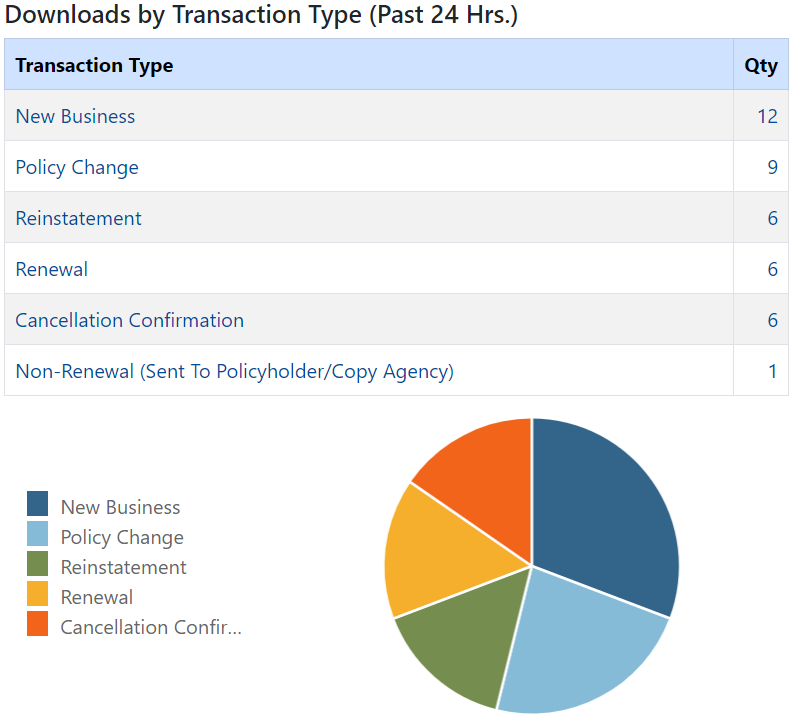
Click on a Transaction Type in the table (or the quantity next to the type) to view a summary of all transactions of that type received over the past 24 hours.
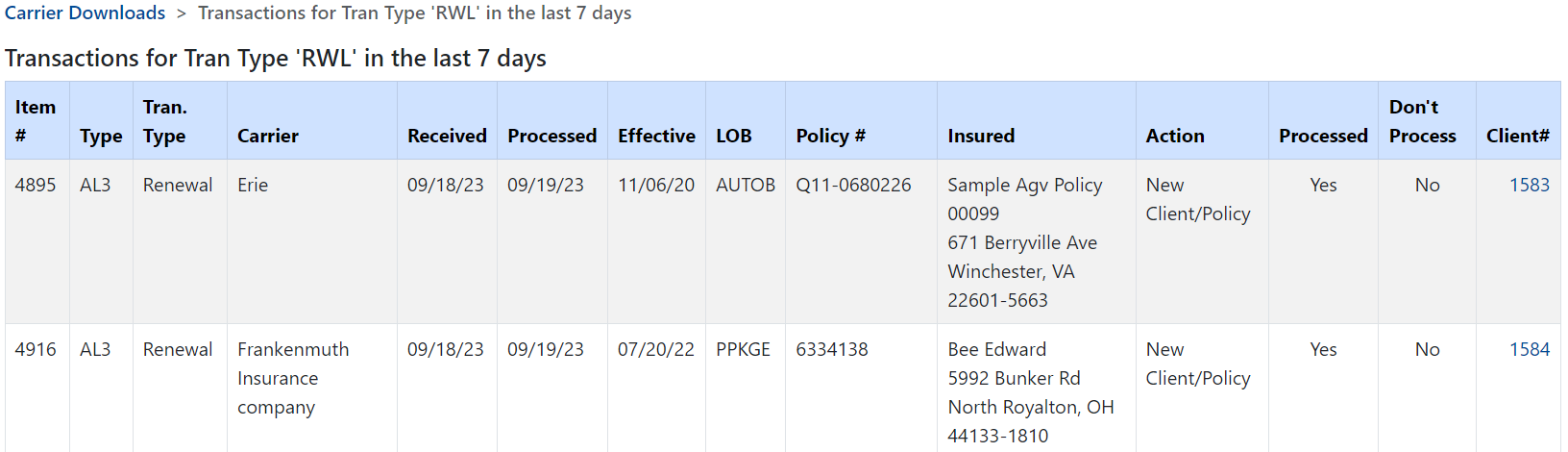
This summary contains several columns detailing the information contained in the download transactions, as well as what action was taken with each download.
The following are important columns in this table to note:
Item # — Click on the value in this column to see a detail page containing further information about the download transaction.
From this detail page, you can click the View Download link (under System/Internal Details) to see a copy of this download in the HawkSoft Download Viewer.
Action — This column details what action was taken with the download transaction. Possible statuses include:
Unmatched — This download could not be matched to a client or policy automatically, and is awaiting manual matching in Unmatched Downloads.
New Client/Policy — A new client and a new policy were created from this download.
New Policy — A new policy on an existing client was created from this download.
Existing Client/Policy — This download was matched to an existing policy on an existing client.
n/a — This download was not matched to a policy, and was removed from Unmatched Downloads by a user.
The initials of the user who removed this download is shown in the Don't Process column.
Client# — If this download was matched, the ID of the client it was matched to is listed in this column. You can click this ID to be taken to the client in the HawkSoft desktop application.
When the Client ID is clicked, your browser may ask for permission to open "HawkSoft.Connect". HawkSoft recommends checking "Always allow downloads.hawksoft.cloud to open links of this type" to prevent this prompt from appearing in the future. Once you click Open HawkSoft.Connect, the client opens in your HawkSoft desktop application.
Required Permissions
In order to complete this task, user permissions must be set to include:
Downloads > Downloads Dashboard and Report
See User Permissions for more information.
Related Topics