Adjusting Commission Transactions
Carrier commission statements can sometimes require some adjustment for accuracy. The statements your carrier sends might be missing a transaction, or include a transaction that shouldn't be there. They may have a typo in an amount or percentage field that needs to be corrected. For all these cases and more, HawkSoft provides several ways you can work with commission transactions to ensure your commission statements are recorded accurately. You can add new commission transactions, you can remove unnecessary transactions, and you can modify existing transactions.
Commission transactions must also be matched to policies or marked as agency-only in order to complete statement reconciliation. See Matching Commission Transactions for more information.
This article explains how to add a commission transaction to a statement, how to delete or void a commission transaction from a statement, and how to modify a commission transaction.
 How do I get here?
-
Click Commissions > Commission Processing & Reporting from the main HawkSoft menu bar.
OR
-
Log into the HawkSoft Web app, accessed from any computer
-
Click the Commissions icon
 in the left column of the HawkSoft web start page to access Commission Processing and Reporting.
For more information about logging into the HawkSoft web app, see Logging In and Out of HawkSoft.
-
-
Select the Reconcile Statements tab.
-
Open an unreconciled commission statement from the list by clicking on the Statement Number.
To add a commission transaction to a statement
-
Open the unreconciled commission statement that you want to add the transaction to.
-
Click the
 button.
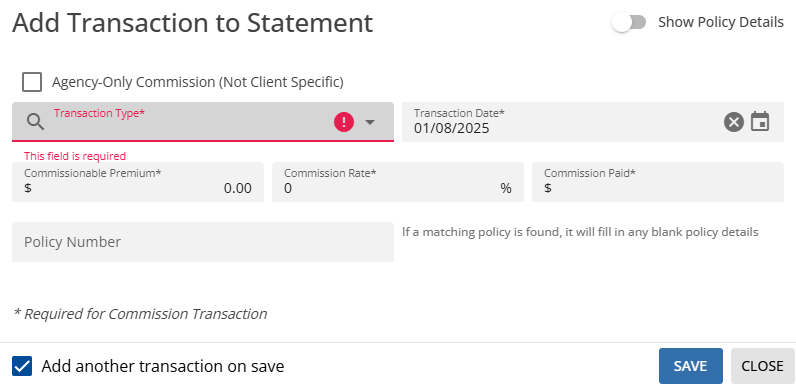
The Add Transaction to Statement dialog launches.
-
Conditional: If the transaction you are adding does not apply to a specific client, check the Agency-Only Commission (Not Client Specific) box.
The Effective Date and Expiration Date fields become inactive.
The Agent 1-3 fields are displayed to enable you to select up to three agents to split this commission transaction.
-
Select the transaction type from the Transaction Type drop-down.
-
Conditional: Change the Transaction Date, if needed. This defaults to today's date.
You can either type these date into the field, or click the
 calendar icon to open a date selector.
 -
Optional: Enter the Commissionable Premium dollar amount. This defaults to $0.
-
Optional:Enter the Commission Rate %. This defaults to 0%.
-
Enter the agency Commission Paid dollar amount.
It is possible to create a commission transaction with only two of the three amount fields mentioned above. If two of the Commissionable Premium, Commission Rate %, or Commission Paid are entered, HawkSoft will calculate the third field on the saved transaction.
It is possible to enter a Commission Paid amount of 0. Some agencies may choose to do this to include policies for which no commission is being received on commission reports and statements (for informational purposes). In this case, if a Commissionable Premium and/or Commission Rate are entered, they will not be updated by setting the Commissionable Premium to 0.
-
Optional: Enter the Policy Number of the policy associated with this transaction.
If a policy number is entered when saving the transaction, HawkSoft will search for the policy number to attempt to match the transaction to the policy automatically.
-
Optional: Toggle Show Policy Details in the upper right to active (blue) to see additional non-required fields such as assigned carrier and effective/expiration date. (Disabled is the transaction is marked as agency-only).
These fields are optional when creating the transaction, and will be filled automatically when the transaction is matched to a policy.
-
Click Save to save the transaction to the statement.
To continue adding transactions to the statement
If the Add another transaction on save box is checked when saving a manual commission transaction, the Add Transaction to Statement dialog will refresh with all fields reset so you can add the next transaction. This box is checked by default.
If Show Policy Details is enabled when adding another transaction on save, it will remain active on the next transaction entry until you close and reopen the add transaction dialog, or disable it.
If a policy number was entered and HawkSoft finds a definitive match, the transaction is automatically matched to the policy. If no policy number was entered, or HawkSoft could not find a definite match, you will be prompted to match the commission transaction to a policy (unless the transaction was marked as Agency-Only). If partial matches or multiple matches for a policy number are found, those clients will be automatically expanded, with the relevant policies highlighted for easy selection. See Matching Commission Transactions for more information.
After choosing not to add another transaction on save, or canceling the add transaction dialog, HawkSoft returns to the statement view.
To void or delete a commission transaction from a statement
The void and delete processes are performed with the same steps. The difference between void and delete lies in the source of the transaction.
- Transactions created by the download or import of a commission statement, or via Trust Accounting, can be Voided. These transactions are still visible on the statement so that you can see what was originally sent, but they are crossed out, marked in red, and do not affect the statement totals.
- Transactions created manually can be Deleted. These transactions are completely removed from the commission statement.
-
Open the unreconciled commission statement that you want to void or delete the transaction from.
-
Click the
 more actions button to the right of the transaction, then click either the
  or
or  button.
Only one of these options will be available per transaction, as described above.
The Confirm Delete Transaction dialog launches.
-
Click Archive Commission Transaction or Delete Commission Transaction, once you have confirmed this is the correct transaction to archive/delete.
OR
Click Cancel to return to the statement without archiving/deleting the transaction.
Transaction was voided
The transaction is highlighted in red, and text on the transaction is crossed out. The transaction remains visible on the statement, but does not affect totals.

The transaction can be restored to the statement as an active transaction by clicking the
 button next to it.Transaction was deleted
The transaction is completely removed from the statement. The transaction must be manually recreated if needed again.
To modify a commission transaction
In the event that a commission transaction has incorrect data, some of the data can be changed. Please note that in order to preserve the integrity of your downloaded data, you are not able to modify some fields for transactions created by downloaded statements. If there is a problem with a downloaded transaction field that cannot be modified, such as a date field, please contact your carrier and ask them to send a corrected statement.
-
Open the unreconciled commission statement that you want to modify a transaction on.
-
Click the
more actions button to the right of the transaction to modify, and then click  .
.OR
Click any place that is not a link on a transaction row to open it for editing. The transaction must not be voided.
The Modify transaction dialog launches.
-
Review the commission transaction and modify as needed.
The following fields can be modified
-
Assigned Carrier
-
Commissionable Premium
-
Commission Rate
-
Commission Paid
-
Term (if matched to a policy)
-
New
-
Renewal
-
Rewrite
HawkSoft will display (Override) next to any of these term selections that do not match what HawkSoft detects based on policy information.
-
-
Agent 1-3 fields
Click in the Agent 1-3 boxes to select up to three agents to split this commission transaction. You can begin typing the user's name or initials to filter the list.
Transactions matched to policies may have Agents 1-3 pre-filled, based on the Agent 1/2/3 fields on the policy.
In addition, the following fields can be modified on manual transactions:
-
Effective Date
-
Expiration Date
-
Transaction Date
-
-
Click Save & Match (if the transaction is unmatched) or Save & Rematch (if the transaction is already matched to a policy) to save the transaction and open the Match transaction dialog.
OR
Click Save & Close to save the transaction and return to the statement without going through the match transaction dialog.
To update policy data for all matched transactions on a statement
You can update the policy data on all matched transactions on a statement to match the current policy data, or the policy history data. This may be helpful if the data has changed for many policies at once, such as after a data replace.
You can update every matched transaction on the current statement to use either current policy data or historical policy data (as of the commission transaction date).
This feature does not apply to transactions created via download or anticipated commissions.
What policy data is updated?
The following fields are updated on each commission transaction that is matched to a policy when you update transactions:
-
Transaction Carrier
-
Policy #
-
Application Type
-
Policy LOB
-
Policy Title
-
Policy Effective Date
-
Policy Expiration Date
-
Term
-
Agent 1
-
Agent 2
-
Agent 3
-
Agent Code
-
Source
-
Office
Unmatched transactions and transactions marked as agency-only are unaffected.
-
Open the unreconciled commission statement that you want to update agents for.
-
Click the
 Update Transactions on Statement button.
A drop-down menu opens.
-
Select the policy information option to update all matched transactions on the statement with:
-
Use Current Policy Information - Transactions will be updated to use the data that is currently on the matched policy.
-
Use Policy History Information - Transactions will be updated to use the data from the matched policy as of the transaction date.
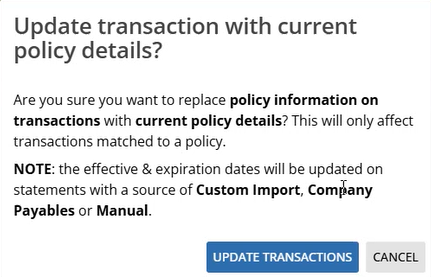
A confirmation popup appears.
-
-
Click Update Transactions.
A message confirms the changes have been applied.

To reprocess a statement for automatic matching
In some cases, commission statements might be received and processed by HawkSoft before policies are updated or inserted, causing the automatic matching to be unable to locate them. To help avoid the need for manual matching in these cases, you can reprocess the statement so that the automatic matching tries again.
This applies only to unreconciled downloaded or imported commission statements.
-
Locate the statement that you want to reprocess in the list of unreconciled statements.
-
Click the
Actions button next to the statement and select one of the options to reprocess the statement:-
Select Reprocess Unmatched Transactions to have HawkSoft check for matches again only for transactions on the statement that are not currently matched to a policy.
-
Select Reprocess Statement to have HawkSoft check for matches for every transaction on the statement, just like a new statement would.
Selecting this option will undo any manually created transactions, manual matching or adjustments you've already performed on this statement. This data will be lost.
-
-
Conditional: If you selected Reprocess Statement, review the confirmation dialog and optionally check the box for Use Current Policy Information, then click Confirm.
By default, matched transactions use policy history information from the transaction date. Selecting Use Current Policy Information reprocesses the statement using the policy's current data.
-
Review the Reprocessing Status column on the Reconcile Statements list. While the statement reprocessing is pending or in progress, the statement is locked and cannot be opened.
You can refresh the information by clicking the
 Refresh button at the top right of the list.
When the Reprocessing Status of the statement changes to Done, your statement is reprocessed and ready to work with again.
After reprocessing your statement, if the policies were missing or out-of-date before, but are present and updated now, new matches may have been found.
Continue to review the statement for any transactions that still could not be matched, and proceed to reconcile as usual when ready.
Required permissions
To perform these actions, user permissions must be set to include:
Commissions > Allow Commission Processing & Reporting
See User Permissions for more information.
Related Topics