Matching Commission Transactions
For HawkSoft to track and calculate the commissions for the agency and the producer, and to enable you to pay the commission owed during the payout workflow, it's vital that each transaction on a commission statement is matched to the appropriate policy in HawkSoft, when applicable. When your agency receives a new commission statement download or import, HawkSoft attempts to match the transactions on the statement to your clients and policies.
In some cases, however, the carrier may send slightly different information on the commission statement than you have listed for the client/policy, or may even send information for a client or policy that you don't have in HawkSoft yet, meaning HawkSoft can't find a policy to match the transaction to. These transactions are left "unmatched" so you can tell HawkSoft where they belong, which will make for a smoother experience when reconciling and paying out commissions in the future. Transactions can also be re-matched, in case you notice a mistake after the initial matching.
This article explains how to match unmatched commission transactions to policies from the Commission Statement Summary.
 Required permissions
To view downloaded commission statements, match commission transactions, or import commission statements, user permissions must be set to include:
Commissions > Allow Commission Processing & Reporting
See User Permissions for more information.
How do I get here?
-
Click Commissions > Commission Processing & Reporting from the main HawkSoft menu bar.
OR
-
Log into the HawkSoft Web app, accessed from any computer
-
Click the Commissions icon
 in the left column of the HawkSoft web start page to access Commission Processing and Reporting.
For more information about logging into the HawkSoft web app, see Logging In and Out of HawkSoft.
-
-
Select the Reconcile Statements tab.
To view Unmatched Commission transactions
From the Reconcile Statements tab, click on a statement's Statement Number.
This launches the specific statement that was selected, which shows all the transactions on that statement, as well as their matched/unmatched status, and the client/policy they are matched to, if any.
Matched transactions have a green background and show a matched policy title.
Unmatched transactions have a white background and show Unmatched in the Matched Policy column.
Now that you know where to see your unmatched transactions, you can proceed to match them to the appropriate policies.
To reprocess a statement for automatic matching
In some cases, commission statements might be received and processed by HawkSoft before policies are updated or inserted, causing the automatic matching to be unable to locate them. To help avoid the need for manual matching in these cases, you can reprocess the statement so that the automatic matching tries again.
This applies only to unreconciled downloaded or imported commission statements.
-
Locate the statement that you want to reprocess in the list of unreconciled statements.
-
Click the
 Actions button next to the statement and select one of the options to reprocess the statement:
-
Select Reprocess Unmatched Transactions to have HawkSoft check for matches again only for transactions on the statement that are not currently matched to a policy.
-
Select Reprocess Statement to have HawkSoft check for matches for every transaction on the statement, just like a new statement would.
Selecting this option will undo any manually created transactions, manual matching or adjustments you've already performed on this statement. This data will be lost.
-
-
Conditional: If you selected Reprocess Statement, review the confirmation dialog and optionally check the box for Use Current Policy Information, then click Confirm.
By default, matched transactions use policy history information from the transaction date. Selecting Use Current Policy Information reprocesses the statement using the policy's current data.
-
Review the Reprocessing Status column on the Reconcile Statements list. While the statement reprocessing is pending or in progress, the statement is locked and cannot be opened.
You can refresh the information by clicking the
 Refresh button at the top right of the list.
When the Reprocessing Status of the statement changes to Done, your statement is reprocessed and ready to work with again.
After reprocessing your statement, if the policies were missing or out-of-date before, but are present and updated now, new matches may have been found.
Continue to review the statement for any transactions that still could not be matched, and proceed to reconcile as usual when ready.
To match Unmatched Commission transactions
After opening either an unmatched commission transaction list, or a statement with unmatched transactions on it, the next step is to match those transactions to policies.
-
Click the
 Start Matching Transactions button at the top of the statement.
This starts the matching process with the first unmatched transaction on the statement.
OR
Select a specific transaction to begin matching from.
-
Locate the first unmatched transaction that you would like to match.
Unmatched transactions have a white background and show Unmatched in the Matched Policy column. Matched transactions have a green background.
-
Click the
in the Action column to the right of the unmatched transaction, and then select  Match from the drop-down menu.
A drop-down menu opens with actions you can perform for this transaction.
-
Select
Match from the drop-down menu.
A client search dialog opens.
-
-
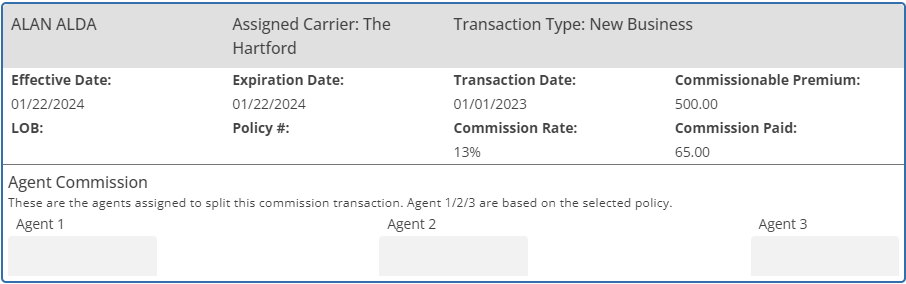
Details of the commission transaction that you're currently matching are listed in the upper left of the dialog to help you locate the appropriate client/policy.
-
Determine whether the transaction should match to a policy using the information displayed, or if it is an "agency-only
Agency-Only commission transactions are those that do not apply to a specific client/policy, but may appear on commission statements. Examples may include transactions such as MVR fees, or general fees and bonuses that a carrier may include on your commission statement.
In previous versions of HawkSoft, these types of commission tranactions often had to be associated with a "dummy" agency or carrier client. By marking transactions as Agency-Only, these transactions are tracked without requiring this "dummy" file." transaction. Agency-Only transactions refers to transactions that are not connected to a specific policy (such as a bonus or adjustment from the carrier on the commission statement).If the transaction should match to a policy
-
Search for a client/policy that matches this commission transaction, using the search fields in the upper right.
If you search by policy number and HawkSoft finds matches, the clients will be expanded by default, and the matching policies will be highlighted for easy selection. If there is only one match for that policy number, it will be automatically selected.
-
Select the client in the search results that this transaction should be matched to.
The client is highlighted and a list of the active policies on that client is displayed.
You can click on the client ID in the search results to launch the client in the main application window, if you need to see more detail.
If the client you expect to match this transaction to is not listed in the search results, you may need to add the client to HawkSoft. -
Click Select on the specific policy on the client that the transaction should be matched to.
The policy is highlighted and marked as Selected, and the Save Match buttons become active.
You can click on the policy title in the search results to launch the client/policy in the main application window if you need to see more detail.
If the policy you expect to match this transaction to is not listed in the search results, you may need to add the policy to HawkSoft.
If the transaction should be marked agency-only
Check the Agency-Only Commission (Not Client-Specific) box.
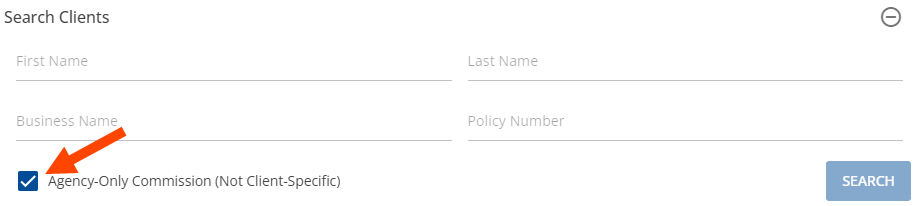
You do not need to perform a search, and checking this box disables the search fields.
-
-
Optional: Enter or change the agents assigned to split the commission transaction.
Up to three agents can be selected to split a single commission transaction, in the transaction info in the upper left.
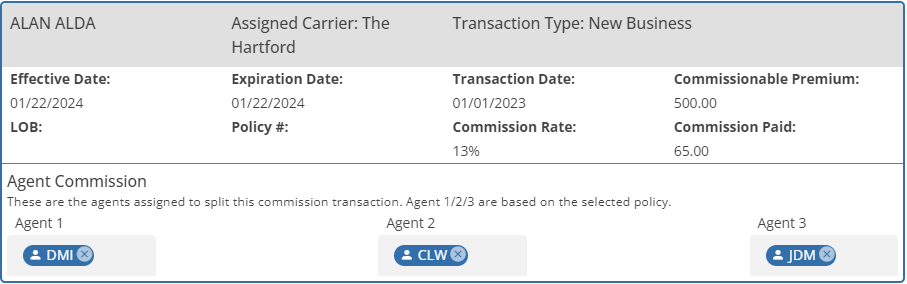
Click in any of the Agent fields below the commission transaction information to select the agents who should split this transaction. Click on the X next to a selected agent to remove them. These Agent fields are only active when you have either selected a policy to match to, or have checked the box for Agency-Only Commission.
These fields are pre-filled from the Agent 1/2/3 fields on the selected policy, if applicable.
If policy history exists on the policy for the commission transaction date, HawkSoft will fill Agent 1/2/3 based on the data as it existed on the transaction date. If no policy history exists for the policy as of the commission transaction date, the current Agent 1/2/3 are filled in instead.
-
Save the match in one of two ways:
-
Click Save Match & Close at the bottom of the dialog to match the current transaction to the selected policy. The dialog will close and you will be returned to the statement or unmatched transaction list you were previously viewing.
OR
-
Click Save Match & Next Unmatched to match the current transaction to the selected policy. The dialog will remain open and will refresh with the information for the next unmatched transaction on the statement or list that you were viewing.
-
Repeat the viewing and matching steps as needed until you have no unmatched commission transactions remaining. By matching all your unmatched commission transactions to policies, or marking them as agency-only commission as appropriate, you ensure that the commission data in HawkSoft is as complete and accurate as possible. This makes things easier when it comes time to report on and pay commissions.
Policy data on transactions is captured at the time transactions are matched to policies.
Use the Update Transactions on Statement button to update matched transactions to either current policy data, or the policy history data from the transaction date. This can be helpful if policy data has changed prior to reconciling.
To rematch a commission transaction
If you find that a commission transaction has been matched incorrectly, you can rematch the transaction.
-
Open the commission statement containing the mismatched transaction, if it is not already open.
-
Locate the mismatched transaction.
You can launch the policy matched to a transaction by clicking the link in the Matched Policy column, to help you confirm you've located the correct transaction.
-
Click the
in the Action column, to the far right of the transaction.A drop-down menu opens.
-
Click the
 Rematch button.
 -
Match the transaction or mark it as agency-only, following the same steps as matching an unmatched commission transaction.