Reconciling Commission Statements
Once you have reviewed and made any necessary modifications to your commission statements and transactions, you are ready to reconcile the statements. The reconciliation process ensures you have commission transactions that are complete and accurate, that they have been matched to the policies where appropriate, and that the totals match between the carrier statement and the total of the commission transactions in HawkSoft. These reconciled transactions are used to generate agency and agent commission reports.
This article explains how to reconcile a downloaded, imported, or created commission statement.
To find active policies which do not have reconciled commission transactions in the current term, use the Commission Reports.
 Required Permissions
In order to complete this task, user permissions must be set to include:
Commissions > Allow Commission Processing & Reporting
See User Permissions for more information.
To reconcile a commission statement
To reconcile anticipated commissions, see To reconcile an anticipated commission statement.
-
Click Commissions > Commission Processing & Reporting from the main HawkSoft menu bar.
OR
Log into the HawkSoft Web app, accessed from any computer.
Click the Commissions icon
 in the left column of the HawkSoft web start page to access Commission Processing and Reporting.
For more information about logging into the HawkSoft web app, see Logging In and Out of HawkSoft.
-
Select the Reconcile Statements tab.
-
Click on a link in the Statement Number column to open an unreconciled commission statement.
You can export the list of transactions you are viewing by clicking the
 Export to CSV button at the top right. CSV files can be opened with Microsoft Excel or similar applications.
The filename of the exported file can be changed before saving. If you would like to include the total row in the exported CSV, check the box for Add total row. Some agencies may want to leave total rows out to more easily perform calculations on exported data in Excel. -
Match transactions that have not yet been matched.
Tips for matching transactions
HawkSoft provides several tools to help you quickly sort through commission transactions.
-
Unmatched transactions have a white background.
-
You can click on a column header to sort that by column in ascending order. Clicking it twice will sort by that column in descending order.
-
You can Filter by keyword using a name or policy number. Transactions are filtered as you type. Clicking the X button will clear your filter.
To reprocess a statement for automatic matching
If you updated or created policies after the statement was received, you can have HawkSoft Reprocess Unmatched Transactions or Reprocess Statement from the
 Actions button. For more information, see To reprocess a statement for automatic matching.
 -
-
Optional: To edit transactions as needed, click the
more actions button to the right of the transaction, and then click  . Transactions from downloaded statements have limited editing capabilities.
See Adjusting Commission Transactions for more information on modifying transactions.
-
Confirm that all transactions on the statement have been matched to a client or marked as agency-only, as appropriate.
Transactions which have been matched or marked as agency-only have a green background.
If a transaction was matched incorrectly, you can click
in the Action column to re-match the transaction, then  Rematch from the drop-down menu.
Voided transactions have a red background, and are not included in the reconcile process. See Adjusting Commission Transactions for more information.
Policy data on transactions is captured at the time transactions are matched to policies.
Use the Update Transactions on Statement button to update matched transactions to either current policy data, or the policy history data from the transaction date. This can be helpful if policy data has changed prior to reconciling. -
Confirm that the Agency Total in the lower left matches the Statement Commission Paid in the upper left, and verify that the Difference is zero.
The Statement Commission Paid defaults from the statement, or is calculated by HawkSoft if a total is not provided on the statement.
If this amount appears to be incorrect, contact the carrier for a new statement or review the source data for your imported/manual statement.
The Agency Total is the total commission amount of all matched and agency-only transactions on the statement.
The Difference is the Statement Commission Paid minus the Agency Total.
For anticipated and manual commission statements, the Difference is the Statement Amount minus the Agency Total.
If the Difference is not zero
If the difference is not zero, and all transactions on the statement have been matched, compare the transactions in HawkSoft to the statement source.
-
For downloaded statements, you can click View Download in the lower-right to view the original statement file from the carrier.
-
For imported or manual statements, review the statement file (i.e. spreadsheet, printed sheet) sent by your carrier.
If there are too many or too few transactions on the statement, you may need to void/remove or manually add transactions to get a Difference of zero. Additionally, you can adjust incorrect commission transactions. See Adjusting Commission Transactions for more information.
-
-
Confirm the Statement Date, Reconcile Date, and Reporting Date. These dates are required to complete reconciliation.
The Statement Date is listed on the statement. This date can be modified if your agency wants to use a different statement date. For example, some carriers may use the first day of the next month, while your agency uses the last day of the current month.
The Reconcile Date defaults to today's date. This can be changed to simplify your reporting. For example, if you can't reconcile some of your statements until the 3rd, you can still enter your standard reconcile date of the 1st. This can help if you need to run a report by reconcile date without requiring you to remember that some of the statements were delayed.
The Reporting Date is used when creating commission reports, and is saved to each transaction when the reconcile is completed. To ensure that your commission reports are accurate and easier to run, the reporting date should be the same day each month for all reconciliations. This will usually be the date you pay your agents, and should be consistent from month to month.
The 1st or 15th of the month are the most commonly used Reporting Dates.
-
Click the Complete Reconciliation button in the lower-right to finish.
HawkSoft will show a confirmation message when the reconciliation finishes.
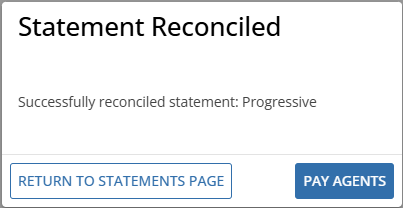
The Complete Reconciliation button is grayed out and unavailable unless each of the following conditions are met:
- The statement has at least 1 non-voided transaction.
- All non-voided transactions on the statement are either matched to a policy or marked Agency-Only.
- A valid Reconcile Date and Reporting Date have been entered.
Once the commission statement is reconciled, the commission transactions are written to the matched policies and the commission statement itself is moved to the Previous Statements list. Reconciled transactions are now ready to be viewed on commission reports and policies, and to be added to agent payouts.
To reconcile an anticipated commission statement
There are some differences when reconciling an anticipated commission statement compared to manual or downloaded statements. Transactions created from anticipated commissions are automatically matched, however, you can review and process the transactions, making changes as needed. This enables you to leave out anticipated transactions that HawkSoft has assumed, but that are not needed.
-
Click Commissions > Commission Processing & Reporting from the main HawkSoft menu bar.
OR
Log into the HawkSoft Web app, accessed from any computer.
Click the Commissions icon
in the left column of the HawkSoft web start page to access Commission Processing and Reporting.For more information about logging into the HawkSoft web app, see Logging In and Out of HawkSoft.
-
Select the Reconcile Statements tab.
-
Click on a link in the Statement Number column to open an anticipated commission statement.
Anticipated commission statements are labeled as Anticipated in the Source column on the right side of the statement list.
-
Click on transactions to mark them as Processed, which means they will be included in the reconciled statement. Transactions not marked as Processed will be discarded.
This changes the transaction's background color to green, and marks it with an R in the R column on the right.
-
Optional: To edit transactions as needed, click the
more actions button to the right of the transaction, and then click .See Adjusting Commission Transactions for more information on modifying transactions.
-
Optional: To duplicate transactions as needed, click the
more actions button to the right of the transaction, and then click  .
.After duplicating, either transaction can be modified as needed.
-
Optional: To add manual transactions as needed, click the + Add Transaction button.
See Adjusting Commission Transactions for more information on adding manual transactions.
Transactions manually added to an anticipated commission statement must be both matched and marked as Processed.
-
Confirm the Statement Date, Reconcile Date, and Reporting Date. These dates are required to complete reconciliation.
The Statement Date is listed on the statement. This date can be modified if your agency wants to use a different statement date. For example, some carriers may use the first day of the next month, while your agency uses the last day of the current month.
The Reconcile Date defaults to today's date. This can be changed to simplify your reporting. For example, if you can't reconcile some of your statements until the 3rd, you can still enter your standard reconcile date of the 1st. This can help if you need to run a report by reconcile date without requiring you to remember that some of the statements were delayed.
The Reporting Date is used when creating commission reports, and is saved to each transaction when the reconcile is completed. To ensure that your commission reports are accurate and easier to run, the reporting date should be the same day each month for all reconciliations. This will usually be the date you pay your agents, and should be consistent from month to month.
The 1st or 15th of the month are the most commonly used Reporting Dates.
-
Click the Complete Reconciliation For X Items button in the lower-right to finish.
HawkSoft will show a confirmation message when the reconciliation finishes.
The Complete Reconciliation button is grayed out and unavailable unless each of the following conditions are met:
- The statement has at least one transaction marked as processed.
- All transactions on the statement are either matched to a policy or marked Agency-Only.
- A valid Reconcile Date and Reporting Date have been entered.
Transactions which are not marked as Processed are not included in the reconciled statement.
Once the commission statement is reconciled, the commission transactions are written to the policies and the commission statement itself is moved to the Previous Statements list. Reconciled transactions are now ready to be viewed on commission reports and policies, and to be added to agent payouts.
To view a reconciled commission statement
If you need to review details of a statement after reconciliation, you can view it in Previous Statements.
-
Click Commissions > Commission Processing & Reporting from the main HawkSoft menu bar.
OR
Log into the HawkSoft Web app, accessed from any computer
Click the Commissions icon
in the left column of the HawkSoft web start page to access Commission Processing and Reporting.For more information about logging into the HawkSoft web app, see Logging In and Out of HawkSoft.
-
Select the Previous Statements tab.
The Previous Statements list launches, displaying all your agency's previously reconciled commission statements, including the total commissionable premium, the total commission paid, the reconcile date, and the user who completed the reconcile.
-
Optional: Click the link in the Statement Number column to see details about the transactions for a previous statement.
When viewing a list of commission transactions, you can sort the list by clicking on the column headers.
Clicking a header once will sort by that column in ascending order. Clicking a header twice will sort by that column in descending order.
Details of a reconciled statement and its transactions cannot be edited unless you first un-reconcile the commission statement.
To unreconcile a commission statement
If you have reconciled a statement in error, or if you need to make changes to a statement after it has been reconciled, you can unreconcile the statement. After correcting errors, you can perform the reconcile process again.
If you are unreconciling the statement because, for example, the carrier sent duplicate statements that were both reconciled, you may not need to perform the reconcile again.
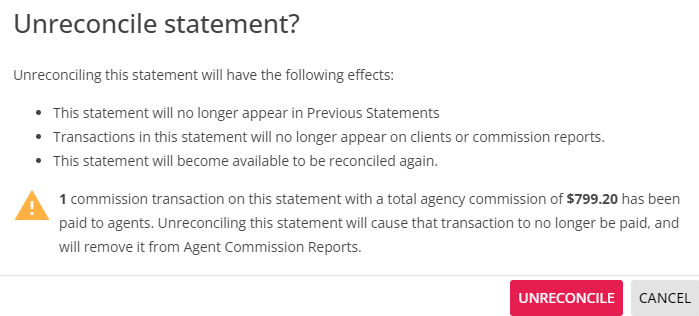
Unreconciling a statement has the following impact:
The statement is removed from Previous Statements and returned to the Reconcile Statements list.
The statement is available to be edited as needed and reconciled again.
Transactions on the unreconciled statement will no longer appear on clients or on commission reports.
Any commission transactions on the statement that have been paid to agents will be marked as unpaid. This will remove the transactions from Agent Commission Reports and will allow the transactions to be selected for payout again after the statement is re-reconciled.
Transactions on unreconciled statements are still matched to policies and selected agents, or marked as agency-only, the same as they were before unreconciling.
They are no longer listed on the clients until you re-do the reconcile, as the process of reconciling is what writes a transaction to its matched policy. If you need to change any matching details, these transactions can be re-matched before reconciling the statement again.
-
Click Commissions > Commission Processing & Reporting from the main HawkSoft menu bar.
OR
Log into the HawkSoft Web app, accessed from any computer
Click the Commissions icon
in the left column of the HawkSoft web start page to access Commission Processing and Reporting.For more information about logging into the HawkSoft web app, see Logging In and Out of HawkSoft.
-
Select the Previous Statements tab.
The Previous Statements list launches.
When viewing a list of commission statements, you can sort the list by clicking on the column headers.
Clicking a header once will sort by that column in ascending order. Clicking a header twice will sort by that column in descending order. Clicking a third time will restore the list to its default sort order. -
Click the link in the Statement Number column for the statement you want to un-reconcile.
The statement details launch.
-
Click the Unreconcile button in the top right of the statement.
A confirmation dialog launches.
-
Click Unreconcile on the confirmation dialog.
The statement is unreconciled and you are presented with the Reconcile Statement window for that statement.
Once you have unreconciled the statement, you can either make any necessary corrections and reconcile the statement again, or you can archive the statement if it is not needed at all (such as if it was replaced with an updated statement).
Related Topics