Agent Commission Payout
Once you have reconciled your commission statements, you can create an Agent Payout List in HawkSoft. This enables you to create a list of each agent's reconciled commission transactions within a specified date range, either for selected carriers or for all carriers. You can then select any or all of the transactions on this list to be paid out. A summary at the end of the process provides total values per agent for the completed payout, to make it easy to write those checks.The selected transactions are marked as paid on the agent paid statement and agent paid report, and they do not show on future agent payouts.
This article explains how to perform an Agent Payout in HawkSoft.
Agent Payout does not connect to QuickBooks or other financial software to create checks or other payment transactions.
The Pay Agents workflow is intended to provide only the total amounts to pay out agent commissions for a given selection of dates and carriers, and to record those transactions as paid in HawkSoft.
Before you begin
Transactions must be reconciled prior to paying your agents. See Reconciling Commission Statements for more information.
 To perform an agent payout
-
Click Commissions > Commission Processing & Reporting from the main HawkSoft menu bar.
OR
-
Log into the HawkSoft Web app, accessed from any computer
-
Click the Commissions icon
 in the left column of the HawkSoft web start page to access Commission Processing and Reporting.
For more information about logging into the HawkSoft web app, see Logging In and Out of HawkSoft.
-
-
Click on the Agent Payout tab and select Pay Agents from the drop-down menu.
The Pay Agents tab launches with the Create Agent Payout List dialog open.
-
Select a Date Option from the drop-down menu.
This determines which date on the commission transactions HawkSoft will check to determine if they are a part of this payout.
-
Reporting Date
-
Reconcile Date
-
Statement Date
-
-
Enter the Start Date and End Date of the current payout.
HawkSoft will find reconciled, unpaid transactions within the selected date range.
-
Optional: Select one or more Carriers.
By default, the Agent Payout List returns all reconciled, unpaid transactions that fit the date options selected above. Select carriers to see only transactions from those carriers on this payout.
-
Click Start Agent Payout.
The dialog closes and the Agent Payout list is populated with transactions.
-
Review the transactions on the list for accuracy.
You can export the list of transactions you are viewing by clicking the
 Export to CSV button at the top right. CSV files can be opened with Microsoft Excel or similar applications.
The filename of the exported file can be changed before saving. If you would like to include the total row in the exported CSV, check the box for Add total row. Some agencies may want to leave total rows out to more easily perform calculations on exported data in Excel.When viewing a list of commission transactions, you can sort the list by clicking on the column headers.
Clicking a header once will sort by that column in ascending order. Clicking a header twice will sort by that column in descending order.Tips for reviewing transactions before payout
-
Open clients - Click the client ID number in the Client column to open the client viewer if you need to review information about the client or policy for a transaction.
-
View a Transaction Summary or edit commission amounts - Transactions with a
 pencil icon in the Actions column were assigned to agents when they were reconciled. Click on the icon to view a summary of transaction details, the rules or overrides that HawkSoft used to determine the agent commission amounts on this transaction, or to manually edit any of the calculated agent commission amounts.
 -
Reapply Rules - Use the Reapply Rules button to recalculate agent commissions using the current commission rules. When reapplying rules, you can select a different Term from the drop-down.
If you change agents on a transaction, you will be prompted to reapply rules when saving.
-
View transactions not assigned to agents - Transactions with an
 eye icon in the in the Actions column were not assigned agents when they were reconciled. Click on the icon to view a summary of transaction details.
 -
Review other Commission tabs - You can navigate to other tabs in the Commissions screen to view or change information as needed, such as reviewing a previous statement or editing an agent commission rule, and then return to the Agent Payout in progress. However if you close the Commissions window entirely, you will have to start the Agent Payout over.
-
Refresh transaction changes - If you have made changes on another Commission tab, such as adding or changing an agent commission rule, you can refresh the transactions on the Agent Payout by clicking New Agent Payout near the top of the screen.
Your previous selections will be remembered if you have not left the Commission screen. Click Start Agent Payout to repopulate the transactions and reapply agent commission rules.
If you have manually edited any agent commission amounts on a transaction, that transaction will not be checked against rules again when the Agent Payout is refreshed. The manually entered amount will remain on the transaction.
-
-
Use the checkboxes to the left of transactions to select which transactions should be paid. To select all transactions, check the box in the header row at the top of the list.
To quickly select a range of transactions at once, click the first transaction you want to select, hold the Shift key, and then click the last transaction you want to select. HawkSoft will automatically select all of the transactions between your two selections.
-
Enter the Agent Paid Date.
This is the date that will be recorded on policies, reports, and agent paid statements as the date these transactions were paid out.
-
Click ︾ Complete Payout when you are sure that all details are correct.
The Pay Agents confirmation dialog launches.
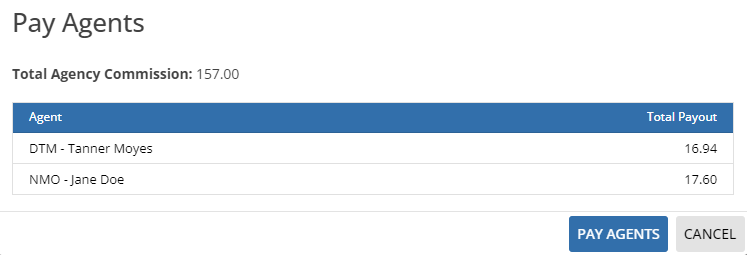
This dialog lists the Total Payout for each agent who is due payout on at least one selected transaction.
-
Click Pay Agents if the list of agents to be paid and their Total Payouts looks correct.
The dialog closes, and a notification confirms that the agent payments have been recorded successfully.

The transactions are now written to the Agent Paid Report and the Agent Paid Statements.
To modify commission transactions that have been paid out
HawkSoft enables you to modify paid transactions in order to correct errors noticed after agent payout has been completed. After making changes, you should generate new agent paid statements to share with your team for the period that you modify.
-
Click Commissions > Commission Processing & Reporting from the main HawkSoft menu bar.
OR
-
Log into the HawkSoft Web app, accessed from any computer
-
Click the Commissions icon
in the left column of the HawkSoft web start page to access Commission Processing and Reporting.For more information about logging into the HawkSoft web app, see Logging In and Out of HawkSoft.
-
-
Click on the Agent Payout tab and select Modify Paid Transactions from the drop-down menu.
The Paid Commission Transactions list launches with the Create Agent Payout List dialog open.
-
Select a Date Option from the drop-down menu.
This determines which date on the commission transactions HawkSoft will check to determine if they are a part of this payout.
-
Reporting Date
-
Reconcile Date
-
Statement Date
-
-
Enter the Start Date and End Date of the payout you want to modify.
HawkSoft will find paid transactions within the selected date range.
-
Optional: Select one or more Carriers.
When performing Modify Paid Transactions, the Agent Payout List returns all paid transactions that fit the date options selected above. Select carriers to see only transactions from those carriers on this payout.
-
Click Get Agent Payouts.
The dialog closes and the Paid Commission Transactions list is populated with transactions. The transactions contain the same information they did at the time they were paid, including any manual changes previously made to the Agent 1/2/3 or commission amounts.
-
Use the
pencil button to the right of a transaction to open the Modify Agent Commission dialog and make changes to that transaction.This works the same as making changes during the original payout. You can edit the user selected for agent 1, 2, or 3. You can also change the commission amounts for agents 1, 2, or 3.
-
After making changes to the transaction, click Save.
The Modify Agent Commission dialog closes.
-
Repeat steps 7 and 8 until all necessary corrections to commission transactions on this payout have been changed.
-
After making all necessary changes, create and share new agent paid statements for the statement period that you modified.
Required permissions
To perform these actions, user permissions must be set to include:
Commissions > Allow Commission Processing & Reporting
See User Permissions for more information.
Related Topics