Canceling HawkSoft Text Messaging
This article explains how to cancel your HawkSoft Text Messaging subscription through the HawkSoft Marketplace, and how to save your text message history and attachments prior to cancellation.
If your agency is using Main Number Texting, and you wish to port your texting number to another service, please do so before canceling HawkSoft Text Messaging. HawkSoft-assigned texting numbers cannot be ported to another service. See Purchasing HawkSoft Text Messaging for more information on Main Number Texting.
Prior to canceling HawkSoft Text Messaging you can create a snapshot of your Texting history using the Exporting Agency Data feature. Once cancelled, Texting history cannot be recovered.
This task is typically performed by an Owner/Administrator or Manager.
See HawkSoft Text Messaging Overview for more product information.
 Required permissions
In order to complete this task, you must be an agency administrator.
See User Permissions for more information.
To cancel through HawkSoft Marketplace
Your HawkSoft Text Messaging subscription is managed through the HawkSoft Marketplace by your agency administrator. The Marketplace is a web portal for managing HawkSoft add-on products and integrations.
See HawkSoft Marketplace for more information.
-
Click the
 Setup icon in the HawkSoft toolbar, then click Marketplace.
The HawkSoft Marketplace opens in your default web browser.
-
Select HawkSoft Text Messaging.
You can use the filters on the side-panel to narrow down Marketplace products and add-ons, or use the Filter search bar to filter Marketplace by keywords.
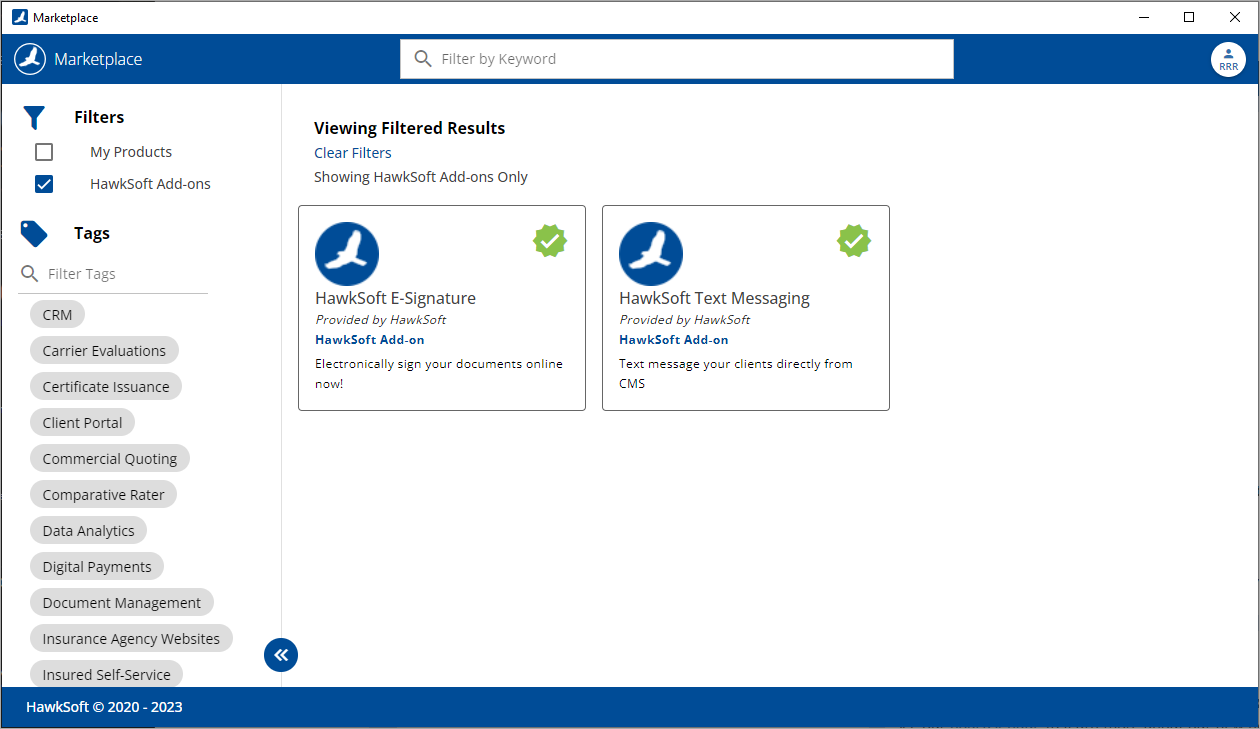
The HawkSoft Text Messaging screen opens.
-
Click Manage.
-
Scroll to the bottom of the page and click Cancel HawkSoft Texting.
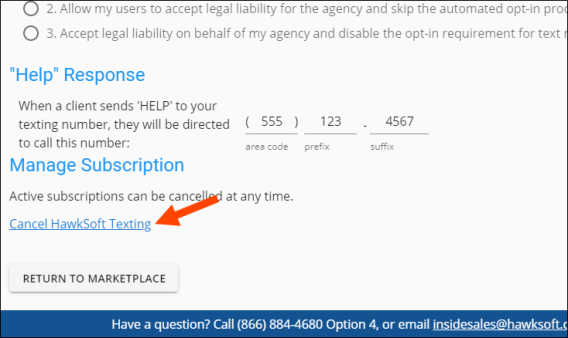
-
Read the first section of the webpage, titled Canceling HawkSoft Text Messaging.
This section explains what happens after canceling HawkSoft Text Messaging, as well as your option to get a copy of your text messaging data and attachments prior to cancellation.
-
Check "I understand that by canceling HawkSoft Text Messaging..." once you have read through the section.
-
Optional: Get text message history and attachments.
Optional: You can check "I do not want a copy of my text message history or attachments" and move onto the next section.
Before canceling HawkSoft Text Messaging, you have the option to download your full text message history, as well as all text attachments, from HawkSoft. HawkSoft will package all your texting data as a SQLite file. You can access this SQLite file using any free SQLite reader, such as SQLiteStudio.
-
Click Go to Data Export.
The Agency Setup dialog opens.
-
Click +New Snapshot.
-
Select Texting (Texting Records) then click Generate Snapshot.
-
Click Download Links
-
Once the files are downloaded, return to the Marketplace window.
If the File Date is older than one hour, we recommend repeating step 1 to re-create the file, to avoid losing any data in case any texts have been sent or received during the cancellation process.
-
Open the downloaded file, titled texting.db, with your SQLite viewer of choice.
You can access this SQLite file using any free SQLite reader, such as SQLiteStudio.
-
Verify that you can access your texting data and attachments through this file before proceeding.
The tables stored in the SQLite database file are stored in the raw data model and may be difficult to read. HawkSoft recommends providing this file to a conversions specialist, or to someone with knowledge of SQL.
-
Check "I have successfully received my text message history and attachments" once you have verified that you can access your texting data and attachments through the file provided.
-
-
Click Cancel HawkSoft Text Messaging.
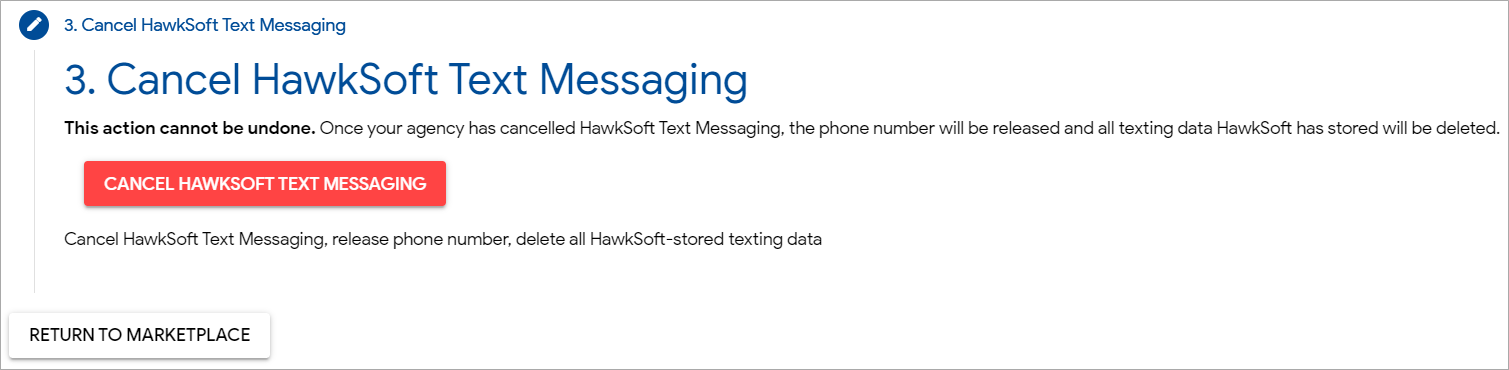
A confirmation dialog appears.
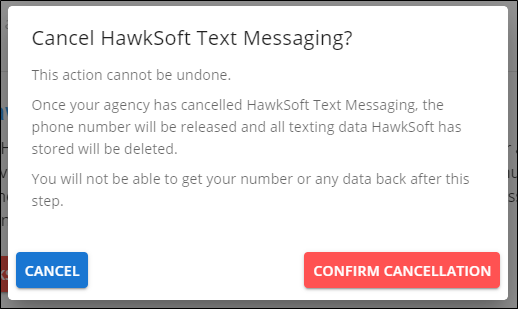
Once you click Confirm Cancellation, your phone number used for HawkSoft Text Messaging will be released into the pool of available numbers, and all texting data stored by HawkSoft will be permanently deleted. You will not be able to get your texting phone number or any texting data back after this step.
Before clicking Confirm Cancellation, verify that you have received your text message history and attachments and that you are able to access them, if you want to keep your texting data. -
Read the confirmation dialog, and then click Confirm Cancellation.
A webpage opens confirming that HawkSoft Text Messaging has been cancelled.
-
Close your browser window, and then close HawkSoft to remove HawkSoft Text Messaging from your HawkSoft database.
-
Re-open HawkSoft.
HawkSoft Text Messaging is removed from HawkSoft and your HawkSoft Text Messaging subscription is cancelled.
See HawkSoft Text Messaging Overviewfor general information on text messaging in HawkSoft.
Related Topics