HawkSoft Text Messaging enables you to send text messages to your clients and manage their replies directly from HawkSoft. This feature is available to your agency as an add-on service, and is purchased through the Marketplace.
This guide walks you through the steps to purchase and set up Text Messaging for your agency.
This task is typically performed by an Owner/Administrator or Manager.
As an alternative to using the built in HawkSoft Text Messaging feature, your agency can subscribe to an email-to-text messaging service provider and send text messages directly from a client.
See Text Messaging (Email-to-SMS) Overview for more information.
Notes on HawkSoft Text Messaging
-
Opt-in required
Federal law requires your customers to opt-in to receive text messages from your agency. This is mandated by the FCC’s Telephone Consumer Protection Act. HawkSoft automates this opt-in process with the click of a button. Learn more.
FCC regulations may also require certain updates to your agency's website to meet compliance standards. For more information about texting laws, see Updates to 10DLC compliance: prior texting opt-in & privacy statement.
-
Texting is not for marketing purposes
HawkSoft Text Messaging is only for informational texts. You may be in violation of federal and/or state regulations if you use texting for marketing purposes.
-
Your agency receives one text messaging phone number
Your agency is assigned one central text message phone number. Even if multiple staff members text a client, that client will see text messages arrive from a single phone number.
-
Short code messages (Banks/MFA/etc)
HawkSoft Text Messaging will not receive short code messages (5-6 digit sender numbers such as those used for MFA codes from banks or carriers)
Purchase HawkSoft Text Messaging
-
Access Marketplace.
From the Desktop app: Click the
 Setup icon from the HawkSoft toolbar, and then select Marketplace.
OR
From the Web app: Log into the HawkSoft Web app, accessed from any computer, and click the
 Setup menu at the top-right corner, and select Marketplace.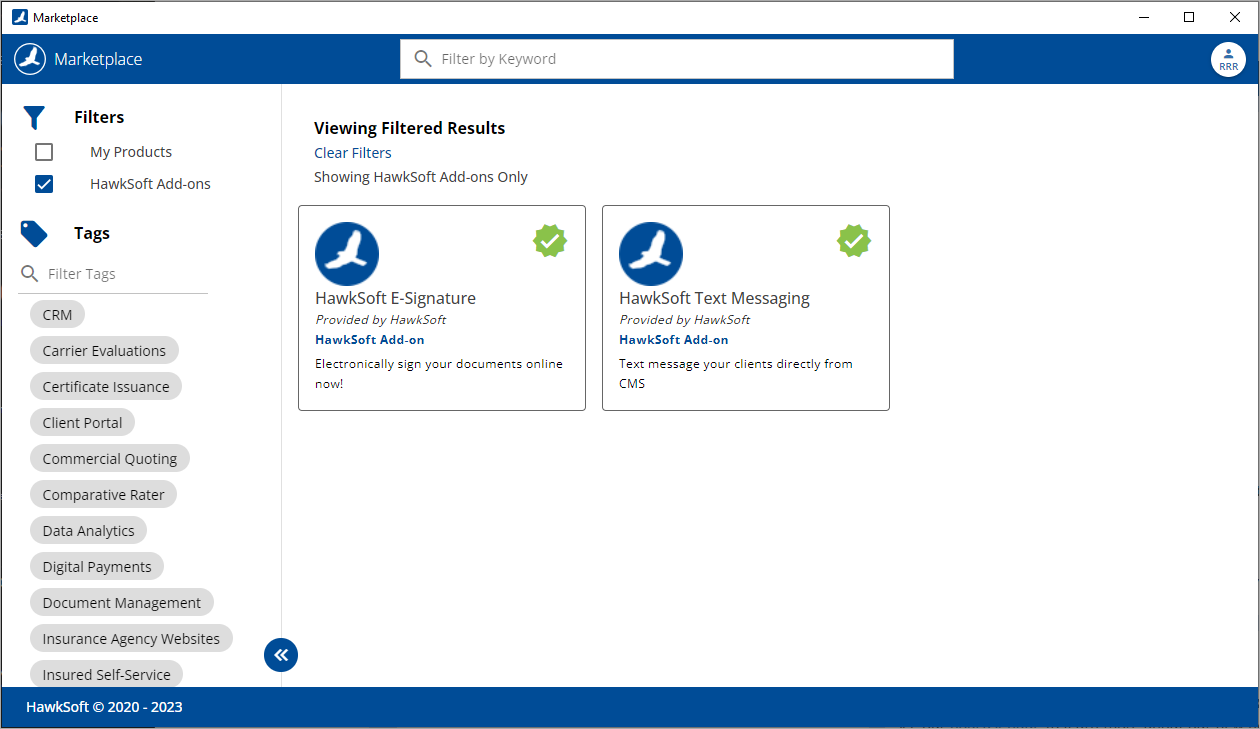
-
Select HawkSoft Text Messaging.
The HawkSoft Text Messaging dialog opens with important HawkSoft Text Messaging Information.
-
Review the opt-in requirements, rules regarding use for marketing purposes, information about your phone number, and pricing. Read the terms and conditions, and then click Next.
-
Click Activate.
-
Select an opt-in option for your agency. HawkSoft provides three options to address opt-in requirements:
-
(Recommended) Require opt in before sending a message to any client – This option requires that all users send an automated opt-in message to clients. Clients must reply "yes" to this message before outgoing texts can be sent. This is the recommended option as it helps your agency maintain compliance with federal regulations.
-
Allow users to accept legal liability for my agency and skip the automated opt-in process – This option allows HawkSoft users to skip the opt-in process for individual phone numbers. This is helpful if your agency collects opt-ins through another method and certain clients have already given their permission to receive text messages.
-
Accept legal liability on behalf of my agency and disable the automatic opt-in process - This option removes the opt-in process for all clients. Users can respond and send new messages to phone numbers without opt-in.
HawkSoft recommends that your agency only use the Accept legal liability on behalf of my agency and disable the automatic opt-in process option if your agency gathers opt-in via other means.
Federal regulations require that agencies receive opt-ins from clients before sending text messages. If you choose to disable opt-ins, or allow agents to skip opt-ins, you agree to receive opt-ins from clients through other means. HawkSoft is not responsible for any fines or penalties imposed by telecom carriers for non-compliance.
See Text Messaging Opt-In Compliance to learn more.
-
-
Click the Accept checkbox to acknowledge that regardless of the option selected, if an insured opts out, you will be required to complete HawkSoft's automatic opt-in process to resume communication with them.
-
Enter a phone number for clients with questions to call in the "Help" Response section.
When a client sends the phrase 'HELP' to your texting number, an automated message will direct the customer to call this number.
-
Enter an Area Code or Zip Code to generate a localized phone number to be used by your agency for text messaging, and then click Continue.
In some metropolitan areas, your desired area code may be unavailable. If you receive this error message, use a zip code to generate your phone number.
Once you have completed all of the steps to setup HawkSoft Texting, you do have the option to request to use your agency's main phone number as your HawkSoft Text Messaging number. There is a $99 one-time fee for enabling Main Number Texting.
- Check the "I understand my agency will be charged $20.00 per month starting on my next HawkSoft invoice." box.
-
Read the Additional Required Information.
This section explains that additional information will be required on the next page in order to register your agency with The Campaign Registry (TCR). Telecom carriers require that all businesses sending text messages register their business with TCR.
-
Click Finish to complete your order.
A Congratulations page appears, which shows the status of your HawkSoft texting number and lists the next steps towards enabling HawkSoft Text Messaging.
-
You are ready to complete the Campaign Registry information.
Complete required information to start registration process
Additional information is required to register your agency with The Campaign Registry (TCR) before HawkSoft Text Messaging can be enabled. Telecom carriers require that all businesses sending text messages register their business, or "brand", with TCR.
If this information is not filled out by the agency, a HawkSoft representative will contact your agency to gather this information.
If you are interested in using your agency's main phone number as your HawkSoft Texting number, you can request to enroll in Main Number Texting through the Required Information Form. See Your texting number for more information.
- Open The Campaign Registry Required Information Form in your web browser.
- Fill out the information requested in the form.
-
Optional: Select Yes next to "Do you wish to enroll in Main Number Texting?".
 Main Number Texting
Upon request, HawkSoft can set up your agency's main phone number as your HawkSoft Text Messaging number. There is a $99 one-time fee for enabling Main Number Texting.
Not all phone numbers qualify for Main Number Texting. You won't be charged the fee until your requested number is successfully enrolled.
HawkSoft Text Messaging setup must be completed before you can enroll in Main Number Texting. Your agency will use the separate texting number ordered through the Marketplace until the enrollment is complete.
If your agency already submitted the Campaign Registry Required Information Form but selected not to enroll in Main Number Texting, and you would now like to switch to your agency's main number, contact Product Support for assistance.
-
In the TCR Required Information Form, complete the additional fields for your main number: your phone service provider, the business name on file with that provider, and the service address on file with that provider.
Once you notify HawkSoft of your intent to enroll, the agency principal will receive an email with a Letter of Authorization and signing instructions. If you didn't complete those additional fields in the TCR form, HawkSoft will request that information separately..
-
Complete the Letter of Authorization.
-
Reply to the email from HawkSoft with the completed Letter of Authorization attached, along with any other information HawkSoft requested.
Upon receipt, HawkSoft will:
-
Notify agency main contacts that HawkSoft is attempting to secure the requested number for Main Number Texting, and will notify the agency when the process is complete.
-
Email you once enrollment is complete, confirming the number.
-
Once Main Number Texting is enabled, all old messages and opt-ins will remain, however your previous HawkSoft Text Messaging number will no longer be active, and any texts sent to the old texting number will not be received going forward. Make sure to inform your clients of the number change.
If HawkSoft is unable to get the requested number, HawkSoft will inform the agency's main contacts, and you may request to try a different number.
-
-
Click Submit Information to send this information to HawkSoft.
HawkSoft will use this information to register the agency in The Campaign Registry.
- Close the Marketplace window and return to HawkSoft.
HawkSoft submits this information to The Campaign Registry. After registration is complete within TCR, HawkSoft will activate Text Messaging for your agency.
This process can typically take anywhere from 1 to 30 days depending on the Campaign vetting process and any required updates to become compliant with FCC 10DLC regulation.
FCC Communication Requirements
The Campaign Registry (10DLC Compliance Standards) requires that specific website requirements regarding information collection be met to activate text messaging.
To meet compliance standards and avoid activation delays, make sure your web and physical forms meet the following criteria:
You may need to update your agency's website.
Disclosure Statement
Any form used to collect customer contact information (e.g., web forms, physical forms) must include a disclosure indicating that the information may be used to contact them via text message. This statement must:
Be easy to see (e.g. near the submit button or signature field).
Have a mechanism for the user to indicate agreement (e.g. a checkmark or button).
Agreement must be optional to submit the form.
Needs to include the following information:
Agency Name
Types of messages being sent.
Message frequency (Msg frequency varies, 2/msgs per week, etc).
Message and data rates may apply.
HELP information (text HELP for help).
STOP/opt-out information (text STOP to stop).
Link to the Privacy Policy.
Sample Language for the Opt-In Disclaimer: "By submitting this form and signing up for texts, I agree to receive conversational text messages from [Agency Name] using the contact information provided. For help, reply HELP. Opt-out of receiving text messages at any time by sending STOP. Message and data rates may apply. Message frequency varies. Please view our Privacy Policy at: [Privacy Policy Link]. ”
Please customize this statement to align with your agency's tone and branding.
Phone Number Field:
Any form where you collect a phone number, the phone number field must be optional to submit the form.
Privacy Policy:
A Privacy Policy or Statement must be accessible to your clients, either on your website or attached to any physical form, explaining how their information will be used.
-
This policy must specifically state that text messaging opt-in data will not be shared with third parties.
-
This policy must also include instructions on how to opt out of future communications. Example: "Opt-out of receiving text messages at any time by sending STOP."
Sample Language for the Privacy Policy: "Mobile information will not be shared with third parties/affiliates for marketing/promotional purposes. All the above categories exclude text messaging originator opt-in data and consent; this information will not be shared with any third parties. Opt-out of receiving text messages at any time by sending "STOP "".
For additional details on compliance requirements, please visit this link:
HawkSoft will send an email to your agency's main contacts once Text Messaging is activated.
Upon activation, the text messaging setting in User Preferences for all users will automatically be set to HawkSoft Text Messaging. If your agency previously used a different text messaging integration (such as Bulk SMS or Message Media), you may cancel the messaging service if it is no longer needed.
Once your agency receives notification that HawkSoft Text Messaging is activated, all users must restart HawkSoft in order to begin using HawkSoft text messaging.
Your texting number
Once you complete your HawkSoft Text Messaging order, if you did not opt to use Main Number Texting, HawkSoft begins creating and registering a new texting number from your agency using the area code provided on the previous page.
It can take up to five minutes for HawkSoft to register your new phone number. You can click the refresh  button after waiting, or view your number at a later time by re-opening the Marketplace and clicking Manage under HawkSoft Text Messaging.
Text messaging administration
A Texting Administrator (or 'Admin' for short) oversees and manages text message activity across the entire agency. To give a user visibility into all texts sent or received by the agency, assign the Texting Administration permission. Texting Administrators can view every active client text conversation across the agency, regardless of client assignment, whereas users with only the standard texting permission can only view and send text messages on clients they have access permissions to, and only on the client they currently have open.
See Text Messaging Administrator for more information on this permission and the actions it enables.
Required permissions
In order to complete this task, you must be an agency administrator.
See User Permissions for more information.
Related Topics