Exporting Agency Data
Book of Business Export, Export policies, Export clients, Data Export, Data Exporter, Data Snapshot, HawkSoft Snapshot, Book of Business Snapshot
HawkSoft 6 enables agency administrators to export several different categories of data from HawkSoft for purposes such as evaluating the data with outside tools, testing with or migrating to other software, or providing a book of business to another agency. Agency admins may request "snapshots" of these categories of data. Snapshots are copies of the data as of the moment the data was requested. After the system processes the request, the snapshot can be downloaded. Exporting data does not remove any data from your HawkSoft system.
This article explains how to locate Data Export and Book of Business Export settings, perform a data export, and review past data exports and downloads of data.
Data Export and Book of Business Export files are exported in SQLite format, unless otherwise stated. These files can be viewed using DB Browser for SQLite. HawkSoft does not provide, endorse, or support DB Browser for SQLite.
HawkSoft does not deliver exported data to third parties on behalf of agencies. We recommend avoiding email when sharing large datasets. Once data is exported, HawkSoft does not provide support for its use or management.
 Required Permissions
In order to complete this task, you must be a HawkSoft Administrator.
See HawkSoft Administrators for more information.
How do I get here?
-
Click
 Setup > Agency Setup in the upper right of the HawkSoft desktop app.
The Agency Setup window opens.
-
Click the Settings tab, and then click the Data Export or Book of Business Export tab on the left side.
Why use Data Export or Book of Business Export?
Data Export
Data Export is used to export specific clients or your entire book of business, for example if you are leaving HawkSoft, or if you sell your agency.
Book of Business Export
Book of Business Export is used when you are selling part of your book of business, for example, all of your Commercial policies, or all of your policies in New York.
Additionally, HawkSoft can assist you when you are selling all or part of your book of business to another agency who uses HawkSoft. Call HawkSoft Support for assistance.
Before you Begin (Required Information)
Before starting Data Export or Book of Business export, review your Download Method configuration. This determines how your agency will access the snapshot file once it is generated.
-
Click View Configuration and select the Download Method to use from the drop-down on the dialog.
-
Direct Download - Download the file directly from a link on the data export page. This setting is often ideal for smaller snapshot files and requires no further setup.
-
Secure File Transfer Protocol (SFTP) - Use a third-party SFTP tool to download the snapshot via SFTP. This can be helpful for agencies that have larger snapshots or unstable network connections.
HawkSoft generates an address and credentials to access the snapshot via SFTP. Agency IT is responsible for configuration and usage of the SFTP tool the agency chooses to use for accessing the file.
SFTP tools are third-party software and are not supported by HawkSoft. Examples of SFTP tools include Filezilla, WinSCP, and Cyberduck.
-
-
Click Save.
The dialog closes. If you selected SFTP, another dialog launches to view or generate your SFTP credentials. See SFTP credentials and downloads for the next steps.
SFTP credentials and downloads
Setting up SFTP credentials and downloading SFTP snapshots both require some additional steps. You first need to generate the SFTP credentials. Then using those credentials, you can download the snapshot outside of HawkSoft using third-party tools.
When you select the SFTP download type in View Configuration, another dialog opens to configure SFTP credentials.
Click Generate Credentials.
Your SFTP credentials for this snapshot are displayed.
Copy this information to a secure location. You can use the
Copy button next to each piece of data to copy it to your clipboard for pasting into an email, chat, or document.
Connection String - A unique identifier for your user's connection to the SFTP server.
Username - The username for the SFTP connection.
Host - The server you will connect to via SFTP.
Password - The password to authenticate the connection.
Note that the Password is only displayed at the time of generation. If you lose or forget your password, click the Regenerate Password button to generate a new one.
Click Close when you are finished securely documenting the SFTP information.
You can review your SFTP credentials and regenerate the password if you have forgotten You can also revoke your SFTP credentials when you no longer need them, for added security.
Navigate to the Data Export or Book of Business tab.
Click View Configuration.
Previously created SFTP credentials are displayed, if they are still valid.
If the View Configuration dialog displays Direct Download as the Download Dethod, select SFTP from the drop-down and click Save.
Click Regenerate Password.
Click Generate New Password on the confirmation dialog.
Hawksoft generates a new SFTP password. Copy it before closing the dialog.
Click Revoke Credentials.
Click Revoke Credentials on the confirmation dialog.
HawkSoft revokes all of your SFTP credentials. If you need to access SFTP again in the future, you can generate credentials again.
Using the credentials you generated when requesting the snapshot, work with your IT to download the snapshot file via SFTP using a third-party SFTP tool such as Filezilla or others.
Snapshot files are available for 30 days.
Data Export
You can use Data Export to export all of your clients or only specific clients to a spreadsheet. You may need this for legal proceedings or when selling your entire book of business to an agency that doesn't use HawkSoft.
HawkSoft creates a snapshot of your data, as it currently exists in the system, then exports that snapshot to one or more files that you can download.
HawkSoft combines Agency Data and Tasks into a single file, depending on which options you export.
Agency Data - Exports Offices, Users, Carriers, etc. to [Agency ID].agency.db.
Agency Files - (Available only if Agency Data is selected) Exports Templates, Letters, Signatures, etc. to [Agency ID].files.db.
Clients - Exports Clients, Policy Details, and Client/Policy Logs to [Agency ID].clients.<File Number>.db. This creates one export file per 1000 clients.
The following client options are available.
All Clients provides all records meeting the criteria.
CSV Report enables you to upload a CSV file from a previously exported client or policy report to generate a new snapshot. For more information on exporting reports to CSV files see Saving and Sharing Reports.
Attachments - (available only if Clients is checked for export) Exports files attached to Clients and Policies to [Agency ID].docs.<File Number>.zip. Multiple files will be generated depending on the total size of attachments exported. Attachments within the zip files retain their original file formats.
Exporting attachments requires assistance from HawkSoft support. If you need to download attachment data, contact support to enable this feature. You must also select Client export in order to export attachments.
Tasks - Exports Tasks, Task Categories, Task Templates, etc. to [Agency ID].agency.db.
Texting - Exports HawkSoft Text Messaging records to [Agency ID].texting.zip.
Exporting data from HawkSoft is a two-step process. First, request a snapshot containing the systems you wish to export. HawkSoft will package the necessary data, and then you can download the snapshot to your computer.
You may want to review the date/time and systems selected in the previously requested snapshot before requesting a new one. If the prior snapshot contains the data you need, you can simply re-download it to save time.
Exporting attachments requires assistance from HawkSoft support. If you need to download attachment data, contact support to enable this feature. You must also select Client export in order to export attachments.
Navigate to the Data Export tab of your Agency Settings.
See How do I get here? for full steps.
Review the top line of the Data Available for Export table to determine whether you need to request a new snapshot or if downloading the previous snapshot will fit your needs. The started date/time and the systems selected will be helpful columns to focus on for this.
Only the most recent Data Export is available to download. Creating a new Data Export causes all prior Data Export links to expire.
Click + NEW SNAPSHOT REQUEST.
If the button appears inactive and instead says + (In-Progress) NEW SNAPSHOT REQUEST, the system is still processing a recently-requested snapshot. Wait for that snapshot to finish or click the
button to cancel the snapshot request in progress.
The Data Export Snapshot Request dialog opens.
Check the boxes in the Include column next to each system you would like to export data from, then click Generate Snapshot.
Exporting Agency Files requires that you have also selected Agency Data. Exporting Attachments requires that you have also selected Clients.
The dialog closes and a pop-up message confirms the snapshot process has been initiated.
Wait several minutes for the snapshot to be created, and then click ⟳ REFRESH.
Repeat until the Status column changes from "Queued" to "Completed" for the most recent snapshot (at the top of the table).
This process typically takes several minutes for small files, and may take more if your agency has a significant amount of data in the system you are exporting.
Check the Status column for the snapshot you requested. The status appears as one of the following:
Queued - The system has initiated your request. Wait a few more minutes and refresh the Data Export tab again.
Processing - The system is still processing your request. Wait a few more minutes and refresh the Data Export tab again.
Completed - The snapshot is ready to be downloaded to your local files.
Error - An error has occurred while generating a snapshot.
Attempt to generate the snapshot again. If the error persists, contact Product Support.
When the status shows as Completed, download your data using Direct Download or SFTP, depending on your download method.
Book of Business Export
If you are selling part of your book of business to an agency that does not use HawkSoft, then use Book of Business Export.
Book of Business Exports contain the following information:
Clients - Exports Clients, Policy Details, and Client/Policy Logs to [Agency ID].clients.<File Number>.db. This creates one export file per 1000 clients.
Book of Business Export excludes archived clients.
Attachments - All files attached to selected Clients and Policies are exported to [Agency ID].docs.<File Number>.zip. Multiple files will be generated depending on the total size of attachments exported. Attachments within the zip files retain their original file formats.
Tasks - Includes Tasks, Task Categories, Task Templates, etc., and exports to [Agency ID].agency.db.
This only includes Tasks associated with selected Clients.
You can export part of your book of business as a two-step process. First, filter the data you want to export using either the provided filters or an existing report from HawkSoft. HawkSoft will package the data, and then you can download the data to your computer.
You may want to review the date/time and systems selected for any recently requested snapshot(s) before requesting a new one. If the prior snapshot contains the data you need, you can simply re-download it to save time.
Navigate to the Book of Business tab of your Agency Settings.
See How do I get here? for full steps.
Click + NEW book of business export.
The Book of Business New Export Request dialog opens.
Use the Search Parameters to select which clients you want to export. You can filter by client Offices, Producers, Application Types, and Carriers, and you can select multiple options for each parameter.
OR
Click Select Criteria Type, and then select CSV Report to use a report you previously generated using Quick Reports.
When you are finished, click Evaluate Search Criteria.
HawkSoft creates a summary and a list of affected clients and policies.
Conditional: Check Archive Clients & Policies if you want to archive all clients and policies being exported.
Archiving Clients and Policies cannot be undone. If any clients or policies are archived in error, you will need to manually un-archive them.
HawkSoft displays a confirmation dialog. Click Confirm.
Optional: Check Include Client Tasks to also export all open Tasks associated with the clients being exported.
When you are finished, click Create Export for Clients.
The dialog closes and a pop-up message confirms the snapshot process has been initiated.
Wait for the snapshot to be created, and then click ⟳ REFRESH.
Repeat until the Status is Completed (at the top of the table).
This process typically takes under a minute for small exports, and may take a few minutes if your agency has a significant amount of clients and policies being exported.
Check the Status column for the snapshot you requested. The status appears as one of the following:
Queued - The system has initiated your request. Wait a few more minutes and refresh the Data Export tab again.
Processing - The system is still processing your request. Wait a few more minutes and refresh the Data Export tab again.
Completed - The snapshot is ready to be downloaded to your local files.
Error - An error has occurred while generating a snapshot.
Attempt to generate the snapshot again. If the error persists, contact Product Support.
When the status shows as Completed, download your data using Direct Download or SFTP, depending on your download method.
To download a snapshot of your HawkSoft data (Direct Download)
After you have created a snapshot, you can download the snapshot file(s) to your computer. Only the most recent snapshot is available for download.
-
In the Data Available for Export table, click on Download Links.
-
For each file you are downloading, click on
 Download File.
 -
When the download completes, the status bar will turn into a green checkmark, and the Downloads dialog will appear.
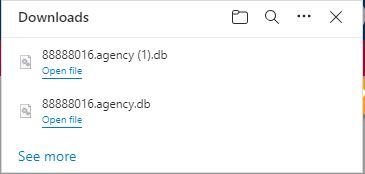
The downloaded file(s) are sent to the Downloads folder on your local workstation.
Click on the Folder icon in the Downloads dialog to open the Downloads folder on your local workstation.
Data Export and Book of Business Logs
The Data Available for Export and Book of Business Sale Exports tables list current and previously processed export requests. These tables provide the following info about each snapshot request:
-
The user who requested the snapshot.
-
The date and time the snapshot process started and completed.
-
The status of the request (Processing, Completed, etc.)
-
Data Export requests list the Systems included in the snapshot.
-
Book of Business exports list the Client and Policy counts.
-
The download Method for the snapshot (Direct Download or SFTP)
-
Direct Download snapshots list the download link (Data Export only includes the most recent snapshot).
-
SFTP snapshots list the View Files Details link.
-
Direct Download snapshots show the most recent user to download the snapshot and the date and time they did so.
Users can also click on the  View Download History button to the right of a snapshot to open the Viewing Download History dialog for that snapshot (Direct Download only). This dialog displays each date and time any user downloaded files from the selected snapshot, and includes the user initials, the file(s) downloaded, and the systems those files came from.
Related Topics