Text Messaging Opt-In Compliance
Federal law requires your clients to opt in to receive text messages from your agency. This is mandated by the FCC’s Telephone Consumer Protection Act.
As part of setting up HawkSoft Text Messaging for your agency, you are given the option to automatically require clients to opt in before receiving text messages from your agency.
This task is typically performed by an Owner/Administrator or Manager.
As an alternative to using the built in HawkSoft Text Messaging feature, your agency can subscribe to an email-to-text messaging service provider and send text messages directly from a client.
See Text Messaging (Email-to-SMS) Overview for more information.
 To manage opt-in requirement settings
When purchasing and setting up HawkSoft Text Messaging, your agency was required to select an opt-in requirement for sending text messages to clients. Agency administrators can change the opt-in selection for their agency at any time by returning to Marketplace.
Federal regulations require that agencies receive opt-ins from clients before sending text messages. If you choose to disable opt-ins, or allow agents to skip opt-ins, you agree to receive opt-ins from clients through other means. HawkSoft is not responsible for any fines or penalties imposed by telecom carriers for non-compliance.
-
Click the
 Setup icon, and then select Marketplace.
OR
-
Log into the HawkSoft Web app, accessed from any computer.
-
Click the
 Setup menu at the top-right corner, and select Marketplace.
 For more information about logging into the HawkSoft web app, see Logging In and Out of HawkSoft.
-
- Click HawkSoft Text Messaging.
-
Click Manage.
-
Use the radio buttons to change your agency's Opt-In selection, as needed. HawkSoft provides three options to address opt-in requirements:
-
(Recommended) Require opt in before sending a message to any client – This option requires that all users send an automated opt-in message to clients. Clients must reply "yes" to this message before outgoing texts can be sent. This is the recommended option as it helps your agency maintain compliance with federal regulations.
-
Allow users to accept legal liability for my agency and skip the automated opt-in process – This option allows HawkSoft users to skip the opt-in process for individual phone numbers. This is helpful if your agency collects opt-ins through another method and certain clients have already given their permission to receive text messages.
-
Accept legal liability on behalf of my agency and disable the automatic opt-in process – This option removes the opt-in process for all clients. Users can respond and send new messages to phone numbers without opt-in.
HawkSoft recommends that your agency only select the Accept legal liability on behalf of my agency and disable the automatic opt-in process option if your agency gathers opt-in via other means.
-
- Click Save.
Each user must restart HawkSoft for the new opt-in workflow to take effect.
To send an opt-in request
The opt-in request is sent as a text message. Once a client replies with "Yes," they will be opted in and you can begin sending text messages.
The client must specifically reply back Yes to be opted-in. Replies such as "yeah", "ya", or an emoji will not be accepted.
If the Require opt in before sending a message to any client setting is enabled for your agency, HawkSoft will not allow you to send any outgoing text messages to a phone number until the client has replied "yes" to opt-in the phone number for text messages.
HawkSoft recommends using the Action menu to send the initial opt-in request, to create a log note.
- Retrieve the client, and then select the Client or policy tab.
- Click Action, and then select one item in each of the first three lists to describe what prompted this transaction.
- Select Send Text Message.
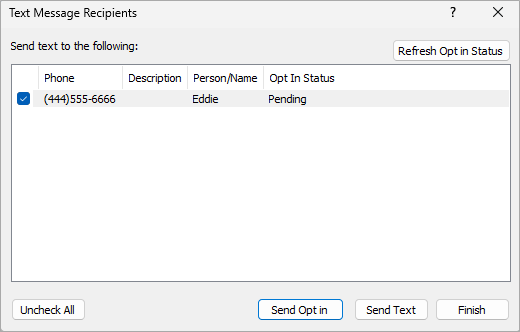
The Text Message Recipients dialog opens to display all cell phone numbers associated with the client, as well as their opt-in status.- Select one or more phone numbers by checking the box next to the number, and then click Send Opt In. The opt-in status for each phone number will change to Pending.
If your agency does not require automatic opt-in, you will see the option to skip sending this message.
- Click Finish on the Text Message Recipients dialog.
- Click Finish on the Action menu.
HawkSoft creates a log note to document the opt-in request.
- Retrieve the client, and then select the Client tab.
- Click
Client Texts from the HawkSoft toolbar.
Click Send Opt-In Text.
If your agency does not require automatic opt in, you will see the option to skip sending this message.
Once the opt-in request is sent, it remains Pending until the client accepts.
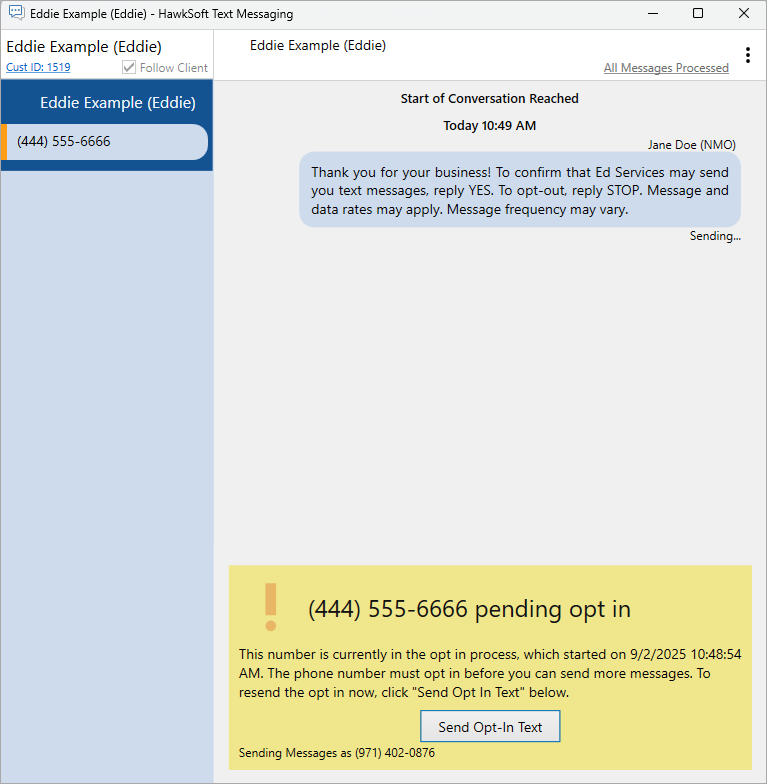
Clients can opt out of text messaging anytime by texting "Stop." To learn more about opting out a client's phone number, see To manually Opt-Out a phone number.
To verify client Opt-In Status
You can verify the client's opt-in status from a few places in HawkSoft:
-
While on the client, click
Client Texts to open the HawkSoft Text Messaging dialog, then click the icon to view the client's Opt-In Status at any time.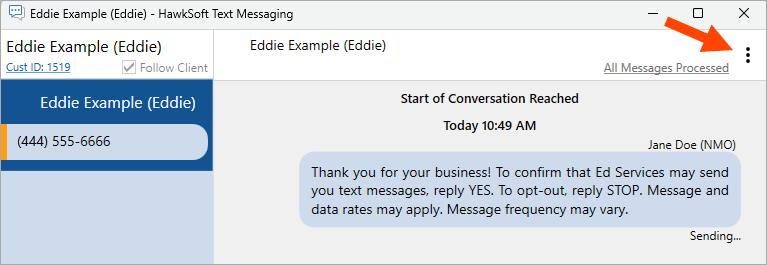
-
View the status from the Text Message Recipients dialog when using the Action menu to initiate a text.
-
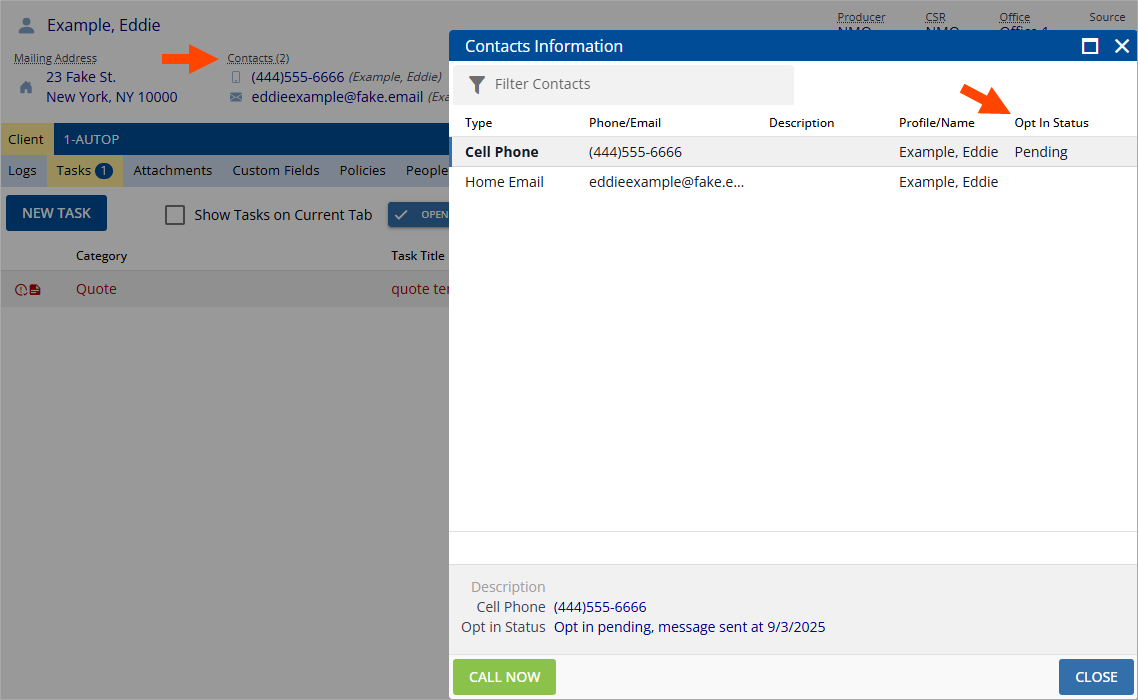
Click on the Contacts link on the client to open the Contacts Information dialog.
To manually Opt-Out a phone number
Clients can opt out of text messages at any time by replying "Stop" to your agency’s texting number. If a client asks to stop receiving texts, you can manually opt-out their phone number using these steps.
Regardless of your opt-in requirement, once a client has opted-out, you will no longer be able to communicate with them via text messages.
To resume text communication, you must resend the opt-in message and the client must reply "Yes" to opt back in. See To send an opt-in request to learn more.
- Retrieve the client, and then select the Client tab.
- Click Action, and then select one item in each of the first three lists to describe what prompted this transaction.
- Select Change Client.
- Select a phone number within the Contact Info box, and then click Edit.
-
Click Opt Out Phone Number.
A confirmation message appears.
-
Click Opt-Out.
-
Click OK to save.
-
Click Finish on the Edit Client dialog.
-
Click Finish on the Action menu.
HawkSoft creates a log note to document the opt-in request.
-
Add comments as needed and then clickSave Log.
If you wish to send a text message to the client in the future, you will have to resend the opt in text.
To resend Opt-In Texts
Occasionally you might need to resend the opt-in message to a client. Some agencies might want to renew opt-in statuses yearly, or a client might acquire a different phone number.
- Retrieve the client, and then select the Client tab.
- Click on Client Texts from the HawkSoft toolbar.
-
Click on the
icon in the right-hand corner of the Texting window, then select Opt-In Status.A message appears confirming the number has already been opted in.
-
Click Send Opt-In Text.
If the Require opt in before sending a message to any client setting is enabled for your agency, HawkSoft will not allow you to send any outgoing text messages to a phone number until the client has replied "yes" to opt-in the phone number for text messages.
Related Topics