Policy Information
The Policy Information screen contains important policy information such as the carrier, agent, policy dates, the application type (Personal, Commercial, Agriculture, etc), and the lines of business.
This article describes the fields on the Policy Information screen. These fields are automatically updated by a carrier download, or information can be manually entered.
You can set many fields in the Policy Information screens as required to enhance efficiency and consistency across your agency. See Configuring Required Fields for more information.
 Required Permissions
In order to complete this task, user permissions must be set to include:
Client Access: You must have permission to the Customer Type you are inserting
Client Actions > Edit Client
Client Actions > Action Menu
Editing some fields on an existing client requires specific sub-permissions under Client Actions > Edit Client, such as Change Agent Code or Change Client Producer/CSR.
See User Permissions for more information.
How do I get here?
You can access this screen when:
Policy Information
Application Type - The Application type selected from the Action menu.
You can select a different option from the Application Type drop-down menu if needed.
HawkSoft enables you to create a diverse set of policies, categoried by application type.
Lines of business are by application type as part of carrier setup.
Select the application type in the Action Menu: Example Lines of Business: Personal Personal Auto, Home/Dwelling, Boat, and Personal Umbrella. Commercial Commercial Auto, Commercial General Liability, Commercial Property, Commercial Package, and Workers' Compensation.
Agriculture Agriculture Liability, and Agriculture Property. Life Life Health Individual Medical, Dental, Vision, etc. Bond Bond Employee Benefits Group Dental, Group Life, Group Medical. Other Any other type of policy/product you may track in HawkSoft, where an ACORD line of business does not apply You will be able to add line(s) of business on the Policy Information screen, after selecting the application type.
State – The state the policy is written in.
The State defaults from the Insured's address entered on the Name and Address screen.
For more information on configuring States for each carrier, see Carrier Setup Overview.
Carrier/MGA – The insuring Carrier or the Managing General Agency for the policy.
Optional: You can select <Prospect> when inserting a prospective policy, and then update the Carrier later.
The Carrier drop-down list options are dependent on information entered in Carrier Setup.
Writing Carrier/NAIC – The writing carrier and NAIC An NAIC number is a number that the National Association of Insurance Commissioner's (NAIC) assigns to each individual underwriting company. code.
Expand the drop-down to see all writing carriers and NAIC codes listed for the selected carrier.
This information is typically provided with a downloaded policy.
The available drop-down options are set up in Carrier Setup.
Program – The Policy Program or Underwriting Tier.
The Program drop-down list options are dependent on information entered on the Carrier Info screen in Carrier Setup.
Agent 1, 2, and 3 – Policy level agent fields. These fields are typically used for tracking the writing agent or commissioned agent.
Source – Indicates the source of the policy, such as a referral, yellow pages, website, or existing client.
When the policy Status is changed to Rewrite, the Source is automatically changed to Rewrite as well.
The Source drop-down list options can be modified. Click <Source Database> to modify the list.
See for more information on modifying the Source drop-down list in Settings.
Policy # – Policy number of the selected policy. This number is assigned by the carrier.
For downloads to match a policy, the policy number in HawkSoft must exactly match the Carrier's download.
Account # – An agency created account number or other ID.
Office – The office that wrote or is assigned to this policy.
Available only when an agency has multiple offices. See Multi-Office Setup for more information.
Agent Code – The Agent Code assigned to the agency by the carrier.
The Agent Code drop-down list options are dependent on information entered on the Policy Info tab in Carrier Setup.
Policy was rewritten from a prior policy - Check this box to designate this policy as a rewrite.
When this box is checked, the Source is automatically set to Rewrite. This prevents the policy from appearing as new business on reports.
HawkSoft recommends selecting Duplicate/Remarket from the Action menu to rewrite a policy. See Rewriting/Remarketing a Policy — Quick Steps for the recommended workflow.
If your agency has any customized Source that begins with "Rewrite" or "Re-write", you may change the Source to one of these options.
Policy Date and Billing
Many of the fields in this section are dependent on the current Status of the policy.
See About Policy Statuses: The life of a Policy and About Policy Dates for more information about the life of a policy.
Term – Term of the policy, expressed in days, months or years.
Effective Date – This is the date the policy goes into effect and coincides with the current term of the policy.
Proposed Effective Date – If the Status is set to any of the Sales Pipeline statuses, the Proposed Effective Date field is available. This is the date the policy is expected to go into "effect". This date might change when the policy actually goes into effect. This becomes the Effective Date when the policy is issued.
Expiration Date – This is the date the policy will expire. This date is dependent on the Effective Date and the length of time in the Term field. Expiration Date is not available with any of the Sales Pipeline statuses.
Status – Displays the current status and sub-status of the policy.
See About Policy Statuses: The life of a Policy for instructions on changing a policy status, and a description of each of the statuses and sub-statuses.
This field impacts the Sales Pipeline reports.
Status Date – Reflects the effective date of the Status.
Example: If the policy was renewed on 8/1/2022, the Status Date is also 8/1/2022.
SeeAbout Policy Dates for a description of each of the policy date fields.
Inception Date – The date the policy is initially written.
The first effective date of the policy. This field is available once the Status of the policy is set to New. This date should never change.
For example, the date a policy initially goes into effect is the Inception Date.
If a policy was originally written on 1/30/2009, but has a current term of 1/30/2026 - 1/30/2027, the Policy information screen displays the following:
Inception Date: 1/30/2009
Effective Date: 1/30/2026
Expiration Date: 1/30/2027
Upon renewal, the Effective Date will be updated but the original Inception Date will always remain.
Reporting
This date is important for accurately reporting how many policies were initially added within a specific date range. You might want to run the Policies Added report to verify that each of the Sold policies are in effect, or if any Sold policies need further attention.
Sold Date – This field defaults to the day the Status was set to New .
The Sold Date is the date that the policy is considered “sold” and is typically the date that applications are signed and/or down payment is received. It can also reflect the date an Agent of Record change was signed. This date should never change and is important for accurately reporting how many policies were sold within a specific date range.
This date should not be changed with future status changes and is not the same as the effective date. Changing this date will affect reporting accuracy.
Reporting
This date is important for accurately reporting how many policies were sold within a specific date range.
Billing Type – Reflects how the policy is being billed. Select from the following options:
Direct Bill – Insured is billed directly by the carrier.
Direct Bill EFT – Insured is billed directly by the carrier and has a scheduled EFT (auto pay).
Agency Bill – Insured is billed by the agency.
Premium Finance – Insured is billed by the premium finance company.
Mortgagee Bill – The policy is billed and paid by the mortgagee/lienholder on the policy.
Escrow Bill – The policy is billed and paid from an escrow account.
Self-Reporting Payroll – Billing is dependent on self reporting payroll.
Payment Plan - Select the Payment Plan for the policy.
Quoted Premium – Enter the quoted premium. This does not reflect the premium issued by the carrier.
Quoted premium is a manually entered field in HawkSoft that is also reportable.
Annualize Premium – Check this box to display the policy's annualized premium on the Policy Information View tab.
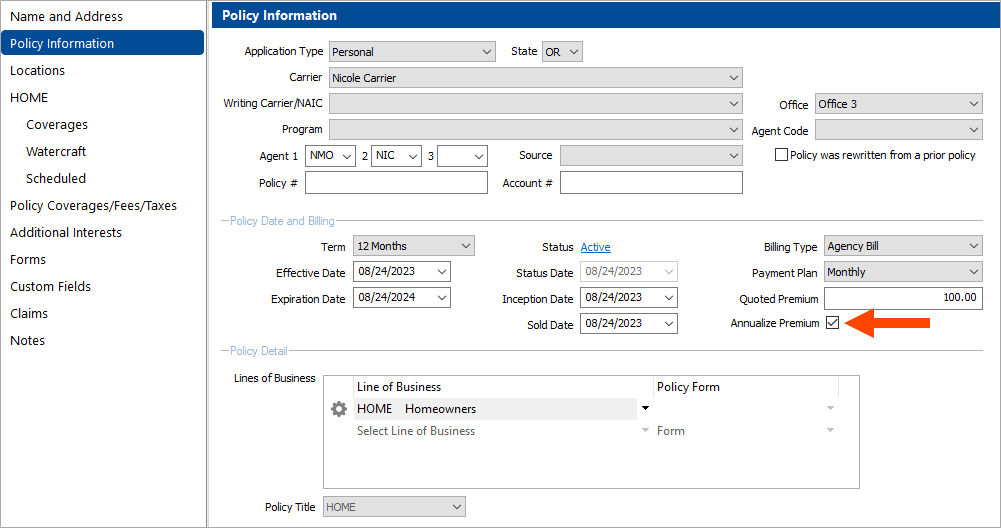
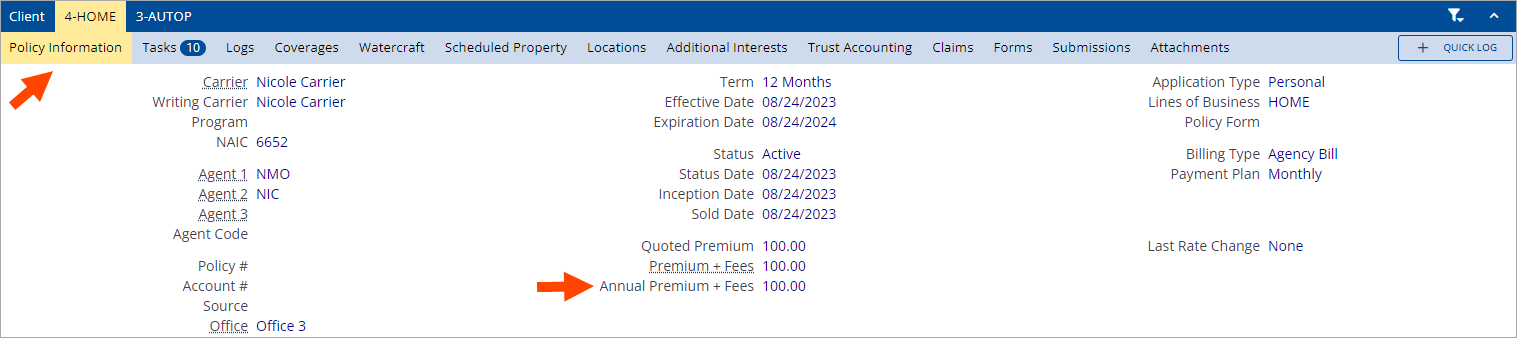
The annualized premium is the policy's equivalent premium over a 12-month period. For example, if the policy has a $100 premium and a 6-month term, the policy's annualized premium is $200.
If Annualize Premium is not checked on a policy, then Annual Premium + Fees will not display when viewing the policy.
HawkSoft uses the policy's Premium + Fees and Term to calculate the annual premium on reports.
If Annualize Premium is not checked on a policy, then the term premium will be shown in the annual Premium columns on reports.
Negative amounts can be entered in most numeric value fields, but it is important to note that you will not see the minus symbol when typing. Type the minus symbol, then the amount, then click into another field and the minus symbol will be displayed.
Fields with decimals can also perform calculations, including negative numbers. For example, typing "100 - 150" into a Premium field results in -50.00 after clicking out of the field.
Policy Detail
Lines of Business – The type of "product". For example, Personal Auto, Business Auto, Commercial General Liability, etc.
Multiple Lines of Business (LOB) can be added to a package.
Depending on the lines of business selected, additional tabs are added in the left panel of the Edit Client/Policy screen.
The Lines of Business drop-down list options are determined on the Lines of Business tab in Carrier Setup.
If you need to use a line of business that hasn't been configured on the selected carrier and application type, you can select the option <View Complete List>from the top of the drop-down list. This will change the drop-down list to include all available LOBs in HawkSoft, until you close and reopen the Policy Information tab.
Policy Form – The policy form further defines the Line of Business. The available options on the drop-down list are configured for each LOB in Carrier Setup.
Example:
Home LOB – The policy form might be HO-3, HO-4, HO-6 to designate that the policy is a Homeowners, Condo, or Renter's policy.
Auto policies – The Form field can be used to indicate if the policy is Standard or Non-Standard, or if the carrier has different coverage packages such as Silver, Gold, or Platinum.
Commercial General Liability (CGL) LOB – The policy form designates whether the policy is a Claims Made or Occurrence form, or an Owner's & Contractor's Protective.
Policy Title – The title of the policy displayed on the Policy tab in the client file.
The drop-down displays the available titles set up for the Application type for the selected carrier in Carrier Setup. If this field is left blank, HawkSoft creates a default title based on the Line of Business selected.
Custom Policy Titles can be created for a carrier from the Lines of Business tab within a carrier's profile in Carrier Setup. See the Custom Policy Titles section within the Carrier Coverages and Lines of Business article for full steps.
Click on the available side-tabs to complete the Client/Policy screens, as needed, and then click Finish to save and exit. See Change Policy Information or Change Client Information for additional information.
Viewing policy information
The following items are seen on the policy information tab in the client view, but not when inserting or editing a policy.
See Tour of the Client and Policy View for more information about viewing clients and policies without opening the file using the Action menu.
Location - The address that is associated with the policy. The location displays in the lower right of the Policy Information screen. Click on the location address to copy it to your clipboard.
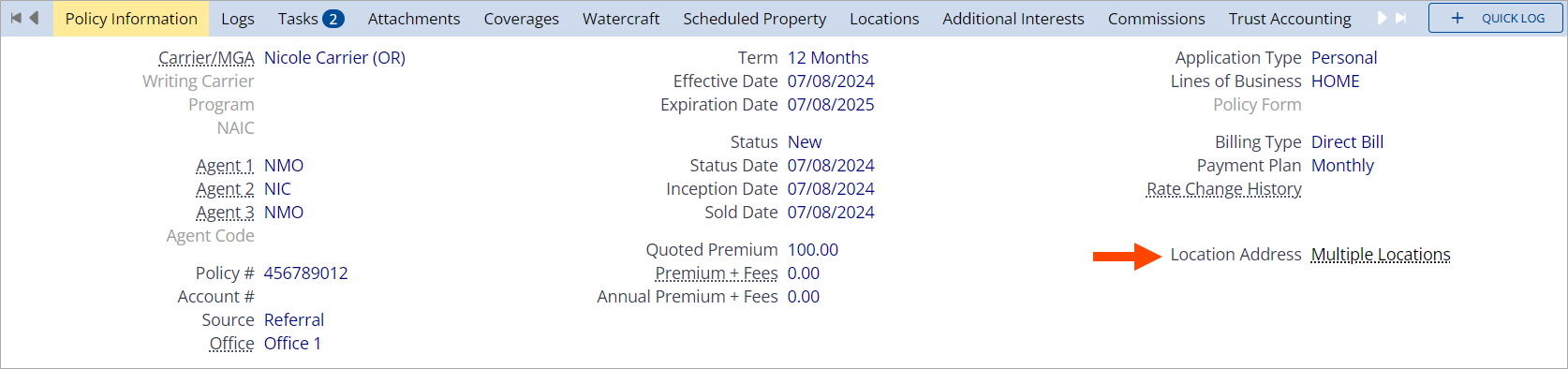
If multiple locations are associated with the policy, click on the Multiple Locations link to launch a list of all of the locations associated with the policy from the Locations tab.
See Locations, Homes, and Buildings to learn more.
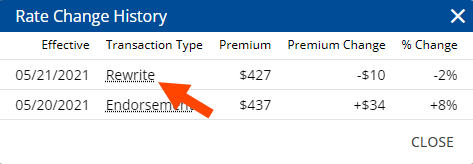
Rate Change History - The rate change history link is located at the lower right of the Policy Information, and launches the Rate Change History table in a popup window.
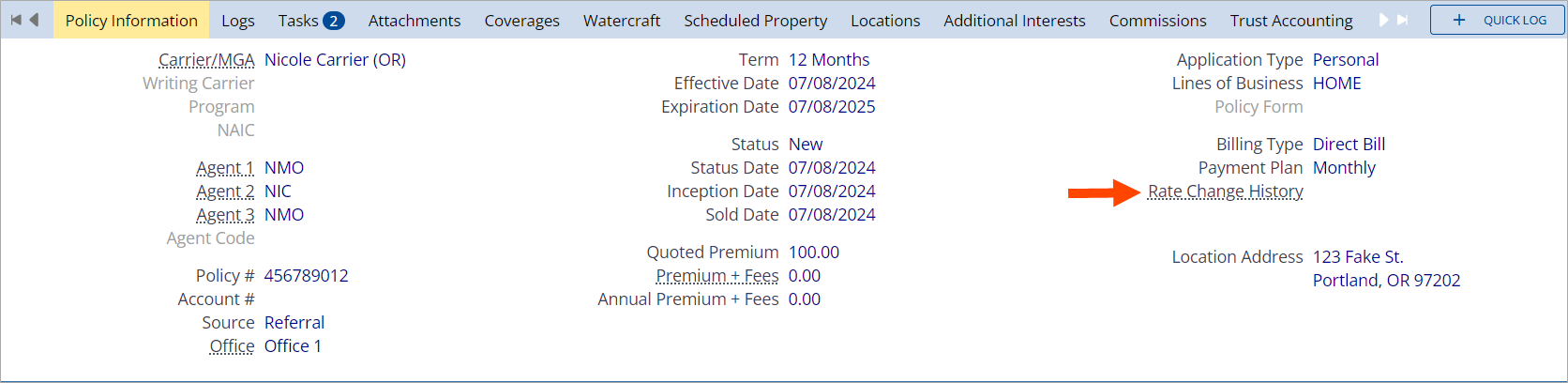
The Rate Change History table lists the download transactions on this policy including their purpose, their effective date, and any change in premium.
You can click the transaction type link on any of the lines in the Rate Change History table to open the associated carrier download file for further details. This makes it easier to find and view previous downloads on a given policy, rather than locating them in the Attachments tab.
See Downloads Viewer for more information about reviewing carrier download files.
The Current Policy Download link displays the last download that was used to update the policy, and not the most recently received download. For example, if the last download received has a future Transaction Effective Date, then it will not display as the most recent download when you click Current Policy Download. See Carrier Downloads Overview for more information.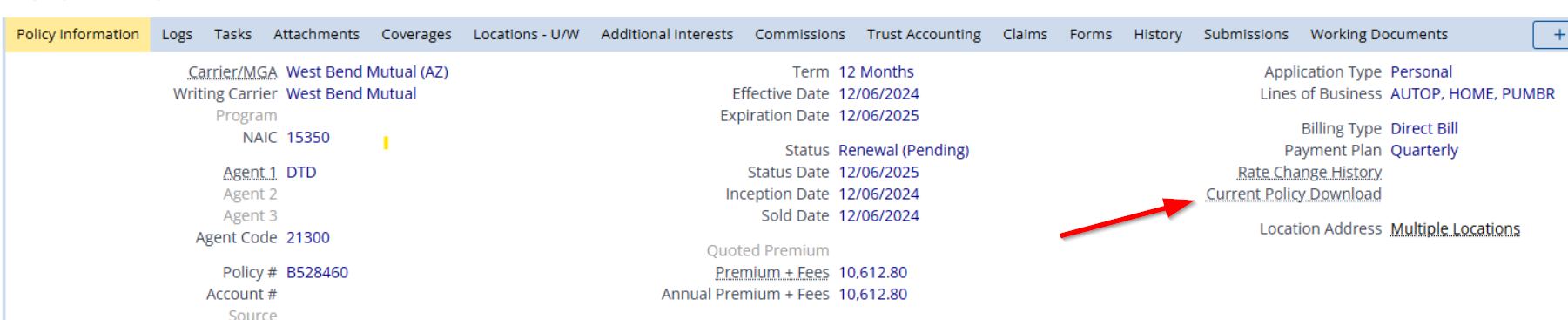
Click on the available side-tabs to complete the Client/Policy screens, as needed, and then click Finish to save and exit. See Change Policy Information or Change Client Information for additional information.
Related Topics