HawkSoft keeps your team updated on incoming text messages through real-time notifications and text counts.
This article explains how text message notifications work.
As an alternative to using the built in HawkSoft Text Messaging feature, your agency can subscribe to an email-to-text messaging service provider and send text messages directly from a client file. This feature enables you to use your existing mobile number.
See Text Messaging (Email-to-SMS) Overview for more information.
 Notifications
Text message notifications are triggered for:
- Clients for which you are listed as a policy CSR or producer
- Clients you choose to follow
- Any unmatched text messages
Notifications appear as pop-ups on the bottom of your Window's screen and remain for a few seconds before disappearing. You must have notifications enabled from the General Preferences tab in your User Preferences for these to appear.
The notification's sound is determined by your Windows setting.
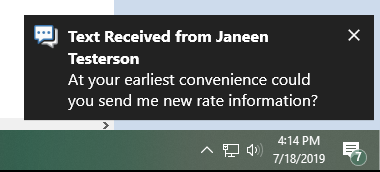
You can click on a notification to launch the text in one of the following windows:
- My Texts window with the most recent text message at the top of the queue
- Client Texts window if you are currently viewing that client
- Unmatched Texts window if the notification is for an unmatched number
Total number of unprocessed text messages
The My Texts icon  displays the number of unprocessed text conversations on clients which have you listed as a CSR or Producer, or for clients you choose to follow at the top of the HawkSoft menu bar and next to the My Texts link on the left HawkSoft side-bar. Text counts are updated every 60 seconds.
The text count will remain until you've marked text messages as processed. See our guide on Processing Text Messages for more information.
If you are a Texting Administrator, you will also see text counts accumulate next to the All Unprocessed Texts link on the left side-bar of HawkSoft.
When you are actively texting with a client, you will likely keep the client texts window open. When this occurs, HawkSoft considers you to be "watching" the conversation and will mute notifications for other users following the client.
This prevents fellow users from receiving a rapid secession of notifications as the client replies to you, and prevents other users from replying to the client at the same time.
Be sure to close the client texting view when you are ready for other users to receive notifications of the client's replies.
To follow a client's text messages
If you want to stay updated on texts from clients for which you are not listed as a CSR or Producer, you can "follow" the client and receive text notifications.
You must have User Permissions to the client to follow the text messages.
- Open a client.
- Click Client Texts from the toolbar.
- Check the Follow Client box in the top left of the text message window.
Future text messages from that client will appear in your My Texts view, and also appear as pop-up notifications.
Multiple HawkSoft users can follow the same client. The client's texts will appear in each individual’s My Texts view.
If you are listed as a producer or CSR on a client’s policy, you cannot unfollow the client text messages.
To mute notifications
You can temporarily mute pop-up notifications using the drop-down next to your user name.
- Click on your user name at the top-right of the HawkSoft window.
- Select Mute Notifications and your desired mute period.
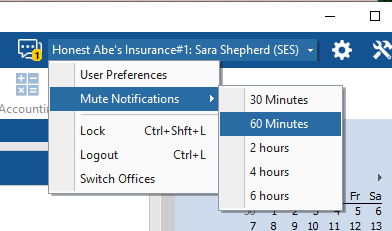
A muted icon  appears at the top of the HawkSoft window until the muted time selected is over, or until you click the icon to end the mute early.
Texting counts will still update as normal while notifications are muted.
To watch a conversation
When you are actively texting with a client, you will likely keep the client texting window open. When this occurs, HawkSoft considers you to be "watching" the conversation and will mute notifications for other users following the client. This prevents fellow users from receiving a rapid secession of notifications as the client replies to you, and prevents other users from replying to the client at the same time.
However, if another user opens the Client Texting view for that client, they will receive notifications.
Be sure to close the Client Texting view when you are ready for other users to receive notifications of the client's replies.
Required permissions
In order to complete this task, user permissions must be set to include:
Client Access > User must have access to the Client and Customer Types
See User Permissions for more information.
Related Topics