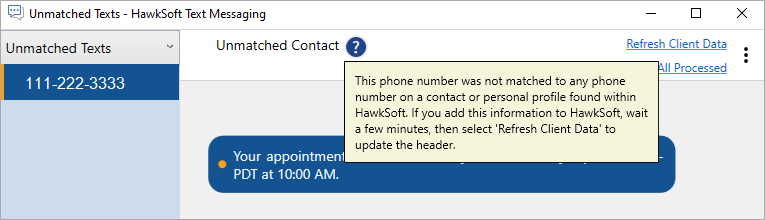
When your agency receives a text message from a number that does not match a cell number on a client, the text is sent to Unmatched Texts.
HawkSoft recommends reviewing unmatched texts daily to determine the identity of the texter so that their phone number can be added to the appropriate client.
This topic explains how to match texts from an unknown telephone number to a client when using the HawkSoft Text Messaging feature.
For E&O security, text messages received in HawkSoft cannot be deleted. HawkSoft recommends creating a dummy client with no policies and an easy to remember name, such as "Spam Texts", to assign unwanted text conversations to. This helps keep the Unmatched Texts list uncluttered.
As an alternative to using the built in HawkSoft Text Messaging feature, your agency can subscribe to an email-to-text messaging service provider and send text messages directly from a client. This feature enables you to use your existing mobile number.
Unmatched texts is available only for HawkSoft Text Messaging and is not available through an email-to-text messaging service provider.
See Text Messaging (Email-to-SMS) Overview for more information.
 Required permissions
In order to complete this task, user permissions must be set to include:
Client Access: You must have permission to the Client type and Customer type you want to update when processing unmatched texts.
See User Permissions for more information.
All of your HawkSoft users can view unmatched texts. To match texts requires access to the client you want to match that phone number to.
Matching texts to a client
-
Click Unmatched Texts from the left-side panel in HawkSoft.
OR
In the HawkSoft Text Messaging window, click the top-left drop-down, and select Unmatched Texts.
The Unmatched Texts view opens.
- Establish the identity of the person sending the text. Since you are not able to reply to the number with a text message (unless they have opted in), the quickest method is likely to call the number.
-
Open the corresponding client. For more information, see Client Search
If you have verified that the individual does not yet have a client, create one and add the number to the new client.
- Click Action, and then select one item in each of the first three lists to describe what prompted this transaction.
-
Select Change Client, and then add the mobile number to the client's Contact Info.
-
After you have finished adding the phone number to the client, return to the Unmatched Text message in the HawkSoft Text Messaging window and then click Refresh Client Data.
The conversation will show the matched client info instead of "unmatched Contact" but will stay in Unmatched Texts until you exit the unmatched texts view. All text messages from this phone number are now associated with the client and appear in that client's Client Text view.
-
Continue processing unmatched texts, or process texts from the Client Texts view. When you are finished, close the HawkSoft Text Messaging window.
If you send a text message immediately after adding or updating a client, the text message might temporarily appear in the Unmatched view. Refresh HawkSoft to update the information and then view the Unmatched Texts again to ensure the phone number is matched to the client.
Related Topics