A text message is considered processed once appropriate action is taken on the client/policy and the conversation has been added to a log note.
This guide covers the recommended workflows for processing text messages using the built-in HawkSoft Text Messaging tool, saving text messages to a log note or a PDF, and deleting text message conversations if needed.
As an alternative to using the built in HawkSoft Text Messaging feature, your agency can subscribe to an email-to-text messaging service provider and send text messages directly from a client. This feature enables you to use your existing mobile number.
See Text Messaging (Email-to-SMS) Overview for more information.
You can process text messages from any texting view: Client Texts, My Texts, Unmatched Texts, All Unprocessed Texts. See Viewing & Sending Text Messages for more information.
We do not recommend processing unmatched text messages until they have been associated with a client. See Unmatched Texts for more information.
HawkSoft keeps a record of each client's full texting history, including processed and unprocessed text messages, within the Client Text window.
Save your text message history (Recommended)
HawkSoft keeps a record of each client's full texting history within the HawkSoft Text Messaging window.
In addition, HawkSoft recommends that you copy and paste text messages into a log note and/or attach a PDF of the conversation to a log note for the following reasons:
- To record an action or policy change that resulted from the text message
- To provide context for the conversation and maintain E&O accountability
- Log notes containing text messages can be exported if needed. Should an agency leave HawkSoft (the full text log found within the Client Texts window is not available for export, but log notes can be exported.)
After saving the log note or PDF, you can mark the corresponding texts as processed.
 To copy a text message string to a log note
You also have the option to generate a PDF file from the copied text messages to create a record of the conversation. For more information, see To save text messages to PDF.
Copy text messages to your clipboard
- Open a text messaging view, click to the left of the first text in the conversation, and then select the check box that appears.
- Select the check box next to the last text in the conversation.
-
Click Copy Text to Clipboard.
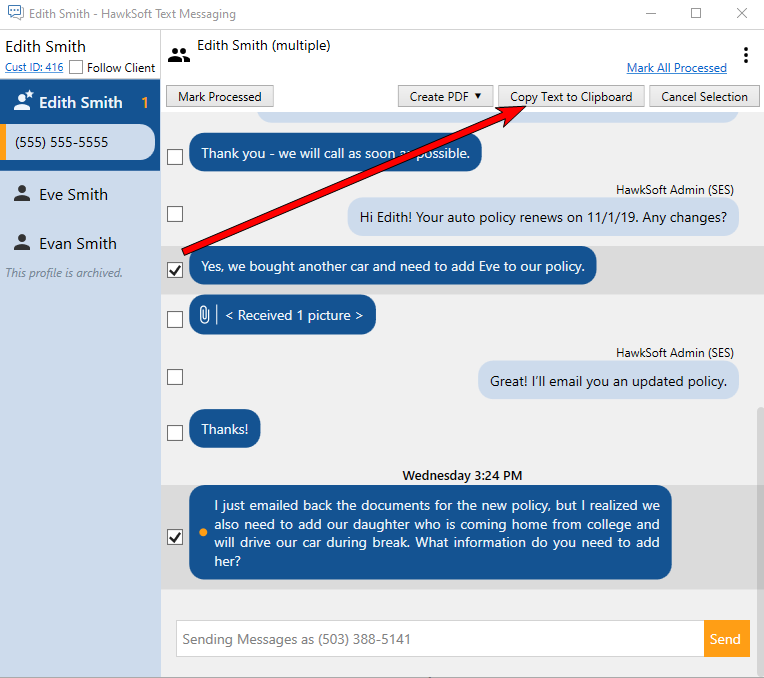

For E&O purposes, HawkSoft will not allow you to skip messages between the beginning and end of your selection.
- To copy a conversation, select the first and last message, and then click Copy Text to Clipboard.
- To copy only one text, rather than a conversation, simply select one check box.
-
Click OK.
The text messages are copied to your clipboard.
-
Once you are done copying all the necessary text messages, Marking text messages as processed.
Paste text messages to a log note
Once you have copied the text messages to your clipboard, return to the client.
- Click Action, and then select one item in each of the first three lists to describe what prompted this transaction.
-
Select Log.
The Add Log Entry Comments dialog opens with the date and time, username, and the Action menu thread that created the log.
- Right-click in the Add Log Entry Comments dialog, and then select Paste.
-
The selected text messages appear in the log note, as well as which agent was texting, text numbers used, and the time and date of the text messages.
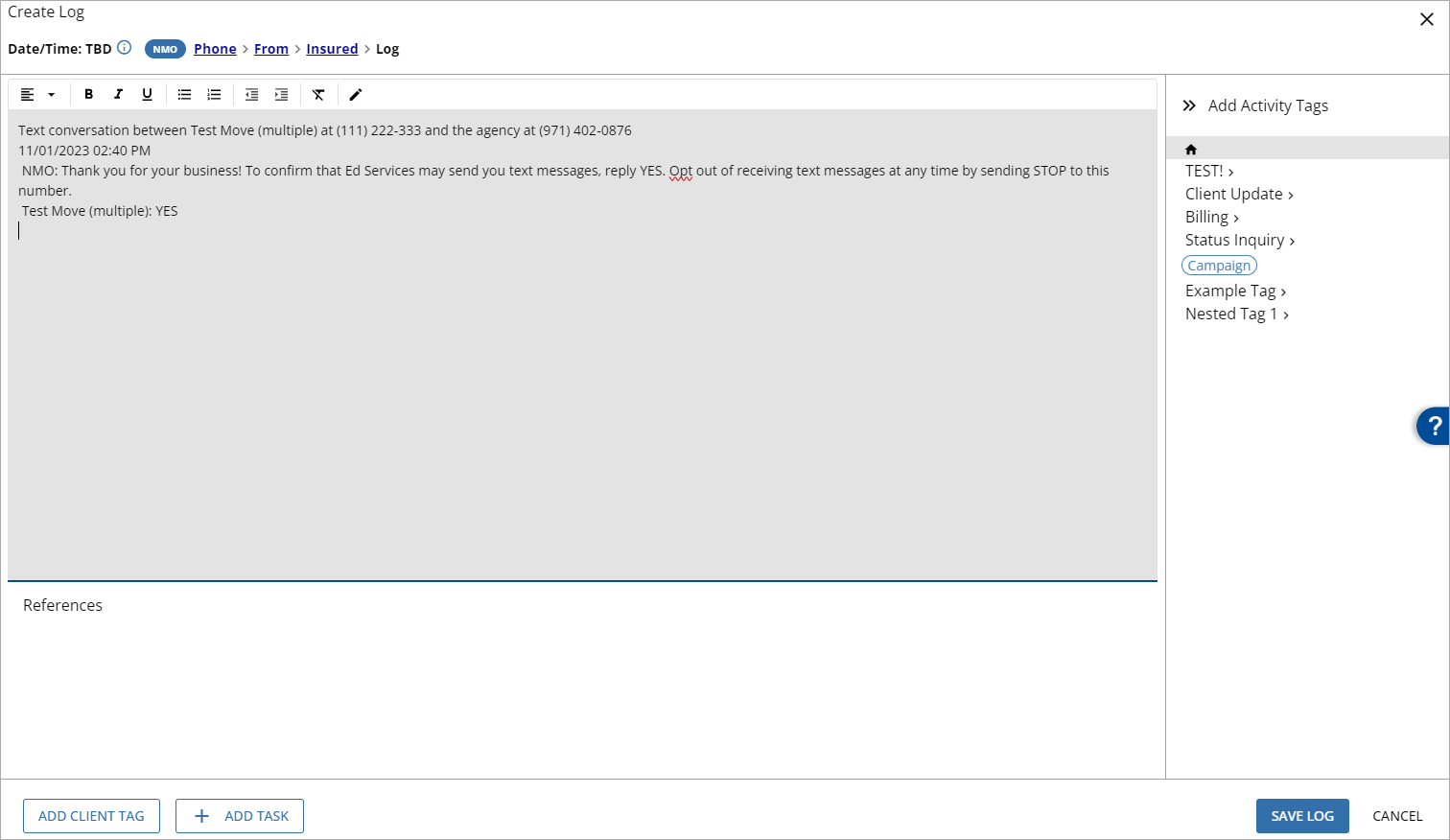
- Add comments as needed, and then click Save Log to save the log note.
To append a log note with additional messages
Once you have finished exchanging text messages with the client for one conversation, you can copy and paste the remaining text messages into an appended log note.
- Hover your mouse to the left of the first text in the conversation, and then select the box that appears.
- Select the box next to the last text in the conversation.
-
Click Copy Text to Clipboard at the top of the Texting window.
A message appears confirming that all texts between your two selections will be copied.
-
Click OK.
For E&O purposes, HawkSoft will not allow you to skip messages between the beginning and end of your selection.
- To copy a conversation, select the first and last message, and then click Copy Text to Clipboard.
- To copy only one text, rather than a conversation, simply select one check box.
- Return to the client and click on the original log note, and then select Append To Log.
-
Press Ctrl-V on your keyboard to paste the text conversation into the log note or right-click and select Paste.
-
Click Append Log to save the text message conversation to the log note.
To save text messages to PDF
HawkSoft can generate a PDF file from selected text messages to create a record of the conversation. This PDF file can be copied to your clipboard or attached to a log note using the HawkSoft Virtual printer.
The PDF method can be done in addition to or instead of copying and pasting the text into a log note.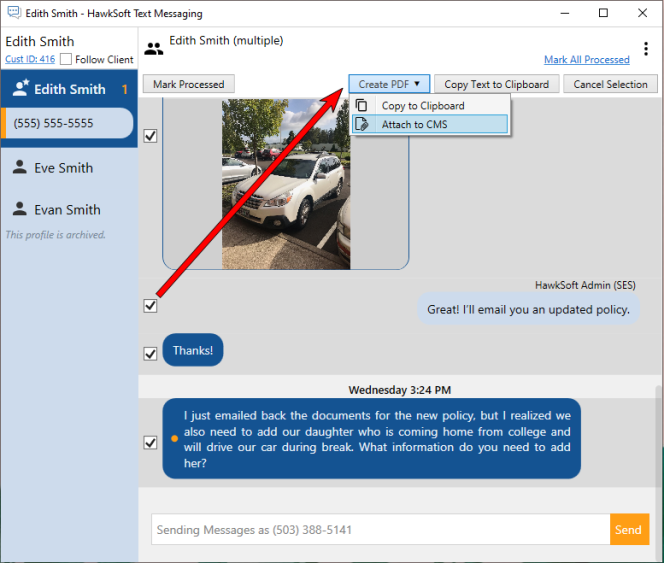
- Open a texting view, click to the left of the first text in the conversation, and then select the check box that appears.
- Select the check box next to the last text in the conversation.
For E&O purposes, HawkSoft will not allow you to skip messages between the beginning and end of your selection.
- To copy a conversation, select the first and last message, and then click Create PDF.
- To create a PDF of only one text, rather than a conversation, simply select one check box.
-
Click Create PDF and select one of the two options from the drop-down menu:
Copy to Clipboard - Creates a temporary PDF file which is saved on your computer's clipboard. You can paste this file to your computer or into another program.
Attach to CMS - Launches the HawkSoft Virtual Printer, enabling you to add additional information about the PDF file. The PDF will be attached to the client.
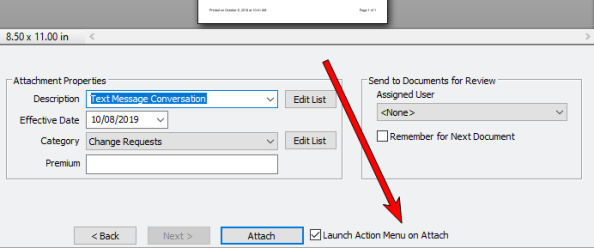
If you select the "Use Action Menu" check box from the HawkSoft Virtual Printer, a log note will be created. As the content of the selected text messages is also copied to your clipboard, you can paste the text messages into the log note if you wish.
-
Click OK to automatically select and include all messages between the two selections.
-
Optional: Follow the on-screen prompts for the HawkSoft Virtual Printer to attach the PDF, or paste the file into your computer or another program.
-
Once you are done copying all the necessary text messages, Marking text messages as processed.
Saving attachments from a text
Incoming text messages that contain attachments are designated with a paperclip icon. Hover your mouse near the message and click the  down arrow to preview the attachment, view details about the message, and access available options for saving and processing the file.
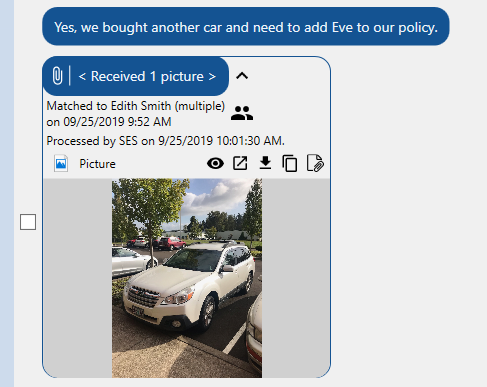
Expand the message via the down arrow icon and select one of the following options:
- Drag and drop the attachment directly into the client to add it as an attachment in HawkSoft
- Click the
 icon to mask or unmask the attachment
 - Click the
 icon to view the attachment in an external window
 - Click the
 icon to download the attachment to your computer
 - Click the
 icon to copy the attachment to your clipboard
 -
Click the
 icon to attach the document to the client within HawkSoft
Selecting to attach the document to the client launches the HawkSoft Virtual Printer, enabling you to attach the image to the client or a specific policy with additional information.
Once you've finished with the attachment, Marking text messages as processed.
Marking text messages as processed
Once you have taken any needed action on the client/policy and a log note or PDF from the conversation has been saved to the client, return to the Texting window to mark the text messages as processed.
Unprocessed text messaged will automatically be marked as processed after 30 days.
- Open a texting view.
-
Select the check boxes on the left-hand side of the messages you want to process, and then click Mark Processed at the top of the HawkSoft Text Messaging dialog.
OR If all unprocessed texts are already recorded into a log note, you can click Mark All Processed.
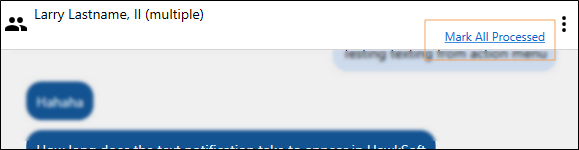
Once processed, text messages are removed from the My Texts and All Unprocessed Texts views and text message counts. The text messages will always remain in the Client Texts window.
To delete a text message conversation
You can delete a text message conversations of all incoming and outgoing messages between a specific phone number and your agency. For example, you may want to delete spam text messages from your agency. If the phone number exists on multiple clients, then the deleted text messages will also be removed from all clients it is associated with.
This task is typically performed by an Owner/Administrator or Manager.
Required Permissions
In order to complete this task, user permissions must be set to include:
Agency Setup > Texting Administration
SeeUser Permissions for more information.
|
HawkSoft recommends that you mark all text messages as processed and save your text message historyTo copy a text message string to a log note and/or To save text messages to PDF prior to deleting any text message conversations for the following reasons:
|
-
Open the text message conversation you would like to delete and then click the
 icon in the upper-right corner.
 -
Click Delete Conversation.
A warning dialog opens stating that deleting the text message conversation will permanently remove all incoming and outgoing messages between the external phone number and your agency. If the external phone number exists on multiple clients, then the deleted text messages will also be removed from all clients it is associated with.
-
Check the box to confirm.
-
Click Yes.
Required Permissions
In order to complete this task, user permissions must be set to include:
Client Access > Access to Client Types (You must have permission to the Client Type you want to access.)
Client Actions > Action Menu
SeeUser Permissions for more information.
Related Topics